PDF に PowerPoint - スライドコンバーター Make
PDF に PowerPoint は Make モジュール PDF4me それは PDF ドキュメントを編集可能な形式に変換 PPTX テキスト、画像、レイアウトをネイティブのまま保持したプレゼンテーション PowerPoint スライドオブジェクト。クライアントを作成するために使用します。 PDFs 編集可能なテンプレート、再構築可能なテンプレート、または手動で再構築することなくプレゼンテーションアーカイブを一括変換できます。
このモジュールの機能
PDF4me PDF に PowerPoint 変換する PDF 編集可能な PPTX プレゼンテーションの中に Make シナリオでは、テキスト、画像、レイアウトをネイティブとして再構築します。 PowerPoint フラット化された画像ではなくオブジェクト。品質タイプは変換の忠実度を制御し、モジュールはイテレータベースのバッチシナリオに直接適合し、フォルダ全体を変換します。 PDFs すぐに。
関連ブログ記事(1)
認証方法 Make シナリオ?
毎 PDF4me モジュール Make 有効な 繋がり. 作成または選択して、 PDF4me API シナリオが認証できるようにするためのキー PDF-に-PowerPoint 変換リクエストを安全に処理します。
見逃してはならない重要な事実
品質タイプは必須であり、コストに影響します
標準またはエキスパートを選択してください。エキスパートがデフォルトです。 API 通話料金は品質レベルによって異なります。 PDF4me 大量バッチ処理を実行する前に、最新の信用ガイドラインに関するドキュメントを参照してください。
デジタルで作成されたものに最適 PDFs
PDFs 選択可能なテキストを編集可能なスライドテキストに変換します。スキャン画像または画像のみ PDFs 各ページを編集可能なコンテンツではなく画像として変換する。
非同期処理は長時間実行されるバッチジョブに適していますか?
大規模または複数ページの場合は、「非同期」を「はい」に設定します。 PDFs そのため、変換完了を待つ間にシナリオがタイムアウトすることはありません。
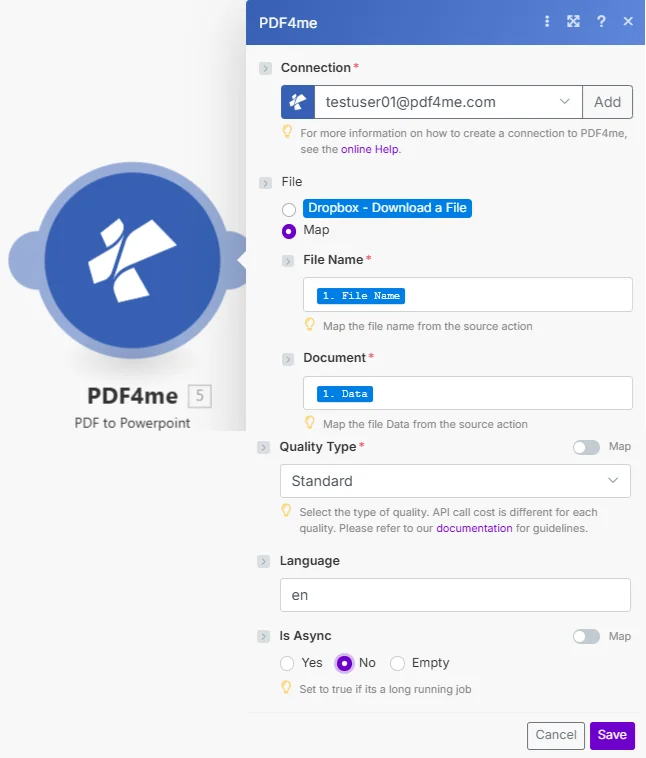
「ファイルをマップに設定」を選択し、「ファイル名」と「ドキュメント」を接続してから、「品質タイプ」を選択します。「言語」と「非同期かどうか」はオプションの調整項目です。
パラメータ
必須: 接続、ファイル名、ドキュメント、および品質タイプはすべて指定する必要があります。言語と非同期かどうかはオプションです。
| パラメータ | 必須 | その機能 | 例 |
|---|---|---|---|
| Connection | Required | PDF4me API connection. Click Add and paste your API key if connecting for the first time. | [email protected] |
| File | Required | How the source PDF reaches the module. The radio lists your connected storage actions (for example Dropbox - Download a File) and Map. Choose Map to wire the fields below from earlier modules: File Name and Document only appear once Map is selected. | Map |
| File Name | Required | Filename of the source PDF including extension, used for output PPTX naming. | presentation.pdf |
| Document | Required | PDF file buffer mapped from a preceding module such as Dropbox Download a File. | [Buffer from Get File] |
| Quality Type | Required | Standard or Expert conversion fidelity. Defaults to Expert. API call cost differs by quality level. | Expert |
| Language | Optional | Language hint for the source document text, improves text recognition accuracy. | en |
| Is Async | Optional | Set to Yes for long-running conversions on large or many-page PDFs. | No |
出力フィールド
PDF4me リクエストをバックグラウンドジョブとして処理し、 Make 次のモジュールを実行する前に、結果を待ちます。
| 分野 | タイプ | 内容物 |
|---|---|---|
Name | File name | Output PowerPoint filename with .pptx extension. |
Document | File (binary data) | The editable PowerPoint presentation, ready to upload or attach. |
設定方法は? PDF に PowerPoint で Make?
- 追加 PDF4me → PDF に Powerpoint あなたの Make シナリオ。
- 選択 繋がり (またはクリック) 追加 あなたと一緒に作成する PDF4me API 鍵)。
- 下 ファイル、 選ぶ 地図 ワイヤー ファイル名 そして 書類 前のモジュールから。
- 選ぶ 品質タイプ:
Standard最も正確なレイアウトのために、Draftより迅速かつ低コストな変換を実現します。 - セット 言語 文書が英語でない場合、より正確なテキスト認識のために。
- セット 非同期 に
Yes大規模または複数ページの場合 PDFs次にシナリオを実行します。編集可能な PPTX バッファとして返します。
典型的な構成
ワークフローの例Common Make scenario patterns using PDF to PowerPoint.
クライアント PDF カスタマイズのために編集可能にする
- クライアントがプレゼンテーションを送信すると、メール添付ファイルのトリガーが作動します。 PDF。
- PDF に PowerPoint 編集可能な形式に変換します PPTX 品質タイプを「標準」に設定。
- の PPTX アップロード先 SharePoint デザインチームがカスタマイズできるようにするため。
- 通知によって、担当デザイナーにファイルが編集可能になったことが知らされます。
アーカイブされたファイルのバッチ変換 PDF 図書館
- スケジュールされたトリガーリスト PDFs プレゼンテーションアーカイブフォルダ内。
- イテレータは各ファイルを処理します。ファイルの取得 → PDF に PowerPoint ファイルサイズが大きい場合は、「非同期処理」を「はい」に設定してください。
- 結果として生じる各 PPTX 編集のために、並行するフォルダ構造にアップロードされます。
- 概要ログには、レビュー用に正常に変換されたファイルが記録されます。
ベンダー向けトレーニング資料のリブランディング
- ベンダー研修 PDF 共有フォルダとの連携を通じて提供されます。
- PDF に PowerPoint トレーニングチームが直接開ける編集可能なデッキに変換します PowerPoint。
- チームはベンダーのブランディングを置き換え、内部の例を追加します PowerPoint。
- カスタマイズされた資料は、企業ブランドのトレーニングライブラリに保存されます。
実践的なヒント
Standard quality for anything client-facing
Draft quality is faster and cheaper, but Standard preserves layout and formatting fidelity closer to the source. Reserve Draft for internal or disposable conversions.
Scanned PDFs will not produce editable text
If the source PDF is a scan or image-only, expect each page to convert as a static image slide rather than editable text boxes.
Enable Is Async for large batches
Long or many-page PDFs can exceed a synchronous request window. Set Is Async to Yes and handle the result asynchronously to avoid scenario timeouts.
Set Language for non-English documents
Leaving Language at the default en on a non-English PDF can reduce text recognition accuracy. Set it to match the source document.
Complex layouts may need manual cleanup
Multi-column PDFs or heavily designed pages can convert with minor layout shifts. Budget a quick manual review pass before distributing converted decks.
Check API credit cost per Quality Type
API call cost differs between Draft and Standard. Review the PDF4me documentation for current credit guidelines before running large batch conversions.
チートシート
| 分野 | 価値 |
|---|---|
| Module | PDF to Powerpoint |
| Connection | PDF4me API key |
| Quality Type options | Standard or Expert (default Expert) |
| Language | Optional hint, for example en |
| Is Async | Optional |
| Best source input | Digitally created PDF with selectable text |
| Output | Name + Document (.pptx) |
よくある質問
業界におけるユースケースとアプリケーション
- Marketing & Sales
- Education & Training
- Corporate Communications
- Consulting & Professional Services
- プレゼンテーション編集: クライアントを変換する PDFs カスタマイズ用
- スライドテンプレート: 編集可能なテンプレートを作成します PDF デザイン
- プレゼンテーション資料の編集: 変換する PDFs 編集可能な営業資料へ
- コンテンツの再利用アーカイブされたプレゼンテーションからスライドを抽出する
- トレーニング資料: トレーニングを変換する PDFs 編集可能なスライドへ
- コース内容コースを変革する PDFs に PowerPoint
- 講義スライド: 変換する PDF 講義を編集可能な形式に変換
- 教育コンテンツコース開発用のスライドを抽出する
- 社内プレゼンテーション: 外部を変換する PDFs 内部使用
- ブランドテンプレート: 作成する PowerPoint テンプレートから PDF デザイン
- 会社概要プレゼンテーション受信したプレゼンテーションをカスタマイズする PDFs
- 会議資料: 変換する PDF 編集可能なスライドへの素材
- クライアントへの成果物: 変換する PDF 編集可能な形式で成果物
- 提案書の編集: 提案の変換 PDFs に PowerPoint
- レポートプレゼンテーション: 変換する PDF レポートをプレゼンテーション形式に変換
- ワークショップ資料: トレーニングを編集する PDF コンテンツ PowerPoint
関連アクション
PDF に Word
変換する PDF 編集可能な Word スライドではなく、報告書や手紙の内容については、文書を使用してください。
PDF に Excel
表形式のデータを抽出する PDF データ量の多い文書(プレゼンテーション用ではなく)向けに、編集可能なスプレッドシート形式に変換する。
変換する PDF
変換する PowerPoint または他のファイルを戻す PDF最終分配の場合は逆方向になります。
他のプラットフォームでの同じタスク
n8n: 変換する PDF に PowerPoint
同じ PDF-に-PPTX 変換ノード n8n ワークフローを自己ホスト型またはクラウドに接続します n8n インスタンスの代わりに Make。
Power Automate: 変換する PDF に PowerPoint
同じ変換アクション Microsoft Power Automate 流れ、適合する SharePoint そして OneDrive プレゼンテーションのワークフロー。
Zapier: PDF に PowerPoint
同じ変換手順 Zapierそれを接続します Google Drive、 Dropboxまたは、すでにZapに登録されているメールトリガー。
PDF4me API: PDF に PowerPoint
同じ変換エンドポイントを直接呼び出すには REST カスタム統合の場合 Make。