変換する HTML に PDF で Make
PDF4me 変換する HTML に PDF は Make レンダリングを行うモジュール HTML コンテンツまたは公開ウェブ URL 完成品に PDF ヘッドレスブラウザや追加のレンダリングツールなしでドキュメントを作成できます。動的なレポート、請求書、メールテンプレートをプロフェッショナルなドキュメントに変換するために使用できます。 PDF直接あなたの Make シナリオに応じて、出力をGmail、Googleドライブ、または別のモジュールに渡します。
このモジュールの機能
PDF4me 変換する HTML に PDF ターン HTML ファイルまたは公開ウェブ URL に PDF ドキュメント内の Make シナリオ。 HTML 請求書、レポート、証明書など、動的に作成したコンテンツに対して、縦向きまたは横向きのレイアウトを選択すると、モジュールは完成したコンテンツを返します。 PDF メール送信、保存、または次のステップへの引き渡し準備完了。ブラウザも、ヘッドレスレンダラーも、その他のツールも不要です。 PDF4me レンダリングは自社サーバーで処理するため、シナリオはシンプルに保たれます。
認証 API リクエスト
毎 PDF4me モジュール Make 有効な 繋がり. 作成または選択して、 PDF4me API シナリオが認証できるようにするためのキー HTML 変換リクエストを安全に処理します。
見逃してはならない重要な事実
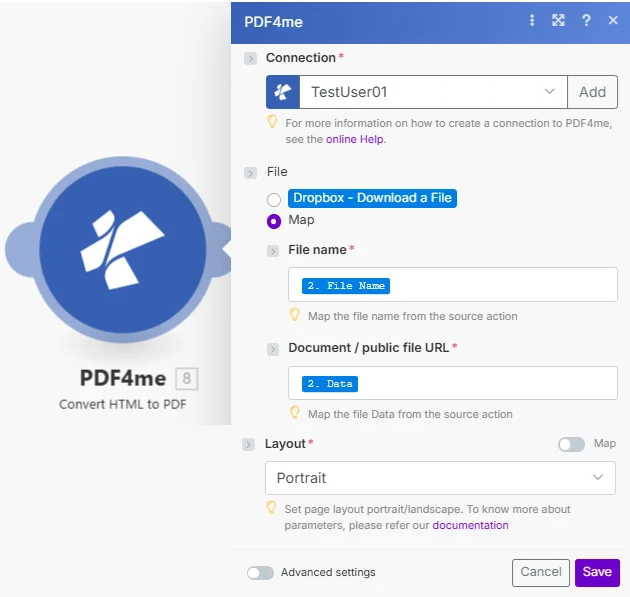
ファイル名とドキュメント/公開ファイル URL 使用時には両方とも必要です Mapドキュメントフィールドは、 HTML バイナリバッファまたはパブリックウェブ URL詳細設定を開くと、追加のレンダリングオプションが表示されます。
パラメータ
必須: 接続、ファイル、レイアウトは必ず指定する必要があります。ファイル名とドキュメント/公開ファイル URL ファイルは、次の設定の場合にのみ必要です。 Map。
| パラメータ | 必須 | その機能 | 例 |
|---|---|---|---|
| Connection | Required | PDF4me API connection. Click Add and paste your API key if connecting for the first time. | Your PDF4me connection |
| File | Required | Source input method. Choose Dropbox - Download a File for a direct Dropbox trigger, or Map to supply inputs from a prior module. | Map |
| File name | Required | Filename for the HTML source including extension. Shown as a sub-field of File when Map is selected. Hint: "Map the file name from the source action." | 2. File Name |
| Document / public file URL | Required | Either the binary content of an HTML file from a prior module, or a public web URL to render, supplied when File is set to Map. Hint: "Map the file Data from the source action." | 2. Data |
| Layout | Required | Page orientation for the output PDF. Options: Portrait, Landscape. Defaults to Portrait. Hint: "Set page layout portrait/landscape." Has Map toggle for dynamic scenarios. | Portrait |
| Index File Path | Optional | Relative path to the entry HTML file inside a ZIP archive. Leave empty when Document is a single HTML file. | site/index.html |
| Paper Size | Optional | Output page size. Options are Letter, Legal, Tabloid and Ledger, A0 to A6, and Custom. Each label carries its dimensions, for example Letter (8.5in x 11in). Defaults to A4 (8.27in x 11.7in). | A4 (8.27in x 11.7in) |
| Paper Size > Width | Conditional | Page width, shown when Paper Size is Custom. Defaults to 5in. | 5in |
| Paper Size > Height | Conditional | Page height, shown when Paper Size is Custom. Defaults to 8in. | 8in |
| Scale | Optional | Render scale for the page content. Defaults to 0.8. | 0.8 |
| Top Margin | Optional | Top page margin. Defaults to 40px. | 40px |
| Bottom Margin | Optional | Bottom page margin. Defaults to 40px. | 40px |
| Left Margin | Optional | Left page margin. Defaults to 40px. | 40px |
| Right Margin | Optional | Right page margin. Defaults to 40px. Note: the Make UI labels this field Bottom Margin, while it controls the right margin. | 40px |
| Print Background | Optional | Whether CSS backgrounds and images are rendered. Defaults to Yes. | Yes |
出力
| 分野 | タイプ | 内容物 |
|---|---|---|
| Name | File name | Filename of the generated output PDF. |
| Document | File (binary data) | The converted PDF file content, ready to attach in Gmail, upload to Drive or Dropbox, or pass to another PDF4me module. |
| Document Url | Text | Link to the converted PDF. Returned when PDF4me processes the request as a background job. |
変換方法は? HTML に PDF で Make?
- 追加 PDF4me に 変換する HTML に PDF あなたの Make シナリオ。
- 選択 繋がり (またはクリック) 追加 あなたと一緒に作成する API 鍵)。
- セット ファイル に Map。 接続する ファイル名 そして 文書/公開ファイル URL 前のモジュールの出力から。またはライブパブリックを渡します。 URL 直接 文書/公開ファイル URL 分野。
- 選ぶ レイアウト標準的な文書には縦向きを、幅の広い表やダッシュボードには横向きを使用してください。
- 保存して実行します。出力結果
Document終わりましたか? PDFそれをGmail、Googleドライブ、Dropbox、または任意の下流モジュールにパイプします。
Convertはいつ使用すべきですか? HTML に PDF?
典型的な構成Common Make scenario patterns using Convert HTML to PDF.
- 毎週月曜日の朝に、設定されたトリガーが作動する。
- データベースまたはGoogleスプレッドシートのモジュールを使用して、その週の売上データを取得します。
- A Make テキストモジュールは、 HTML 文字列、図表、要約見出し、インライン CSS スタイリング。
- 変換する HTML に PDF レイアウトを縦向きに設定して実行します。 PDF ドキュメント出力に取り込まれます。
- Gmailはドキュメントを添付し、午前9時の朝礼前に経営陣にレポートを送信します。
- ウェブフックは、eコマースプラットフォームで注文が確定した際に発火します。
- Google Drive は HTML 請求書テンプレート。
- A Make テキストモジュールは、顧客名、明細項目、合計金額などのプレースホルダーフィールドを、注文ペイロードからのライブデータに置き換えます。
- 変換する HTML に PDF 完成した請求書を生成します PDF。
- Gmailはそれを顧客に送信し、コピーはDropboxの「請求書」フォルダにアップロードされます。
- Gmailは、特定のラベルが付いたメッセージが届くと通知を発信します。
- メール HTML 本文は抽出され、送信者、件名、日付などのメタデータとともに、クリーンな形式でラップされます。 HTML レイアウト。
- 変換する HTML に PDF メールをアーカイブします PDF レイアウトを縦向きに設定。
- の PDF にアップロードされます SharePoint コンプライアンスフォルダに保存されます。Gmailではメールに「アーカイブ済み」というタグが付けられるため、チームはメールが保存されたことを確認できます。
実践的なヒント
チートシート
出力におけるページサイズと余白 PDF 完全に CSS あなたの HTMLによると MDN CSSページングメディアガイド そして MDN @page 参照レイアウトのドロップダウンメニューでは、縦向きか横向きかの設定のみが可能です。
| 分野 | 価値 |
|---|---|
| File | Map |
| File name | 2. File Name |
| Document / public file URL | 2. Data (binary) or a live public URL |
| Layout | Portrait or Landscape |
| Output | Name, Document, Document Url |