バーコードを作成する Make
このモジュールの機能
PDF4meバーコードを作成する スタンドアロンのバーコードを生成するか、 QR 任意のテキストまたはデータ文字列からコードを作成し、ソースなしの画像ファイルとして返します。 PDFファイルアップロードは不要です。以下の6つの形式から選択できます。 QR Code、 Code128、 そして Data Matrix結果をクラウドストレージに保存したり、メールに添付したり、ドキュメントテンプレートにマッピングしたりできます。バーコードを追加するのとは異なり、 PDF 既存の文書にスタンプを押すモジュールとは異なり、このモジュールはバーコード画像を独立して作成し、シナリオ内のどこでも使用できるようにします。
関連ブログ記事
この機能に関するブログ記事はまだありません。近日公開予定です。
その間、PDF4me ブログを閲覧して、あらゆるプラットフォームのチュートリアルやワークフローをご覧ください。
ブログをご覧ください →
認証 API リクエスト
毎 PDF4me モジュール Make 有効な 繋がり. 作成または選択して、 PDF4me API シナリオがバーコード生成要求を安全に認証できるようにするためのキー。
見逃してはならない重要な事実
ソースなし PDF またはファイル入力が必要です
このモジュールはテキストのみを受け取ります。ファイル、ファイル名、 PDF バイナリ。エンコードするデータとフォーマットを指定すると、モジュールはバーコード画像を返します。既存のバーコードにバーコードを埋め込む必要がある場合は、 PDFバーコードを追加するには、 PDF その代わり。
出力はファイルであり、 Base64 弦
このモジュールは、ファイル名を含む Name フィールドとバイナリコンテンツを含む Document フィールドという 2 つのマッピング可能なフィールドとして画像を返します。これら 2 つのフィールドを次のモジュールにマッピングして、バーコードを Google Drive または Dropbox にアップロードしたり、メールに添付したり、 HTTP リクエスト。
テキストを非表示にするのは、 Code 128
モジュールヒントには正確に「バーコードの下に表示されるテキストを非表示にします。(適用対象は Code 128)。" のために QR Code、 Data Matrix、 Aztec、 PDF417、 そして HanXin人間が読めるテキスト行が表示されない場合、このトグルは設定値に関係なく効果がありません。
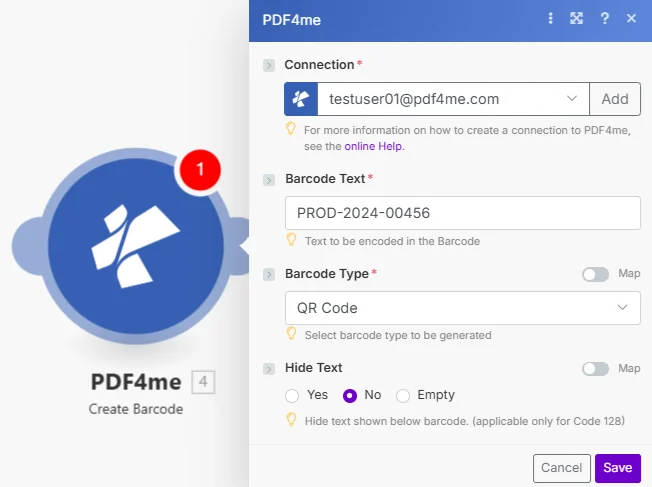
必要な入力項目は、エンコードするテキスト、バーコードのフォーマット、そしてオプションでラベルを非表示にするかどうかの3つだけです。 Code 128 バーコード。
パラメータ
必須: 接続情報、バーコードテキスト、バーコードタイプの3つすべてを指定する必要があります。テキストの非表示はオプションです。
| パラメータ | 必須 | その機能 | 例 |
|---|---|---|---|
| Connection | Required | PDF4me API connection. Click Add and paste your API key if connecting for the first time. | Your PDF4me connection |
| Barcode Text | Required | The data to encode in the barcode: a URL, product code, order ID, or any alphanumeric string. Hint: "Text to be encoded in the Barcode." | PROD-2024-00456 |
| Barcode Type | Required | Format of the barcode to generate. Options: QR Code, Data Matrix, Code128, Aztec, HanXin, PDF417. Hint: "Select barcode type to be generated." | QR Code |
| Hide Text | Optional | Whether to suppress the human-readable text shown below the barcode. Applies only to Code 128, with no effect on other formats. Defaults to No. | No |
出力
このモジュールは2つのフィールドを返します。どちらのフィールドも、シナリオ内の後続のモジュールでマッピングに使用できます。
| 分野 | タイプ | 内容物 |
|---|---|---|
| Name | File name | File name of the resulting barcode image. Map it together with Document into the next module, for example to upload or email the file. |
| Document | File (binary data) | Content (binary data) of the resulting barcode image. Map it together with Name into the next module. |
クイックセットアップ
- 追加 PDF4me -> バーコードを作成する あなたの Make シナリオ。
- 選択 繋がり (またはクリック) 追加 あなたと一緒に作成する API 鍵)。
- エンコードするテキスト、URL、またはIDを入力してください バーコードテキスト 分野。
- 選択してください バーコードの種類 ドロップダウンメニューから: QR Code リンクと一般的なデータについては、 Code128 小売用および配送用ラベル。
- シナリオを保存して実行します。出力には以下が含まれます。
NameそしてDocument: バーコード画像ファイル。アップロード、メールへの添付、または他のモジュールへのマッピングが可能です。
ワークフローの例
ワークフローの例Common Make scenario patterns using Create Barcode.
埋め込む QR 注文確認メールに記載されているコード
- ウェブフックは、ShopifyまたはWooCommerceストアから新しい注文を受信します。
- バーコードタイプを設定したバーコード実行を作成します QR Code バーコードテキストは、注文追跡URLにマッピングされます。
- Gmailは、名前とドキュメントから直接マッピングされたバーコード画像を添付した注文確認メールを送信します。
- 顧客はスキャンします QR 配送状況を追跡するためのコードは、受信トレイから直接入手できます。
生成する Code128 新規在庫品目用のラベル
- Googleスプレッドシートの在庫台帳に新しい行が追加されると、このシナリオがトリガーされます。
- バーコードタイプを設定したバーコード実行を作成します Code128 そして、シートからSKUにマッピングされたバーコードテキスト。
- 1 HTTP モジュール POSTバーコード画像ファイルをラベル印刷サービスに送信する API。
- 新規入荷品には、倉庫内で自動的に物理的なバーコードラベルが印刷されます。
ユニークなものを追加する QR イベントチケットにコードを送信する前に
- TypeformまたはEventbriteでの新規イベント登録が、このシナリオをトリガーします。
- バーコードを作成すると、 QR Code バーコードテキストとして固有のチケット検証IDを使用します。
- バーコード画像はチケットに挿入されます PDF 文書生成モジュールを介してテンプレートを作成する。
- Gmailはスキャン可能なパーソナライズされたチケットを送信します QR 参加者へのコード。
よくある質問
関連モジュール
バーコードを追加する PDF
既存の PDF ミリメートル単位の位置決めが必要な場合、バーコードを文書自体の中に配置する必要がある場合に使用します。
SwissQR紙幣を作成する
スイスでの支払いを生成する QR 請求書の請求欄 PDFスイスの銀行業務フローに特化した決済用バーコード。
EPCを生成する QR Code のために SEPA
作成する SEPA 支払い QR EUの請求書用のコード。EUの銀行アプリでのスキャン用に事前にフォーマットされています。