バーコードを追加する PDF で Make
このモジュールの機能
PDF4meバーコードを追加する PDF バーコードを挿入または QR 既存の特定のページの正確な位置にあるコード PDF バーコードが埋め込まれた新しいドキュメントが返されます。6つの形式から選択してください。 QR Code、 Data Matrix、 Code128、 Aztec、 HanXin、 そして PDF417位置合わせアンカーとマージンオフセットを使用して、バーコードをミリメートル単位の精度で配置します。 Make シナリオには自動的にバーコードが付与され、手動での編集は不要です。
関連ブログ記事
この機能に関するブログ記事はまだありません。近日公開予定です。
その間、PDF4me ブログを閲覧して、あらゆるプラットフォームのチュートリアルやワークフローをご覧ください。
ブログをご覧ください →
認証 API リクエスト
毎 PDF4me モジュール Make 有効な 繋がり. 作成または選択して、 PDF4me API シナリオがバーコード挿入要求を安全に認証できるようにするためのキー。
見逃してはならない重要な事実
両方の位置合わせ軸が必要です
モジュールでは、垂直方向の配置と水平方向の配置の両方が必須項目としてマークされています。両方とも設定する必要があり、これらによってバーコードがページの隅または端に固定されます。その後、余白フィールドによって、指定したミリメートル数だけ、その固定位置からバーコードが内側に移動します。
高さと幅は1000mmを超えてはならない。
どちらの寸法も0~1000mmの整数値を指定できます。標準のA4サイズ(210×297mm)の場合、両方の寸法をこのサイズ以下に抑えてください。そうしないとバーコードがページからはみ出してしまいます。どちらのフィールドもオプションなので、特定のバーコードサイズが必要な場合は明示的に設定してください。
テキストを非表示にするのは、 Code 128
モジュール内のヒントテキストは正確には「バーコードの下のテキストを非表示にします。適用対象は Code 128。" のために QR Code、 Data Matrix、 Aztec、 PDF417、 そして HanXin この切り替え機能は効果がありません。これらのフォーマットの下には、人間が読めるテキスト行は表示されません。
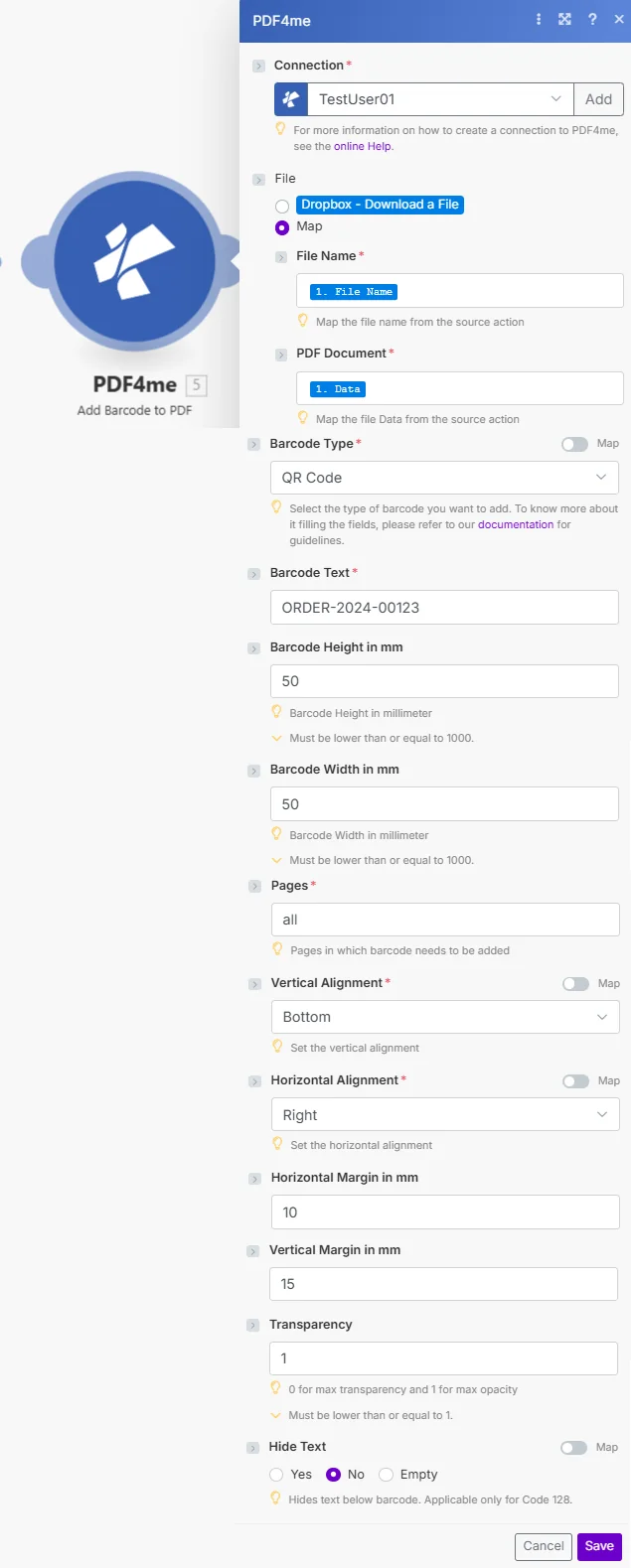
ファイルは次のように設定されています Map ファイル名を渡して PDF 以前のモジュールからのバイナリファイル。バーコードタイプ、バーコードテキスト、ページ、垂直方向の配置、水平方向の配置はすべて必須項目です。
パラメータ
必須: 接続、ファイル(ファイル名 + PDF 使用時に文書化 Map)、バーコードの種類、バーコードテキスト、ページ、垂直方向の配置、水平方向の配置、これらすべてをモジュールの実行のために指定する必要があります。
| パラメータ | 必須 | その機能 | 例 |
|---|---|---|---|
| Connection | Required | PDF4me API connection. Click Add and paste your API key if connecting for the first time. | Your PDF4me connection |
| File | Required | Source PDF. Choose Dropbox - Download a File for a direct Dropbox trigger, or Map to supply filename and binary from a prior module. | Map |
| File Name | Required | Original filename of the source PDF including .pdf extension. Map it directly when File is set to Map. Map it from the prior module's file name output. | 1. File Name |
| PDF Document | Required | Binary content of the source PDF. Map it directly when File is set to Map. Map it from the prior module's data output. | 1. Data |
| Barcode Type | Required | Format of the barcode to insert. Options: QR Code, Data Matrix, Code128, Aztec, HanXin, PDF417. | QR Code |
| Barcode Text | Required | The data to encode inside the barcode: an order ID, URL, asset number, or any alphanumeric string. | ORDER-2024-00123 |
| Barcode Height in mm | Optional | Vertical size of the barcode in millimeters. Accepts a whole number from 0 to 1000. | 50 |
| Barcode Width in mm | Optional | Horizontal size of the barcode in millimeters. Accepts a whole number from 0 to 1000. | 50 |
| Pages | Required | Pages where the barcode is added. Enter all for every page, or specific page numbers. Pre-filled with all. | all |
| Vertical Alignment | Required | Vertical anchor point on the page: Top, Middle, or Bottom. Combined with Vertical Margin for exact placement. | Bottom |
| Horizontal Alignment | Required | Horizontal anchor point on the page: Left, Center, or Right. Combined with Horizontal Margin for exact placement. | Right |
| Horizontal Margin in mm | Optional | Distance in mm the barcode is offset inward from the Horizontal Alignment edge. Defaults to 0. | 10 |
| Vertical Margin in mm | Optional | Distance in mm the barcode is offset inward from the Vertical Alignment edge. Defaults to 0. | 15 |
| Transparency | Optional | Opacity of the barcode, as a whole number: 0 is fully transparent and 1 is fully opaque. Defaults to 1. | 1 |
| Hide Text | Optional | Controls whether human-readable text appears below the barcode. Applies only to Code 128. Defaults to No. | No |
出力
このモジュールは2つのフィールドを返します。どちらのフィールドも、シナリオ内の後続のモジュールでマッピングに使用できます。 PDF4me リクエストをバックグラウンドジョブとして処理し、 Make 次のモジュールを実行する前に、結果を待ちます。
| 分野 | タイプ | 内容物 |
|---|---|---|
| Name | File name | File name of the resulting PDF. Map it together with Document into the next module, for example to upload or email the file. |
| Document | File (binary data) | Content (binary data) of the resulting PDF with the barcode embedded. Map it together with Name into the next module. |
クイックセットアップ
- 追加 PDF4me -> バーコードを追加する PDF あなたの Make シナリオ。
- 選択 繋がり (またはクリック) 追加 あなたと一緒に作成する API 鍵)。
- セット ファイル Dropboxへ - ファイルをダウンロードまたは Map: 使用する場合 Map、 接続する ファイル名 そして PDF 書類 前のステップから。
- 選ぶ バーコードの種類 そして入力する バーコードテキスト エンコードする。
- セット ページ すべてに表示するか、個別のページ番号を指定するか。
- 選ぶ 垂直方向の配置 そして 水平方向の配置、 それから 保存 そしてシナリオを実行します。出力には以下が含まれます。
NameそしてDocument: その PDF バーコードが埋め込まれています。
ワークフローの例
ワークフローの例Common Make scenario patterns using Add Barcode to PDF.
注文追跡を追加する QR codes 請求書へ
- Dropboxは新しい請求書が届いたときにトリガーされます PDF 「請求書」フォルダに保存されます。
- バーコードを追加する PDF バーコードタイプを設定して実行します QR Code、バーコードテキストは注文IDからマッピングされ、ページはすべてに設定され、垂直方向の配置は下、水平方向の配置は右です。
- 返された PDF Dropboxの「処理済み請求書」フォルダにアップロードされます。
- Slackは、バーコード付きの請求書をスキャンする準備ができたことを配送チームに通知します。
機器記録に資産タグを押印する
- Googleスプレッドシート(資産台帳)に新しい行が追加されると、このシナリオがトリガーされます。
- Googleドライブが空白の資産記録をダウンロードします PDF テンプレート。
- バーコードを追加する PDF を挿入する Code128 1ページ目の左上隅に資産IDが記載されたバーコードがあります。
- バーコード付き PDF アップロード先 SharePoint 該当する部署のフォルダ内。
契約参照バーコード付き月次アーカイブスナップショット
- 毎月1日にスケジュールされたトリガーが実行されます。
- Googleドライブが有効な契約書をダウンロードします PDF。
- バーコードを追加する PDF を挿入する Data Matrix 右下隅に契約参照番号が記載されたバーコード(コンパクト、高密度)。
- バーコード付きのスナップショットは「アーカイブ」フォルダに保存されます。アーカイブされた各バージョンには、元のレコードにリンクするスキャン可能な参照情報が含まれています。
よくある質問
関連モジュール
バーコードを作成する
ソースなしでテキストのみからスタンドアロンのバーコード画像を生成する PDFバーコードは独立したファイルとして返され、アップロード、メール送信、または他のモジュールへのマッピングにすぐに使用できます。
SwissQR紙幣を作成する
スイスでの支払いを追加する QR 請求書セクションから請求書へ PDFsスイスの銀行業務フローに特化した決済用バーコード。
EPCを生成する QR Code のために SEPA
生成する SEPA 支払い QR 欧州の請求書用のコード、EU/EEAの銀行アプリ向けの異なる支払い基準。