メインコンテンツへスキップ

Power Automateで複数シートのExcelワークブックを個別のファイルに分割する(4つのアクション、シート数は任意)

· 1分で読める
SEO and Content Writer

5枚、50枚、または500枚のシートがあるワークブックは、個々のシートに分割できます。 .xlsx ファイルを単一の Power Automate フローにまとめる。 PDF4me Excel - 個別ワークシート シートごとに 1 つのファイルを含む配列を返します。 それぞれに適用する ループファンはDropbox、SharePoint、OneDrive、またはDataverseに書き込みます。このガイドでは、スクリーンショットに示されている正確な実行手順を説明します。5つのタブ Separate.xlsx Dropboxでは Sheet1.xlsx を通して Sheet5.xlsx 出力フォルダ内。総フロー: 4つのアクション、コードなし、エンドツーエンドで約9秒で実行可能。

流れの概要
1. Manual trigger
Manually trigger a flow. Swap for any trigger that produces a workbook.
2. Get file content (path)
Dropbox path: /pdf4metest/excel/separate worksheets/Separate.xlsx
3. Excel - Separate Worksheets
PDF4me action. Splits the 5-sheet workbook into 5 single-sheet XLSXes.
4. Apply to each → Create file
Loop outputDocuments. Each iteration writes one sheet as its own .xlsx to Dropbox.
要約版

手動トリガーでフローが開始されます。Dropbox パスを使用してファイルコンテンツを取得します 読む Separate.xlsx (5枚のシートがあり、それぞれ異なる人物レコードのリストが記載されている。) Excel - 別々のワークシート を返す 出力ドキュメント 5つのエントリを持つ配列: {ファイル名: "Sheet1.xlsx", ストリームファイル: "<base64>"} Sheet5.xlsx を介して。 それぞれに適用する outputDocuments はシートごとに 1 回実行されます (スクリーンショットには、 5分の1 反復カウンター)を使用し、 ファイルを作成する 各XLSXをドロップして /pdf4metest/excel/別々のワークシート/出力出力フォルダを参照すると、5つの分割ファイルがアルファベット順に並んでいます。

人々が見落としている唯一のこと: それぞれに適用する 選択肢ではありません

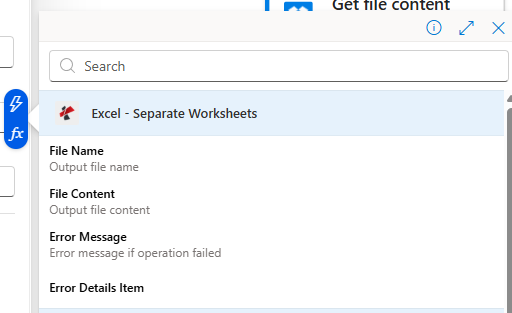
Excel - ワークシートを分けると、 配列単一のファイルではありません。エントリの数はソースワークブックによって異なります(2シートの場合→2エントリ、50シートの場合→50エントリ)。次のステップは必ず「各に適用」で囲んでください。 出力ドキュメント摘み取り ファイルの内容 ループの外側からは何も有用なものが返されません。ループ内では、動的コンテンツピッカーが ファイル名 そして ファイルの内容 現在のアイテムについて。

現実世界でよくある疑問を解決します​

人々はこの問題を驚くほど具体的な表現で検索しています。以下は、このフローが実際に回答するクエリです。

  • 「複数のシートを含むExcelファイルを、自動的に個別のファイルに分割するにはどうすればよいですか?」 はい。このワークフローはまさにそれを実現します。ソースとなるワークブックをDropboxにドロップするだけで、分割とアップロードが自動的に行われます。
  • Power Automateは、各シートを個別のExcelファイルとして保存できますか? はい、PDF4me Connectアクションと「各項目に適用」ループを組み合わせることで実現しました。VBAもOfficeスクリプトも使用していません。
  • 「1枚の用紙に1つの動作を書かなければならないのですか?」 いいえ。「各項目に適用」はシート数に関係なく動作します。フロー本体は変更されません。
  • 「もしワークブックに100枚のシートがあったらどうなりますか?」 流れは同じです。ループが100回繰り返されるだけです。各反復処理は約1秒です。
  • 出力ファイルの名前を変更してもいいですか? はい、ファイルの作成前にループ内でComposeステップまたは式を使用して新しい名前を作成してください。トラブルシューティングのセクションを参照してください。

あなたが構築しているもの​

複数のシートを対象とする、4つのアクションからなるPower Automateフロー .xlsx ワークシートごとに1つのファイルを宛先フォルダに書き込みます。人事名簿、地域別に分割された営業パイプライン、月別に分割された月次レポートなど、1つのワークブック内で複数のタブとして存在するあらゆるデータに対して再利用可能です。

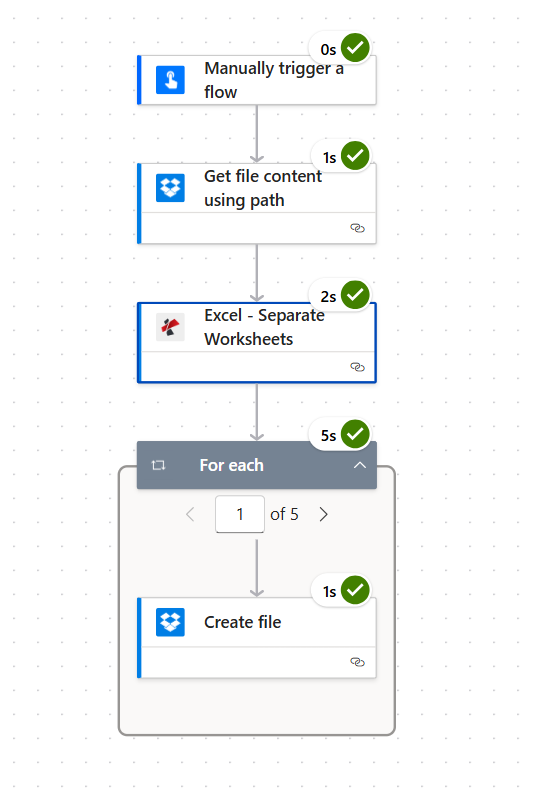
Power Automate フローには、4 つのアクションが含まれています。フローを手動でトリガーする、Dropbox パスを使用してファイル コンテンツを取得する、PDF4me Excel - ワークシートを分離する、そして For each ファイルを作成する (5 回のうち 1 回目を表示)。For each の実行時間は 0 秒、1 秒、2 秒、5 秒、Create file の実行時間は 1 秒です。
全体の流れ。For each は 5 回実行されます (出力シートごとに 1 回)。各反復処理は約 1 秒です。

必要なもの​

クイックリファレンス:各パーツの役割​

outputDocuments
The array the action returns. One entry per sheet. Always loop with Apply to each.
File Name (item)
Sheet name plus .xlsx extension. Pass directly into Create file File Name.
File Content (item)
Binary single-sheet workbook. Pass directly into Create file File Content.
Worksheet Indexes
Optional. Leave empty for all sheets. Comma-separated 1-based to restrict (e.g. 1,3).
Culture & Language
Defaults to en-US. Switch to fr-FR, de-DE, ja-JP, pt-BR for non-US sheet content.
Error Details Item
Itemised failure array. Empty on success; wire into a Condition for retry logic.

入力内容を見てみましょう​

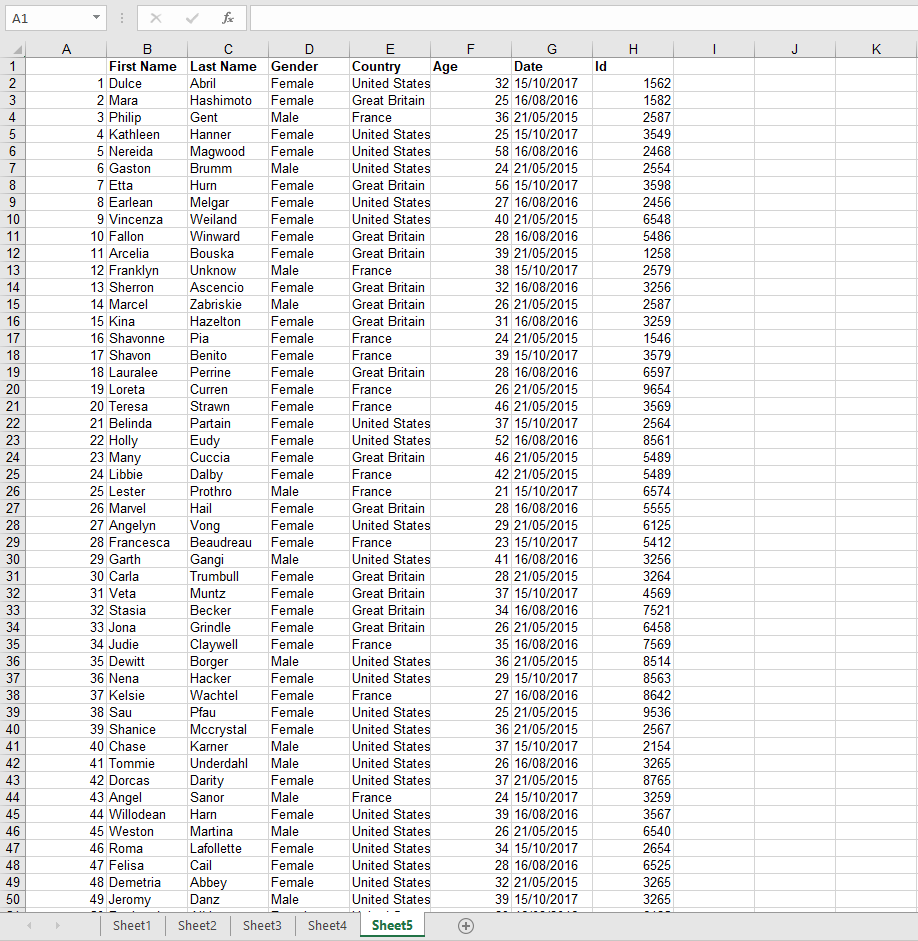
開ける Separate.xlsx Excel で作成されています。5 つのシート タブ (Sheet1 から Sheet5) があり、各シートには、名、姓、性別、国、年齢、日付、ID などの人物レコードの行が入力されています。

Separate.xlsx ファイルを Excel で開くと、Sheet5 がアクティブになっています。列は、数値、名、姓、性別、国、年齢、日付、ID です。レコードは約 50 行あります。下部に Sheet1、Sheet2、Sheet3、Sheet4、Sheet5 のシート タブが表示されています。
ソースワークブック。下部に5つのシートタブがあり、それぞれ約50行の人物記録が含まれています。
Dropbox のソースフォルダ /pdf4metest/excel/separate worksheets には Separate.xlsx が含まれています。
フロー実行前のソースフォルダ。ワークブックは1つだけ。

流れを作る​

アクション1:フローを手動でトリガーする​

テストでは手動トリガーが最速です。本番環境では、 ファイルが作成されたとき(Dropbox)、 アイテムが作成されたとき(SharePoint)、 新しいメールが届いたとき(Outlook)、 再発または、その他のトリガー。

アクション2:Dropbox - パスを使用してファイルコンテンツを取得する​

ソースワークブックを指定してください。

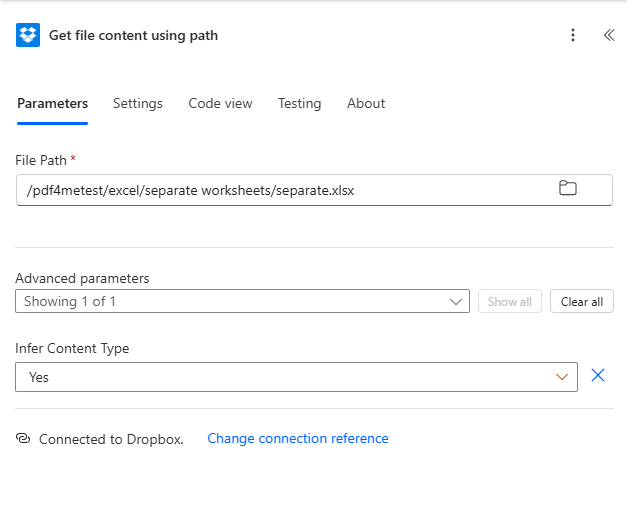
/pdf4metest/excel/separate worksheets/Separate.xlsx

離れる コンテンツタイプを推測する デフォルトでは(はい)詳細設定の下にある。

Dropbox パスを使用してファイルコンテンツを取得するアクション。ファイルパスは /pdf4metest/excel/separate worksheets/Separate.xlsx に設定されています。詳細パラメーター「コンテンツタイプの推測」は「はい」です。

手順3:PDF4me - Excel - ワークシートを分離する​

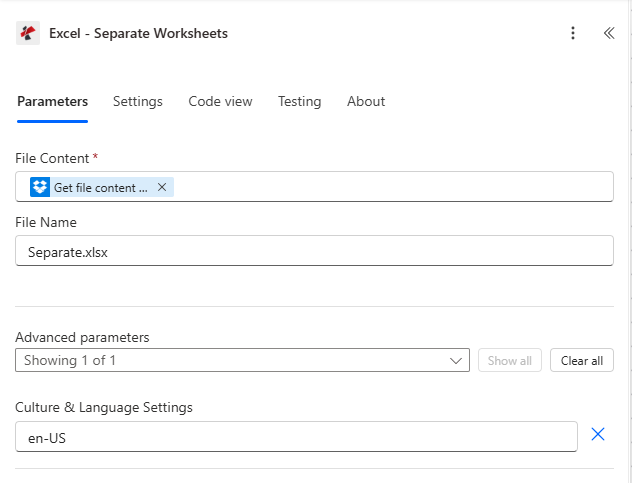
検索する PDF4me アクションピッカーで選択 Excel - 別々のワークシート設定:

分野この実行で使用された値
File ContentFile Content from the previous Dropbox step (dynamic content)
File NameSeparate.xlsx
Culture & Language Settings (Advanced)en-US (default. change only for non-US locales)
PDF4me Excel - ワークシートを分離するアクションが設定されました。Dropbox からファイルコンテンツがマッピングされました。ファイルコンテンツを取得します。ファイル名 Separate.xlsx。詳細パラメーターには、カルチャと言語設定 en-US が表示されます。
アクション設定。カルチャはデフォルトでen-USです。切り替え先 fr-FR、 それは、 I-JP シートの内容が米国以外の数値/日付形式を使用している場合のみ、など。

アクション4:各項目に適用 → Dropbox - ファイルの作成​

ワークシートを分離するアクションの後、 それぞれに適用する そして選択する 出力ドキュメント 動的コンテンツピッカーから。ループ内にDropboxをドロップします。 ファイルを作成する アクションを実行し、次のように設定します。

分野この実行で使用された値
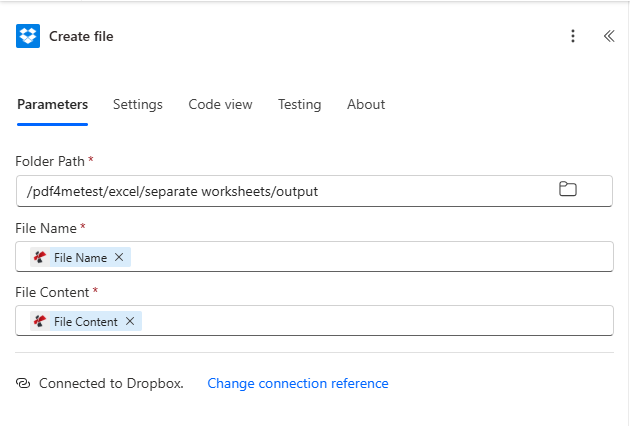
Folder Path/pdf4metest/excel/separate worksheets/output
File NameFile Name (dynamic content from the current item)
File ContentFile Content (dynamic content from the current item)
ファイル作成アクションを囲む各ループに適用します。出力選択ドロップダウンには、前のExcel - ワークシートの分離ステップで選択された出力ドキュメントが表示されます。
「各項目に適用」処理は、outputDocuments を反復処理します。ループ内の動的コンテンツピッカーには、現在の項目のファイル名とファイルコンテンツが表示されます。
Dropbox ループ内でファイルを作成します。フォルダパス /pdf4metest/excel/separate worksheets/output。ファイル名 dynamic content。ファイルコンテンツ dynamic content。Dropbox に接続しました。
ループ内では、ファイル名とファイルの内容は現在のアイテムから取得されます。

保存してクリック テスト。 終わり。


結果​

Dropboxの出力フォルダを開いてください。5つの単一シートのワークブックが保存されています。それぞれのワークブックは、元のシート名で命名されています。

Dropboxの出力フォルダには、Sheet1.xlsx、Sheet2.xlsx、Sheet3.xlsx、Sheet4.xlsx、Sheet5.xlsxが一覧表示されます。
5冊の別々のワークブック(各ワークブックはソースシートごとに1冊ずつ)で、アルファベット順に並べられています。

今回の実行結果の実際の出力ファイルをダウンロードしてください。 sheet1.xlsx、 sheet2.xlsx、 sheet3.xlsx、 sheet4.xlsx、 sheet5.xlsx。


トラブルシューティング​

Apply to each does not show File Name / File Content
Make sure the loop is iterating outputDocuments, not the action itself. Click the Apply to each dropdown, search "outputDocuments", and pick it.
Only one file appears in the output folder
Create file is OUTSIDE the loop. Drag it inside the Apply to each container so it runs once per item.
Output files all overwrite each other
Two causes: (a) File Name is hardcoded instead of mapped to dynamic content. delete and re-pick File Name from the inner item; (b) two sheets in the source share the same name. rename them in Excel or build a unique name in a Compose step.
Decimals read as text or dates
A sheet using 1.234,56 (comma decimal) gets misinterpreted because Culture & Language Settings is en-US. Switch to your locale (fr-FR, de-DE, pt-BR, etc).
Cross-sheet formula came out as #REF!
Expected. After splitting, =Sheet2!A1 from a Sheet1 output cannot resolve because Sheet2 is now in a different file. Plan each sheet to be self-contained, or pre-compute the values upstream.
Need a date prefix on each output file name
Inside the Apply to each, add a Compose before Create file with: concat(formatDateTime(utcNow(),'yyyy-MM-dd'),'_',items('Apply_to_each')?['fileName']). Point File Name at the Compose output. Result: 2026-06-02_Sheet1.xlsx.

このパターンはいつ使用するのか​

Monthly report distribution
One workbook arrives with Jan, Feb, Mar tabs. Split, then email each tab to its owner.
Regional sales splits
Single workbook with one tab per territory becomes individual files for each regional manager.
HR roster fan-out
One company workbook with one tab per department. Upload each tab to the right SharePoint library.
Data prep for downstream tools
Many BI and accounting tools accept single-sheet inputs only. Split once, ingest many.
Compliance and auditing
Each split file is a self-contained artifact you can store, version, or sign without dragging the rest of the workbook.

次に読むべきもの​


よくある質問​

How do I split an Excel file with multiple sheets into separate files automatically in Power Automate?+
Use the PDF4me Excel - Separate Worksheets action. It takes a single multi-sheet .xlsx as input and returns an outputDocuments array with one file per sheet. Wrap the result in an Apply to each loop and write each item with Create file. Four actions total: trigger, Get file content, Separate Worksheets, Apply to each → Create file.
Can Power Automate save each sheet as a separate Excel file without code?+
Yes. The PDF4me Excel - Separate Worksheets action is a no-code cloud connector. There is no VBA, no Office Script, no Power Automate Desktop required. it runs entirely in the Power Automate cloud designer and outputs ready-to-save .xlsx files.
What happens if the source workbook has a different sheet count next run?+
Nothing breaks. The action dynamically returns one outputDocuments entry per sheet present, and the Apply to each iterates whatever the array length is. Build the flow once with a 5-sheet sample and it will handle 2-sheet or 200-sheet workbooks identically.
Do the output files keep their sheet names?+
Yes. Each output file is named after its source sheet name plus the .xlsx extension. Sheet5 → Sheet5.xlsx. If you have custom sheet names (e.g. "Q1 2025"), the output file is "Q1 2025.xlsx" accordingly.
Will my formulas still work after the split?+
Intra-sheet formulas (everything that references cells on the same sheet) work as expected. the engine preserves cell values, number formats, and styles. Cross-sheet references like =Sheet2!A1 cannot survive because Sheet2 is no longer in the same file; expect those to become #REF!. Plan the workbook so each sheet is self-contained, or pre-compute the values upstream.
Can I use SharePoint, OneDrive, or Dataverse instead of Dropbox?+
Yes. Swap the Dropbox actions for SharePoint Get file content / Create file, OneDrive Get file content / Create file, or Dataverse Download file / Add file. The PDF4me action and its parameters are identical regardless of source.
How do I rename the output files (add a date prefix, replace spaces, etc.)?+
Inside the Apply to each loop, add a Compose step before Create file. Build the new name with concat() and formatDateTime() expressions, then bind Create file → File Name to the Compose output. Example: concat(formatDateTime(utcNow(),'yyyy-MM-dd'),'_',items('Apply_to_each')?['fileName']) produces 2026-06-02_Sheet1.xlsx.
Is there a limit on the number of sheets I can split?+
Practical limits are bounded by Power Automate run-time and action body size. A single workbook with hundreds of sheets is fine; the loop just iterates more times. For thousands of sheets, consider Power Automate concurrency settings or batching the work across multiple runs.
Does this work in Power Automate Desktop?+
PDF4me Connect is a cloud connector available in Power Automate (the web flow designer). For Power Automate Desktop, call the same Separate Worksheets REST endpoint with the HTTP action.

さあ始めましょう​