Aggiungi filigrana di testo a Excel In Power Automate
PDF4me Aggiungi filigrana di testo a Excel è un Power Automate azione che imprime l'etichetta RISERVATO, BOZZA o qualsiasi testo personalizzato su Excel Trasforma i fogli di lavoro in un oggetto WordArt. Usalo per contrassegnare dati finanziari sensibili, evidenziare le bozze di bilancio o aggiungere avvisi di copyright ai report esportati, con il pieno controllo su dimensioni, colore, rotazione e posizione.
Cosa fa questa azione
PDF4me - Aggiungi filigrana di testo a Excel stampa un'etichetta di testo personalizzabile - RISERVATO, BOZZA, APPROVATO, un avviso di copyright o qualsiasi stringa - direttamente su Excel fogli di lavoro come oggetto WordArt. È possibile controllare il testo, le dimensioni predefinite (50 pt, 150 pt), il colore, il carattere, lo stile grassetto/corsivo, la trasparenza, l'angolo di rotazione e una delle nove posizioni della griglia. Applica a tutti i fogli di lavoro o seleziona fogli specifici per nome o indice. L'azione viene eseguita all'interno di qualsiasi Power Automate flusso di nuvole e restituisce la filigrana Excel come binario pronto per essere salvato SharePoint, OneDrive, Dropbox o e-mail.
Come faccio ad autenticare il mio Power Automate Fluire?
Ogni PDF4me azione in Power Automate richiede un connessione che contiene il tuo API Chiave. Creane o selezionane una quando aggiungi l'azione per la prima volta.
Informazioni importanti da non perdere
La filigrana è incorporata come forma WordArt nel livello di disegno del foglio di lavoro. È visibile sia nella visualizzazione del foglio che nell'output di stampa, a differenza di ExcelTesto nativo dell'intestazione/piè di pagina che appare solo quando stampato.
Lascia vuoti i selettori dei fogli di lavoro per applicare la filigrana all'intera cartella di lavoro. Specifica i nomi dei fogli o gli indici basati su 0 per selezionare solo determinate schede: utile quando una cartella di lavoro contiene fogli di riepilogo pubblici e fogli di dati con accesso limitato.
Un'azione applica uno stile di filigrana. Per stampare testi diversi su fogli diversi, concatena due o più azioni Aggiungi filigrana di testo a Excel Eseguire le operazioni in sequenza, ciascuna indirizzata a fogli di lavoro distinti, prima di salvare il file finale.
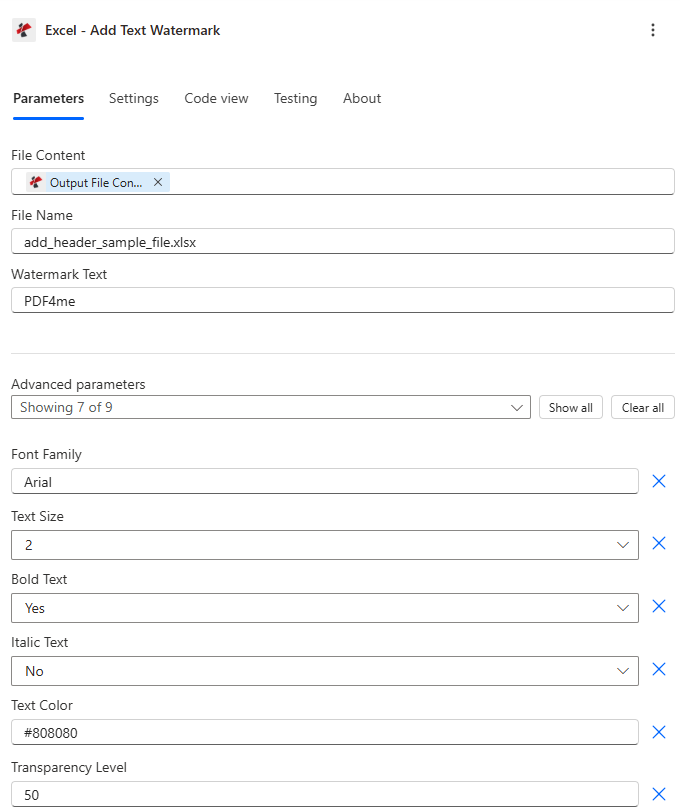
Mappa Contenuto del file dalla fase di archiviazione, inserisci Testo della filigranae scegli taglia, colore e posizione.
Parametri
Necessario: Contenuto del file, Nome del file, E Testo della filigranaTutti gli altri parametri hanno valori predefiniti sensati. Gli indici del foglio di lavoro utilizzano basato su 0 numerazione (Indice 0 = primo foglio).
| Parametro | Necessario | Cosa fa | Esempio |
|---|---|---|---|
| File Content | Required | Binary content of the Excel file. Map from a Get file content action in SharePoint, OneDrive, Dropbox, or any storage connector. Must be a valid .xlsx or .xls workbook. | SharePoint → File Content |
| File Name | Required | Filename including extension (.xlsx or .xls). Used to identify the document being processed. Supports dynamic values from prior flow steps. | report.xlsx |
| Watermark Text | Required | Text to display on each worksheet as a WordArt object. Any alphanumeric string or symbol. Examples: CONFIDENTIAL, DRAFT, © 2025 Acme Corp. | CONFIDENTIAL |
| Text Size | Optional | Size preset: 1 = 50 pt (Small), 2 = 75 pt (Medium), 3 = 100 pt (Large, default), 4 = 150 pt (Extra Large). Values outside 1-4 fall back to 100 pt. | 3 |
| Text Color | Optional | Hex code (#FF0000) or named color (Red, Blue, Gray, Black). Defaults to Black. Invalid values fall back to black. | #CC0000 |
| Font Family | Optional | Font name for the watermark WordArt. Common choices: Arial, Calibri, Times New Roman. Defaults to Arial. Unknown fonts may use the system default. | Arial |
| Is Bold | Optional | Set to true to apply bold weight to the watermark text. Improves readability over busy worksheets. Defaults to false. | true |
| Is Italic | Optional | Set to true to apply italic style. Useful for softer "Draft" labels. Defaults to false. | false |
| Transparency | Optional | Opacity from 0 (fully solid) to 100 (invisible). Set 40-60 for subtle watermarks that do not obscure cell data. Defaults to 0. | 50 |
| Rotation Angle | Optional | Angle in degrees. Positive = clockwise, negative = counter-clockwise. Range: -360 to 360. Use: 45 for the classic diagonal watermark. | -45 |
| Position | Optional | 0-8 grid code. Top row: 0 = Top-Left, 1 = Top-Center, 2 = Top-Right. Middle: 3 = Mid-Left, 4 = Center (default), 5 = Mid-Right. Bottom: 6, 7, 8. | 4 |
| Selected Worksheet Names | Conditional | Array of case-sensitive sheet names to watermark. Leave empty to apply to all sheets. Combined with Selected Worksheet Indexes. | ["Sheet1","Summary"] |
| Selected Worksheet Indexes | Conditional | 0-based array of sheet positions to watermark. Index 0 = first sheet. Leave empty to apply to all sheets. | [0, 2] |
Campi di output
| Campo | Tipo | Cosa contiene |
|---|---|---|
document | Base64 | The Excel workbook with the text watermark applied to each targeted worksheet. |
Success | Boolean | true if the action completed, false if it failed. |
ErrorMessage | String | Error description, null when Success is true. |
Errors | Array | Detailed error objects, empty when Success is true. |
Come impostare Aggiungi filigrana di testo in Power Automate?
- Nel tuo flusso, fai clic + Nuovo passo → cerca PDF4me → seleziona Aggiungi filigrana di testo a Excel.
- Collegare usando il tuo PDF4me API tasto (oppure scegli una connessione esistente).
- Mappa Contenuto del file dalla fase di archiviazione (SharePoint Ottieni il contenuto del file, OneDrive Ottieni il contenuto del file(o l'equivalente di Dropbox).
- Impostato Nome del file per il
.xlsxnome del file (dinamico o statico). - Inserisci Testo della filigrana - per esempio.
CONFIDENTIAL,DRAFT, O© 2025 Acme Corp. - Regolare Dimensione del testo, Colore del testo, Trasparenza, Angolo di rotazione, E Posizione per essere in linea con la tua immagine aziendale.
- (Opzionale) Popola Nomi dei fogli di lavoro selezionati O Indici dei fogli di lavoro selezionati per indirizzare solo fogli specifici.
- Aggiungi un Crea file O Aggiorna il file azione dopo questo passaggio e mappare Documento output come contenuto del file da salvare.
Esempi di flusso di lavoro
Esempi di flussoCommon Power Automate scenarios that use Add Text Watermark to Excel for security marking, draft management, and compliance.
- Un flusso programmato viene eseguito a fine mese quando un nuovo report arriva in un SharePoint biblioteca.
- Ottieni il contenuto del file recupera il Excel cartella di lavoro.
- Aggiungi filigrana di testo a Excel Francobolli "RISERVATO" - Dimensione testo 4, Colore #CC0000, Rotazione -45, Trasparenza 40, tutti i fogli.
- Crea file salva la copia con filigrana in una cartella riservata SharePoint cartella.
- UN Outlook Step invia il link per il download solo ai destinatari autorizzati.
- Un foglio di calcolo del budget viene inviato per la revisione tramite un modulo Power Apps.
- Il flusso aggiunge una filigrana diagonale grigia con la scritta "DRAFT" (Trasparenza 60, Rotazione -45) e invia un'e-mail ai revisori.
- Dopo l'approvazione, si avvia un secondo ramo di flusso Aggiungi filigrana di testo a Excel Di nuovo con la scritta "APPROVATO" in verde (Colore n. 008000, Trasparenza 40).
- Il file approvato sovrascrive la bozza in SharePoint e attiva una notifica di Teams.
- Un flusso automatizzato esporta i dati analitici mensili da un database a Excel.
- Aggiungi filigrana di testo a Excel Il timbro "© 2025 Acme Corp - Internal Use Only" in caratteri piccoli (dimensione 1) in basso a destra (posizione 8) compare solo sui fogli "Dati" e "Grafici".
- Nomi dei fogli di lavoro selezionati è impostato su ["Dati","Grafici"] in modo che il foglio di copertina rimanga pulito.
- La cartella di lavoro con filigrana viene caricata su un client SharePoint portale e un link viene inviato tramite Outlook.
Consigli pratici
Foglio riassuntivo
| Campo | Valore |
|---|---|
| Action | Excel - Add Text Watermark |
| Required fields | File Content, File Name, Watermark Text |
| Style fields | Text Size (1-4), Text Color, Font Family, Is Bold, Is Italic, Transparency, Rotation Angle, Position (0-8 grid) |
| Targeting fields | Selected Worksheet Names, Selected Worksheet Indexes (0-based, combine not replace) |
| Output | document (Base64 workbook) + Success + ErrorMessage + Errors |