Aggiungi filigrana di testo a Excel In n8n
Aggiungi filigrana di testo è un PDF4me Excel operazione in n8n che applica un'etichetta di testo personalizzata come RISERVATO o BOZZA sui fogli di lavoro in una cartella di lavoro .xlsx. Usalo per contrassegnare fogli di calcolo sensibili, segnalare bozze prima della revisione o applicare automaticamente il marchio aziendale, senza modifiche manuali. Excel.
Cosa fa questo nodo
PDF4me Excel: Aggiungi filigrana di testo applica una filigrana di testo in stile WordArt su Excel Fogli di lavoro con controllo su tipo di carattere, dimensione del testo in punti, colore del testo, grassetto e corsivo, trasparenza, angolo di rotazione e una griglia di posizionamento a nove posizioni. La selezione dei fogli di lavoro decide se la filigrana viene applicata a tutti i fogli o solo a quelli specificati. Ideale per etichette di riservatezza, indicatori di bozza, avvisi di copyright e personalizzazione automatizzata dei fogli di calcolo.
Autenticazione del tuo API Richiesta
Ogni PDF4me nodo in n8n richiede un valido Credenziali per connettersi con. Crea o selezionane uno che contenga il tuo PDF4me API chiave affinché il flusso di lavoro possa autenticare in modo sicuro le richieste di filigrana.
Informazioni importanti da non perdere
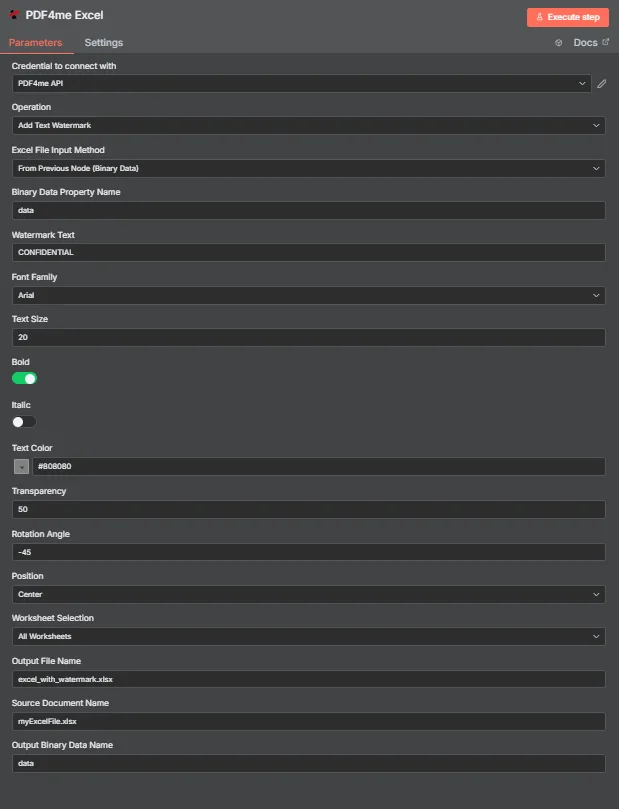
PDF4me Excel Aggiungi il pannello dei parametri della filigrana di testo in n8n
Quali parametri sono necessari per aggiungere una filigrana di testo?
Necessario: Operazione, Excel Metodo di immissione file, il campo di input corrispondente a tale metodo, il testo della filigrana e il nome del file di output. I campi di stile (famiglia di caratteri, dimensione del testo, colore del testo, grassetto, corsivo, trasparenza, angolo di rotazione, posizione) sono tutti forniti con impostazioni predefinite funzionanti, mentre il nome del documento sorgente e il nome dei dati binari di output sono etichette opzionali.
| Parametro | Necessario | Cosa fa | Esempio |
|---|---|---|---|
| Operation | Required | Selects the PDF4me Excel action to run. Choose Add Text Watermark. | Add Text Watermark |
| Excel File Input Method | Required | How the workbook reaches the node. From Previous Node (Binary Data) reads it from an upstream item; the dropdown also offers base64 and file URL alternatives. | From Previous Node (Binary Data) |
| Binary Data Property Name | Conditional | Name of the binary property on the incoming n8n item that holds the .xlsx workbook. Applies when the input method is binary data. Defaults to data. | data |
| Watermark Text | Required | The text stamped across the worksheet. Accepts any string, including expressions mapped from earlier nodes. | CONFIDENTIAL |
| Font Family | Optional | Font used to render the watermark, chosen from the dropdown of available families. | Arial |
| Text Size | Optional | Watermark size in points, entered directly. The response echoes the same number back as textSize. | 20 |
| Bold | Optional | Toggle that applies bold weight to the watermark text. Off by default. | true |
| Italic | Optional | Toggle that applies italic styling to the watermark text. Off by default. | false |
| Text Color | Optional | Watermark colour, set through the colour picker or as a hex code. | #808080 |
| Transparency | Optional | Transparency from 0 (fully opaque) to 100 (fully invisible). Default 0. | 50 |
| Rotation Angle | Optional | Rotation in degrees. 0 is horizontal, negative values tilt anticlockwise for the classic diagonal watermark. | -45 |
| Position | Optional | Placement on the sheet, picked from a nine-cell grid running Top Left through Bottom Right. Returned as a numeric code in the response. | Center |
| Worksheet Selection | Optional | All Worksheets watermarks every sheet. Switching to a specific selection lets you target sheets by name or zero-based index. | All Worksheets |
| Output File Name | Required | Filename for the watermarked workbook the node returns. Include the .xlsx extension. | excel_with_watermark.xlsx |
| Source Document Name | Optional | Reference label for the incoming workbook. Echoed back as originalFileName for tracking; it does not change the output. | myExcelFile.xlsx |
| Output Binary Data Name | Optional | Name of the binary property the output item exposes. Defaults to data. | data |
Campi di output
Una corsa di successo restituisce uno n8n trasporto dell'oggetto JSON metadati più la cartella di lavoro con filigrana come dati binari.
| Campo | Tipo | Cosa contiene |
|---|---|---|
success | Boolean | True when the watermark was applied successfully. Use it to route error-handling branches. |
fileName | String | Filename of the watermarked workbook, matching Output File Name. |
fileSize | Number | Size of the returned workbook in bytes. |
originalFileName | String | The value supplied in Source Document Name, echoed back for tracking. |
watermarkText | String | The text that was stamped onto the worksheets. |
fontFamily | String | Font family used to render the watermark. |
textSize | Number | Watermark size in points, matching the Text Size input. |
isBold | Boolean | Whether bold weight was applied. |
isItalic | Boolean | Whether italic styling was applied. |
textColor | String | Watermark colour as a hex value. |
transparency | Number | Transparency level applied, from 0 to 100. |
rotationAngle | Number | Rotation in degrees applied to the watermark. |
position | Number | Numeric code for the placement cell used on the nine-position grid. |
worksheetSelection | Number | 0 when every worksheet was watermarked, 1 when a specific selection was targeted. |
selectedWorksheetNames | Array | Worksheet names targeted, empty when all worksheets were processed. |
selectedWorksheetIndexes | Array | Zero-based worksheet indexes targeted, empty when all worksheets were processed. |
message | String | Human-readable result message for the operation. |
Binary (data) | Binary | The watermarked .xlsx under Output Binary Data Name (default data). Pass into Write Binary File, Email, or a cloud-storage upload. |
N8N Risposta all'azione
IL PDF4me Aggiungi filigrana di testo l'operazione restituisce una risposta che puoi esaminare in diversi formati all'interno n8n:
- JSON
- Schema
- Binary
JSON Formato di risposta
[
  {
    "fileName": "excel_with_watermark.xlsx",
    "fileSize": 219605,
    "success": true,
    "originalFileName": "myExcelFile.xlsx",
    "watermarkText": "CONFIDENTIAL",
    "fontFamily": "Arial",
    "textSize": 20,
    "isBold": true,
    "isItalic": false,
    "textColor": "#808080",
    "transparency": 50,
    "rotationAngle": -45,
    "position": 1,
    "worksheetSelection": 1,
    "selectedWorksheetNames": [],
    "selectedWorksheetIndexes": [],
    "message": "Text watermark added to Excel file successfully"
  }
]
Vista dello schema
1 item
fileName: T excel_with_watermark.xlsx
fileSize: # 219605
success: true
originalFileName: T myExcelFile.xlsx
watermarkText: T CONFIDENTIAL
fontFamily: T Arial
textSize: # 20
isBold: true
isItalic: false
textColor: T #808080
transparency: # 50
rotationAngle: # -45
position: # 1
worksheetSelection: # 1
selectedWorksheetNames: [] Array
selectedWorksheetIndexes: [] Array
message: T Text watermark added to Excel file successfully
Indicatori di tipo: T = String, # = Number, [] = Array.
Visualizzazione dei dati binari
data
File Name: excel_with_watermark.xlsx
File Extension: xlsx
Mime Type: application/vnd.openxmlformats-officedocument.spreadsheetml.sheet
File Size: 219.6 kB
Accesso ai dati binari: raggiungere il quaderno di lavoro a $binary.data.datapronto per il download, l'invio tramite e-mail o l'archiviazione.
Come impostare Aggiungi filigrana di testo in n8n?
- Aggiungi il PDF4me Excel nodo al tuo n8n flusso di lavoro e impostazione Operazione A Aggiungi filigrana di testo.
- In Credenziali per connettersi con, seleziona il tuo PDF4me API credenziali o creane una e incolla il tuo API chiave.
- Impostato Excel Metodo di immissione file A Dal nodo precedente (dati binari) e impostare Nome della proprietà dei dati binari alla proprietà che contiene la cartella di lavoro, normalmente
data. - Inserisci Testo della filigrana, Per esempio
CONFIDENTIAL. - Personalizza la filigrana con Famiglia di caratteri, Dimensione del testo (in punto), Colore del testo, Grassetto, E Corsivo.
- Regola la visibilità e il posizionamento con Trasparenza, Angolo di rotazione, E Posizione.
- Impostato Selezione del foglio di lavoro A Tutti i fogli di lavoro o indirizzare fogli specifici.
- Impostato Nome del file di output terminando in
.xlsx, quindi esegui il nodo e inoltra la cartella di lavoro con la filigrana.
Configurazioni tipiche
Esempi di flusso di lavoroCommon n8n workflow patterns using Add Text Watermark for Excel.
- Un trigger di Google Drive si attiva quando una cartella di lavoro viene inserita in una cartella in uscita.
- PDF4me Excel Esegue Aggiungi filigrana di testo con testo filigrana RISERVATO, colore del testo rosso, trasparenza 50.
- La cartella di lavoro con filigrana viene inviata via e-mail al destinatario e archiviata nuovamente su Drive.
- Un trigger di pianificazione crea una cartella di lavoro con i dati settimanali a partire da un'esportazione del database.
- Aggiungi filigrana di testo con testo filigrana BOZZA, angolo di rotazione -45, trasparenza 50, posizione centrata.
- La bozza viene pubblicata su un canale di revisione Slack prima dell'approvazione finale.
- Un nodo Loop Over Items itera le righe client da un CRM esportazione.
- Il testo della filigrana viene mappato da un'espressione in modo che ogni cartella di lavoro riporti il nome del cliente.
- Ogni output viene scritto nel servizio di archiviazione cloud utilizzando l'ID del client come nome del file.
- Un webhook riceve una cartella di lavoro di reporting completata da uno strumento interno.
- La selezione del foglio di lavoro si concentra sul foglio di riepilogo, lasciando non selezionate le schede dei dati grezzi.
- Il risultato viene caricato su SharePoint per la distribuzione.
Consigli pratici
Foglio riassuntivo
| Campo | Valore |
|---|---|
| Operation | Add Text Watermark |
| Excel File Input Method | From Previous Node (Binary Data) |
| Binary Data Property Name | data |
| Watermark Text | CONFIDENTIAL |
| Font Family | Arial |
| Text Size | 20 (points) |
| Text Color | #808080 |
| Transparency | 50 |
| Rotation Angle | -45 |
| Position | Center |
| Worksheet Selection | All Worksheets |
| Output File Name | excel_with_watermark.xlsx |
| Output Binary Data Name | data |
| Credentials | PDF4me API credential |