Aggiungi righe a un Excel Foglio di lavoro in n8n
Aggiungi righe è un PDF4me azione del nodo in n8n che scrive JSON registra in un Excel foglio di lavoro. Usalo per spingere API i risultati in un report, registra i payload del webhook in una cartella di lavoro condivisa o aggiungi CRM esportazioni su un foglio di tracciamento, con numeri e date che arrivano come reali Excel valori piuttosto che testo.
Cosa fa questo nodo
PDF4me Excel: Aggiungi righe prende un esistente .xlsx quaderno di lavoro più un JSON matrice in JSON Dati rigae scrive una riga per oggetto. Ha due modalità di posizionamento: nomina una tabella in Bersaglio Excel Tavolo e le chiavi vengono abbinate alle intestazioni, oppure lascialo vuoto e Inserisci dalla riga altro Inserisci dalla colonna Imposta la cella di partenza esatta. Modifica una cartella di lavoro fornita dall'utente anziché crearne una da zero.
Autenticazione del tuo API Richiesta
Ogni PDF4me nodo in n8n richiede un valido Credenziali per connettersi con. Crea o selezionane uno che contenga il tuo PDF4me API chiave affinché il flusso di lavoro possa autenticare in modo sicuro le richieste di fogli di calcolo.
Informazioni importanti da non perdere
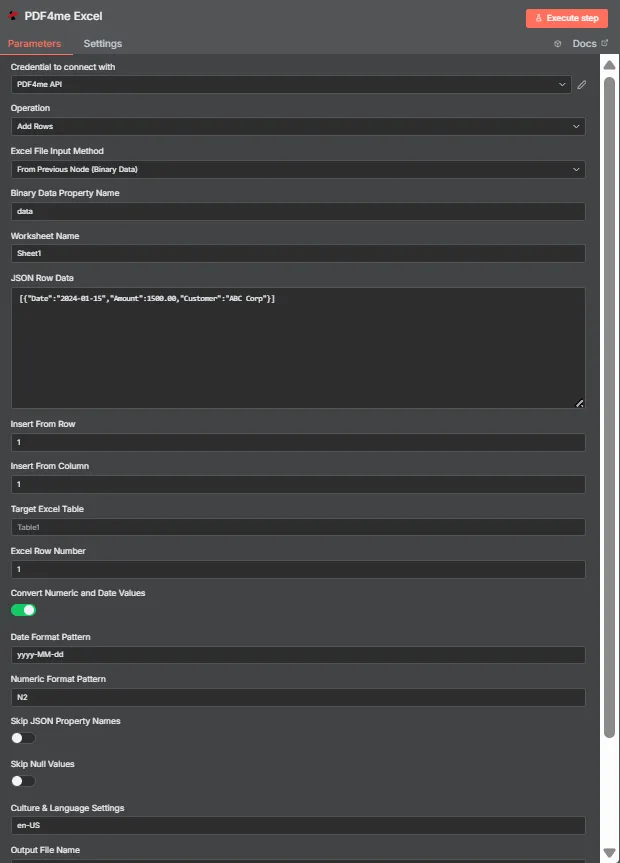
JSON I dati della riga contengono un JSON matrice di oggetti piatti. Obiettivo Excel La tabella è vuota in questo punto, quindi Inserisci da riga e Inserisci da colonna posizionano i dati nella cella A1.
Modalità tabella vs. modalità coordinate
| Domanda | Modalità tavolo | Modalità coordinate |
|---|---|---|
| How you switch to it | Name a table in Target Excel Table | Leave Target Excel Table blank |
| How columns are matched | JSON keys matched against table headers | Values written in key order from the start cell |
| Does column order matter | No, headers drive placement | Yes, position drives placement |
| Which fields control it | Target Excel Table and Excel Row Number | Insert From Row and Insert From Column |
| Best for | Structured sheets that already have a table | Blank sheets or a fixed reporting layout |
| Overwrite risk | Lower, rows follow the table structure | Higher, the start cell is written to directly |
Quali parametri sono necessari per aggiungere righe?
| Parametro | Necessario | Cosa fa | Esempio |
|---|---|---|---|
| Credential to connect with | Required | The PDF4me API credential the node authenticates with. | PDF4me API |
| Operation | Required | The action this node performs. Select Add Rows. | Add Rows |
| Excel File Input Method | Required | How the workbook reaches the node: from the previous node as binary data, as a Base64 string, or from a URL. | From Previous Node (Binary Data) |
| Binary Data Property Name | Conditional | Name of the binary property holding the .xlsx. Appears when the workbook comes from the previous node. | data |
| Worksheet Name | Required | Sheet the rows are written to. Match the sheet tab name exactly. | Sheet1 |
| JSON Row Data | Required | JSON array of flat objects. Each object becomes one row and each key maps to a column. | [{"Date":"2024-01-15","Amount":1500.00}] |
| Insert From Row | Conditional | Row number the data starts at, counting from 1. Used in coordinate mode when no table is named. | 1 |
| Insert From Column | Conditional | Column number the data starts at, counting from 1 for column A. Used in coordinate mode. | 1 |
| Target Excel Table | Optional | Name of an existing table to write into. Filling this in switches the node to header matching instead of coordinates. | Table1 |
| Excel Row Number | Conditional | Row index inside the named table where insertion begins. Used in table mode. | 1 |
| Convert Numeric and Date Values | Optional | Toggle that turns numeric and date strings into real Excel values rather than text. Ships enabled. | enabled |
| Date Format Pattern | Optional | Pattern applied to converted dates. Match it to the shape of the dates in your JSON. | yyyy-MM-dd |
| Numeric Format Pattern | Optional | Format applied to converted numbers, such as two decimal places. | N2 |
| Skip JSON Property Names | Optional | Toggle that omits the JSON keys, writing only values. Ships disabled so headers are included. | disabled |
| Skip Null Values | Optional | Toggle that leaves cells untouched where a JSON value is null instead of clearing them. Ships disabled. | disabled |
| Culture and Language Settings | Optional | Culture code used when parsing numbers and dates, which decides separator handling. | en-US |
| Output File Name | Optional | Filename of the returned workbook. Keep a valid Excel extension. | excel_with_rows.xlsx |
Produzione
| Campo | Tipo | Cosa contiene |
|---|---|---|
| fileName | String | Name of the returned workbook after the rows were written. |
| fileSize | Number | Size of the returned workbook in bytes. |
| success | Boolean | Whether the insertion completed. Branch on this so failures surface as alerts. |
| originalFileName | String | Name of the input workbook as supplied to the node. |
| worksheetName | String | The worksheet the rows were written to. |
| rowsAdded | Number | How many rows were inserted. The most useful verification signal the node returns. |
| insertFromRow | Number | Starting row used, echoed back when running in coordinate mode. |
| insertFromColumn | Number | Starting column used, echoed back when running in coordinate mode. |
| tableName | String | The table written into, or null when coordinate mode was used. |
| excelRowNumber | Number | Row index inside the table where insertion began, in table mode. |
| convertNumericAndDate | Boolean | Whether numeric and date conversion was applied. |
| dateFormat | String | The date pattern applied during conversion. |
| numericFormat | String | The numeric format applied during conversion. |
| cultureName | String | The culture code used to parse numbers and dates. |
| message | String | Human-readable summary, including the row count and worksheet name. |
La cartella di lavoro aggiornata viene restituita come dati binari, pronti per essere scritti nella memoria, allegati a un'e-mail o passati a un altro Excel fare un passo.
Come si imposta l'aggiunta di righe in n8n?
- Aggiungi il PDF4me Excel nodo al tuo flusso di lavoro e impostalo Operazione A Aggiungi righe.
- Seleziona il tuo PDF4me credenziali oppure creane una e incolla il tuo API chiave.
- Scegli un Excel Metodo di immissione file e inserire la cartella di lavoro attraverso il campo che appare sottostante.
- Impostato Nome del foglio di lavoro alla scheda del foglio specifica su cui stai scrivendo.
- Metti un JSON matrice di oggetti piatti in JSON Dati riga, un oggetto per riga.
- Per utilizzare la modalità tabella, immettere il nome della tabella in Bersaglio Excel Tavolo e impostare Excel Riga Number. Per utilizzare le coordinate, lasciare la tabella vuota e impostare Inserisci dalla riga E Inserisci dalla colonna.
- Partire Convertire valori numerici e date abilitato, quindi impostato Modello formato data, Modello di formato numerico, E Contesto culturale e linguistico per abbinare i tuoi dati.
- Impostato Nome del file di output, esegui il nodo e controlla
rowsAddednella risposta prima di inoltrare la cartella di lavoro.
Configurazioni tipiche
Esempi di flusso di lavoroCommon n8n workflow patterns using Add Rows.
- Un webhook riceve l'invio di un modulo come JSON.
- La funzione Aggiungi righe aggiunge i dati a una tabella denominata in una cartella di lavoro condivisa.
- Il team legge il foglio senza che nessuno debba reinserire i dati.
- Un programma HTTP la richiesta estrae i record da un interno API.
- Un nodo Code appiattisce la risposta in un array semplice.
- La funzione Aggiungi righe scrive i dati nel modello di report in posizioni fisse.
- Un lavoro notturno porta nuove opportunità come JSON.
- La modalità tabella associa le chiavi alle intestazioni esistenti.
- Le modifiche all'ordine delle colonne nel codice sorgente non compromettono il foglio di calcolo.
- Il metodo Add Rows restituisce rowsAdded insieme alla cartella di lavoro.
- Un nodo IF lo confronta con la lunghezza dell'array di input.
- Una discrepanza genera un avviso anziché inviare un breve report.
Consigli pratici
Foglio riassuntivo
| Campo | Valore |
|---|---|
| Operation | Add Rows |
| Excel File Input Method | From Previous Node (Binary Data) |
| Binary Data Property Name | data |
| Worksheet Name | Sheet1 |
| JSON Row Data | [{"Date":"2024-01-15","Amount":1500.00}] |
| Insert From Row / Column | 1 / 1 |
| Target Excel Table | Table1 |
| Excel Row Number | 1 |
| Convert Numeric and Date Values | enabled |
| Date Format Pattern | yyyy-MM-dd |
| Numeric Format Pattern | N2 |
| Culture and Language Settings | en-US |
| Output File Name | excel_with_rows.xlsx |