Aggiungi allegato a PDF In n8n
Aggiungi allegato a PDF è un PDF4me azione del nodo in n8n che incorpora uno o più file all'interno di un PDF, quindi un foglio di calcolo, un'immagine, un archivio o un secondo PDF Viaggia insieme al documento anziché allegarlo. Utilizzalo per allegare prove a supporto a un contratto, inviare dati grezzi insieme a un report o includere certificati in un fascicolo di conformità.
Cosa fa questo nodo
PDF4me: Aggiungi allegato a PDF prende un ospite PDF da Binary Data, un Base64 String, o un URL, quindi incorpora ogni file che elenchi sotto Allegati al suo interno come oggetto separato. A differenza della fusione, i file allegati mantengono il proprio formato e nome file e possono essere aperti o salvati singolarmente dal destinatario. Ogni allegato può provenire da una fonte diversa, quindi un file binario da un nodo precedente e un file recuperato da un URL possono essere incorporati nella stessa esecuzione.
Autenticazione del tuo API Richiesta
Ogni PDF4me nodo in n8n richiede un valido Credenziali per connettersi con. Crea o selezionane uno che contenga il tuo PDF4me API chiave affinché il flusso di lavoro possa autenticare in modo sicuro le richieste di allegati.
Informazioni importanti da non perdere
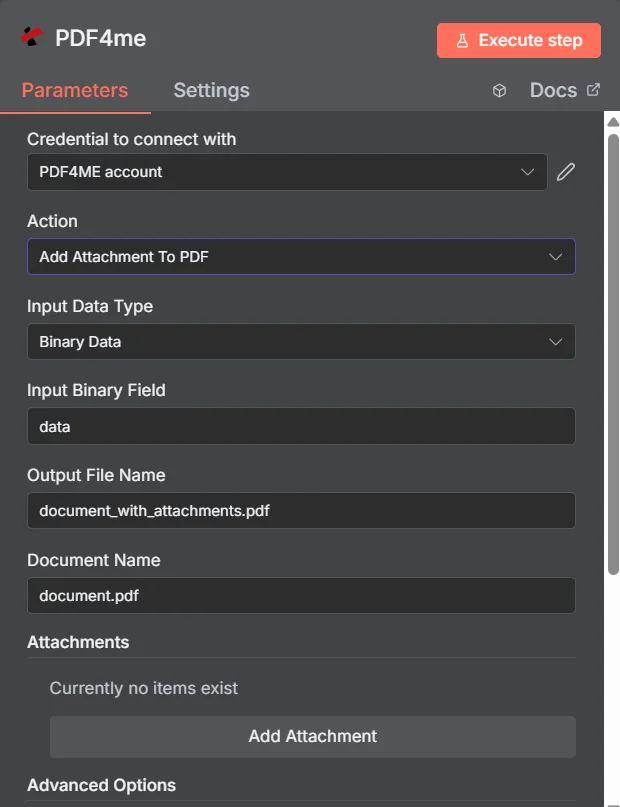
PDF4me Aggiungi allegato a PDF pannello dei parametri in n8n, con la raccolta Allegati vuota prima che venga aggiunta la prima voce
Collegamento vs Unione vs Compressione
Tre modi per inviare più file come un unico documento, con conseguenze diverse per il destinatario.
| Approccio | Ciò che riceve il destinatario | Migliore vestibilità |
|---|---|---|
| Add Attachment to PDF | One PDF that opens normally, with the extra files available in the attachments panel | Supporting material that must stay in its original format, such as a spreadsheet or an archive |
| Merge PDFs | One continuous document where all pages read in sequence | Content that genuinely belongs together as a single readable document |
| Zip the files together | An archive that must be unpacked before anything can be read | Bulk transfer where nothing needs to be readable without extracting first |
Quali parametri aggiunge l'allegato? PDF Bisogno?
Necessario: Azione, Tipo di dati di input, il campo corrispondente a quel tipo di input, Nome del file di output, Nome del documento e almeno una voce in Allegati. Nome output dati binari e Profili personalizzati hanno valori predefiniti funzionanti.
| Parametro | Necessario | Cosa fa | Esempio |
|---|---|---|---|
| Action | Required | Selects the PDF4me node action to run. Choose Add Attachment To PDF. | Add Attachment To PDF |
| Input Data Type | Required | Format of the host PDF input. Choose Binary Data (from a previous node), Base64 String, or URL. | Binary Data |
| Input Binary Field | Conditional | Name of the binary property on the incoming n8n item that holds the host PDF. Required when Input Data Type is Binary Data. Defaults to data. | data |
| Base64 Document Content | Conditional | Base64-encoded content of the host PDF. Required when Input Data Type is Base64 String. | JVBERi0xLjQK... |
| File URL | Conditional | Publicly reachable HTTPS URL to the host PDF. Required when Input Data Type is URL. | https://example.com/contract.pdf |
| Output File Name | Required | Filename for the PDF returned with the files embedded. Include the .pdf extension. | document_with_attachments.pdf |
| Document Name | Required | Filename of the source PDF, used for reference and tracking on the request. | document.pdf |
| Attachments | Required | Collection of files to embed. Click Add Attachment once per file, then fill in the per-attachment fields listed below. | One entry per embedded file |
| Binary Data Output Name | Optional | Name of the binary property the output item exposes. Defaults to data. | data |
| Custom Profiles | Optional | Advanced Options field for extra processing settings, supplied in a JSON-like format. Leave blank unless you have a specific profile to apply. | { "preserveMetadata": true } |
Campi all'interno di ciascuna voce di allegato
Ogni voce che crei con Aggiungi allegato espone il proprio insieme di campi.
| Parametro | Necessario | Cosa fa | Esempio |
|---|---|---|---|
| Attachment Content Type | Required | How this particular attachment is supplied. Choose Binary Data, Base64 Content, or File URL. Each entry can differ. | Binary Data |
| Attachment Name | Required | Filename the embedded file will carry inside the PDF. Include the correct extension so readers can open it after extraction. | supporting_data.xlsx |
| Binary Field Name | Conditional | Name of the binary property holding this attachment. Required when Attachment Content Type is Binary Data. | data |
| Base64 Content | Conditional | Base64-encoded content of this attachment. Required when Attachment Content Type is Base64 Content. | SGVsbG8gV29ybGQ= |
| File URL | Conditional | Publicly reachable HTTPS URL to this attachment. Required when Attachment Content Type is File URL. | https://example.com/certificate.pdf |
Campi di output
Una corsa di successo restituisce uno n8n oggetto che trasporta il PDF con i relativi file incorporati.
| Campo | Tipo | Cosa contiene |
|---|---|---|
Binary (data) | Binary | The PDF with all listed files embedded, under Binary Data Output Name (default data). |
fileName | String | Generated filename, matching Output File Name. |
mimeType | String | MIME type of the output, always application/pdf. |
fileSize | Number | Size of the returned PDF in bytes, including the embedded files. |
attachmentCount | Number | Number of attachments successfully embedded. Compare it against your expected count to catch a silently skipped file. |
success | Boolean | True when the attachment operation completed, false on failure. Use it to branch error handling. |
message | String | Human-readable status message, carrying success confirmation or error detail. |
Come si imposta Aggiungi allegato a PDF In n8n?
- Aggiungere PDF4me al tuo n8n flusso di lavoro e scegliere il Aggiungi allegato a PDF azione.
- In Credenziali per connettersi con, seleziona il tuo PDF4me credenziali o clicca Crea nuove credenziali e incolla il tuo API chiave.
- Impostato Tipo di dati di input A Dati binari (predefinito), Base64 String, O URL e fornire l'host corrispondente PDF campo.
- Sotto Allegati, clicca Aggiungi allegato una volta per ogni file, quindi imposta il suo Tipo di contenuto dell'allegato, Nome dell'allegatoe corrispondente campo sorgente.
- Impostato Nome del file di output (deve terminare in
.pdf) E Nome reale per il file sorgente. - Esegui il nodo e instrada il risultato PDF avanti, controllando
attachmentCountrispetto al numero di file che ti aspettavi.
Configurazioni tipiche
Esempi di flusso di lavoroCommon n8n workflow patterns using Add Attachment to PDF.
- Una fattura PDF viene generato dai dati di fatturazione.
- Aggiungi allegato a PDF incorpora le ricevute corrispondenti e il registro di approvazione.
- Un fascicolo viene inviato all'ufficio contabilità fornitori con tutta la documentazione probatoria al suo interno.
- Viene generato un report analitico programmato PDF.
- Aggiungi allegato a PDF incorpora il sottostante CSV Esporta come allegato denominato.
- I lettori comprendono la narrazione e possono estrarre i dati grezzi quando desiderano verificarli.
- Il contratto viene generato a partire da un modello su richiesta di firma.
- Aggiungi allegato a PDF incorpora certificati e programmi estratti da URLs.
- La controparte riceve un unico documento autonomo da firmare.
- Un nodo Loop Over Items raccoglie i file di prova relativi a un periodo di archiviazione.
- Aggiungi allegato a PDF incorpora ciascuno di essi nel documento di presentazione della copertina.
- Il pacchetto è archiviato ed estrai l'allegato da PDF Possiamo disimballarlo in seguito su richiesta.
Consigli pratici
Foglio riassuntivo
| Campo | Valore |
|---|---|
| Action | Add Attachment To PDF |
| Input Data Type | Binary Data |
| Input Binary Field | data |
| Output File Name | document_with_attachments.pdf |
| Document Name | document.pdf |
| Attachments | One entry per file, added with Add Attachment |
| Attachment Content Type | Binary Data |
| Attachment Name | supporting_data.xlsx |
| Binary Data Output Name | data |
| Credentials | PDF4me API credential |