Leggere PDF Metadati in Make: Ottieni informazioni sul documento
PDF4me Ottieni informazioni sul documento è un Make modulo che legge un PDF Restituisce 11 campi di metadati, tra cui titolo, autore, numero di pagine, dimensione del file e altro ancora, senza modificare il file sorgente. Utilizzalo per instradare i documenti per parola chiave, bloccare i caricamenti di file di grandi dimensioni prima della conversione o catalogare automaticamente i file di archivio in un foglio di calcolo.
Cosa fa questo modulo
PDF4me - Ottieni informazioni sul documento legge i metadati e le proprietà strutturali di qualsiasi PDF senza toccare il file sorgente. Restituisce 11 campi individuali - Titolo, Autore, Soggetto, Parole chiave, Creatore, Produttore, Data di creazione, Data di modifica, Numero di pagine, Dimensione file e Versione PDF - come token mappabili che puoi collegare direttamente Make Filtri, router, moduli di database o fasi di notifica. Utilizzalo per pre-selezionare le dimensioni dei documenti prima di una fase di conversione, instradare i file in base all'autore o alla parola chiave del reparto, catalogare automaticamente i caricamenti degli archivi in Airtable o Fogli Google, oppure visualizzare il numero di pagine in un'e-mail di approvazione in modo che i revisori sappiano cosa stanno firmando.
Autenticazione del tuo API Richiesta
Ogni PDF4me modulo in Make richiede un valido Connessione. Crea o selezionane uno che contenga il tuo PDF4me API chiave affinché lo scenario possa richiamare in modo sicuro il servizio di metadati.
Informazioni importanti da non perdere
Il modulo legge la struttura del file e restituisce i dati. Nessun byte nell'originale PDF vengono scritti, riordinati o rimossi. Il documento che si mappa è identico a quello passato a valle: può essere eseguito in sicurezza sui file di produzione senza alcun rischio di alterare il codice sorgente.
Titolo, autore, soggetto, parole chiave, creatore, produttore, data di creazione, data di modifica, numero di pagine, dimensione del file e versione PDF sono tutti disponibili come token mappabili individualmente nel pacchetto di output: non è necessario alcun passaggio di analisi o funzione personalizzata per estrarre i singoli valori.
Conteggio pagine mappa, autore o parole chiave direttamente in un Make Filtra o instrada per diramare il tuo scenario in base alle proprietà del documento. Instrada i file di grandi dimensioni a un percorso di rifiuto, invia con tag di reparto PDFs alle cartelle corrispondenti oppure saltare i documenti già catalogati con un controllo dei duplicati.
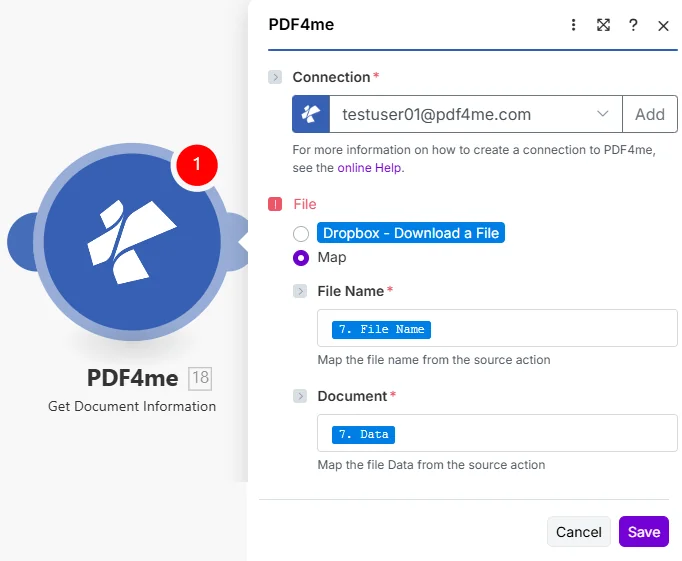
Seleziona Mappa in File, quindi mappa Nome del file E Documento dal passaggio che ha scaricato il PDF.
Parametri
Necessario: Connessione, Nome del file, E Documento. Impostato File A Mappa Innanzitutto, entrambi i campi di input diventano visibili. Per il documento sono necessari byte di file binari: una stringa URL o il solo nome del file non funzioneranno.
| Parametro | Necessario | Cosa fa | Esempio di mappatura |
|---|---|---|---|
| Connection | Required | PDF4me API connection used by the scenario to authenticate metadata requests. Click Add and paste your API key if connecting for the first time. | Your PDF4me connection |
| File | Required | Determines how the PDF is supplied. Choose Map to wire File Name and Document from a prior module's output - the most common setup for multi-step scenarios. | Map |
| File Name | Conditional | Filename with .pdf extension from the source module, required when File is set to Map. Map from the file name field of your Dropbox, Drive, or OneDrive step. | 7. File Name |
| Document | Conditional | Binary PDF content from the download step, required when File is set to Map. Must be actual file bytes - not a URL or a filename string. Map from the Data field of Dropbox or the File Content field of SharePoint. | 7. Data |
Come si legge? PDF Metadati in Make?
- Aggiungere PDF4me → Ottieni informazioni sul documento al tuo scenario.
- Seleziona Connessione (oppure fai clic) Aggiungere per crearne uno con il tuo API chiave).
- Sotto File, scegliere Mappa.
- Mappa Nome del file nel campo del nome del file dalla fase di download - includi il
.pdfestensione. - Mappa Documento al campo dati binari dallo stesso passaggio (di solito Dati in Dropbox o Contenuto del file nei moduli SharePoint/OneDrive).
- Salva e clicca Eseguire una voltaEspandere il Informazioni sul file Pacchetto di output: ciascuno degli 11 campi di metadati è un token mappabile separato, pronto per essere collegato a qualsiasi modulo successivo.
Quali campi di metadati restituisce questo modulo?
Il modulo restituisce un Informazioni sul file pacchetto con 11 campi di metadati individuali: ognuno è mappabile in modo indipendente. Titolo, Autore, Soggetto, Parole chiave, Creatore e Produttore provengono da Dizionario informativo del documento PDF (Sezione 14.3.3 del PDF specifica 32000-1:2008), mentre la data di creazione e la data di modifica seguono ISO 8601 Formattazione del timestamp.
| Campo | Tipo | Cosa contiene e come usarlo |
|---|---|---|
Title | String | Document title as stored in the PDF metadata dictionary. Empty string if not set. Map into an Airtable record or email subject line. |
Author | String | Name of the person or system that created the document. Use in a Router to send files to department-specific folders based on creator. |
Subject | String | Subject or description field from the document properties dialog. Often populated by enterprise document management systems. |
Keywords | String | Comma-separated keyword tags embedded by the author. Filter on this field in a Make Filter to route to the correct team or project. |
Creator | String | Application that originally created the document - for example, Microsoft Word, Adobe InDesign, or a PDF library name. |
Producer | String | PDF conversion library or printer driver that generated the final PDF bytes. Different from Creator when a Word file was later exported to PDF. |
Creation Date | DateTime | ISO 8601 timestamp of when the document was first created. Use in a Filter to process only documents created within a target date range. |
Modification Date | DateTime | ISO 8601 timestamp of the last save. Compare to a stored baseline date to detect documents that have changed since last processing. |
Page Count | Integer | Total number of pages. Use in a Filter to block files over a page limit or route short vs. long documents to different processing branches. |
File Size | Integer | File size in bytes. Gate on this before a conversion or email step - reject oversized files and notify the submitter to re-upload a compressed version. |
PDF Version | String | PDF specification version (e.g. 1.4, 1.7, 2.0). Verify conformance before routing to a PDF/A archive that requires a specific version. |
Quando dovrei utilizzare la funzione "Ottieni informazioni sul documento"?
Configurazioni tipicheCommon Make scenario patterns that use Get Document Information to drive routing, validation, or cataloging.
- Un nuovo PDF il messaggio finisce in una cartella di posta in arrivo condivisa di Dropbox e attiva lo scenario.
- Ottieni informazioni sul documento Estrae il campo dei metadati Parole chiave.
- UN Make Il router verifica il valore della parola chiave rispetto ai nomi dei dipartimenti (Finanza, Legale, Risorse Umane).
- Ogni filiale carica il file nella cartella del team corrispondente su Google Drive.
- Una notifica Slack avvisa il team di destinazione con il titolo del documento e il numero di pagine.
- L'invio di un modulo attiva lo scenario con un allegato PDF.
- Ottieni informazioni sul documento Restituisce il numero di pagine e la dimensione del file.
- Un filtro blocca l'elaborazione dei file di dimensioni superiori a 50 MB o inferiori a 1 pagina.
- I documenti validi possono essere inviati al modulo di conversione o di firma elettronica.
- I file rifiutati attivano una risposta via email in cui si chiede all'utente di caricare una versione di dimensioni inferiori.
- Uno scenario pianificato itera su nuovi PDFs in una cartella di archivio di OneDrive.
- Ottieni informazioni sul documento Estrae tutti gli 11 campi di metadati per file.
- Un modulo di Airtable crea un nuovo record con titolo, autore, data di creazione e numero di pagine.
- Il record rimanda all'URL del file di OneDrive per un recupero con un solo clic.
- Un filtro ignora i file che hanno già un record corrispondente in Airtable per evitare duplicati.
Consigli pratici
Foglio riassuntivo
| Campo | Valore |
|---|---|
| File | Map |
| File Name | 7. File Name |
| Document | 7. Data |
| Always populated | Page Count, File Size, PDF Version |
| Can be empty | Title, Author, Subject, Keywords, Creator, Producer |