Creare ZUGFeRD Fattura in Make
Creare ZUGFeRD Fattura è un Make modulo di PDF4me che genera ibrido ZUGFeRD/Factur-X fatture elettroniche da CSV, JSON, O XML dati della fattura. Usali per produrre un PDF/A-3 documento leggibile dalla macchina XML incorporato all'interno, allineato al EN 16931 Standard europeo per la fatturazione elettronica. Scegli il livello di conformità e la versione delle specifiche in base alle esigenze del tuo acquirente o ERP il sistema lo richiede.
Cosa fa questo modulo
PDF4me. Crea un ZUGFeRD fattura genera fatture elettroniche ibride direttamente all'interno del tuo Make scenario. Fornire i dati della fattura come CSV, JSON, O XML. il modulo produce un PDF/A-3 documento con un formato leggibile dalla macchina ZUGFeRD XML file incorporato al suo interno, o un XML-solo output per ERP sistemi che gestiscono il proprio rendering. Il risultato si allinea con il EN 16931 Standard europeo di fatturazione elettronica ed è accettato come Factur-X In Francia e in tutti i mercati dell'UE. I livelli di conformità e la versione delle specifiche sono configurabili per adattarsi esattamente alle esigenze del vostro acquirente o del destinatario del settore pubblico.
Autenticazione del tuo API Richiesta
Ogni PDF4me modulo in Make richiede un valido Connessione. Crea o selezionane uno che contenga il tuo PDF4me API chiave affinché lo scenario possa richiamare in modo sicuro il servizio di generazione delle fatture.
Informazioni importanti da non perdere
L'output ibrido è un PDF/A-3 documento. il ZUGFeRD XML è incorporato come allegato conforme all'interno del file. ERP i sistemi estraggono il XML automaticamente; gli umani possono ancora aprire e leggere il PDF in qualsiasi visualizzatore standard. Imposta Genera fattura in formato PDF Selezionare Sì per visualizzare le voci della fattura direttamente sulla pagina.
La versione 1.0 supporta BASE, COMFORT, ESTESA. La versione 2+ si espande a MINIMO, BASEWL, BASE, EN16931, ESTESA, XRECHNUNG. XRECHNUNG E EN16931 sono necessari per la fatturazione nel settore pubblico in Germania. Assicurarsi sempre che la versione e il livello corrispondano a quelli previsti dal sistema dell'acquirente.
Selezione XML mostra il Dati XML della fattura campo; JSON Mostra i dati JSON della fattura; CSV mostra i dati CSV della fattura. Compila solo il campo che corrisponde al formato scelto. Quando si utilizza XML formato, il modulo espone anche un File radio così puoi tirare la XML direttamente da Dropbox oppure mappandolo da un modulo precedente.
Quale ZUGFeRD versione devo usare?
Il modulo supporta due versioni delle specifiche. La maggior parte delle nuove integrazioni dovrebbe utilizzare la versione 2.0 o successiva; la versione 1.0 è riservata alla compatibilità con le versioni precedenti.
ZUGFeRD 2.0+ RACCOMANDATO
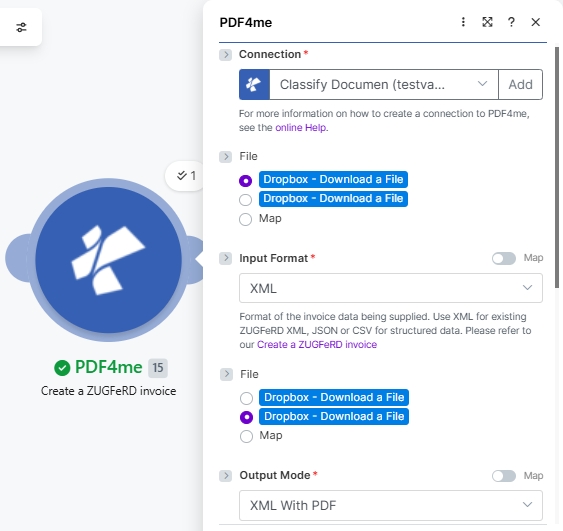
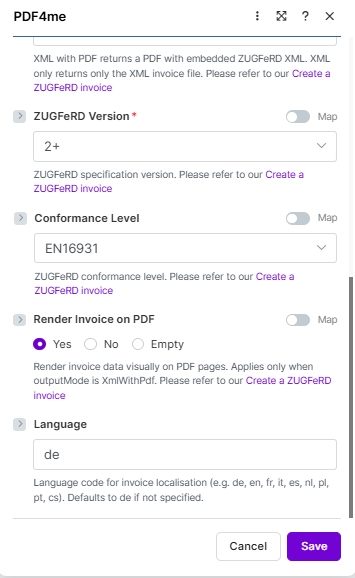
Specifiche attuali. Livelli di conformità: MINIMO, BASICWL, DI BASE, EN16931 (Comfort, l'impostazione predefinita legale tedesca), ESTESA, XRECHARGE. Compatibile con Factur-X. Abbina con il 2.0 XML campione, 2.0 EN16931 JSON campione, O 2.0 CSV campioneGli screenshot qui sotto mostrano l'interfaccia utente 2.0+ esattamente come appare oggi.
ZUGFeRD 1.0 EREDITÀ
Pre-EN 16931 Livelli di conformità alle specifiche: DI BASE, COMFORT, ESTESA. Utilizzare solo quando il destinatario ERP o il sistema dell'acquirente richiede esplicitamente 1.0 (raro dopo il 2022). Abbina con il 1.0 XML campione, IL base JSON campione, o il 1.0 CSV campioneTutti gli altri campi funzionano allo stesso modo; cambia solo il menu a tendina del livello di conformità.
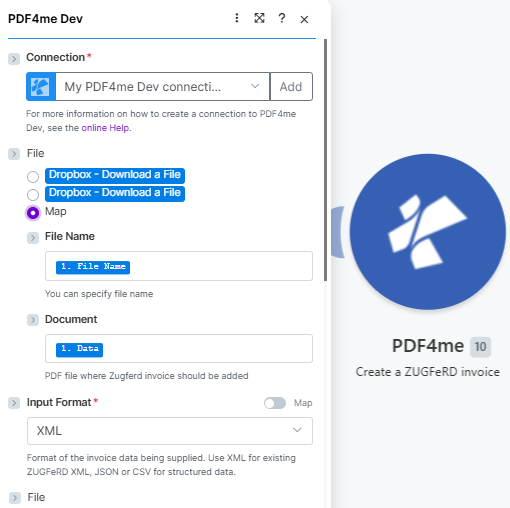
Inizia con Connessione, quindi mappa la base PDF Nome del file, Documento) e impostare Formato di input (Qui XML).
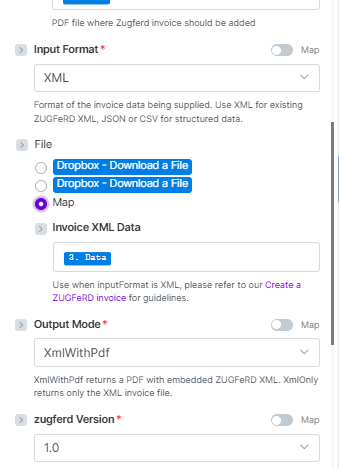
Con File = Mappamappa Dati XML della fattura, impostato Modalità di uscita XmlWithPdf O Solo XML), quindi scegli zugferd Visualizzazione (Qui 1.0).
Parametri
Necessario: Connessione, Formato di input, Modalità di uscita, ZUGFeRD Visualizzazione. Il campo dati della fattura (Dati XML della fattura, Dati JSON della fattura, O Dati della fattura in formato CSV) appare dinamicamente in base alla selezione del formato di input. È necessario compilare solo il campo corrispondente.
Perché File compaiono due volte negli screenshot della versione 2.0+? Quando il formato di input è XML e il file è impostato su Mappa, il modulo visualizza un secondo selettore di file in modo da poter mappare entrambi (a) la base PDF IL ZUGFeRD la fattura dovrebbe essere incorporata e (b) la fonte ZUGFeRD XML file. Entrambi i selettori espongono le stesse opzioni radio. Quando il formato di input è JSON O CSV il secondo picker viene sostituito dal corrispondente Dati JSON della fattura O Dati della fattura in formato CSV campo di testo.
| Parametro | Necessario | Cosa fa | Esempio / Opzioni |
|---|---|---|---|
| Connection | Required | PDF4me API connection used to authenticate invoice generation requests. Click Add and paste your API key if connecting for the first time. | Your PDF4me connection |
| File | Conditional | Source of the base PDF where the ZUGFeRD invoice will be embedded (when Output Mode is XmlWithPdf). Radio button with two options: Dropbox - Download a File (pulls directly from a Dropbox account without a prior download step) or Map (supplies the PDF from a prior module. Dropbox, Google Drive, OneDrive, HTTP, etc.). Choose Map for the most flexible workflow. When Map is selected, the two sub-fields below appear. | Map |
| File → File Name | Conditional | Sub-field of File (visible when Map is selected). Filename of the base PDF including the .pdf extension. Map from the prior module's filename output. for example, the File Name field of a Dropbox or Google Drive Download module. | 1. File Name |
| File → Document | Conditional | Sub-field of File (visible when Map is selected). Binary PDF content where the ZUGFeRD XML will be embedded. Map from the prior module's binary data field. typically the Data field of Dropbox, Google Drive, or OneDrive download modules. Hint shown in module: "PDF file where Zugferd invoice should be added". | 1. Data |
| Input Format | Required | Format of the invoice data being supplied. Use XML for existing ZUGFeRD XML; JSON or CSV for structured data. Hint: "Format of the invoice data being supplied. Use XML for existing ZUGFeRD XML, JSON or CSV for structured data." | XML sampleXML 2.0 sampleJSON 2.0 EN16931 sampleJSON (basic)CSV sampleCSV 2.0 sample |
| Invoice XML Data | Conditional | The ZUGFeRD XML invoice content to embed. Appears when Input Format = XML and File = Map. Hint: "Use when inputFormat is XML, please refer to our Create a ZUGFeRD invoice for guidelines." Map from a prior Dropbox download or HTTP module output. | XML sampleXML 2.0 sample3. Data (mapped) |
| Invoice JSON Data | Conditional | Structured invoice data in JSON format. Appears when Input Format = JSON. Map a JSON string from a Google Sheets, Airtable, or HTTP module. See sample JSON below. | JSON 2.0 EN16931 sampleJSON (basic)(mapped JSON string) |
| Invoice CSV Data | Conditional | Invoice row data in CSV format. Appears when Input Format = CSV. Map a CSV row from an iterator, Google Sheets, or file download module. See sample CSV below. | CSV sampleCSV 2.0 sample(mapped CSV row) |
| Output Mode | Required | XML With PDF (a.k.a XmlWithPdf in API requests) returns a PDF/A-3 file with the ZUGFeRD XML embedded inside, the standard hybrid e-invoice. XML Only (XmlOnly) returns just the XML invoice file without a PDF wrapper. Hint shown in module: "XML with PDF returns a PDF with embedded ZUGFeRD XML. XML only returns only the XML invoice file." | XML With PDF |
| ZUGFeRD Version | Required | ZUGFeRD specification version. Set to match what the recipient ERP or buyer system expects. Latest is 2+; legacy 1.0 also supported. The two have different conformance level sets (see table below). | 2+ |
| Conformance Level | Optional | ZUGFeRD conformance profile. Available levels differ by version. For 2+, EN16931 (Comfort) is the default for German legal e-invoicing compliance. See the Conformance Level Reference table below. Defaults to BASIC if not specified. | EN16931 |
| Render Invoice on PDF | Optional | When set to Yes, invoice line items are drawn visually on the PDF pages. Applies only when Output Mode is XmlWithPdf. Options: Yes, No, Empty. Hint: "Render invoice data visually on PDF pages. Applies only when outputMode is XmlWithPdf." | Yes |
| language | Optional | Two-letter locale code for invoice label localisation. Supported: de, en, fr, it, es, nl, pl, pt, cs. Hint: "Language code for invoice localisation (e.g. de, en, fr, it, es, nl, pl, pt, cs). Defaults to de if not specified." | de |
Riferimento al livello di conformità
I livelli di conformità disponibili differiscono per zugferd Visualizzazione. Abbina sempre il livello a quello che il tuo acquirente o ERP il sistema lo richiede.
| Livello | Utilizzare quando |
|---|---|
BASIC | Mandatory EN 16931 fields only. Widest compatibility, safe default. |
COMFORT | Adds optional fields for line-item detail and additional references. |
EXTENDED | Full field set for complex B2B invoices with delivery, allowances, and charges. |
| Livello | Utilizzare quando |
|---|---|
MINIMUM | Absolute minimum fields. Buyer reference and totals only. |
BASICWL | BASIC without line items. Header-level data only. |
BASIC | Mandatory EN 16931 fields. Recommended starting point. |
EN16931 | Full EN 16931 compliance for cross-border and public sector. |
EXTENDED | Full field set including German-specific extensions. |
XRECHNUNG | German public-sector e-invoice mandate (XRechnung profile). |
Esempi di file di fattura
Utilizza questi file di esempio per testare il modulo con ciascun formato di input prima di collegare la tua origine dati reale. Per i flussi di lavoro di produzione B2B tedeschi, inizia con sample-invoice-zugferd-2.0-en16931.json ZUGFeRD 2.0, EN16931 conformità).
ZUGFeRD-invoice-sample.xmlZUGFeRD-invoice-sample-2.0.xmlsample-invoice-zugferd-2.0-en16931.jsonsample-invoice.jsonfattura-di-prova.csvzugferd-invoice-2.0.csvCSV Riferimento colonna
IL CSV L'input deve seguire esattamente questo ordine di colonne. Ogni riga genera una fattura.
| Colonna | Descrizione | Esempio |
|---|---|---|
InvoiceId | Unique invoice identifier | INV-2025-001 |
IssueDate | Invoice issue date (YYYY-MM-DD) | 2025-01-15 |
SellerName | Seller company name | Test Company |
SellerStreet | Seller street address | 123 Main St |
SellerCity | Seller city | Test City |
SellerPostalCode | Seller postal / ZIP code | 12345 |
SellerCountry | ISO 3166-1 alpha-2 country code | DE |
SellerVatId | Seller VAT registration number | DE123456789 |
BuyerName | Buyer company or person name | Customer Inc |
BuyerStreet | Buyer street address | 456 Oak Ave |
BuyerCity | Buyer city | Customer City |
BuyerPostalCode | Buyer postal / ZIP code | 67890 |
BuyerCountry | ISO 3166-1 alpha-2 country code | DE |
ProductName | Line item product or service name | Test Product |
Quantity | Quantity of the line item | 10.0 |
UnitPrice | Net unit price | 9.90 |
TaxPercent | VAT / tax percentage | 19.0 |
Currency | ISO 4217 currency code | EUR |
PaymentReference | Payment reference string | PAY-REF-001 |
IBAN | Payee IBAN for bank transfer | DE08700901001234567890 |
BIC | Payee bank BIC / SWIFT code | GENODEF1M04 |
JSON Struttura della fattura
Quando si utilizza Formato di input: JSONIl payload deve includere le seguenti chiavi di primo livello. Tutti gli oggetti e gli array annidati seguono la struttura mostrata nel file di esempio.
| Chiave | Tipo | Descrizione |
|---|---|---|
InvoiceId | String | Unique invoice number, e.g. "471102" |
IssueDate | String (ISO 8601) | Invoice date, e.g. "2013-03-05T00:00:00" |
InvoiceType | String | Document type label, e.g. "RECHNUNG" |
TypeCode | String | UN/EDIFACT document type code. 380 for standard invoice |
IsTest | Boolean | true for test runs, false / omit for production |
Notes | Array of strings | Free-text notes shown in the invoice header (payment terms, GLN, etc.) |
Seller | Object | Seller party: Name, Address (Street, City, PostalCode, Country), TaxId, VatId, GLN |
Buyer | Object | Buyer party: Name, Address (Street, City, PostalCode, Country, LineTwo), GLN |
Payment | Object | Payment details: PaymentReference, Currency, IBAN, BIC |
DeliveryDate | String (ISO 8601) | Actual delivery date, e.g. "2013-03-05T00:00:00" |
LineItems | Array of objects | Invoice lines. each with Quantity, UnitCode, UnitPrice, LineTotal, ProductName, GTIN, SellerProductId |
Totals | Object | Monetary totals: LineTotal, ChargeTotal, AllowanceTotal, TaxBasisTotal, TaxTotal, GrandTotal, TaxPercent, Currency |
Come faccio a creare un ZUGFeRD fattura in Make?
- Aggiungere PDF4me → Crea un ZUGFeRD fattura al tuo scenario.
- Seleziona Connessione (oppure fai clic) Aggiungere per crearne uno con il tuo API chiave).
- Scegliere Formato di input. XML, JSON, O CSVIl campo dati visualizzato dipende da questa selezione.
- Impostato File A Mappa e collega il campo dati fattura (Dati XML fattura / Dati JSON / Dati CSV) dall'output del modulo precedente. Oppure scegli Dropbox - Scarica un file per scaricare il file direttamente da Dropbox.
- Impostato Modalità di uscita A XmlWithPdf per un ibrido PDF/A-3 fattura o Solo XML per XML soltanto.
- Impostato zugferd Visualizzazione (1.0 o 2+) quindi scegli Livello di conformità dal set appropriato alla versione. Inizia con DI BASE.
- Se si utilizza XmlWithPdf: impostare Genera fattura in formato PDF A SÌ disegnare visivamente gli elementi della linea e impostare lingua alla località di destinazione (ad esempio
de,en,fr). - Salva e clicca Eseguire una volta. Instradare il Dati del documento output su Dropbox, Google Drive, un ERP webhook o un modulo di posta elettronica.
Campi di output
| Campo | Tipo | Cosa contiene |
|---|---|---|
Document Name | String | Filename of the generated invoice file. e.g. invoice-471102.pdf or invoice-471102.xml. |
Document Data | Buffer | Binary content of the ZUGFeRD hybrid PDF/A-3 or XML file. Map into an upload, email attachment, or ERP HTTP module for the next step in your scenario. |
Esempi di flusso di lavoro
Esempi di flusso di lavoroCommon Make scenario patterns using Create ZUGFeRD Invoice for automated e-invoicing.
- Un ordine è contrassegnato come spedito nel tuo ERP o Airtable. Lo scenario si attiva.
- Le voci di riga, i prezzi, l'indirizzo dell'acquirente e i dati fiscali vengono recuperati e assemblati in un JSON carico utile.
- Creare ZUGFeRD fattura funziona con il formato di input JSONModalità di uscita XmlWithPdf, versione 2+Livello di conformità DI BASE, lingua
Di. - L'ibrido PDF viene inviata all'acquirente tramite Gmail e una copia viene caricata nell'archivio delle fatture su Google Drive.
- La contabilità lascia un CSV Archiviare le fatture mensili su Dropbox.
- Un trigger Watch Files rileva il nuovo file e un iteratore elabora ogni riga.
- Creare ZUGFeRD fattura corse per riga con formato di input CSV, generando un ibrido PDF per fattura.
- Tutto PDFs I file vengono caricati in una cartella di archivio strutturata e un'e-mail di riepilogo dell'operazione viene inviata al team finanziario.
- La fatturazione di un contratto governativo viene generata a partire da un record di Airtable.
- Creare ZUGFeRD fattura funziona con il formato di input JSONModalità di uscita Solo XML, versione 2+Livello di conformità XRECHARGE.
- IL XML Il file viene inviato tramite POST direttamente al sistema Peppol compatibile dell'acquirente. ERP API tramite un HTTP modulo.
- L'esito positivo o negativo della risposta viene registrato in un foglio di calcolo Google affinché il team finanziario possa esaminarlo.