Crea collegamenti ipertestuali in PDF con Make
PDF4me PDF - Creare collegamenti ipertestuali è un Make modulo che trasforma una specifica stringa di testo in un PDF in un link cliccabile, senza coordinate o un PDF Editor. Usalo per collegare i nomi dei prodotti alle pagine del negozio, le citazioni alle fonti o le frasi relative alle politiche aziendali a una pagina di domande frequenti (FAQ), quindi concatena i moduli per aggiungere diversi collegamenti a un unico documento.
Cosa fa questo modulo
PDF4me, PDF - Creare collegamenti ipertestuali trasforma qualsiasi stringa di testo in un PDF in un link cliccabile all'interno di un Make scenario. Gli dici quale testo trovare, dove deve puntare e quali pagine cercare, il modulo gestisce il resto. Nessuna coordinata, nessuna annotazione manuale, nessuna PDF editor aperto su un desktop.
Autenticazione della richiesta API
Ogni PDF4me modulo in Make richiede un valido Connessione. Crea o selezionane uno che contenga il tuo PDF4me API chiave affinché lo scenario possa richiamare il servizio di collegamento ipertestuale in modo sicuro.
Informazioni importanti da non perdere
Maggior parte PDF collegamento APIs È necessario specificare le coordinate x/y esatte. Questo modulo trova il testo per te: digita la parola o la frase che desideri rendere cliccabile e il posizionamento verrà gestito automaticamente.
Partire New Text vuoto e il testo originale cercato rimane visibile come etichetta del link. Riempilo per sostituire ciò che vede il lettore, utile per trasformare un testo grezzo URL o un codice prodotto in un testo di ancoraggio leggibile.
Un modulo gestisce un testo-URL coppia. Per aggiungere diversi collegamenti allo stesso documento, collega più moduli Crea collegamenti ipertestuali in sequenza; ognuno riceve l'output del precedente.
Il modulo scrive uno standard PDF annotazione del collegamento come definita nel PDF Specifiche 32000-1:2008 (Sezione 12.5.6.5, Annotazioni dei collegamenti), lo stesso tipo di annotazione documentato nel PDF Indice delle specifiche dell'associazioneEcco perché i link risultanti si aprono correttamente in Acrobat, nei browser e sui dispositivi mobili. PDF visualizzatori senza alcun plugin personalizzato.
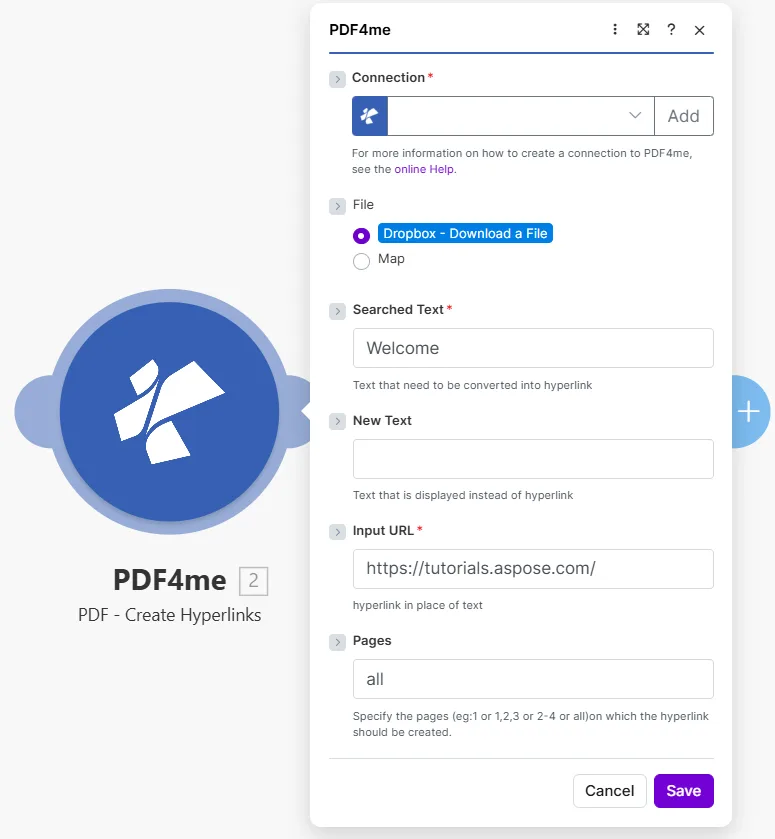
Inserisci il testo esatto da trovare in Searched Text, la destinazione in Input URLe quali pagine cercare Pages.
Parametri
Necessario: Connection, Searched Text, E Input URL. New Text E Pages sono facoltativi.
| Parametro | Necessario | Cosa fa | Esempio |
|---|---|---|---|
| Connection | Required | PDF4me API connection used to authenticate hyperlink creation requests. | Your PDF4me connection |
| File | Required | Source PDF. Choose Dropbox - Download a File for a direct Dropbox trigger, or Map to wire filename and binary data from a prior module. | Dropbox - Download a File |
| Searched Text | Required | The exact text string in the PDF that will become a clickable hyperlink. The module searches the specified pages for this text and wraps every occurrence in a link annotation. | Welcome |
| New Text | Optional | Optional label that replaces what the reader sees over the link. Leave empty to keep the original searched text as the visible link label. | Visit our site |
| Input URL | Required | The destination URL the hyperlink points to. Readers are taken to this address when they click the linked text. | https://tutorials.aspose.com/ |
| Pages | Optional | Pages to search for the text. Accepts a single number, a comma-separated list (1,3,5), a range (2-4), or the word all. Defaults to all if left empty. | all |
Come aggiungere collegamenti ipertestuali a un PDF In Make?
- Aggiungere PDF4me → PDF - Creare collegamenti ipertestuali al tuo scenario.
- Seleziona Connection (oppure fai clic) Aggiungere per crearne uno con il tuo API chiave).
- Impostato File A Dropbox - Scarica un file O Mappa da un modulo precedente.
- In Searched Text, digita il testo esatto che vuoi rendere cliccabile (ad esempio
Welcomeo il nome di un prodotto). - Inserire facoltativamente New Text se si desidera che l'etichetta visibile abbia un testo diverso da quello cercato.
- Incolla l'indirizzo di destinazione in Input URL.
- Impostato Pages: tipo
allper ogni pagina, oppure indirizzare pagine specifiche come1,3O2-4. - Salva e clicca Eseguire una voltaL'output contiene Document Name E Document Data: IL PDF con l'aggiunta di collegamenti ipertestuali.
Produzione
| Campo | Tipo | Cosa contiene |
|---|---|---|
Document Name | String | Filename of the output PDF with hyperlinks applied. |
Document Data | Buffer | Binary content of the PDF with link annotations added. Map this into an upload, email, or further processing module. |
Quando dovrei creare collegamenti ipertestuali?
Configurazioni tipicheCommon Make scenario patterns that use PDF - Create Hyperlinks to enrich documents automatically.
- Uno scenario pianificato recupera l'elenco dei prodotti più recente dal tuo database e genera un catalogo PDF.
- Un iteratore scorre ogni nome di prodotto presente nell'elenco.
- Creare collegamenti ipertestuali viene eseguita una volta per prodotto, Searched Text = nome del prodotto, Input URL = pagina del prodotto URL.
- Dopo il ciclo, ogni nome di prodotto nel catalogo diventa un link attivo alla sua pagina di acquisto.
- Il catalogo interattivo completato viene caricato su Google Drive e inviato via email al team di vendita.
- Un rapporto mensile PDF viene generato da un modello di Google Docs.
- Un archivio dati contiene un elenco di etichette di citazione e le relative corrispondenze URLs.
- Creare collegamenti ipertestuali Viene eseguito una volta per ogni citazione, trasformando ogni etichetta in un collegamento cliccabile alla fonte.
- I lettori possono cliccare su qualsiasi citazione nel PDF per aprire la fonte originale nel loro browser.
- Il report arricchito è memorizzato in SharePoint e distribuiti alle parti interessate.
- HR carica una nuova politica PDF in una cartella Dropbox monitorata.
- Creare collegamenti ipertestuali cerca la frase "Ulteriori informazioni" su tutte le pagine.
- Ogni evento diventa un collegamento con le Risorse Umane FAQ pagina sulla intranet aziendale.
- Un secondo modulo concatenato converte la frase "Invia una richiesta" in un link al sistema di ticketing.
- Il finito PDF viene salvato nella libreria documenti delle risorse umane e inviato via e-mail a tutto il personale.
Domande frequenti
Consigli pratici
Foglio riassuntivo
| Campo | Valore |
|---|---|
| Searched Text | Exact text to make clickable |
| New Text | Optional replacement label |
| Input URL | Destination address |
| Pages | all, a number, 1,3, or 2-4 |
| Output | Document Name + Document Data |