Create Hyperlinks in PDF with Make
What this module does
PDF4me — PDF - Create Hyperlinks turns any text string in a PDF into a clickable link inside a Make scenario. You tell it which text to find, where it should point, and which pages to search — the module handles the rest. No coordinates, no manual annotation, no PDF editor open on a desktop.
Authenticating Your API Request
Every PDF4me module in Make requires a valid Connection. Create or select one that holds your PDF4me API key so the scenario can call the hyperlink service securely.
Important Facts You Should Not Miss
Most PDF link APIs require you to specify exact x/y coordinates. This module finds the text for you — type the word or phrase you want to become clickable and it handles the positioning automatically.
Leave New Text empty and the original searched text stays visible as the link label. Fill it in to replace what the reader sees — useful for turning a raw URL or a product code into readable anchor text.
One module handles one text-to-URL pair. To add several different links to the same document, connect multiple Create Hyperlinks modules in sequence — each one receives the output of the previous.
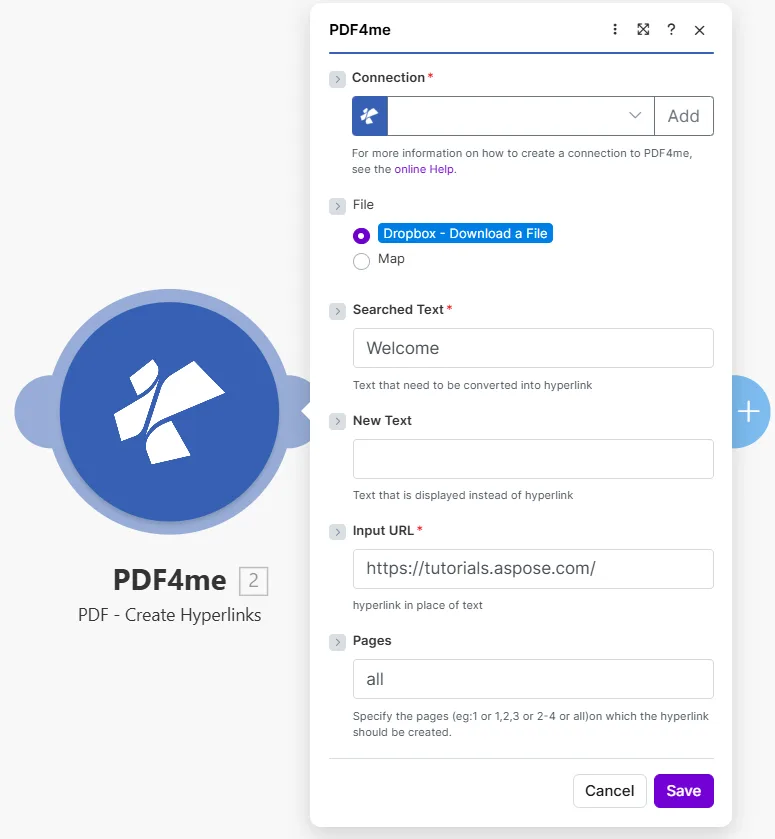
Enter the exact text to find in Searched Text, the destination in Input URL, and which pages to search in Pages.
Parameters
Required: Connection, Searched Text, and Input URL. New Text and Pages are optional.
| Parameter | Required | What it does | Example |
|---|---|---|---|
| Connection | Yes | PDF4me API connection used to authenticate hyperlink creation requests. | Your PDF4me connection |
| File | Yes | Source PDF. Choose Dropbox - Download a File for a direct Dropbox trigger, or Map to wire filename and binary data from a prior module. | Dropbox - Download a File |
| Searched Text | Yes | The exact text string in the PDF that will become a clickable hyperlink. The module searches the specified pages for this text and wraps every occurrence in a link annotation. | Welcome |
| New Text | No | Optional label that replaces what the reader sees over the link. Leave empty to keep the original searched text as the visible link label. | Visit our site |
| Input URL | Yes | The destination URL the hyperlink points to. Readers are taken to this address when they click the linked text. | https://example.com/ |
| Pages | No | Pages to search for the text. Accepts a single number, a comma-separated list (1,3,5), a range (2-4), or the word all. Defaults to all if left empty. | all |
Quick Setup
- Add PDF4me → PDF - Create Hyperlinks to your scenario.
- Select Connection (or click Add to create one with your API key).
- Set File to Dropbox - Download a File or Map from a prior module.
- In Searched Text, type the exact text you want to make clickable (e.g.
Welcomeor a product name). - Optionally enter New Text if you want the visible label to read differently from the searched text.
- Paste the destination address into Input URL.
- Set Pages — type
allfor every page, or target specific pages like1,3or2-4. - Save and click Run once. The output contains Document Name and Document Data — the PDF with hyperlinks applied.
Output
| Field | Type | What it contains |
|---|---|---|
Document Name | String | Filename of the output PDF with hyperlinks applied. |
Document Data | Buffer | Binary content of the PDF with link annotations added. Map this into an upload, email, or further processing module. |
Workflow Examples
Workflow ExamplesCommon Make scenario patterns that use PDF - Create Hyperlinks to enrich documents automatically.
- A scheduled scenario fetches the latest product list from your database and generates a catalog PDF.
- An iterator loops over each product name from the list.
- Create Hyperlinks runs once per product — Searched Text = product name, Input URL = product page URL.
- After the loop, every product name in the catalog is a live link to its shop page.
- The finished interactive catalog is uploaded to Google Drive and emailed to the sales team.
- A monthly report PDF is generated from a Google Docs template.
- A data store holds a list of citation labels and their matching URLs.
- Create Hyperlinks runs once per citation — turning each label into a clickable source link.
- Readers can click any citation in the PDF to open the original source in their browser.
- The enriched report is stored in SharePoint and distributed to stakeholders.
- HR uploads a new policy PDF to a watched Dropbox folder.
- Create Hyperlinks searches for the phrase "More information" on all pages.
- Every occurrence becomes a link to the HR FAQ page on the company intranet.
- A second chained module converts the phrase "Submit a request" into a link to the ticketing system.
- The finished PDF is saved to the HR document library and emailed to all staff.