PDF4me Make Integration
What this integration does
PDF4me for Make delivers 80+ document operations — PDF conversion, merging, splitting, watermarking, OCR, Excel manipulation, and Word processing — inside Make's visual scenario builder. Connect PDF4me to Dropbox, Google Drive, Gmail, Slack, Airtable, Salesforce, and 1000+ other Make apps without writing a single line of code.
Important Facts You Should Not Miss
Create a PDF4me connection once using your API key and reuse it across every PDF4me module in your Make account — no re-authentication required when you build new scenarios.
The Document Data output of any PDF4me module maps directly into the File input of the next. Convert, compress, watermark, and sign in a single scenario run — no file storage step between each action.
Supply documents from Dropbox, Google Drive, OneDrive, Gmail, Outlook, Box, a public URL via HTTP module, or any Make trigger that outputs a binary file — PDF4me accepts them all.
Authentication
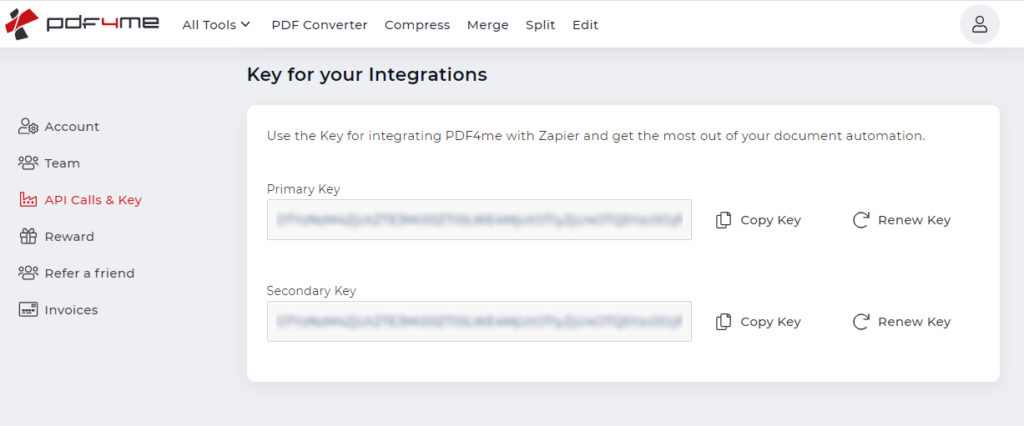
To use PDF4me in Make, authenticate using an API key. You can register at either dev.pdf4me.com (Developer Portal, recommended) or pdf4me.com (Consumer Portal).
Developer Portal — dev.pdf4me.com (Recommended)
The developer portal is best for automation workflows: monthly subscription plans, automatic credit renewal, a usage dashboard, and free trial credits to get started immediately.
Get your key:
- Register at dev.pdf4me.com
- Navigate to Dashboard → API Keys
- Copy your API key
Consumer Portal — pdf4me.com
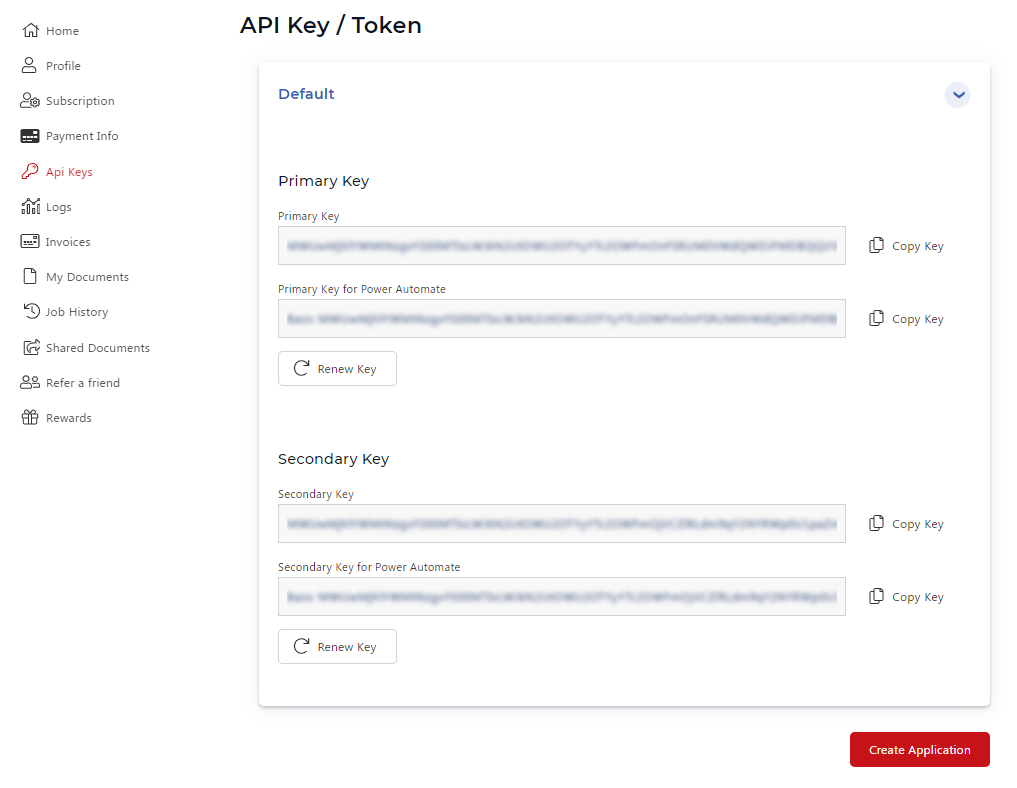
The consumer portal uses a one-time purchase model. After purchasing a plan, find your API key under Account Settings.
Setting Up PDF4me in Make
Step 1 — Register and get your API key
Go to dev.pdf4me.com, create a free account, and copy your API key from Dashboard → API Keys. Free trial credits are included — no credit card required.
Step 2 — Open Make and create a scenario
Log in to make.com, navigate to Scenarios, and click Create a new scenario to open the visual builder.
Step 3 — Add a PDF4me module
Click + to add a module, search for PDF4me, and select the action you need — for example Convert to PDF, Merge Multiple PDFs, Add Text Watermark, Generate Document Single, or any of the 80+ modules listed below.
Step 4 — Create the connection
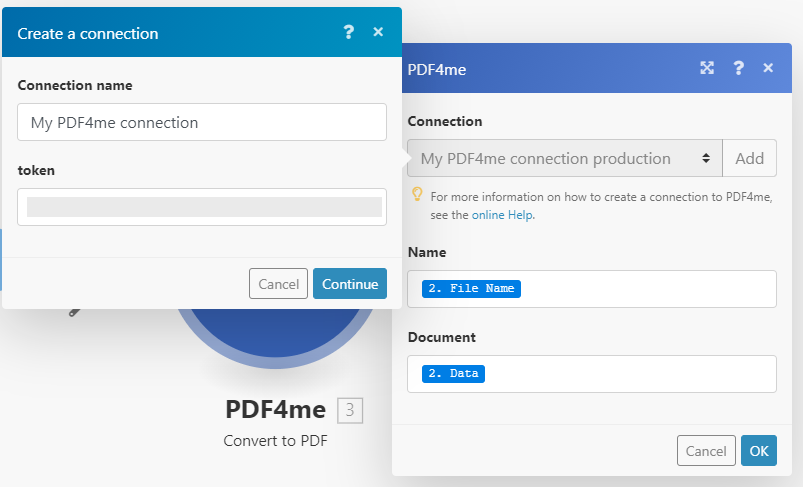
When prompted, click Add in the Connection dialog and paste your PDF4me API key. Save the connection — it is reusable across all PDF4me modules in your account.
Step 5 — Configure, save, and run
Map the File input from a prior module (Dropbox download, Google Drive download, email attachment), set any required parameters, click Save, and run the scenario once to verify the output.
Scenario Architecture
A typical PDF4me Make scenario follows this pattern:
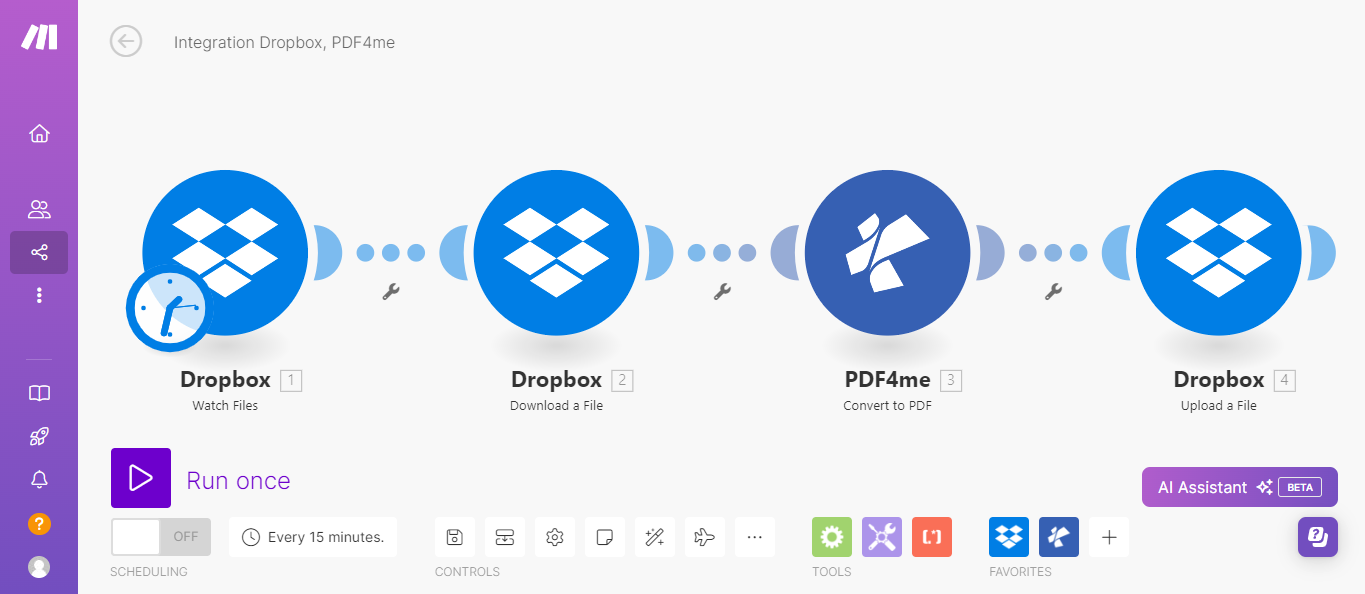
Typical Scenario FlowStandard pattern for a PDF4me Make automation — trigger, file retrieval, processing, and output.
- Dropbox watch folder detects a new Word file upload.
- Dropbox – Download a File retrieves the binary content.
- PDF4me – Convert to PDF converts it to PDF format.
- PDF4me – Compress PDF reduces the file size.
- Dropbox – Upload a File saves the final PDF to the output folder.
- A scheduled trigger fires on the first day of each month.
- Google Sheets fetches the latest report data.
- PDF4me – Generate Document Single merges data into a Word template and converts to PDF.
- PDF4me – Add Text Watermark stamps "Confidential" on every page.
- Gmail sends the watermarked PDF to the distribution list.
- Gmail watch trigger fires when a new email with a PDF attachment arrives.
- Gmail – Get Attachment retrieves the PDF binary.
- PDF4me – PDF OCR extracts all text from the scanned PDF.
- Extract Text by Expression pulls key fields (invoice number, date, total) using regex patterns.
- Airtable – Create a Record saves the extracted data to the invoices base.