Add Barcode to PDF in Make
What this module does
PDF4me — Add Barcode to PDF inserts a barcode or QR code at a precise location on specific pages of an existing PDF and returns a new document with the barcode embedded. Choose from six formats — QR Code, Data Matrix, Code128, Aztec, HanXin, and PDF417 — and position the barcode with millimeter-level accuracy using alignment anchors and margin offsets. Every document that passes through your Make scenario gets a barcode automatically, no manual editing required.
Authenticating Your API Request
Every PDF4me module in Make requires a valid Connection. Create or select one that holds your PDF4me API key so the scenario can authenticate barcode insertion requests securely.
Important Facts You Should Not Miss
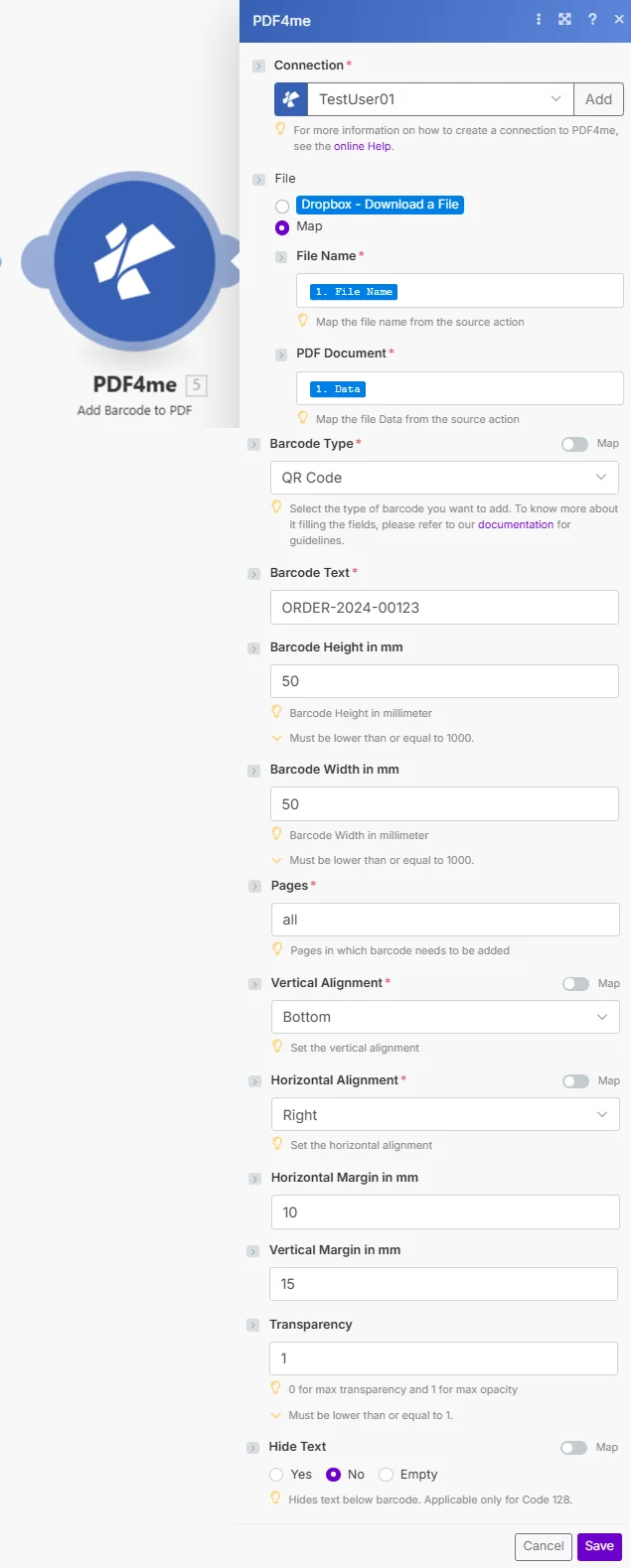
File set to Map passes the filename and PDF binary from any prior module. Barcode Type, Barcode Text, Pages, Vertical Alignment, and Horizontal Alignment are all required fields.
Parameters
Required: Connection, File (Filename + PDF Document when using Map), Barcode Type, Barcode Text, Pages, Vertical Alignment, and Horizontal Alignment — all must be provided for the module to run.
| Parameter | Required | What it does | Example |
|---|---|---|---|
| Connection | Yes | PDF4me API connection. Click Add and paste your API key if connecting for the first time. | Your PDF4me connection |
| File | Yes | Source PDF. Choose Dropbox - Download a File for a direct Dropbox trigger, or Map to supply filename and binary from a prior module. | Map |
| File Name | Yes (when Map) | Original filename of the source PDF including .pdf extension. Map from the prior module's file name output. | 1. File Name |
| PDF Document | Yes (when Map) | Binary content of the source PDF. Map from the prior module's data output. | 1. Data |
| Barcode Type | Yes | Format of the barcode to insert. Options: QR Code, Data Matrix, Code128, Aztec, HanXin, PDF417. | QR Code |
| Barcode Text | Yes | The data to encode inside the barcode — an order ID, URL, asset number, or any alphanumeric string. | ORDER-2024-00123 |
| Barcode Height in mm | No | Vertical size of the barcode in millimeters. Must be 1000 or less. Default is 50. | 50 |
| Barcode Width in mm | No | Horizontal size of the barcode in millimeters. Must be 1000 or less. Default is 50. | 50 |
| Pages | Yes | Pages where the barcode is added. Enter all for every page, a single number, or a comma-separated list. | all |
| Vertical Alignment | Yes | Vertical anchor point on the page — Top, Middle, or Bottom. Combined with Vertical Margin for exact placement. | Bottom |
| Horizontal Alignment | Yes | Horizontal anchor point on the page — Left, Center, or Right. Combined with Horizontal Margin for exact placement. | Right |
| Horizontal Margin in mm | No | Distance in mm the barcode is offset inward from the Horizontal Alignment edge. Default is 10. | 10 |
| Vertical Margin in mm | No | Distance in mm the barcode is offset inward from the Vertical Alignment edge. Default is 15. | 15 |
| Transparency | No | Opacity of the barcode. 0 = fully transparent, 1 = fully opaque. Must be 1 or less. Default is 1. | 1 |
| Hide Text | No | Controls whether human-readable text appears below the barcode. Applies only to Code 128. Options: Yes, No, Empty. | No |
Quick Setup
- Add PDF4me -> Add Barcode to PDF to your Make scenario.
- Select Connection (or click Add to create one with your API key).
- Set File to Dropbox - Download a File or Map — if using Map, connect File Name and PDF Document from the prior step.
- Choose Barcode Type and enter the Barcode Text to encode.
- Set Pages to all or specify individual page numbers.
- Choose Vertical Alignment and Horizontal Alignment, then Save and run the scenario. The output contains
Document NameandDoc Data— the PDF with the barcode embedded.
Workflow Examples
Workflow ExamplesCommon Make scenario patterns using Add Barcode to PDF.
- Dropbox triggers when a new invoice PDF lands in the "Invoices" folder.
- Add Barcode to PDF runs with Barcode Type set to QR Code, Barcode Text mapped from the order ID, Pages set to all, Vertical Alignment Bottom, Horizontal Alignment Right.
- The returned PDF is uploaded to the "Processed Invoices" folder in Dropbox.
- Slack notifies the dispatch team that a barcoded invoice is ready to scan.
- A new row added to Google Sheets (asset register) triggers the scenario.
- Google Drive downloads the blank asset record PDF template.
- Add Barcode to PDF inserts a Code128 barcode with the asset ID at the top-left corner of page 1.
- The barcoded PDF is uploaded to SharePoint in the matching department folder.
- A scheduled trigger runs on the 1st of every month.
- Google Drive downloads the active contract PDF.
- Add Barcode to PDF inserts a DataMatrix barcode (compact, high-density) with the contract reference number at the bottom-right corner.
- The barcoded snapshot is saved to an "Archive" folder. Each archived version carries a scannable reference that links back to the source record.