AI - Document Parser in Zapier
What this action does
PDF4me AI - Document Parser runs a saved AI Analyzer from the PDF4me dashboard against any document and returns the extracted data as dynamic JSON inside a Zap. One action covers invoices, purchase orders, receipts, contracts, custom forms, lab reports, or anything you describe in a schema. Pick the Analyzer from the AI Analyzer Id dropdown (Parse for a single schema, Classify for many document variants). Fields appear as individually mappable tokens in every downstream step across 6,000+ Zapier apps.
Sample Invoice for Testing
Use this sample invoice to confirm the action works end-to-end before pointing your Zap at live data. Drop it into Dropbox, Google Drive, or any storage connector, map the file into File, concatenate File Name + File Ext (for example sample_invoice + .pdf), and pick default_invoice_extraction from the AI Analyzer Id dropdown. The action returns a populated Doc Text JSON you can parse downstream.
sample_invoice.pdf and select default_invoice_extraction in AI Analyzer Id.sample_invoice.pdfdefault_invoice_extraction Analyzer. Use if you already follow the Dropbox smart-rename blog walkthrough.sample-vendor-invoice.pdfAuthenticating Your API Request
To access the PDF4me Web API through Zapier, every Zap action needs a valid PDF4me API key on the PDF4me connection. Get or rotate your key from the developer dashboard.
Set up your Analyzer first
- Analyzer list (Steps 1–2):
https://dev.pdf4me.com/dashboard/#/ai-document-parser/ - Analyzer detail (Steps 3–5):
https://dev.pdf4me.com/ai-document-parser/?id=<analyzer-guid>
Important Facts You Should Not Miss
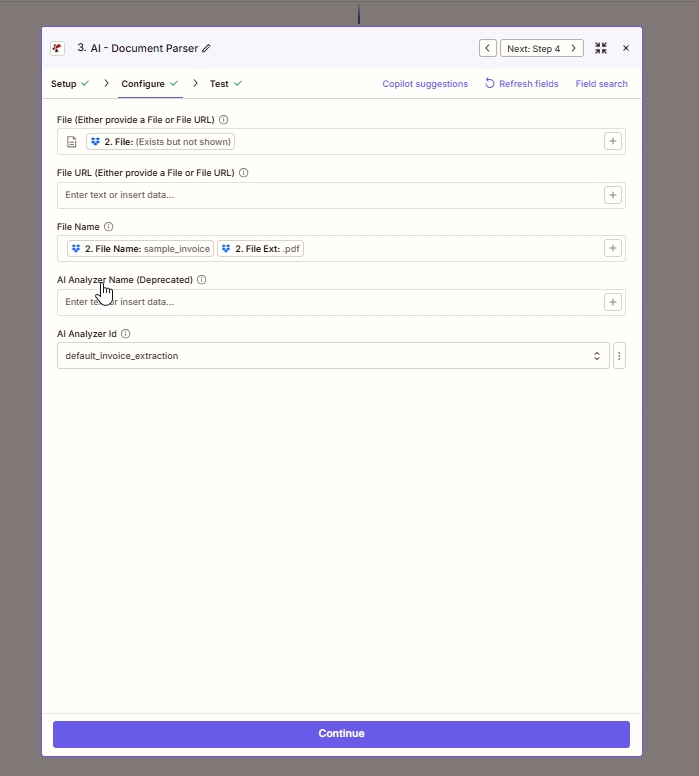
Configure tab: map File from a prior step, leave File URL empty, build File Name from File Name + File Ext tokens, pick AI Analyzer Id, and leave AI Analyzer Name (Deprecated) empty.
Parameters
- Analyzer list (Steps 1–2):
https://dev.pdf4me.com/dashboard/#/ai-document-parser/ - Analyzer detail (Steps 3–5):
https://dev.pdf4me.com/ai-document-parser/?id=<analyzer-guid>
Required in the action: File OR File URL (one of the two), File Name (with extension), and AI Analyzer Id. Leave AI Analyzer Name (Deprecated) empty.
| Field | Required | What it does | Example |
|---|---|---|---|
| File | Conditional | Binary file from a previous Zap step. Map a file token from Dropbox, Google Drive, OneDrive, Gmail attachment, Slack file, Webhooks by Zapier, or any connector that exposes a file output. Required when File URL is not provided. In the screenshot, step 2 File is mapped from Dropbox. | 2. File |
| File URL | Conditional | Publicly reachable HTTPS URL to the document. Required when File is not provided. Use when the document lives on a public CDN, S3 bucket, or content host. Leave empty when File is mapped. | https://example.com/document.pdf |
| File Name | Yes | Source document filename with extension. Best practice is to concatenate the previous step File Name and File Ext tokens (for example sample_invoice + .pdf becomes sample_invoice.pdf). | sample_invoice.pdf |
| AI Analyzer Id | Yes | Dropdown of Analyzers saved in your PDF4me account. Create Analyzers at https://dev.pdf4me.com/dashboard/#/ai-document-parser/ (+ Add), then edit schemas on https://dev.pdf4me.com/ai-document-parser/?id=<analyzer-guid>. Sent to the API as customisationNote. Pick Parse for one schema or Classify for many variants. | default_invoice_extraction |
| AI Analyzer Name (Deprecated) | No | Legacy free-text field. Zapier marks this as deprecated. Leave empty and use AI Analyzer Id instead. | — |
AI Analyzer Id: how Analyzer Ids map to behaviour
Parse Analyzer IdOne schema, extracts the fields you definedfields on the Analyzer, including table arrays for line items.Classify Analyzer IdMany schemas, routes and extracts in one calldefault_invoice_extractionBuilt-in invoice templateOutput
The action returns dynamic JSON. Every property defined in your Analyzer schema appears in Zapier's Test result and as an individually mappable token in every downstream step. The exact shape depends on your Analyzer:
- Top-level keys match the
fieldNamevalues in your schema (string, number, date, ortablearrays for line items). - Classify Analyzers also return the matched Classification Name so you can branch downstream on which Schema matched.
- No binary file is returned, the AI parser is a JSON-only action.
A few common token names you will likely see, depending on the schema:
| Token | Type | Typical content |
|---|---|---|
invoiceNumber | String | Invoice / bill / receipt number |
invoiceDate | Date | Normalised date (when fieldMethod: "generate" is set) |
vendorName | String | Supplier or vendor name from the header |
totalAmount | Number | Grand total in the document currency |
lineItems | Array | Repeated row data (one object per line, fields you described in the nested fields array) |
Quick Setup
- Build your Analyzer first. Open the Analyzer list, click + Add, type a clear Analyzer Id, pick Parse or Classify, save the row, then add a Document Schema on the Analyzer detail page. See the Parse setup guide or Classify setup guide for full schema rules (including
fieldType: "table"for nested rows andfieldMethod: "generate"for derived values). - In your Zap click +, search PDF4me, pick AI - Document Parser.
- Connect or reuse your PDF4me account.
- Map File from a previous step (Dropbox / Google Drive / Gmail attachment / Webhook), or paste a public HTTPS link into File URL.
- Map File Name to the previous step's filename tokens (concatenate File Name + File Ext to keep the original name with the right extension).
- From AI Analyzer Id pick your Analyzer (for example
default_invoice_extraction,client_invoices, or a custom Parse or Classify Analyzer). Leave AI Analyzer Name (Deprecated) empty. - Click Test action. Inspect the returned JSON in the Zapier Test panel.
- Map the returned fields into the next action (Google Sheets Create Row, Airtable Create Record, Gmail Send Email, Slack Send Channel Message, or any of 6,000+ Zapier apps).
Workflow Examples
Workflow ExamplesOpen by default. Four common AI - Document Parser patterns inside Zaps.
- Trigger: Gmail New Attachment on the AP inbox.
- AI - Document Parser with File mapped from the attachment, File Name from Gmail tokens, AI Analyzer Id
default_invoice_extraction(or your custom Parse Analyzer). - Google Sheets Create Row: map InvoiceNumber, VendorName, TotalAmount, InvoiceDate into the AP tracker.
- Optional: Slack Send Channel Message to #finance with the values for visibility.
Impact: Hands-off AP intake from any vendor.
- Trigger: Dropbox New File in Folder on a mixed-vendor folder.
- AI - Document Parser with AI Analyzer Id pointing at a Classify Analyzer (
client_invoices) that holds one Schema per vendor. - Zapier Paths branches on the returned Classification Name and sends each result to the matching Airtable base.
Impact: One Zap handles every client without separate flows.
- Trigger: Webhooks by Zapier Catch Hook receives a document link from your portal.
- AI - Document Parser with File URL set to the link, AI Analyzer Id set to your custom form Analyzer.
- Airtable Create Record with mapped fields builds a CRM contact.
Impact: Portal-uploaded forms become CRM data without manual entry.
- Trigger: Dropbox New File in inbox.
- AI - Document Parser returns vendorName and invoiceNumber from the schema.
- Dropbox Move File to archive/{{vendorName}} and rename to
{{vendorName}}_{{invoiceNumber}}.pdf.
Impact: Clean, searchable archive with zero manual file work.
Frequently Asked Questions
Related Actions
Same Task on Other Platforms
/v2/FlowV2/AiDocumentParser for custom backend code or Postman testing.