AI - Document Parser in Power Automate
What this action does
PDF4me AI - Document Parser runs a saved Analyzer from the PDF4me dashboard against any document and returns the extracted data as Parsed Document Data dynamic JSON inside a Power Automate flow. One action covers invoices, purchase orders, receipts, contracts, lab reports, ID cards, or any custom form, just point Customisation Note at the matching Analyzer Id (Parse for a single schema, Classify for many document variants). Fields land as individually mappable tokens you can drop into SharePoint, Excel, Dataverse, Outlook, or any downstream Microsoft 365 step.
Authenticating Your API Request
To call PDF4me through Power Automate, the flow needs a valid PDF4me API key on the PDF4me Connect connector. Get or rotate your key from the developer dashboard.
Important Facts You Should Not Miss
Customisation Note to pick which Analyzer to run. Change the Analyzer schema later and every flow pointing at the same Id picks it up immediately, no flow rebuild.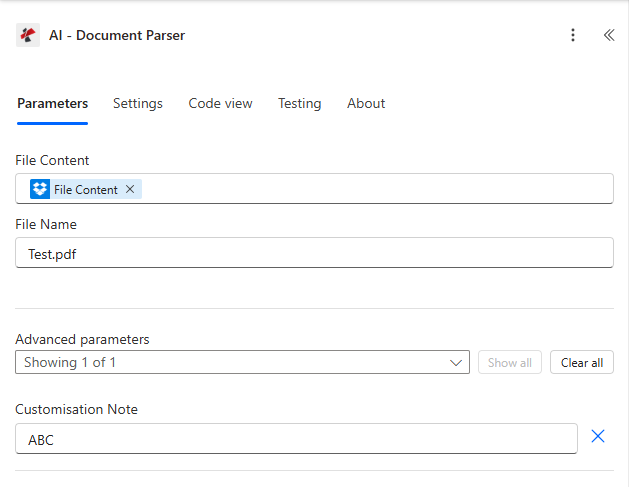
AI - Document Parser action. Three fields: File Content, File Name, and (under Advanced parameters) Customisation Note pointing at your saved Analyzer Id.
Parameters
Required in the action: File Content (binary), File Name (string with extension), and Customisation Note (the Analyzer Id from the PDF4me dashboard, lives under Advanced parameters but is effectively required, the action has nothing to extract against without it).
| Parameter | Required | What it does | Example |
|---|---|---|---|
| File Content | Yes | Binary content of the source document. Map from a previous Get file content step (SharePoint, OneDrive, Outlook attachment, Dropbox, or any cloud-storage connector that exposes raw bytes). | File Content |
| File Name | Yes | Source document filename with extension. Used for format detection and for tracking the call in logs. Accepts .pdf, .png, .jpg, .jpeg. | Test.pdf |
| Customisation Note | Yes (Advanced) | The Analyzer Id you created in the PDF4me AI Document Parser dashboard. Decides which schema is applied to the document. Use a Parse Analyzer Id when you have one schema; use a Classify Analyzer Id when you have several document variants and want the AI to pick. | ABC |
Customisation Note: how Analyzer Ids map to behaviour
Parse Analyzer IdOne schema, extracts the fields you definedfields on the Analyzer.Classify Analyzer IdMany schemas, routes and extracts in one callOutput
The action returns Parsed Document Data as dynamic JSON. Every property defined in your Analyzer schema appears as an individually mappable token in the dynamic content panel of every downstream action. Response headers also carry standard Power Automate routing metadata.
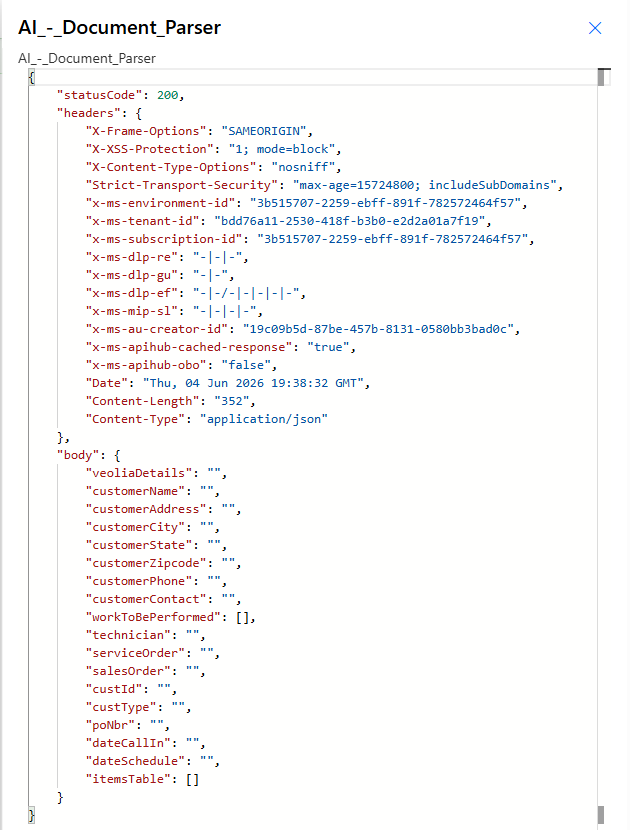
Run history view of a successful response. The body schema is fully dynamic, every key matches a field in your Analyzer.
| Output | Type | What it contains |
|---|---|---|
statusCode | Integer | 200 on success, 400 for a malformed request body, 500 on a server-side error. |
headers | Object | Standard Power Automate / Microsoft routing headers, including Content-Type application/json. |
Parsed Document Data | Dynamic JSON | The body object. One property per field defined in your Analyzer schema (string, number, date, or nested table). For Classify Analyzers, the Classification Name of the matched Schema is also present. |
Quick Setup
- Build your Analyzer first. Open the AI Document Parser dashboard, click + Add, type a clear Analyzer Id, pick Parse or Classify, save the row, then add a Document Schema describing the fields you want extracted. See the Parse setup guide or Classify setup guide for the full walkthrough.
- In your Power Automate flow click + New step, search PDF4me, pick AI - Document Parser.
- Sign in to PDF4me Connect with your API key.
- File Content. Map from a previous Get file content step (SharePoint, OneDrive, Outlook attachment, Dropbox, or any cloud-storage connector).
- File Name. Map the source filename with extension (
Test.pdf,invoice.png, etc). - Advanced parameters → Customisation Note. Type the Analyzer Id from step 1 (for example
ABC,client_invoices, orpurchase order parser). - Save the flow and test. The action returns Parsed Document Data with one property per field in your schema. Map fields into the next step using the dynamic content panel.
Workflow Examples
Workflow ExamplesOpen by default. Four common AI - Document Parser patterns in a 2x2 grid.
- Trigger on new file in a SharePoint Incoming Invoices library.
- Get file content for the new PDF.
- Run AI - Document Parser with Customisation Note set to your Parse Analyzer Id
invoice_parser. - SharePoint Create item in the AP list with InvoiceNumber, VendorName, TotalAmount, DueDate mapped from the dynamic JSON.
Impact: Manual data entry replaced by zero-touch AP intake.
- Outlook When a new email arrives with attachment trigger.
- Get attachment content as binary.
- Run AI - Document Parser with Customisation Note set to a Classify Analyzer Id (
client_invoices) holding one Schema per vendor. - Switch on the returned Classification Name and route Client ABC fields to one Dataverse table, Client XYZ to another.
Impact: One Power Automate flow handles every vendor without manual sorting.
- Trigger on new PDF in a Dropbox PO inbox.
- Get file content.
- Run AI - Document Parser with Customisation Note set to
purchase order parser. - Excel Add a row to a table with SalesOrderNumber, AgentName, OrderDate, TotalAmount mapped from the response.
Impact: Operations team sees every PO without opening a single PDF.
- Power Automate When a HTTP request is received trigger from your portal.
- Decode the uploaded PDF.
- Run AI - Document Parser with Customisation Note set to a Parse Analyzer Id you built for your custom onboarding form.
- Dataverse Add a new row for a Contact, mapping CompanyName, ContactPerson, Email, TaxId, BillingAddress directly.
Impact: Customer self-service onboarding without manual CRM entry.
Frequently Asked Questions
Related Actions
Same Task on Other Platforms
/v2/FlowV2/AiDocumentParser for custom backend code or Postman testing.