Excel Separate Worksheets in Power Automate
PDF4me Excel - Separate Worksheets splits a multi-sheet XLSX workbook into individual single-sheet workbooks inside a Power Automate flow. Map the source file from SharePoint, OneDrive, Dropbox, Dataverse, or Outlook attachments, and the action returns an outputDocuments array with one file per sheet (named after the sheet itself). Wrap a single Apply to each around it to fan out the writes to whatever destination you choose. The action is dynamic: it does not care whether the workbook has 2 sheets or 200.
Authenticating Your API Request
The PDF4me Connect connector in Power Automate requires a valid connection holding your PDF4me API key. Create the connection once at flow design time, then every PDF4me action in your tenant reuses it.
Important Facts You Should Not Miss
outputDocuments array. Each element has its own File Name and File Content. Always loop the result with Apply to each; do not try to reference a single file directly because the count is dynamic..xlsx extension. Sheet5 becomes Sheet5.xlsx. Custom names like Q1 2025 become Q1 2025.xlsx. Use that in Create file directly or transform it with a Compose step first.=Sheet2!A1 reference from Sheet1 loses its target. Intra-sheet formulas (everything that lives on the same sheet) are preserved. Plan ahead if your workbook chains values across sheets.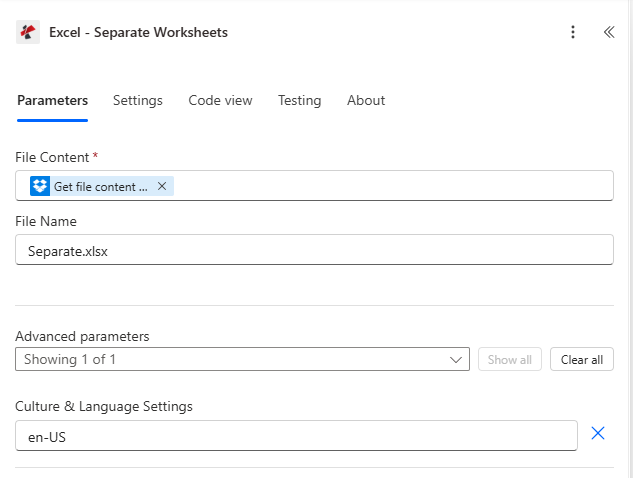
Action configuration. File Content mapped from a Dropbox Get file content step, File Name Separate.xlsx, Culture & Language Settings en-US.
Parameters
Required: File Content. Recommended: File Name. Advanced: Culture & Language Settings (defaults to en-US).
| Parameter | Required | What it does | Example |
|---|---|---|---|
| File Content | Yes | Multi-sheet XLSX workbook as binary dynamic content from a prior step (SharePoint Get file content, OneDrive Get file content, Dataverse Download file, Dropbox Get file content using path, Outlook Get attachments). | @triggerOutputs()?['body'] |
| File Name | No | Source filename including .xlsx extension. Defaults to Separate.xlsx. Used for tracking and error messages. | Separate.xlsx |
| Culture & Language Settings | No | Standard culture name controlling how locale-sensitive cell values are interpreted during the split. Defaults to en-US. Use fr-FR, de-DE, ja-JP, etc. when your sheet content uses non-US formats. | en-US |
Output
The action returns an array of files plus error fields. The Power Automate dynamic-content picker exposes these names:
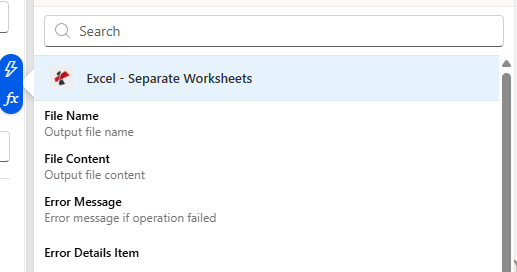
The dynamic content picker exposes File Name and File Content for each item in outputDocuments, plus Error Message / Error Details for failures.
| Dynamic content field | Type | What it contains |
|---|---|---|
outputDocuments | Array | One entry per source sheet. Loop with Apply to each. |
File Name (item) | String | Sheet name plus .xlsx extension. Pass directly into Create file File Name. |
File Content (item) | Binary | The single-sheet workbook. Pass directly into Create file File Content. |
Error Message | String | Short error description on failure. Empty when the action succeeds. |
Error Details Item | Array | Itemised error messages when multiple issues were encountered. Empty when the action succeeds. |
Raw response shape
For reference (or when calling the underlying REST endpoint directly), a 5-sheet split returns a body like this:
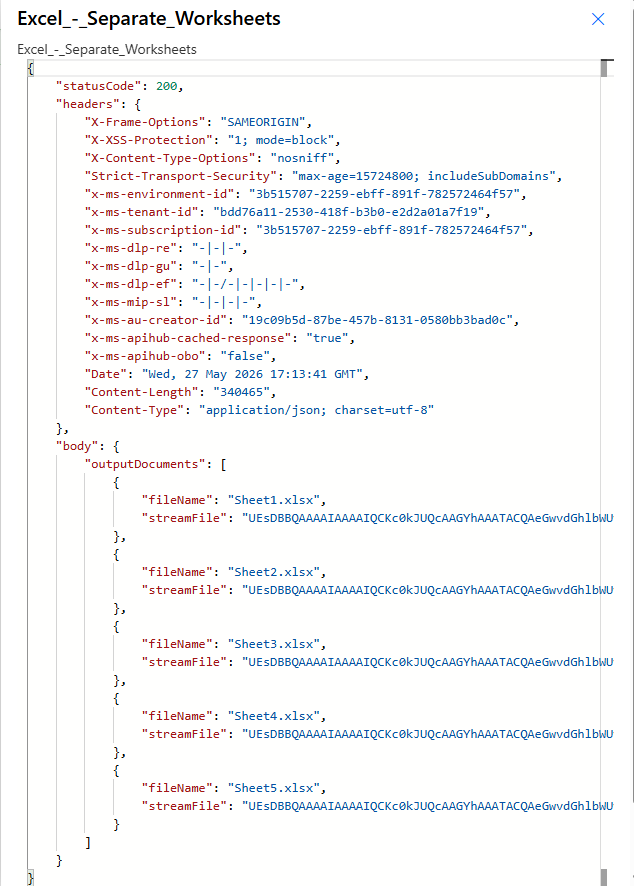
Status code 200, Content-Type application/json. outputDocuments carries one {fileName, streamFile} object per sheet.
Sample files
Flow examples
Common Power Automate flow patternsTypical ways to chain Excel - Separate Worksheets into a flow.
- SharePoint When a file is created trigger fires on /Documents/InboundWorkbooks.
- SharePoint Get file content loads the XLSX binary.
- Excel - Separate Worksheets splits it into one file per sheet.
- Apply to each over outputDocuments → SharePoint Create file in /Documents/ByDepartment using the item File Name and File Content.
- Outlook When a new email arrives triggers on a routing inbox with .xlsx attachments.
- Apply to each attachment → Excel - Separate Worksheets splits the workbook.
- Inner Apply to each over outputDocuments → Outlook Send an email with each sheet as a separate attachment.
- Recurrence trigger fires every Monday at 06:00.
- Dataverse generates the consolidated report as a single workbook.
- Excel - Separate Worksheets splits it by region or department.
- Apply to each → OneDrive Create file under /Reports/Weekly/[YYYY-MM-DD]/.