Excel Populate in Power Automate
PDF4me Excel - Populate merges a JSON payload into an Excel template that contains Aspose Smart Marker fields and returns a populated .xlsx ready to attach, store, or send. Map the template from SharePoint, OneDrive, or Dataverse, paste or build the JSON from dynamic content, and pipe the populated workbook into SharePoint Create file, Outlook Send an email, OneDrive Create file, Dataverse Add a new row, or Teams Post a message. Multi-sheet workbooks, formula recalculation, and locale-aware number/date formatting are handled in a single action.
Before you run this action: author an Excel template with Smart Marker fields like &=Items.ItemName. The full grammar (modifiers, multi-sheet layout, nested JSON paths, formula handling, culture formatting) plus downloadable sample templates and JSON payloads are on the Excel Populate Template Syntax reference page.
Authenticating Your API Request
The PDF4me Connect connector in Power Automate requires a valid connection holding your PDF4me API key. Create the connection once at flow design time, then every PDF4me action in your tenant reuses it.
Important Facts You Should Not Miss
&=Items.ItemName requires the JSON to contain an Items array of objects with an ItemName property. Field names are case sensitive (itemName will NOT match ItemName).2 to populate only the second sheet, or 1,3 to populate the first and third. Useful for multi-sheet templates where one upstream system only owns part of the workbook.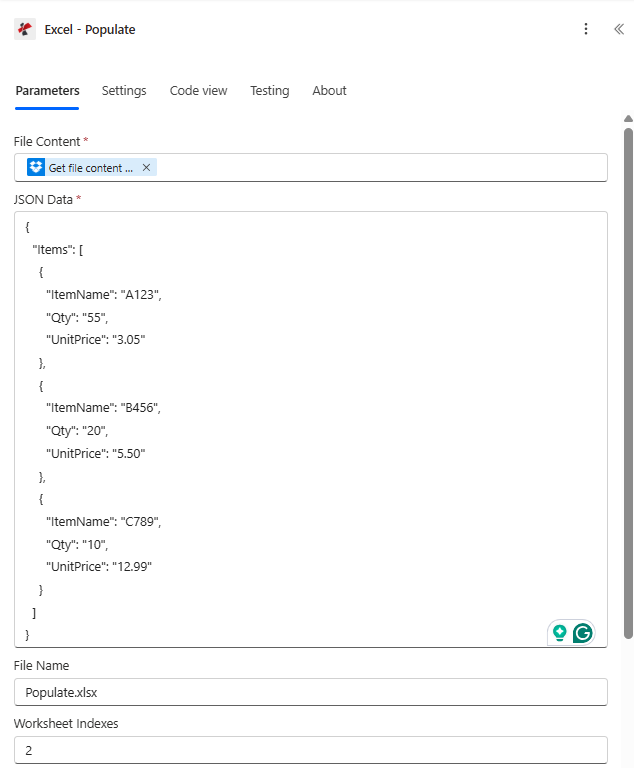
The Excel - Populate action configured in a Power Automate flow with the file mapped from SharePoint, an inline JSON Items array, and Worksheet Indexes restricting the merge to sheet 2.
Parameters
Required: File Content, JSON Data. Recommended: File Name (defaults to Populate.xlsx) and Worksheet Indexes when the template has more than one sheet. Advanced: Strict JSON Strings, Culture & Language Settings, Calculate Formulas, Quote Prefix To Style.
| Parameter | Required | What it does | Example |
|---|---|---|---|
| File Content | Yes | Excel template (.xlsx) as binary dynamic content from a prior step: SharePoint Get file content, OneDrive Get file content, Dataverse Download file, Outlook Get attachments. The template must contain Smart Marker cells. | @triggerOutputs()?['body'] |
| File Name | No | Template filename including .xlsx extension. Defaults to Populate.xlsx. Used for tracking and as the basis for Output File Name. | Populate.xlsx |
| JSON Data | Yes | JSON object whose top-level keys match the data source names in your markers. May be pasted inline, built from a Compose step, or mapped from a Parse JSON / HTTP step. | {"Items":[{"ItemName":"A123","Qty":"55","UnitPrice":"3.05"}]} |
| Worksheet Indexes | No | Comma-separated 1-based sheet indexes to populate. Empty = all sheets. Pass 2 for sheet 2 only, 1,3 for sheets 1 and 3. | 2 |
| Strict JSON Strings | No | Yes (default) preserves quoted JSON string primitives as text in the Excel cell. No coerces quoted numeric-looking strings into typed numeric values during merge. | Yes |
| Culture & Language Settings | No | Standard culture name controlling number, date, and currency formatting written into cells. Defaults to en-US. Examples: fr-FR, de-DE, ja-JP. | en-US |
| Calculate Formulas | No | Yes (default) recalculates the workbook after the merge so totals are accurate on open. No skips recalculation to save time when a downstream step will recalc. | Yes |
| Quote Prefix To Style | No | Applies the Excel quote-prefix flag to styled values so cells that look numeric but should stay text (account numbers, ZIP codes with leading zeros) render as text. | Yes |
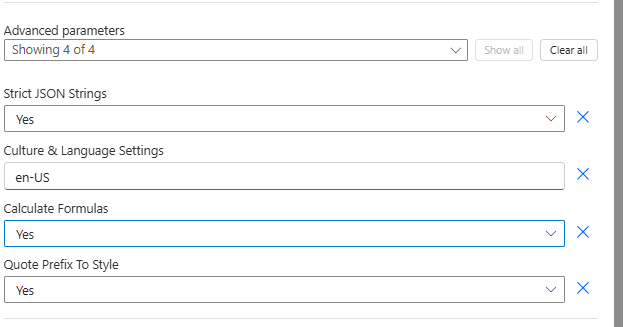
The Advanced parameters panel of Excel - Populate exposes Strict JSON Strings, Culture & Language Settings, Calculate Formulas, and Quote Prefix To Style.
Output
| Dynamic content field | Type | What it contains |
|---|---|---|
Output File Content | Binary | The populated Excel workbook. Pass into SharePoint Create file, OneDrive Create file, Outlook Send an email with attachment, Dataverse Add a new row, or Teams Post a message with file. |
Output File Name | String | The output filename, based on File Name with the .xlsx extension. |
Success | Boolean | true on successful population, false on failure. Use in a Condition step for retry / branching logic. |
Error Message | String | Short error description on failure. Empty when Success is true. |
Error Details Item | Array | Itemised error messages when the engine encountered multiple issues. Empty when Success is true. |
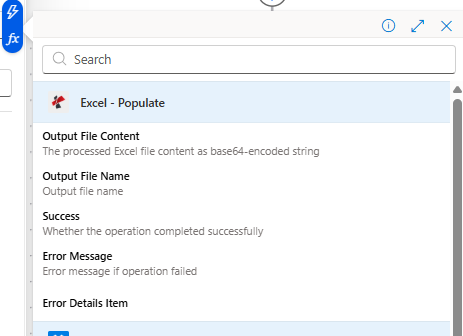
Output dynamic content from the Excel - Populate action, ready to map into downstream Microsoft 365 actions.
Raw response shape
For reference (or when calling the underlying REST endpoint directly), the action body looks like this on success:
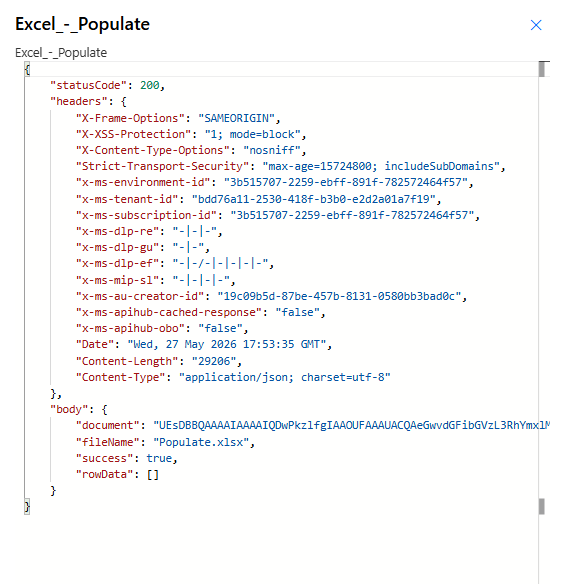
Status code 200, Content-Type application/json. The body carries document (Base64 XLSX), fileName, and success. errorMessage and the Errors array are only present on failure runs.
Quick sample (try in 3 minutes)
Two ready-to-run combinations match the screenshots above. Download each pair, drop the XLSX into File Content, paste the JSON into JSON Data, and run.
Uses template.xlsx with Worksheet Indexes = 2 (Sheet2 has the simple Items markers used in the parameter screenshot). Pair with the matching flat Items JSON.
template.xlsx(File Content)sheet23-data.json(JSON Data)- Set Worksheet Indexes to
2
Uses the Invoice sheet of template.xlsx with nested &=RootData.Items.* markers, structured-reference formulas in a SimpleInvoice Table, subtotal + tax + total math.
template.xlsx(File Content)sheet1-data.json(JSON Data)- Set Worksheet Indexes to
1for the Invoice sheet
Three-sheet template demonstrating different data sources per sheet. Sheet order in the file is Items, Employees, Products.
template-3-sheets.xlsx- Compose Items / Employees / Products arrays into one JSON object (see multi-sheet section)
- Leave Worksheet Indexes empty to populate all three
Flow examples
Common Power Automate flow patternsTypical ways to chain Excel - Populate into a flow.
- SharePoint When an item is created trigger fires on the Orders list.
- SharePoint Get items pulls the matching line items from the Order Lines list.
- Compose builds the JSON Data payload with an Items array from the line items.
- SharePoint Get file content loads the invoice Excel template.
- Excel - Populate merges template plus JSON.
- Outlook Send an email attaches Output File Content to the customer.
- Recurrence trigger fires on the first of every month at 09:00.
- Dataverse List rows pulls current inventory.
- Compose shapes the result into a JSON object with a Products array.
- SharePoint Get file content loads the 3-sheet template.
- Excel - Populate runs with Worksheet Indexes set to 2 (Products sheet only).
- OneDrive Create file archives the report; Teams Post a message links to it.
- Microsoft Forms When a new response is submitted trigger fires.
- Dataverse List rows pulls the related employees and departments.
- Compose builds the JSON Data with an Employees array.
- Excel - Populate merges into the HR roster template, Culture set to the locale on the Forms response.
- Outlook Send an email delivers the populated workbook to the HR manager.