AI Document Parser in n8n
What this node does
PDF4me AI Document Parser extracts structured data from any document by running a saved AI Analyzer from your PDF4me account against the file. Unlike fixed parsers (AI-Invoice Parser, AI-Process Contract), you pick the AI Analyzer Id from a dropdown of analyzers configured in the PDF4me dashboard, so the same node handles invoices, purchase orders, receipts, custom forms, lab reports, internal templates, anything you describe in a schema. Use a Parse Analyzer for a single schema or a Classify Analyzer for many document variants in one call. Returns dynamic JSON keyed by your schema plus a _metadata block, no binary file.
Authenticating Your API Request
Every PDF4me node in n8n requires a valid Credential to connect with. Create or select one that holds your PDF4me API key so the workflow can authenticate AI extraction requests securely. The same credential also powers the AI Analyzer Id dropdown via the GetAnalyzerId API.
Important Facts You Should Not Miss
_metadata object is always appended with success, message, timestamp, source filename, analyzer Id, and operation. There is no Output Binary Field Name.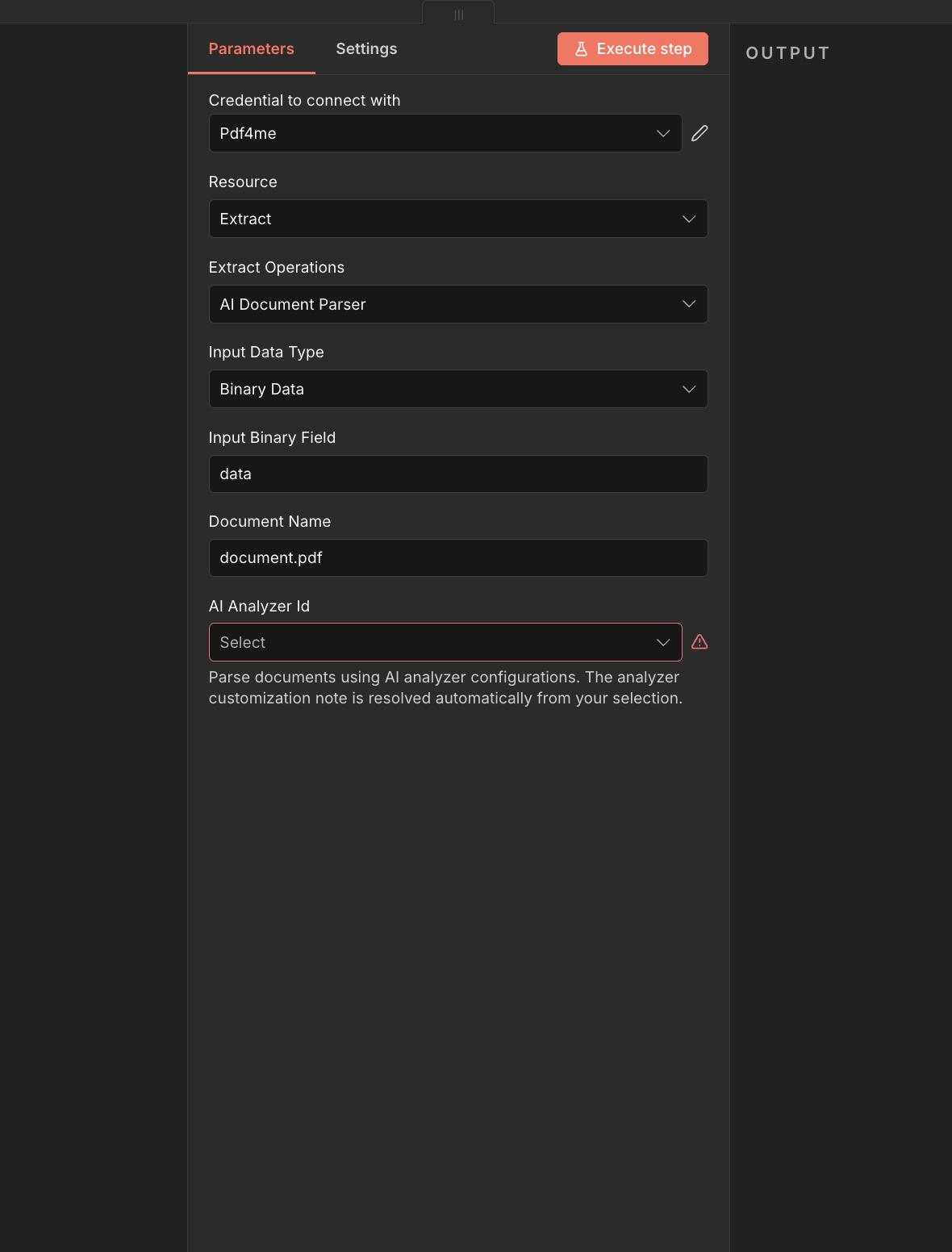
Full node panel: Extract → AI Document Parser with Binary Data input. Pick an AI Analyzer Id before running.
Parameters
Required in the n8n UI: Credential to connect with, Input Data Type, Document Name, AI Analyzer Id. Conditional required fields (Input Binary Field, Base64 Document Content, or Document URL) appear only when the matching Input Data Type is chosen. There is no Output Binary Field Name and no Advanced Options / Custom Profiles on this operation.
| Parameter | Required | What it does | Example |
|---|---|---|---|
| Input Data Type | Yes | How the document is supplied. Binary Data reads from a previous node (default, most common). Base64 String accepts an encoded document. URL downloads the document from a public link. | Binary Data |
| Input Binary Field | Conditional | Name of the binary property on the incoming n8n item that holds the document. Required when Input Data Type is Binary Data. Defaults to data. Error reports which property was missing when the name is wrong. | data |
| Base64 Document Content | Conditional | Base64-encoded document. Required when Input Data Type is Base64 String. Data-URL style prefixes (text before the comma) are stripped automatically. | JVBERi0xLjQK... |
| Document URL | Conditional | Publicly reachable HTTPS URL to the document. Required when Input Data Type is URL. Must be a valid full URL. | https://example.com/document.pdf |
| Document Name | Yes | Filename used by PDF4me for processing. Default document.pdf. With Binary Data, the uploaded file name is used for upload but your explicit Document Name value takes precedence in the API call when set. Use a real extension (.pdf, .png, .jpg, etc.) so PDF4me handles the file correctly. | document.pdf |
| AI Analyzer Id | Yes | The saved Analyzer that controls extraction. Dropdown populated from your PDF4me account via the GetAnalyzerId API. Sent to PDF4me as customisationNote. Pick a Parse Analyzer for a single schema or a Classify Analyzer for many document variants. | aaaa133 |
Input Data Type Options
Pick how the document enters the node. The follow-up fields change with this choice.
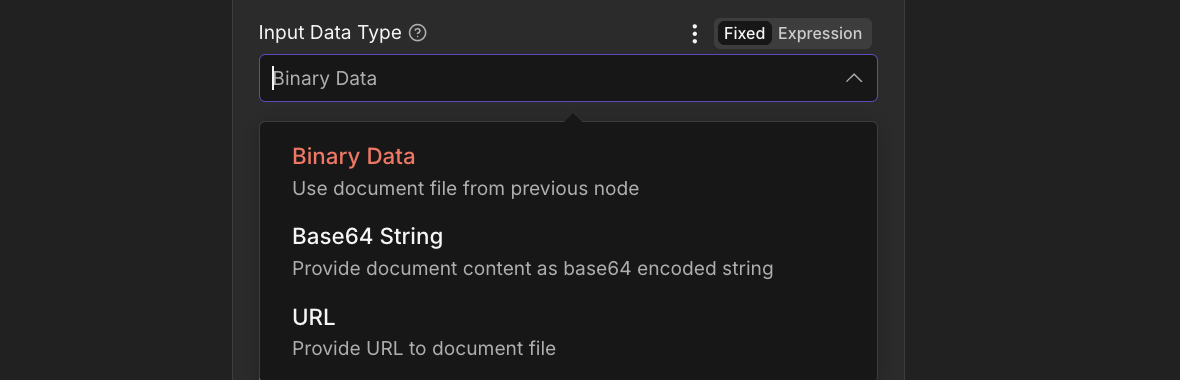
Input Data Type. Binary Data (default), Base64 String, or URL.
Binary DataDefault: file from previous nodeInput Binary Field to the binary field name (default data). The uploaded filename is used unless you override Document Name.Base64 StringEncoded document inlineBase64 Document Content. Data-URL style prefixes (text before the comma) are stripped automatically. Document Name with the correct extension drives format detection.URLDownload from a public linkDocument URL. PDF4me fetches the document directly. The filename for processing is taken from the URL path when possible, or from Document Name.AI Analyzer Id dropdown
The dropdown is populated from your PDF4me account via the GetAnalyzerId API when you open the field. Each option is an Analyzer you saved in the PDF4me dashboard. Pick the one whose schema matches the document type you are processing.
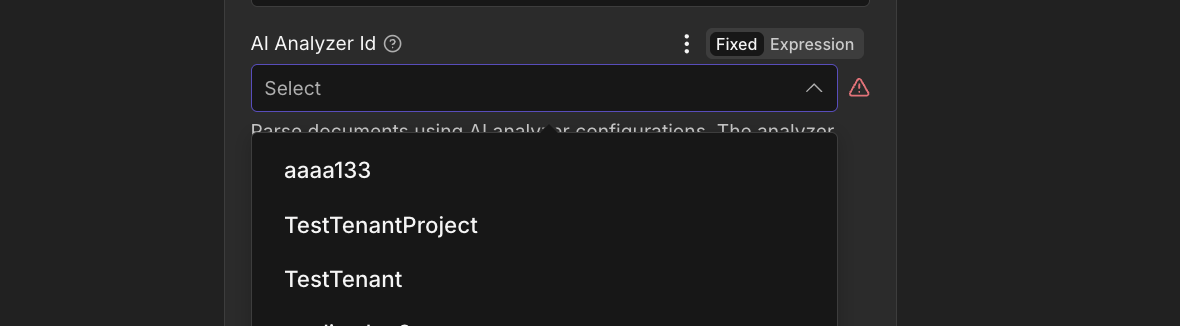
AI Analyzer Id dropdown loaded from your PDF4me account.
fieldType: "table" for nested rows and fieldMethod (extract default, generate to derive / normalise).Empty dropdown? The node shows "GetAnalyzerId returned no analyzer options" when your account has no Analyzers or when the credential cannot reach the API. Open the AI Document Parser dashboard and add at least one Analyzer, then verify the API key in your n8n credential.
Output Fields
A successful run returns one n8n item with JSON only, no binary file. The top-level keys match your Analyzer schema; a _metadata object is always appended.
| Field | Type | What it contains |
|---|---|---|
Top-level extracted fields | Dynamic | One key per field defined in your Analyzer schema (string, number, date, or nested table rows). Names match fieldName exactly. |
_metadata.success | Boolean | true on a successful parse. |
_metadata.message | String | "Document parsed successfully using AI Document Parser". |
_metadata.processingTimestamp | String | ISO timestamp of the parse. |
_metadata.sourceFileName | String | Document name used for processing. |
_metadata.aiAnalyzerId | String | The Analyzer Id you selected (sent as customisationNote to the API). |
_metadata.operation | String | "aiDocumentParser". |
rawContent (fallback only) | String | If the API returns plain text instead of JSON and parsing fails, the node wraps the response as { "rawContent": "<api response string>" } at the top level. |
Quick Setup
- Build your Analyzer first. Open the AI Document Parser dashboard, click + Add, type a clear Analyzer Id (any casing or separator works), pick Parse or Classify, save the row, then add a Document Schema describing the fields you want extracted. See the Parse setup guide or Classify setup guide for full schema rules, including
fieldType: "table"for nested rows andfieldMethod(extract or generate). - In your n8n workflow, click + and search for PDF4me. Set Resource to Extract and Extract Operations to AI Document Parser.
- In Credential to connect with, select your PDF4me credential or paste an API key.
- Set Input Data Type. Binary Data (default) reads from a previous node and is most common.
- Fill the matching input field (Input Binary Field, Base64 Document Content, or Document URL).
- Document Name. Override the default
document.pdfto use the real filename with the right extension. - Pick an AI Analyzer Id from the dropdown (loaded from your account).
- Execute the node. The output item carries the parsed fields at the top level plus
_metadata. Route into Set, Code, Google Sheets, Airtable, a database, an email, or any downstream node.
Typical Setups
Workflow ExamplesCommon n8n workflow patterns using AI Document Parser.
- Email Trigger (IMAP) fires on a new message with PDF attachment.
- AI Document Parser runs with Input Data Type Binary Data, Document Name set to the attachment filename, AI Analyzer Id set to your
invoice_parserAnalyzer. - Google Sheets Append writes invoiceNumber, vendorName, totalAmount, dueDate into the AP tracker.
- Watched folder receives mixed PDFs from Client ABC, Client XYZ, and a long tail.
- AI Document Parser is set to a Classify Analyzer Id (one Schema per vendor).
- A Switch node branches on the matched Classification Name returned in the response, sending each result to the matching downstream table.
- Webhook receives a document link from your portal.
- AI Document Parser runs with Input Data Type URL and your custom form Analyzer Id.
- Output JSON is mapped into a Dataverse / Airtable / Postgres write to create a new record.
- Scanner output lands in a folder with wide borders.
- AI Auto Crop Document (Resource AI) trims the borders.
- AI Document Parser runs on the cropped binary with the matching Analyzer Id.
- Parsed JSON flows downstream as usual.
- AI Document Parser returns the structured fields.
- A Code node validates required fields and applies business rules.
- If valid, an HTTP Request enriches with vendor data from your CRM; if not, an alert goes to Slack for manual review.
Practical Tips
Troubleshooting
Choose an Analyzer from the dropdown before running. The field cannot stay empty.
Align Input Binary Field with the previous node (often data). The error reports which property was missing.
Empty base64 or missing file. Provide content on the matching Input Data Type field.
Check Document URL is a full, valid URL (scheme + host + path).
No Analyzers on the account, or a credentials issue. Create an Analyzer in the PDF4me dashboard or verify the API key in the n8n credential.
Cheat Sheet
| Field | Value |
|---|---|
| Resource | Extract |
| Operation | AI Document Parser |
| Input Data Type | Binary Data |
| Input Binary Field | data |
| Document Name | form.pdf (with the real extension) |
| AI Analyzer Id | (pick from the dropdown loaded from your account) |
| Credentials | PDF4me API credential |
Frequently Asked Questions
Related Actions
Same Task on Other Platforms
/v2/FlowV2/AiDocumentParser for custom backend code or Postman testing.