AI - Document Parser in Make
PDF4me AI - Document Parser extracts structured fields from any document type by running a saved Analyzer Template against the file. Pick the built-in default_invoice_extraction template or create a custom one in the PDF4me dashboard for receipts, contracts, purchase orders, lab results, ID cards, or any custom form. The module returns the extracted data on a single Doc Text output ready to feed into Parse JSON, Airtable, Google Sheets, or any downstream Make module. One template-driven action covers every document type you handle.
Authenticating Your API Request
Every PDF4me module in Make requires a valid Connection. Create or select one that holds your PDF4me API key so the scenario can authenticate AI extraction requests securely.
Important Facts You Should Not Miss
AI Analyzer Id dropdown lets you swap between document types without changing any other module setting. Built-in default_invoice_extraction covers AP workflows; custom templates handle receipts, contracts, purchase orders, lab results, custom forms, anything you train.Doc Text output as a JSON string. Add a JSON → Parse JSON module immediately after, point JSON string at Doc Text, and every field becomes an individually mappable token downstream.vendorName) into the File Name field of the downstream Dropbox / Google Drive / OneDrive Upload module. The output file is automatically renamed using the extracted value, the cleanest AP-automation pattern.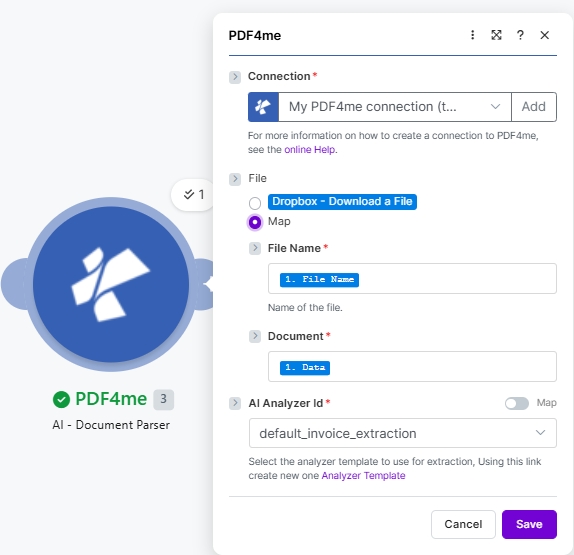
Set File to Map, wire File Name and Document from the prior module, then pick the AI Analyzer Id (here the built-in default_invoice_extraction). Click Analyzer Template in the hint to create a custom template.
Parameters
Required: Connection, File Name (when File is Map), Document (when File is Map), and AI Analyzer Id.
| Parameter | Required | What it does | Example |
|---|---|---|---|
| Connection | Yes | PDF4me connection. Click Add and paste your API key the first time, then reuse the connection across every PDF4me module. | My PDF4me connection |
| File | Yes | Radio button picking how the source document arrives at the module. Pick a quick storage option (Dropbox - Download a File) or choose Map to bind File Name and Document from any prior module. | Map |
| File Name | Conditional | Sub-field of File, shown when Map is selected. Filename of the source document including its extension (.pdf, .png, .jpg, .jpeg). Map from the prior module File Name output. | 1. File Name |
| Document | Conditional | Sub-field of File, shown when Map is selected. Binary content of the document to be parsed. Map from the prior module Data / binary output. | 1. Data |
| AI Analyzer Id | Yes | Dropdown picking the Analyzer Template the AI runs against the document. default_invoice_extraction is the built-in invoice template. Click Analyzer Template in the hint to create custom templates for receipts, contracts, purchase orders, or any document type. | default_invoice_extraction |
Output
| Field | Type | What it contains |
|---|---|---|
Doc Text | String (JSON) | The full extracted JSON payload. Field names match what the chosen Analyzer Template returns (vendorName, invoiceNumber, totalAmount, lineItems, etc for default_invoice_extraction). Always wire into a JSON Parse JSON module to expose every field as an individually mappable Make token. |
Sample file
Try the action end-to-end with a real vendor invoice. Drop this into your Dropbox source folder and run the scenario.
Quick Setup
- Add PDF4me to AI - Document Parser in your Make scenario.
- Select Connection (or click Add to create one with your API key).
- Set File to Map. Map File Name (
1. File Name) and Document (1. Data) from the prior module. - Pick an AI Analyzer Id:
default_invoice_extractionfor invoices, or click Analyzer Template to build a custom one for receipts, contracts, purchase orders, or any document type. - Save and run. Pipe the Doc Text output into a JSON → Parse JSON module to expose every field as a mappable token downstream.
Workflow Examples
Common scenario patternsThree common ways to chain AI - Document Parser into a Make flow.
- Dropbox Download a File pulls the new vendor invoice.
- AI - Document Parser runs the
default_invoice_extractiontemplate. - JSON Parse JSON exposes
vendorName,invoiceNumber,totalAmount, line items, etc. - Airtable Create a Record writes the parsed fields into the AP register.
- Dropbox Upload a File archives the invoice with File Name set to
{{vendorName}}.pdffor clean filing.
- Build a custom contract_clauses Analyzer Template in the PDF4me dashboard (effective_date, termination_clause, governing_law, parties, contract_value).
- Trigger fires when a contract PDF lands in SharePoint.
- AI - Document Parser runs the custom template.
- Parse JSON + Google Sheets Add a Row writes a contract summary into the legal team tracker.
- Outlook trigger fires on new email with PDF attachment.
- AI - Document Parser runs
default_invoice_extraction. - Parse JSON exposes total amount.
- Make Filter routes invoices above $5,000 to Slack #approvals; the rest go straight to Airtable.