Generate Document Using Template in Make
Generate Document Using Template is a PDF4me module for Make that merges a saved template from your PDF4me repository with JSON, XML, or CSV data and returns a finished document. Pick the template by name, map your data inline or as a file, and generate invoices, contracts, and letters without uploading a template file each run.
What this module does
PDF4me Generate Document Using Template generates a document by merging a template stored in your PDF4me repository with data you supply as JSON, XML, or CSV. Unlike file-based generate modules, you select the template by name from a dropdown, no template upload or mapping required. Provide data inline via Document data text or as a mapped file via Document data file, add optional field formatting with Metadata JSON, and pipe the generated document into Upload File, Send Email, or any downstream Make module.
Authenticating Your API Request
Every PDF4me module in Make requires a valid Connection. Create or select one that holds your PDF4me API key so the scenario can authenticate document generation requests securely.
Important Facts You Should Not Miss
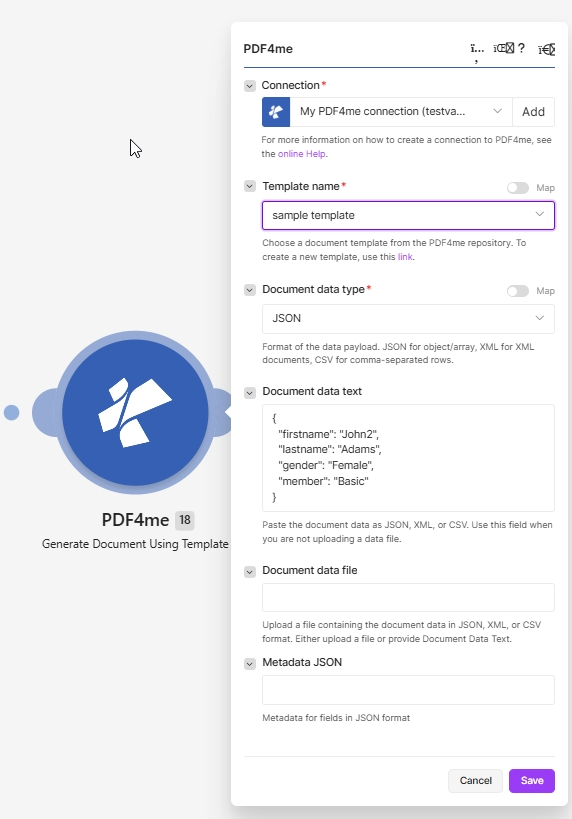
Pick a saved template in Template name, set Document data type, and supply data via Document data text or Document data file. Required fields are marked with a red asterisk.
Where do the templates come from?
The Template name dropdown is populated from the Document Template area of the PDF4me dashboard. Templates live in your account, not in the Make scenario, so you build one once and reuse it across every scenario, flow, and API call.
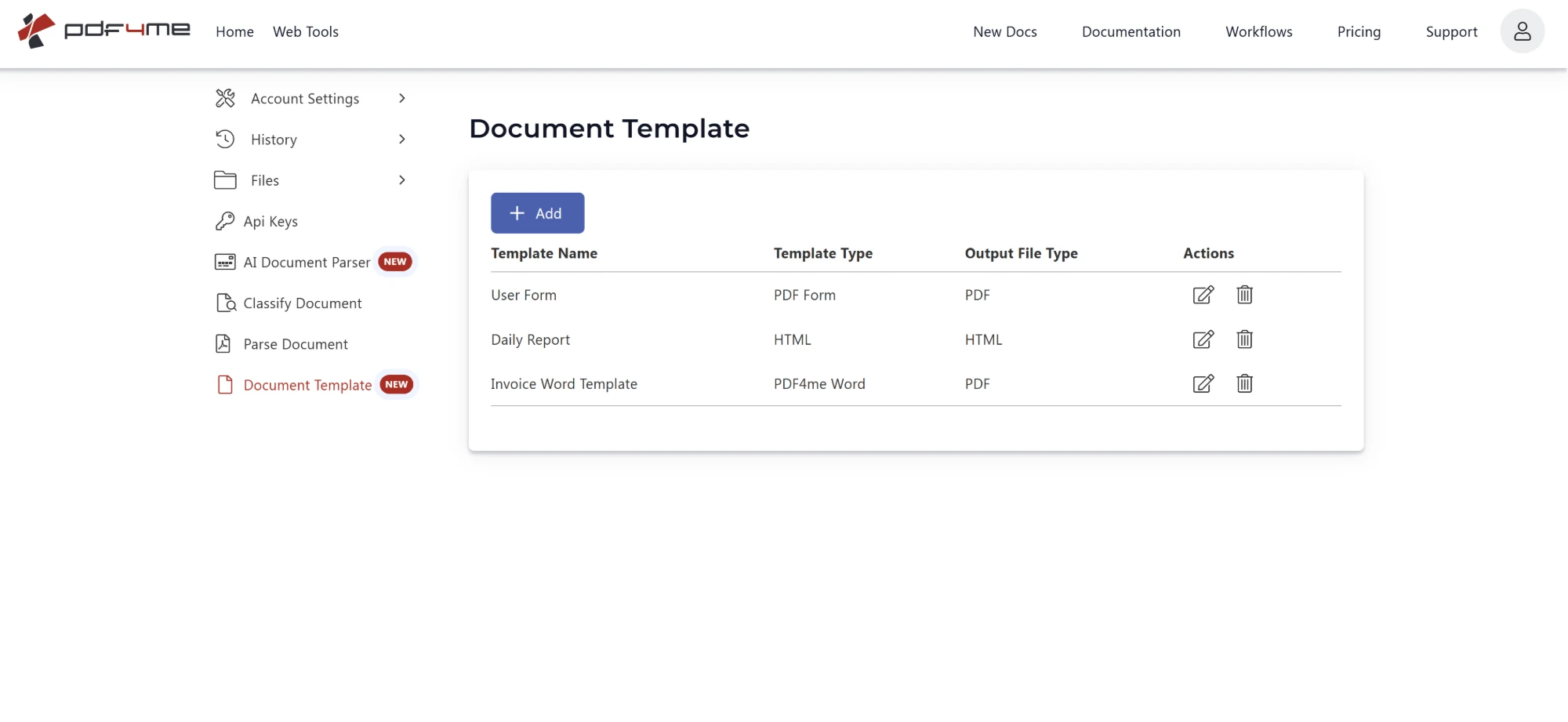
Every template you save here appears in the Template name dropdown in Make. Click Add to create one, or the pencil icon to edit an existing template.
Each row in this table maps to one entry in the Make dropdown:
| Column | What it means in Make |
|---|---|
| Template Name | The exact text you select under Template name. Give templates distinct names so the dropdown stays readable at scale. |
| Template Type | The source format you authored the template in, for example PDF Form, HTML, or PDF4me Word. This is fixed on the template, so Make never asks you for it. |
| Output File Type | The format the generated document comes back as, for example PDF or HTML. |
| Actions | Edit or delete the template. Renaming a template changes the value shown in the Make dropdown, so update any scenario that referenced the old name. |
Both the template format and the output format are decided here, on the template itself. That is why Generate Document Using Template only asks for a template name and your data. If you need the same content as a different output format, save a second template with a different Output File Type.
The module stores the template name, not an id. If you rename a template in the dashboard, any Make scenario still pointing at the old name will fail until you reselect it. Use the Map toggle on Template name if you need to pass the name dynamically instead.
What parameters does Generate Document Using Template use in Make?
Required: Connection, Template name, and Document data type. Conditional: Document data text OR Document data file (one must carry the data payload). Optional: Metadata JSON. For data format standards, see RFC 4180 for CSV and the official JSON specification.
| Parameter | Required | What it does | Example |
|---|---|---|---|
| Connection | Required | PDF4me connection for the scenario. Click Add to create one with your API key, or select an existing connection. | My PDF4me connection |
| Template name | Required | Document template chosen from your PDF4me repository. Pick a saved template from the dropdown. Use the click here link to open the repository and create a new template. Has a Map toggle for dynamic selection. | sample template |
| Document data type | Required | Format of the data payload. JSON for object/array, XML for XML documents, CSV for comma-separated rows. Has a Map toggle. | JSON |
| Document data text | Conditional | Map the fields from a CRM or prior steps as JSON, XML, or CSV text. Use this field when you are not uploading a data file. | { "name": "John" } |
| Document data file | Conditional | Map a file containing the document data in JSON, XML, or CSV format. Use this instead of Document data text when the data comes from a download or upload module. | 2. Data |
| Metadata JSON | No | Optional JSON that controls field formatting during the merge, for example date formats or checkbox and HTML field types. Leave empty for plain text substitution. | {"FieldsMetaData":[...]} |
Output
The module returns one bundle per run containing the generated document, ready for downstream Make modules.
| Field | Type | What it contains |
|---|---|---|
Document | File (binary data) | Content (binary data) of the resulting generated document, returned on docData. Map it together with File Name into the next module, for example Upload a File or Send Email Attachment. |
File Name | File name | File name of the resulting generated document, returned on name. Map it together with Document into the next module, for example to upload or email the file. |
How do I set up Generate Document Using Template in Make?
- Add PDF4me and select Generate Document Using Template.
- Select Connection (or click Add to create one with your API key).
- Open the Template name dropdown and pick a saved template from your PDF4me repository. If the list is empty, create one first at Document Template in the dashboard, or use the click here link beside the field.
- Set Document data type to Json, Xml, or Csv to match your data.
- Supply the data: paste or map it into Document data text, or map a data file into Document data file.
- Optionally add Metadata JSON for date, checkbox, or HTML field formatting.
- Click Save and run. Map the generated Document Data output into an Upload File, Send Email, or archive module.
Workflow Examples
Workflow ExamplesCommon Make scenario patterns using Generate Document Using Template.
- A CRM webhook fires when a deal is won.
- Generate Document Using Template selects the saved invoice template and reads the deal fields as JSON in Document data text.
- The generated invoice is emailed to the customer and stored in the deal record.
- A scheduled trigger downloads a CSV export from cloud storage.
- Document data type is set to Csv and the file is mapped into Document data file.
- The saved letter template is merged and each generated document is archived to a dated folder.
- A form submission provides contract data as JSON.
- Metadata JSON sets the effective date field to a yyyyMMdd format during the merge.
- The saved contract template is generated and routed for e-signature.