Separate Worksheets in Make
Separate Worksheets is a PDF4me Excel module for Make that splits every worksheet in an Excel workbook into its own individual file automatically, without any VBA or manual tab copying. Use it to distribute department-specific sheets to separate teams, archive individual worksheets to cloud folders, or route each sheet to a different API in a single Make scenario run.
What this module does
PDF4me Excel, Separate Worksheets takes a single Excel workbook and splits every worksheet into an individual Excel file within your Make scenario. Map your source file from any prior module, set the culture code for locale-aware formatting, and connect downstream modules to save, email, or post each separated worksheet independently. No VBA macros, no manual tab copying, no intermediate conversion steps.
Authenticating Your API Request
Every PDF4me module in Make requires a valid Connection. Create or select one that holds your PDF4me API key so the scenario can authenticate worksheet separation requests securely.
Important Facts You Should Not Miss
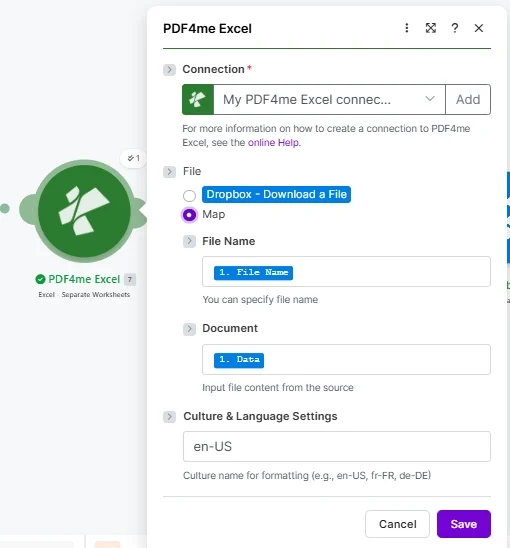
Set File to Map, supply File Name and Document from a prior module, and set Culture Name to match your file locale before running.
Parameters
Required: Connection, File Name, and Document must be provided. Culture and Language Settings is optional and defaults to en-US. For Make binary data handling, see the Make data structures documentation. For BCP 47 culture codes, see the Microsoft culture name reference.
| Parameter | Required | What it does | Example |
|---|---|---|---|
| Connection | Required | PDF4me Excel API connection. Click Add and paste your API key if connecting for the first time. All requests are authenticated through this connection. | My PDF4me Excel connection |
| File | Required | File source mode. Choose Map to supply binary content from a prior module output. Choose Dropbox - Download a File to pull directly from Dropbox without a separate download module. | Map |
| File Name | Required | Excel filename including the .xlsx or .xls extension. Map from the prior module file name output or enter a static name. Used to identify the workbook and name the separated output files. | quarterly-report.xlsx |
| Document | Required | Binary content of the Excel workbook. Map from a Google Drive download, Dropbox get-file, email attachment, or HTTP response module output. Must be the raw file buffer, not a URL. | 1. Data |
| Culture & Language Settings | No | BCP 47 culture code controlling how dates and numbers are formatted in the output worksheets. Defaults to en-US (MM/DD/YYYY, period decimal). Set to match your source data locale to avoid formatting mismatches. | en-US |
Output
| Field | Type | What it contains |
|---|---|---|
| document | Base64 String | The separated worksheet file encoded as a Base64 string. Decode it with a Make Tools module before saving to cloud storage or sending via email. One output bundle is returned per worksheet in the source workbook. |
| FileName | String | The output filename for this separated worksheet, typically named after the original worksheet tab. Use this as the filename when uploading to Google Drive, Dropbox, SharePoint, or any other destination module. |
| Success | Boolean | True if the worksheet was separated without errors. Add a Make filter on this field before routing outputs to avoid processing incomplete or failed separations. |
How to Separate Worksheets in Make
- Add PDF4me Excel to your Make scenario and select Excel - Separate Worksheets.
- Select Connection (or click Add to authenticate with your PDF4me API key).
- Set File to Map if the Excel file comes from a prior module, or choose Dropbox - Download a File for direct Dropbox access.
- Map File Name (the .xlsx filename) and Document (the binary file content) from the prior download or trigger module.
- Enter Culture & Language Settings matching your file locale: leave as en-US for English US formatting, or change to de-DE, fr-FR, or another BCP 47 code to match your data.
- Click Save and run. The module returns one output bundle per worksheet. Connect downstream Google Drive, Dropbox, or HTTP modules to route each separated file to its destination.
When Should I Use Separate Worksheets in Make?
When Should I Use Separate Worksheets in Make?Common Make automation patterns using Separate Worksheets.
- A weekly trigger retrieves the consolidated department report from SharePoint, a single workbook with one tab per department.
- Separate Worksheets splits every tab into its own Excel file.
- A Make router matches each output FileName to the correct department Google Drive folder.
- Each department receives only its own data automatically, with no manual copying required.
- A monthly scheduled trigger downloads the period-close workbook from Dropbox using the built-in Dropbox file mode.
- Separate Worksheets splits the P&L, Balance Sheet, and Cash Flow tabs into separate files.
- Each output file is uploaded to a dated archive folder in SharePoint for compliance retention.
- A Slack notification confirms the archive count and folder path to the finance team.
- A webhook trigger fires when a client submits a data request form identifying which workbook to split.
- Separate Worksheets splits the requested multi-tab workbook into individual client report files.
- A Make iterator loops through each output and emails the corresponding file to the appropriate client contact.
- An audit log entry is created in Google Sheets recording the client ID, file names, and timestamp.