Populate Excel in Make
Populate Excel is a PDF4me module for Make that fills an Excel workbook containing Smart Marker placeholders with live JSON data automatically, expanding arrays row by row and recalculating formulas in a single operation. Use it to generate filled invoice templates, dynamic reports, or data-driven Excel outputs from any JSON source in your scenario without manual data entry.
What this module does
PDF4me Excel, Populate accepts an Excel template with Smart Marker placeholders and a JSON data payload, and returns a fully populated Excel workbook within your Make scenario. Arrays in the JSON expand automatically into rows, formulas recalculate after insertion, and you can target specific worksheets by index. The result is a ready-to-distribute Excel report generated entirely from data in your scenario, with no manual entry.
Authenticating Your API Request
Every PDF4me module in Make requires a valid Connection. Create or select one that holds your PDF4me API key so the scenario can authenticate Excel population requests securely.
Important Facts You Should Not Miss
&=Items.ItemName requires a JSON array named Items containing objects with an ItemName property. A mismatch leaves the placeholder unreplaced in the output. Always verify key names before running the scenario."55" are inserted as text in Excel. If a downstream SUM or other formula needs to treat them as numbers, set Strict JSON Strings to No so the module coerces quoted numeric strings to numeric Excel cell values before population.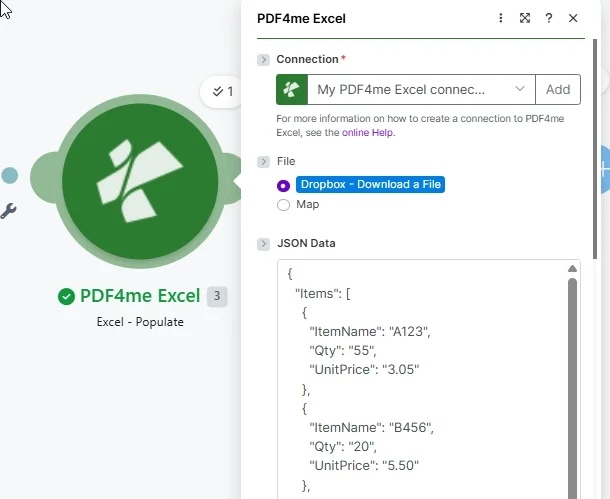
Map Connection, set File to Dropbox or Map, and pass a JSON payload whose keys match the Smart Marker field names in your Excel template.
Parameters
Required: Connection, File (source), and JSON Data must be provided. All other fields are optional. For Smart Marker syntax reference, see the Aspose Cells WorkbookDesigner documentation. For culture codes, see the Microsoft BCP 47 culture name reference.
| Parameter | Required | What it does | Example |
|---|---|---|---|
| Connection | Required | PDF4me Excel API connection. Click Add and paste your API key if connecting for the first time. | My PDF4me Excel connection |
| File | Required | File source mode. Map supplies the Excel template binary from a prior module output. Dropbox - Download a File pulls directly from Dropbox, reducing the number of modules needed. | Map |
| File Name | Required | Excel template filename including extension (.xlsx). Map from the prior module file name output or enter a static value. Used to identify the template and name the output file. | invoice-template.xlsx |
| Document | Required | Binary content of the Excel template workbook. Map from a Google Drive download, SharePoint file, email attachment, or HTTP response. Must be the raw file buffer. | 1. Data |
| JSON Data | Required | JSON string whose keys match the Smart Marker placeholders in the Excel template. Arrays expand row by row. Scalar values fill single cells. Pass as a mapped string from a prior module or a static JSON literal. | {"Items":[{"ItemName":"A123","Qty":"55","UnitPrice":"3.05"}]} |
| Strict JSON Strings | No | Yes (default): inserts quoted string values as text in Excel. No: coerces quoted numeric strings to numeric cell values so formulas can operate on them. Empty behaves like Yes. | Yes |
| Culture & Language Settings | No | BCP 47 locale code controlling date and number formatting in the output. Defaults to en-US (MM/DD/YYYY, period decimal). Change to match your data source locale: de-DE, fr-FR, and so on. | en-US |
| Calculate Formulas | No | Yes (default): recalculates all workbook formulas after JSON data is inserted. No: skips recalculation. Enable when the template contains SUM, VLOOKUP, or other formulas that depend on the populated values. | Yes |
| Worksheet Indexes | No | Comma-separated 1-based indexes of worksheets to populate. Enter 1 for the first sheet only, 1,3 for first and third. Leave empty to populate all worksheets in the workbook. | 1 |
| Quote Prefix To Style | No | Yes: converts Excel quote-prefix formatting to visible cell style. No: removes it. Empty (default): preserves existing quote-prefix behavior without conversion. Use Empty unless your template specifically requires style conversion. | Empty |
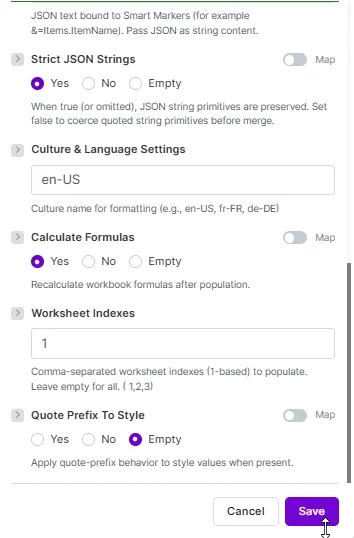
Optional settings: Strict JSON Strings, Culture & Language Settings, Calculate Formulas, Worksheet Indexes, and Quote Prefix To Style. Set Calculate Formulas: Yes so workbook formulas reflect the populated data.
Output
| Field | Type | What it contains |
|---|---|---|
| document | Base64 String | The fully populated Excel workbook encoded as Base64. Decode it with a Make Tools module, then pass the binary to a Google Drive upload, email attachment, Dropbox create-file, or HTTP POST to distribute the report. |
| FileName | String | Output filename for the populated workbook, derived from the input template name. Use this as the target filename when saving to cloud storage to preserve the original naming convention. |
| Success | Boolean | True if the template was populated without errors. Add a Make filter on this field before routing the output to avoid processing incomplete results from failed runs. |
Quick sample (try in 3 minutes)
Two ready-to-run combinations match the screenshots above. Download each pair, map the XLSX into Document (or use Dropbox file mode), paste the JSON into JSON Data, and run the scenario once.
Uses template.xlsx with Worksheet Indexes = 2 (Sheet2 has the simple Items markers used in the parameter screenshot). Pair with the matching flat Items JSON.
template.xlsx(Document)sheet23-data.json(JSON Data)- Set Worksheet Indexes to
2
Uses the Invoice sheet of template.xlsx with nested &=RootData.Items.* markers, structured-reference formulas in a SimpleInvoice Table, subtotal + tax + total math.
template.xlsx(Document)sheet1-data.json(JSON Data)- Set Worksheet Indexes to
1for the Invoice sheet
Three-sheet template demonstrating different data sources per sheet. Sheet order in the file is Items, Employees, Products.
template-3-sheets.xlsx- Bundle Items / Employees / Products arrays into one JSON object (see multi-sheet section)
- Leave Worksheet Indexes empty to populate all three
How to Populate an Excel Template in Make
- Open your Excel template and place Smart Marker placeholders in cells where data should appear: use
&=ObjectName.FieldNamefor scalar values and&=ArrayName.FieldNamefor arrays that expand row by row. - Add PDF4me Excel to your Make scenario and select Excel - Populate.
- Select or create a Connection with your PDF4me API key.
- Set File to Map and connect File Name and Document from a Google Drive, SharePoint, or Dropbox download module. Or set File to Dropbox - Download a File to pull the template directly.
- Map JSON Data from a prior module that produces a JSON string, or paste a static JSON literal. Ensure every key matches the corresponding Smart Marker field name in the template.
- Set Calculate Formulas to Yes if the template contains formulas that depend on populated values. Enter Worksheet Indexes to target only specific sheets, or leave empty for all.
- Click Save and run. Decode the document output and route it to a cloud storage upload, email, or API as needed.
When Should I Use Populate Excel in Make?
When Should I Use Populate Excel in Make?Common Make automation patterns using the Populate Excel module.
- A webhook receives a new order payload containing customer details and line items as a JSON array.
- The scenario downloads a branded invoice template from Google Drive.
- Populate Excel maps the order JSON to Smart Markers in the template, expanding one row per line item and recalculating the total formula.
- The populated invoice is emailed to the customer and uploaded to the client folder in SharePoint.
- A weekly scheduled trigger fires and calls a REST API to retrieve the latest KPI metrics as JSON.
- The scenario pulls a KPI report template from Dropbox using the built-in Dropbox file mode.
- Populate Excel inserts the metric values into the template cells and recalculates the trend formulas.
- The completed report is posted to a Slack channel and saved to a dated archive folder in Google Drive.
- A CRM webhook fires when a deal is marked closed-won, providing client and deal data as JSON.
- The scenario downloads a deal-summary template from SharePoint targeting Worksheet Index 1 only.
- Populate Excel fills the client name, deal value, and product line items into the template.
- The populated summary is uploaded to the client folder and a task is created in the project management tool for the account team.