Menggabungkan Dokumen Word di Power Automate
Apa yang dilakukan oleh tindakan ini?
PDF4meGabungkan Dokumen menggabungkan beberapa file Word (DOCX/DOC) menjadi satu dokumen gabungan di dalam Power Automate Alurnya. Kendalikan Urutan penggabungan dengan SortPosition, pilih bagaimana gaya ditangani (KeepSourceFormatting, UseDestinationStyles, KeepDifferentStyles), dan menetapkan OOXML tingkat kepatuhan. Ambil dokumen dari SharePoint, OneDriveBaik melalui Dropbox, atau email, hasilnya berupa satu file yang bersih dan tunggal. DOCX siap untuk didistribusikan atau diproses lebih lanjut.
Memverifikasi Identitas Anda API Meminta
Setiap PDF4me tindakan dalam Power Automate memerlukan validitas koneksiMasukkan milik Anda PDF4me API Kuncinya adalah, saat Anda menambahkan aksi untuk pertama kalinya, aksi tersebut akan digunakan kembali secara otomatis di semua aksi berikutnya. PDF4me tindakan dalam alur yang sama.
Fakta Penting yang Tidak Boleh Anda Lewatkan
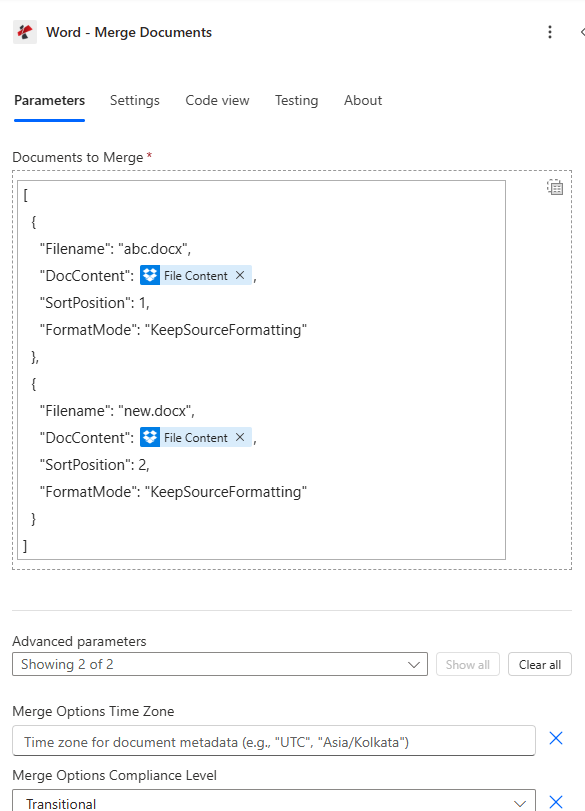
Buat array Dokumen dengan satu entri per file. Petakan DocContent dari langkah Dapatkan Konten File, bukan URL. SortPosition 0 adalah dokumen dasar; semua dokumen lainnya ditambahkan secara berurutan.
Parameter
Diperlukan: Array dokumen dengan setidaknya satu entri. Setiap entri membutuhkan Nama berkas, DocContent (file biner), dan SortPosition. FormatMode dan Opsi Penggabungan bersifat opsional.
| Parameter | Diperlukan | Apa fungsinya? | Contoh |
|---|---|---|---|
| Documents | Yes | Array of document objects to merge. Each object requires Filename, DocContent, and SortPosition. The array must contain at least one entry. Documents merge in ascending SortPosition order. | [{Filename, DocContent, SortPosition}] |
| Documents[].Filename | Yes | Filename of the document including extension. Must be .docx or .doc. Used for format detection and document identification during merge. | chapter1.docx |
| Documents[].DocContent | Yes | Raw binary content of the Word file. Map from the output body of a SharePoint Get File Content or OneDrive Get File Content action. Do not pass a URL, path, or filename string here. | File Content body |
| Documents[].SortPosition | Yes | Integer determining merge order. The document with the lowest SortPosition becomes the base document. All others are appended in ascending order. Use any integers: 0, 1, 2 or 10, 20, 30 are both valid. | 0 |
| Documents[].FormatMode | No | How styles are handled for this document during merge. Options: KeepSourceFormatting (default: preserves document's own styles), UseDestinationStyles (adopts base document styles), KeepDifferentStyles (retains distinct styles only). | UseDestinationStyles |
| Merge Options Time Zone | No | Timezone identifier added to the merged document metadata. Use standard identifiers like UTC, Asia/Kolkata, or America/New_York. Default: none. | UTC |
| Merge Options Compliance Level | No | OOXML compliance standard for the output document. Options: ECMA (ECMA-376 2006), Transitional (ISO 29500 Transitional, default and recommended), Strict (ISO 29500 Strict). Use Transitional for broadest Microsoft 365 compatibility. | Transitional |
Bidang Keluaran
| Bidang | Jenis | Isi di dalamnya |
|---|---|---|
document | Binary | The merged Word document as a binary. Map into SharePoint Create File, Send Email attachment, or a Convert Word to PDF action. |
Success | Boolean | true if the merge completed without errors. Use in a Condition step to branch on failure and send an error notification. |
Error Message | String | Human-readable error description if Success is false. Null when successful. Include in failure notification emails. |
Errors | Array | Array of detailed error objects when Success is false. Each entry has Code and Message fields for debugging. |
Pesan Kesalahan Umum
| Pesan Kesalahan | Menyebabkan | Memperbaiki |
|---|---|---|
| No documents to merge | Documents array is null or empty | Pass at least one document object in the Documents array with Filename, DocContent, and SortPosition. |
| Error loading document from bytes | Invalid or corrupted Word file in DocContent | Verify DocContent comes from a Get File Content action returning a valid .docx binary: not a URL or path. |
| Unknown FormatMode, defaulting to KeepSourceFormatting | Invalid FormatMode value | Use only: KeepSourceFormatting, KeepDifferentStyles, or UseDestinationStyles. |
| Error merging documents | General exception during merge | Check that all documents are valid Word files (.docx). Review the Errors array for details. |
Pengaturan Cepat
- Di dalam dirimu Power Automate mengalir, klik + Tambahkan tindakan dan mencari PDF4me Kata.
- Pilih Gabungkan Dokumen.
- Masukkan nama Anda PDF4me API Masukkan kode di dialog koneksi (atau pilih koneksi yang sudah ada).
- Untuk setiap dokumen yang akan digabungkan, tambahkan SharePoint Dapatkan Konten File atau OneDrive Dapatkan Konten File tindakan di atas langkah ini.
- Di dalam Dokumen array, tambahkan satu entri per file. Atur Nama berkas (dengan
.docx), DocContent (biner dari langkah Dapatkan Konten File), dan SortPosition (0 untuk basis, 1, 2... untuk file selanjutnya). - Mengatur FormatMode: menggunakan
UseDestinationStylesjika dokumen dasar (posisi 0) adalah templat bermerek Anda. - Mengatur Tingkat Kepatuhan Opsi Penggabungan ke
Transitionaluntuk kompatibilitas seluas-luasnya. - Kabel dokumen keluaran ke dalam SharePoint Buat File atau Kirim Email aksi. Tambahkan Kondisi pada Kesuksesan untuk menangani kegagalan dengan pemberitahuan kesalahan.
Contoh Alur Kerja
Contoh Alur KerjaCommon Power Automate flow patterns using Merge Documents.
- A SharePoint Perubahan item memicu alur kerja ketika semua bagian laporan ditandai "Disetujui" di kolom status.
- Empat langkah Get File Content mengambil halaman sampul (posisi 0), ringkasan eksekutif (1), isi utama (2), dan lampiran (3) dari pustaka Laporan.
- Gabungkan Dokumen menggabungkan keempatnya dalam SortPosition pesan dengan FormatMode diatur ke UseDestinationStyles, gaya templat halaman sampul diterapkan secara seragam di seluruh halaman.
- Kondisi Berhasil akan mengarahkan kegagalan ke notifikasi Teams untuk pemilik laporan.
- Kirim Email melampirkan hasil penggabungan DOCX Laporkan ke daftar distribusi manajemen. SharePoint Buat File akan mengarsipkannya di pustaka Laporan yang Diterbitkan.
- Pemicu persetujuan aktif Power Automate ketika tahap peninjauan hukum selesai dalam alur kerja persetujuan kontrak.
- Langkah-langkah Mendapatkan Konten File mengambil header kontrak (0), Syarat & Ketentuan (1), klausul spesifik (2), dan halaman tanda tangan (3) dari perpustakaan Hukum.
- Gabungkan Dokumen menyusun kontrak secara lengkap. FormatMode adalah KeepSourceFormatting dan Tingkat Kepatuhan sangat Ketat untuk standar dokumen hukum.
- A PDF4me Tindakan Konversi Word ke PDF menghasilkan PDF siap cetak dari kontrak yang telah digabungkan.
- Fitur Kirim Email mengirimkan kontrak akhir yang telah diberi nomor kepada pihak-pihak terkait. SharePoint arsip keduanya DOCX Dan PDF di dalam folder Kontrak yang Telah Dieksekusi.
- Pemicu manual akan aktif ketika sebuah proposal sudah siap. SharePoint Get Files mengambil semua DOCX bagian-bagian dari folder Bagian Proposal untuk kesepakatan tersebut.
- Sebuah loop "Apply to Each" mengulangi daftar file. Setiap iterasi menjalankan "Get File Content" dan menambahkan objek dokumen (Filename, binary, iteration index as SortPosition) ke variabel array.
- Setelah perulangan, Gabungkan Dokumen menerima seluruh array. FormatMode adalah UseDestinationStyles, file pertama dalam folder (posisi 0) selalu berupa templat sampul bermerek.
- Penggabungan DOCX unggahan ke Hasil Kerja Klien SharePoint library. Send an Email mengirimkannya ke kontak klien dengan pesan pengantar yang dipersonalisasi.