Google Docs templat di Power Automate
Yang Google Docs keluarga adalah sebuah Power Automate Opsi Hasilkan Dokumen Tunggal yang menggunakan templat yang dirancang di Google Docs dan diekspor sebagai .docxPetakan file tersebut ke Generate Document Single, lalu gabungkan dengan file Anda. JSON atau XML data, dan dapatkan yang dipersonalisasi PDF atau Word kembalikan file. Pilih ini saat tim Anda membuat templat di Google Docs daripada Microsoft Word.
Sebelum Anda Mulai
templat google-docs.docx sudah diekspor dan siap.google-docs-data.json (direkomendasikan), test.xml, atau test.csvNama-nama placeholder dalam template sesuai dengan kunci data.Paket File Sampel
Unduh file di bawah ini. Satu Google Docs templat ditambah data yang cocok di JSON, XML, Dan CSVPetakan .docx dari SharePoint, OneDrive, atau Dropbox ke dalam Hasilkan Dokumen Tunggal.
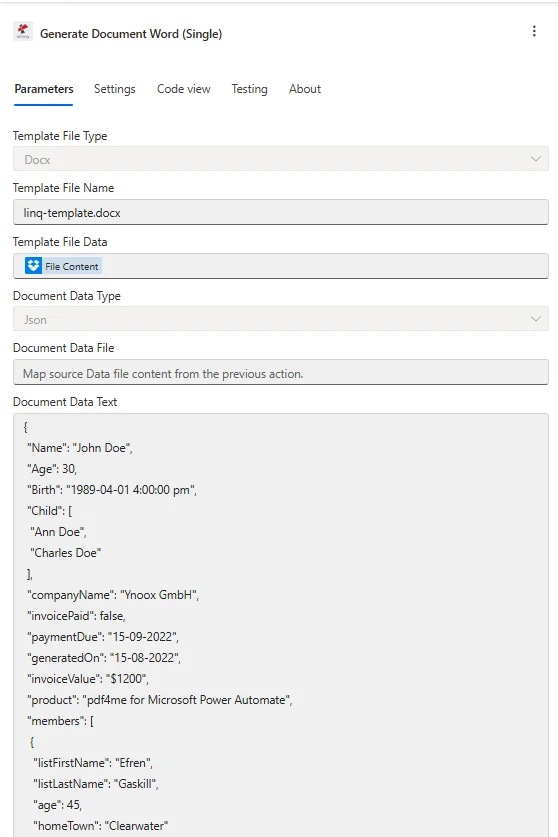
Konfigurasi target untuk sebuah Google Docs ekspor: petakan .docx di bawah Data File Templat, mengatur Jenis File Templat ke Docx, dan tempel JSON ke dalam Document Data Teks.
Apakah yang Google Docs templat di Power Automate?
Yang Google Docs keluarga memungkinkan Anda membuat templat di Google Docs, ekspor sebagai .docx, dan menggabungkannya dengan data di dalam Power Automate alur. Karena file yang diekspor adalah .docx, itu mengalir melalui Word mesin templat dan mendukung placeholder bergaya kumis seperti {{nama}}Ini adalah pilihan paling sederhana untuk tim yang lebih suka Google Workspace lebih Microsoft Word untuk desain templat.
Bagaimana cara mengkonfigurasinya? Google Docs templat di Power Automate?
Atur kolom tindakan seperti di bawah ini. Hasilkan Dokumen Tunggal memetakan yang diekspor .docx dari langkah Dapatkan file sebelumnya. Untuk templat yang sudah tersimpan di Anda PDF4me akun, gunakan Buat Dokumen Menggunakan Templat alih-alih.
| Parameter | Diperlukan | Apa fungsinya? | Contoh |
|---|---|---|---|
| Connection | Required | PDF4me connection for the flow. Create one with your API key, then reuse it across every PDF4me action. | My PDF4me connection |
| Template File Type | Required | Format of the template file. A Google Docs export is a .docx, so choose PDF4me Word Template (Docx). | PDF4me Word Template |
| Output Type | Required | Format of the generated document. PDF for a locked layout, or Word for an editable .docx. | PDF |
| Template Name | Required | Filename of the exported template including the .docx extension. Map from the prior Get file step. | google-docs-template.docx |
| Template | Required | Binary content of the Google Docs export. Map File Content from SharePoint, OneDrive, or Dropbox Get file content. | File Content |
| Document DataType | Required | Format of the data payload. Json maps cleanly from SharePoint columns and Forms. Xml is for XML source systems. | Json |
| Document Data Text | Conditional | Inline data payload built from dynamic content. Required when Document Data File is empty. | [{ "name": "Alice Johnson" }] |
| Document Data File | Conditional | A JSON or XML data file mapped from a prior step. Required when Document Data Text is empty. | 1. Data |
| Meta Data Json | Optional | Document metadata for fields in JSON format. Leave empty for most certificate and letter templates. | {"title":"Certificate"} |
Data sampel di bawah ini sesuai dengan tempat penampung di google-docs-template.docxTempelkan ke dalam Document Data Teks, atau unggah sebagai file ke Document Data Berkas.
[
  {
    "name": "Alice Johnson",
    "course": "Intro to Automation",
    "date": "2026-03-10",
    "instructor": "Mr. Smith"
  }
]
Keluaran
Aksi ini mengembalikan dokumen yang dihasilkan sebagai konten dinamis. Petakan ke langkah selanjutnya yang menerima konten file.
| Bidang | Jenis | Isi di dalamnya |
|---|---|---|
Doc Data | Binary | The merged document produced from the Google Docs export and your data. Map it into File Content of Create file (Dropbox, OneDrive, SharePoint) or into an Outlook attachment. |
File Name | String | Output filename derived from Template Name. Combine it with an expression such as guid() when you want unique filenames per run. |
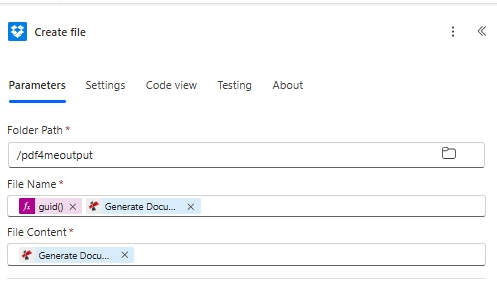
Menyimpan hasilnya: petakan dokumen yang dihasilkan ke dalam File Content, dan gunakan guid() di dalam File Name untuk nama keluaran yang unik.
Pola produksi
Pola Power Automate umum untuk templat Google DocsReplace the manual test with these once the sample works.
- Microsoft Formulir akan aktif ketika respons baru dikirimkan.
- Hasilkan Dokumen Tunggal memetakan Google Docs sertifikat .docx dari Mendapatkan isi file.
- Kolom respons diteruskan sebagai JSON di dalam Document Data Teks.
- Membuat file menyimpan sertifikat dan Outlook Mengirim email akan mengirimkannya.
- SharePoint Saat sebuah item dibuat, pemicu akan aktif pada sebuah daftar.
- Generate Document Single menggabungkan kolom-kolom daftar ke dalam templat.
- Dokumen yang dihasilkan dikembalikan sebagai konten dinamis.
- SharePoint Membuat berkas akan menyimpannya di pustaka dokumen.
- Memicu alur secara manual akan memulai eksekusi.
- Hasilkan Dokumen Peta Tunggal google-docs-template.docx dengan inline JSON.
- Membuat file akan menulis ke /pdf4meoutput dengan nama file guid().
- Setelah diverifikasi, gantilah pemicu manual dengan pemicu asli.
Pertanyaan yang Sering Diajukan
Panduan Terkait
Untuk mesin templat yang mendasarinya, lihat Aspose Words untuk .NET dokumentasi dan Power Automate referensi ekspresi.