Buka kunci Excel Berkas di Power Automate
PDF4me Buka kunci Excel adalah sebuah Power Automate Tindakan yang menghapus perlindungan kata sandi dari buku kerja hingga tiga lapisan independen, enkripsi file, struktur buku kerja, dan konten lembar kerja. Gunakan untuk membuka, mengedit, atau melindungi kembali. Excel mengakses file tanpa perlu memasukkan kata sandi secara manual di aplikasi desktop.
Apa yang dilakukan oleh tindakan ini?
PDF4me Buka kunci Excel Fungsi ini menerima Kata Sandi File, Kata Sandi Buku Kerja, dan Kata Sandi Lembar Kerja sebagai input independen dan hanya menghapus lapisan perlindungan yang benar-benar ada pada file. Isi hanya kata sandi yang Anda ketahui, penargetan lembar kerja dan budaya adalah parameter lanjutan opsional.
Bagaimana Cara Saya Mengautentikasi Saya? Power Automate Mengalir?
Setiap PDF4me tindakan dalam Power Automate Membutuhkan koneksi yang valid. Buat atau pilih koneksi yang sesuai dengan kebutuhan Anda. PDF4me API kunci agar alur dapat melakukan autentikasi Excel membuka kunci permintaan dengan aman.
Fakta Penting yang Tidak Boleh Anda Lewatkan
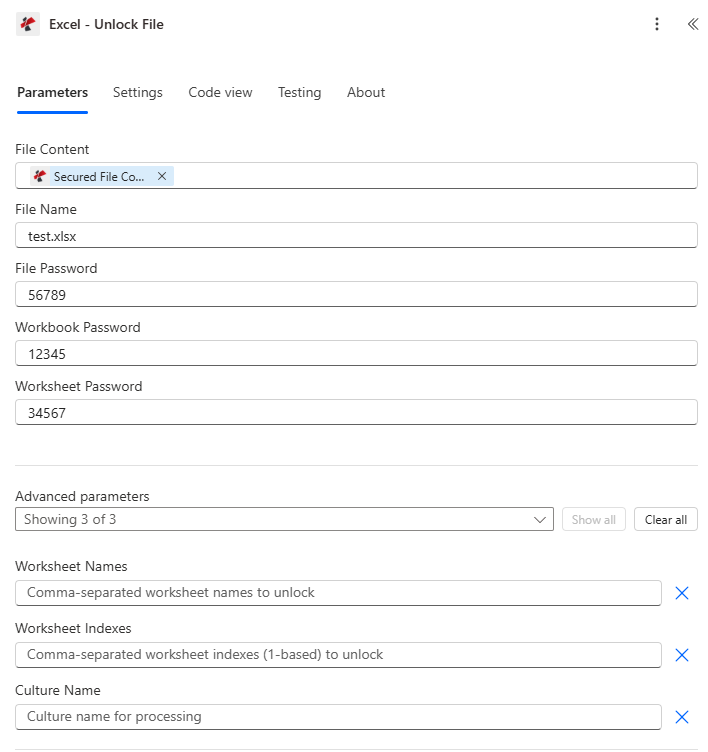
Petakan Isi Berkas, atur Nama Berkas, lalu isi hanya lapisan Kata Sandi Berkas, Kata Sandi Buku Kerja, atau Kata Sandi Lembar Kerja yang sebenarnya digunakan oleh berkas tersebut.
Parameter
Diperlukan: Konten berkas harus selalu disediakan. Nama berkas dan ketiga kolom kata sandi bersifat opsional, hanya kata sandi yang sesuai dengan lapisan perlindungan berkas yang diperlukan. Nama Lembar Kerja, Indeks Lembar Kerja, dan Nama Budaya adalah parameter lanjutan bersyarat.
| Parameter | Diperlukan | Apa fungsinya? | Contoh |
|---|---|---|---|
| File Content | Required | Base64 content of the source Excel workbook, mapped from SharePoint, OneDrive, or another prior action. | [File Content from Get file content] |
| File Name | Optional | Excel filename including extension (.xlsx or .xls), used for processing and output identification. | test.xlsx |
| File Password | Conditional | Removes the encryption password required to open the file. Only needed if the file is open-password protected. | 56789 |
| Workbook Password | Conditional | Removes workbook structure protection that blocks adding, deleting, or renaming sheets. Only needed if the workbook is structure-protected. | 12345 |
| Worksheet Password | Conditional | Removes worksheet-level protection that blocks editing cells or objects on a sheet. Only needed if the worksheet is protected. | 34567 |
| Worksheet Names | Conditional | Advanced parameter. Comma-separated worksheet names to unlock. Leave empty along with Worksheet Indexes to unlock every sheet. | Sheet1,Summary |
| Worksheet Indexes | Conditional | Advanced parameter. Comma-separated 1-based worksheet indexes to unlock (1 = first sheet). Combines with Worksheet Names if both are set. | 1,2,3 |
| Culture Name | Conditional | Advanced parameter. Culture/locale code for processing, for example en-US or de-DE. Blank uses the default culture. | en-US |
Bidang Keluaran
| Bidang | Jenis | Isi di dalamnya |
|---|---|---|
document | Base64 | The Excel workbook with the requested protection layers removed. |
Success | Boolean | true if the action completed, false if it failed. |
ErrorMessage | String | Error description naming the failed password layer, null when Success is true. |
Errors | Array | Detailed error objects, empty when Success is true. |
Apa Arti Pesan Kesalahan Umum Tersebut?
| Pesan Kesalahan | Menyebabkan | Larutan |
|---|---|---|
| Request is empty | The request object is null. | Provide a valid request object. |
| Document is empty | File Content is null or empty. | Provide a valid Excel document in File Content. |
| The workbook is password-protected. Please provide File Password to open the file. | The file is encrypted but no File Password was provided. | Provide the correct File Password. |
| Could not open the workbook with File Password: incorrect password | The provided File Password does not match. | Verify and provide the correct File Password. |
| Workbook is protected. Please provide Workbook Password. | The workbook has structure protection but no valid password. | Provide the correct Workbook Password. |
| Worksheet '{name}' is protected. Please provide a valid password. | The named worksheet has content protection but no valid password. | Provide the correct Worksheet Password. |
| Invalid worksheet selection | A worksheet name or index does not exist in the workbook. | Use existing worksheet names or valid 1-based indexes. |
| Available worksheets in workbook (X total) | Informational message shown when worksheet selection fails. | Use worksheet indexes from 1 to X. |
Bagaimana Cara Mengatur Unlock? Excel di dalam Power Automate?
- Menambahkan PDF4me → Excel - Buka Kunci File untuk Anda Power Automate mengalir.
- Peta Isi File dari tindakan sebelumnya (SharePoint, OneDrive, atau Dapatkan isi file) dan atur Nama File.
- Mengisi Kata Sandi File jika file tersebut memerlukan kata sandi untuk dibuka.
- Mengisi Kata Sandi Buku Kerja jika penambahan/penghapusan/penggantian nama lembar kerja diblokir, dan Kata Sandi Lembar Kerja jika pengeditan sel diblokir pada lembar kerja tertentu.
- Memperluas Parameter lanjutan untuk menargetkan secara spesifik Nama Lembar Kerja atau Indeks Lembar Kerja (berbasis 1), atau biarkan keduanya kosong untuk membuka kunci setiap lembar. Jalankan alur, buku kerja yang tidak terkunci akan kembali sebagai dokumen.
Pengaturan Umum
Contoh Alur KerjaCommon Power Automate flow patterns using Unlock Excel.
- Pemicu terjadwal berjalan di awal setiap siklus pembaruan templat triwulanan.
- Mendapatkan isi file mengambil file yang dilindungi kata sandi. Excel Templat dari perpustakaan.
- Buka kunci Excel Menghapus perlindungan menggunakan Kata Sandi File dan Kata Sandi Buku Kerja yang diketahui.
- Tindakan Perbarui Baris atau tindakan serupa memodifikasi templat yang tidak terkunci, lalu Amankan. Excel Menerapkan kembali perlindungan sebelum didistribusikan ulang.
- Alur terjadwal setiap malam mengambil buku kerja data utama yang dilindungi kata sandi.
- Buka kunci Excel Menghapus kata sandi file yang melindungi buku kerja.
- Update Rows dan Add Rows menyegarkan data dari database yang terhubung.
- Aman Excel menerapkan kembali kata sandi yang sama sebelum file disimpan kembali ke SharePoint.
- Alur kerja dipicu ketika seorang manajer meminta akses edit ke lembar kerja tertentu.
- Fungsi "Get file content" mengambil sebuah buku kerja yang berisi beberapa lembar kerja yang dilindungi secara independen.
- Buka kunci Excel Hanya menargetkan lembar kerja yang diminta melalui Nama Lembar Kerja, menggunakan Kata Sandi Lembar Kerja untuk menghapus perlindungan konten sementara lembar kerja lainnya tetap terkunci.
- File yang sebagian sudah terbuka kuncinya dikirimkan melalui email kepada manajer yang meminta.
Tips Praktis
Lembar Panduan Singkat
| Bidang | Nilai |
|---|---|
| Action | Excel - Unlock File |
| Required fields | File Content |
| Password layers | File Password, Workbook Password, Worksheet Password (each optional/conditional) |
| Advanced parameters | 3 total: Worksheet Names, Worksheet Indexes (1-based), Culture Name |
| Output | document (Base64 workbook) + Success + ErrorMessage + Errors |
Pertanyaan Umum
Studi Kasus & Aplikasi Industri
- Finance & Accounting
- Legal & Professional Services
- Human Resources
- Healthcare & Medical
- Sales & Marketing
- Operations & Manufacturing
- Penutupan PeriodeBuka laporan keuangan untuk penyesuaian akhir sebelum penutupan.
- Pembaruan TemplatHapus perlindungan dari templat akuntansi untuk pembaruan.
- Persiapan AuditBuka kunci file untuk akses dan peninjauan auditor.
- Integrasi DataBuka kunci file yang dilindungi untuk sinkronisasi data otomatis.
- Penyuntingan Dokumen: Buka kunci dokumen klien untuk modifikasi yang diizinkan
- Pemeliharaan TemplatHapus perlindungan dari templat hukum untuk pembaruan.
- Pembaruan Berkas KasusBuka berkas kasus untuk informasi tambahan.
- Pemrosesan ArsipHapus kata sandi sebelum pengarsipan jangka panjang.
- Pembaruan TemplatBuka kunci templat SDM untuk pembaruan kebijakan tahunan.
- Pengolahan dataHapus perlindungan untuk integrasi data penggajian.
- Modifikasi RekamanBuka akses catatan karyawan untuk pembaruan yang diizinkan.
- Administrasi Manfaat: Buka kunci file pendaftaran untuk pengeditan tim manfaat
- Pembaruan Rekaman: Membuka akses rekam medis pasien untuk pengeditan oleh staf medis yang berwenang
- Pemeliharaan TemplatHapus perlindungan dari templat formulir medis.
- Integrasi DataBuka kunci file yang dilindungi untuk sinkronisasi sistem EMR.
- Akses PenelitianBuka akses data riset untuk analis yang berwenang.
- Pembaruan Daftar HargaBuka kunci file harga untuk pembaruan triwulanan
- Pengeditan TemplatHapus perlindungan dari templat proposal untuk modifikasi.
- Pembaruan DataBuka kunci laporan penjualan untuk integrasi data CRM
- Pembaruan KampanyeBuka kunci file pelacakan kampanye untuk pembaruan metrik.
- Pembaruan SOP: Buka kunci prosedur operasi standar untuk revisi
- Manajemen InventarisHapus perlindungan untuk pembaruan inventaris otomatis
- Dokumentasi KualitasBuka kunci templat berkualitas untuk pembaruan standar.
- Data ProduksiBuka akses jadwal produksi untuk pengeditan tim perencanaan.