Excel Lembar Kerja Terpisah di Power Automate
PDF4me Excel - Lembar Kerja Terpisah membagi buku kerja XLSX multi-lembar menjadi buku kerja lembar tunggal individual di dalam sebuah Power Automate alur. Petakan file sumber dari SharePoint, OneDriveDropbox, Dataverse, atau Outlook lampiran, dan tindakan tersebut mengembalikan sebuah dokumen keluaran array dengan satu file per lembar (dinamai sesuai nama lembar itu sendiri). Bungkus satu Terapkan pada setiap Di sekelilingnya, tulisan akan menyebar ke tujuan mana pun yang Anda pilih. Aksi ini dinamis: tidak masalah apakah buku kerja tersebut memiliki 2 lembar atau 200 lembar.
Memverifikasi Identitas Anda API Meminta
Yang PDF4me Hubungkan konektor di Power Automate memerlukan validitas koneksi memegangmu PDF4me API kunci. Buat koneksi sekali pada saat perancangan alur, lalu setiap PDF4me Tindakan di penyewa Anda menggunakannya kembali.
Fakta Penting yang Tidak Boleh Anda Lewatkan
dokumen keluaran array. Setiap elemen memiliki miliknya sendiri Nama File Dan Isi FileSelalu ulangi hasilnya dengan Terapkan pada setiapJangan mencoba merujuk langsung ke satu file karena jumlahnya bersifat dinamis..xlsx Ekstensi. Lembar 5 menjadi Sheet5.xlsxNama kustom seperti Kuartal 1 tahun 2025 menjadi Q1 2025.xlsxGunakan itu langsung di Buat file atau ubah terlebih dahulu dengan langkah Compose.=Lembar2!A1 Referensi dari Sheet1 kehilangan targetnya. Rumus intra-lembar (semua yang berada di lembar yang sama) tetap dipertahankan. Rencanakan terlebih dahulu jika buku kerja Anda menghubungkan nilai di beberapa lembar.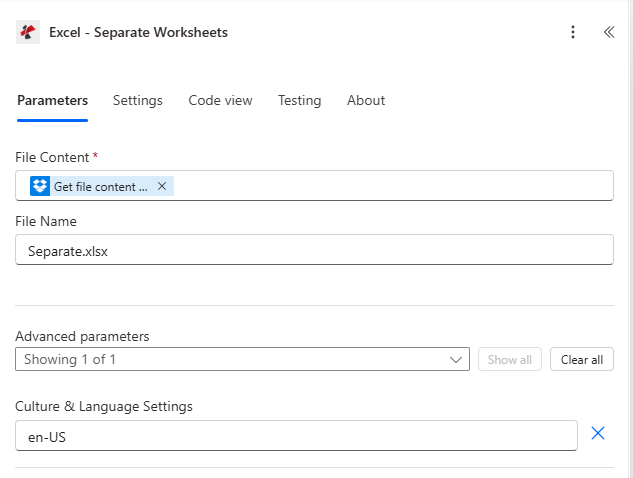
Konfigurasi tindakan. Konten file dipetakan dari langkah Dapatkan konten file Dropbox, Nama File Terpisah.xlsx, Pengaturan Budaya & Bahasa en-US.
Parameter
Diperlukan: Isi File. Direkomendasikan: Nama Berkas. Canggih: Pengaturan Budaya & Bahasa (defaultnya adalah bahasa Inggris AS).
| Parameter | Diperlukan | Apa fungsinya? | Contoh |
|---|---|---|---|
| File Content | Yes | Multi-sheet XLSX workbook as binary dynamic content from a prior step (SharePoint Get file content, OneDrive Get file content, Dataverse Download file, Dropbox Get file content using path, Outlook Get attachments). | @triggerOutputs()?['body'] |
| File Name | No | Source filename including .xlsx extension. Defaults to Separate.xlsx. Used for tracking and error messages. | Separate.xlsx |
| Culture & Language Settings | No | Standard culture name controlling how locale-sensitive cell values are interpreted during the split. Defaults to en-US. Use fr-FR, de-DE, ja-JP, etc. when your sheet content uses non-US formats. | en-US |
Keluaran
Aksi tersebut mengembalikan array file ditambah kolom kesalahan. Power Automate Pemilih konten dinamis menampilkan nama-nama ini:
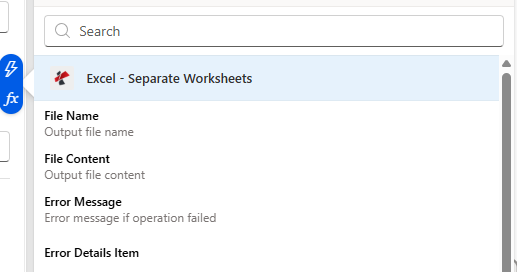
Pemilih konten dinamis menampilkan Nama File dan Isi File untuk setiap item dalam outputDocuments, ditambah Pesan Kesalahan / Detail Kesalahan untuk kegagalan.
| Bidang konten dinamis | Jenis | Isi di dalamnya |
|---|---|---|
outputDocuments | Array | One entry per source sheet. Loop with Apply to each. |
File Name (item) | String | Sheet name plus .xlsx extension. Pass directly into Create file File Name. |
File Content (item) | Binary | The single-sheet workbook. Pass directly into Create file File Content. |
Error Message | String | Short error description on failure. Empty when the action succeeds. |
Error Details Item | Array | Itemised error messages when multiple issues were encountered. Empty when the action succeeds. |
Bentuk respons mentah
Sebagai referensi (atau saat memanggil yang mendasarinya) REST (langsung ke titik akhir), pemisahan 5 lembar akan menghasilkan isi seperti ini:
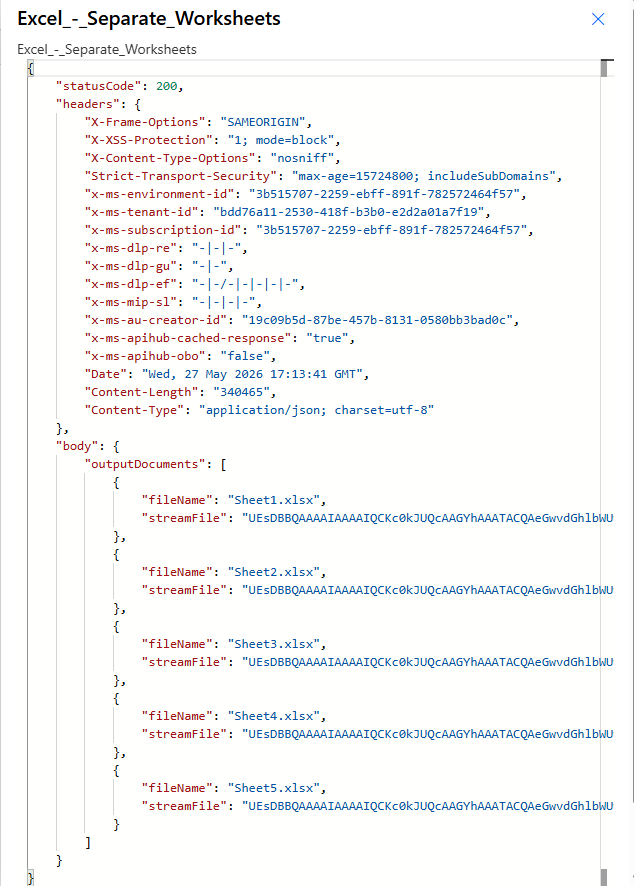
Kode status 200, Tipe Konten aplikasi/json. dokumen keluaran membawa satu {fileName, streamFile} objek per lembar.
File contoh
Contoh alur
Pola alur Common Power AutomateTypical ways to chain Excel - Separate Worksheets into a flow.
- SharePoint Saat sebuah file dibuat Pemicu diaktifkan pada /Documents/InboundWorkbooks.
- SharePoint Mendapatkan isi file memuat biner XLSX.
- Excel - Opsi "Lembar Kerja Terpisah" memisahkan setiap lembar kerja menjadi satu file.
- Terapkan ke setiap outputDocuments → SharePoint Buat berkas di /Documents/ByDepartment menggunakan item Nama Berkas dan Isi Berkas.
- Outlook Saat email baru tiba Memicu pada kotak masuk perutean dengan lampiran .xlsx.
- Terapkan pada setiap lampiran → Excel - Lembar Kerja Terpisah membagi buku kerja.
- Terapkan secara internal ke setiap outputDocuments → Outlook Kirim email dengan setiap lembar sebagai lampiran terpisah.
- Pemicu pengulangan aktif setiap hari Senin pukul 06:00.
- Dataverse menghasilkan laporan gabungan sebagai satu buku kerja tunggal.
- Excel - Lembar Kerja Terpisah membaginya berdasarkan wilayah atau departemen.
- Terapkan pada masing-masing → OneDrive Buat file di bawah /Reports/Weekly/[YYYY-MM-DD]/.