Tambahkan Teks Header Footer ke Excel di dalam Power Automate
PDF4me Tambahkan Teks Header Footer ke Excel adalah sebuah Power Automate Aksi yang membubuhkan teks khusus ke enam zona header dan footer buku kerja, Kiri, Tengah, dan Kanan baik di header maupun footer. Gunakan untuk memberi merek pada laporan dengan judul, menandai footer sebagai rahasia, atau membubuhkan tanggal pembuatan tanpa membukanya. Excel secara manual.
Apa yang dilakukan oleh tindakan ini?
PDF4me Tambahkan Teks Header Footer ke Excel Menulis teks ke salah satu dari enam zona independen, Header Kiri, Header Tengah, Header Kanan, Footer Kiri, Footer Tengah, dan Footer Kanan, pada buku kerja yang sudah ada. Biarkan zona kosong untuk melewatinya. Parameter lanjutan menampilkan penataan gaya per zona seperti warna teks, yang hanya diterapkan setelah zona yang sesuai memiliki teks.
Bagaimana Cara Saya Mengautentikasi Saya? Power Automate Mengalir?
Setiap PDF4me tindakan dalam Power Automate Membutuhkan koneksi yang valid. Buat atau pilih koneksi yang sesuai dengan kebutuhan Anda. PDF4me API kunci agar alur dapat melakukan autentikasi Excel Permintaan header/footer secara aman.
Fakta Penting yang Tidak Boleh Anda Lewatkan
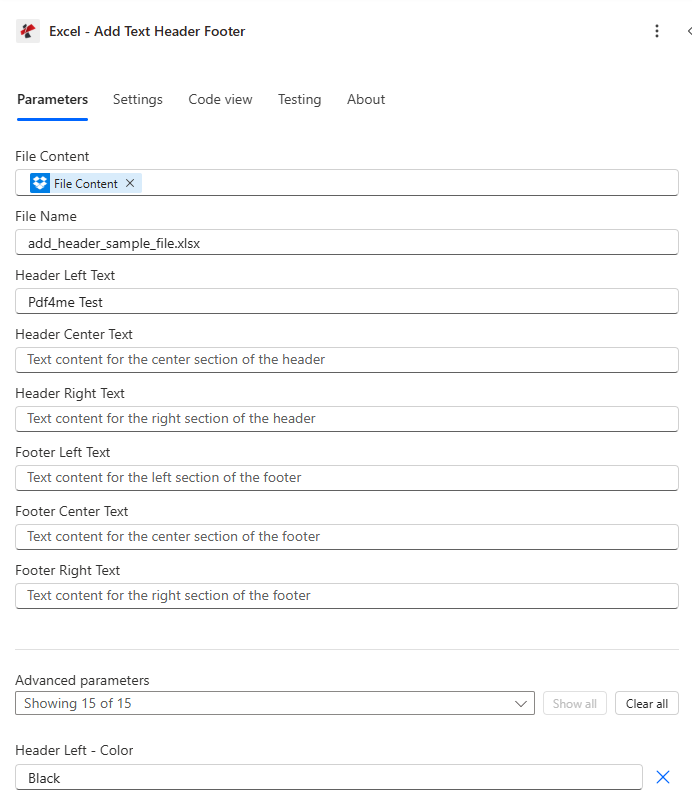
Petakan Konten File dan Nama File, isi zona teks header/footer yang Anda perlukan, lalu perluas Parameter Lanjutan untuk penataan gaya per zona.
Parameter
Diperlukan: Konten File dan Nama File harus selalu disediakan. Keenam zona teks header/footer bersifat opsional, isi hanya yang Anda butuhkan. Parameter gaya lanjutan bersifat kondisional, parameter tersebut hanya berlaku jika zona teks yang sesuai memiliki nilai.
| Parameter | Diperlukan | Apa fungsinya? | Contoh |
|---|---|---|---|
| File Content | Required | Base64 content of the source Excel workbook, mapped from SharePoint, OneDrive, or another prior action. | [File Content from Get file content] |
| File Name | Required | Excel filename including extension (.xlsx or .xls), used for processing and output identification. | add_header_sample_file.xlsx |
| Header Left Text | Optional | Text placed in the left section of the header. Leave blank to skip this zone. | Pdf4me Test |
| Header Center Text | Optional | Text placed in the center section of the header. | Confidential Report |
| Header Right Text | Optional | Text placed in the right section of the header. | Page 1 |
| Footer Left Text | Optional | Text placed in the left section of the footer. | Internal Use Only |
| Footer Center Text | Optional | Text placed in the center section of the footer. | Generated 2026-07-06 |
| Footer Right Text | Optional | Text placed in the right section of the footer. | Confidential |
| Header Left - Color | Conditional | Font color for the Header Left Text zone, hex or color name. Only takes effect if Header Left Text has a value. One of 15 advanced parameters in the connector panel, expand Advanced parameters in the designer for the remaining per-zone style controls. | Black |
Bidang Keluaran
| Bidang | Jenis | Isi di dalamnya |
|---|---|---|
document | Base64 | The Excel workbook with the configured header/footer text applied. |
Success | Boolean | true if the action completed, false if it failed. |
ErrorMessage | String | Error description, null when Success is true. |
Errors | Array | Detailed error objects, empty when Success is true. |
Apa Arti Pesan Kesalahan Umum Tersebut?
| Pesan Kesalahan | Menyebabkan | Larutan |
|---|---|---|
| Request is empty | The request object is null. | Provide a valid request object. |
| Document is empty | File Content is null or empty. | Map a valid Excel document into File Content. |
| Invalid file format | The mapped file is not a valid Excel document. | Confirm the source file is a genuine .xlsx or .xls workbook. |
| Invalid color format | A color parameter has an invalid hex code or color name. | Use a valid hex format such as #FF0000 or a standard color name. |
Bagaimana Cara Mengatur Tambah Teks Header dan Footer? Power Automate?
- Menambahkan PDF4me → Excel - Tambahkan Teks Header Footer untuk Anda Power Automate mengalir.
- Peta Isi File Dan Nama File dari tindakan sebelumnya (SharePoint, OneDrive, atau Dapatkan isi file).
- Isi salah satu Teks Kiri Header, Teks Tengah Header, atau Teks Header Kanan untuk zona header yang Anda butuhkan.
- Isi salah satu Teks Footer Kiri, Teks Tengah Footer, atau Teks Footer Kanan untuk zona footer yang Anda butuhkan.
- Memperluas Parameter lanjutan untuk menata zona yang terisi, misalnya Header Kiri - WarnaJalankan alur kerja, buku kerja bermerek akan muncul sebagai berikut: dokumen.
Pengaturan Umum
Contoh Alur KerjaCommon Power Automate flow patterns using Add Text Header Footer.
- Pemicu terjadwal berjalan pada tanggal pembuatan laporan bulanan.
- Mengambil isi file akan mengambil buku kerja laporan yang sudah selesai dari SharePoint.
- Opsi "Tambahkan Teks Header dan Footer" mengatur Teks Tengah Header ke judul laporan dan Teks Kiri Footer ke catatan yang dihasilkan secara otomatis.
- Buku kerja bermerek tersebut diunggah kembali ke pustaka dokumen laporan.
- Aliran instan berjalan ketika sensitif Excel berkas diunggah ke folder yang dibatasi aksesnya.
- Fungsi Get file content mengambil buku kerja dari folder tersebut.
- Tambahkan Teks Header Footer untuk mengatur Teks Tengah Footer menjadi pemberitahuan kerahasiaan.
- Buku kerja yang telah ditandai akan disimpan kembali ke perpustakaan terbatas yang sama.
- Suatu alur akan terpicu ketika sebuah hasil akhir ditandai sebagai Final dalam konektor manajemen proyek.
- Mendapatkan isi file mengambil hasil akhirnya. Excel hasil yang diharapkan.
- Opsi "Add Text Header Footer" mengatur Teks Header Kiri menjadi nama perusahaan dan Teks Footer Kanan menjadi ekspresi formatDateTime.
- File yang telah diberi merek dikirim melalui email kepada pemangku kepentingan klien.
Tips Praktis
Lembar Panduan Singkat
| Bidang | Nilai |
|---|---|
| Action | Excel - Add Text Header Footer |
| Required fields | File Content, File Name |
| Header zones | Header Left Text, Header Center Text, Header Right Text (each optional) |
| Footer zones | Footer Left Text, Footer Center Text, Footer Right Text (each optional) |
| Advanced parameters | 15 total, confirmed example Header Left - Color (conditional on matching text zone) |
| Output | document (Base64 workbook) + Success + ErrorMessage + Errors |
Pertanyaan Umum
Studi Kasus & Aplikasi Industri
- Finance & Accounting
- Sales & Marketing
- Human Resources
- Operations & Manufacturing
- Laporan KeuanganTambahkan header dengan nama perusahaan dan periode pelaporan.
- Laporan AnggaranSisipkan catatan kaki kerahasiaan pada dokumen anggaran.
- Dokumen Audit: Terapkan informasi tanggal audit dan versi di header
- Laporan PengeluaranTambahkan tanggal pengajuan dan status persetujuan di bagian bawah halaman.
- Laporan PenjualanTambahkan judul laporan di bagian atas dan tanggal pembuatan di bagian bawah.
- Lembar HargaSisipkan header harga rahasia pada daftar harga.
- Data Pelanggan: Terapkan pemberitahuan perlindungan data di bagian bawah halaman (footer)
- Analisis PemasaranTambahkan header merek ke laporan analitik.
- Laporan PenggajianSisipkan klausul kerahasiaan pada dokumen gaji.
- Catatan KaryawanTambahkan catatan kaki tanggal dan versi pada berkas kepegawaian.
- Pendaftaran Manfaat: Terapkan judul periode pendaftaran terbuka
- Tinjauan KinerjaMasukkan periode peninjauan dan pemberitahuan kerahasiaan
- Laporan InventarisTambahkan header lokasi gudang dan tanggal.
- Laporan ProduksiSisipkan informasi shift dan catatan kaki tanggal.
- Laporan Kualitas: Terapkan referensi standar kualitas pada judul
- Data Rantai PasokanTambahkan pemberitahuan kerahasiaan pemasok di bagian bawah halaman.