Tambahkan Baris ke Excel di dalam Power Automate: JSON ke Excel dengan PDF4me
PDF4me Excel - Tambahkan Baris adalah sebuah Power Automate tindakan yang menyisipkan JSON objek atau array sebagai baris baru ke dalam Excel Buku kerja, baik dalam mode berbasis tabel dengan pencocokan header otomatis atau mode berbasis koordinat dengan penempatan sel yang tepat. Gunakan untuk menulis hasil kueri basis data, pengiriman formulir, atau API tanggapan langsung ke dalam Excel laporan.
Apa yang dilakukan oleh tindakan ini?
PDF4me Excel - Tambahkan Baris menulis JSON Memasukkan data baris ke dalam buku kerja yang sudah ada, mencocokkan properti dengan header saat Nama Tabel diatur, atau mendarat di koordinat yang tepat saat dibiarkan kosong. Konversi Numerik dan Tanggal, Pola Format Tanggal, Pola Format Numerik, dan Nama Budaya mengontrol bagaimana nilai yang dimasukkan diketik dan diformat.
Bagaimana Cara Saya Mengautentikasi Saya? Power Automate Mengalir?
Setiap PDF4me tindakan dalam Power Automate Membutuhkan koneksi yang valid. Buat atau pilih koneksi yang sesuai dengan kebutuhan Anda. PDF4me API kunci agar alur dapat melakukan autentikasi Excel permintaan penyisipan baris secara aman.
Fakta Penting yang Tidak Boleh Anda Lewatkan
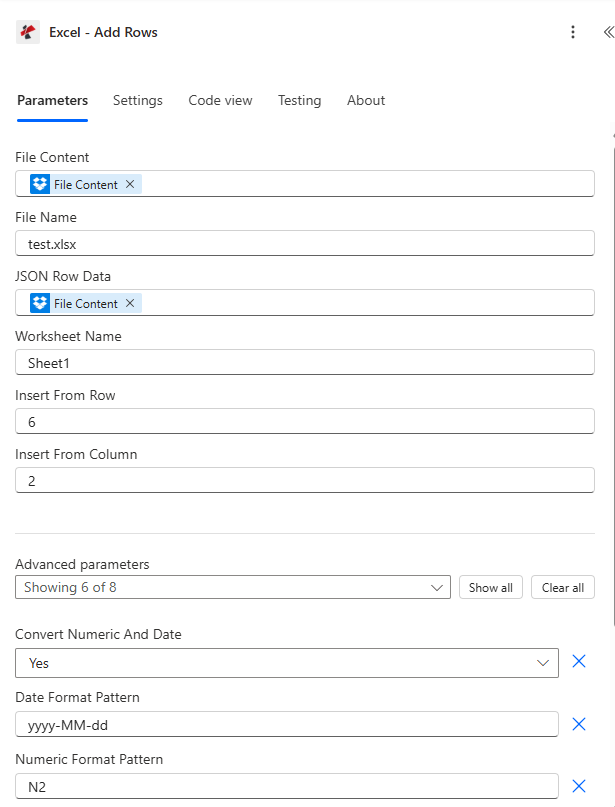
Petakan Konten File dan Nama File, atur Data Baris JSON, pilih Nama Tabel atau Sisipkan Dari Baris/Kolom, lalu perluas Parameter Lanjutan untuk konversi tipe dan pemformatan.
Parameter
Diperlukan: Konten File, Nama File, dan Data Baris JSON harus selalu disediakan. Nama Tabel dan Nomor Baris Excel hanya berlaku untuk penyisipan berbasis tabel. Sisipkan Dari Baris dan Sisipkan Dari Kolom hanya berlaku untuk penyisipan berbasis koordinat, dan akan ditolak jika Nama Tabel juga diatur.
| Parameter | Diperlukan | Apa fungsinya? | Contoh |
|---|---|---|---|
| File Content | Required | Base64 content of the source Excel workbook, mapped from SharePoint, OneDrive, or another prior action. | [File Content from Get File] |
| File Name | Required | Excel filename including extension (.xlsx or .xls), used for processing and output identification. | data.xlsx |
| JSON Row Data | Required | JSON object or array of objects to insert. Each object becomes one row, property names match table headers in table mode. | [{"Name":"John","Age":30}] |
| Worksheet Name | Optional | Name of the worksheet to insert into. Defaults to Sheet1 if left blank. | Sheet1 |
| Table Name | Optional | Name of an Excel table for table-based insertion. Leave empty to use coordinate-based insertion instead. | SalesTable |
| Excel Row Number | Conditional | 1-based position within the table, table mode only. Ignored in coordinate mode. | 5 |
| Insert From Row | Conditional | 1-based worksheet row where insertion starts, coordinate mode only. Errors if Table Name is also set. | 10 |
| Insert From Column | Conditional | 1-based worksheet column where insertion starts, coordinate mode only. Errors if Table Name is also set. | 3 |
| Convert Numeric And Date | Optional | Enables automatic conversion of JSON numbers to Excel numeric values and date-like strings to Excel dates. Default true. | true |
| Date Format Pattern | Optional | Excel date format applied when Convert Numeric And Date is enabled. Default yyyy-MM-dd. | MM/dd/yyyy |
| Numeric Format Pattern | Optional | Excel numeric format applied when Convert Numeric And Date is enabled. Default N2. | #,##0.00 |
| Ignore Null Values | Optional | Skips inserting a value for any JSON property that is null when enabled. Default false, which inserts nulls as empty cells. | false |
| Ignore Attribute Titles | Optional | Makes JSON property name matching case-insensitive against table headers when enabled. Default false. | true |
| Culture Name | Optional | Culture code used to parse incoming date and number strings before conversion. Default en-US. | en-US |
Bidang Keluaran
| Bidang | Jenis | Isi di dalamnya |
|---|---|---|
document | Base64 | The Excel workbook with the new rows inserted. |
Success | Boolean | true if insertion completed, false if the action failed. |
ErrorMessage | String | Error description, null when Success is true. |
Errors | Array | Detailed error objects with Code and Message, empty when Success is true. |
Apa Arti Pesan Kesalahan Umum Tersebut?
| Pesan Kesalahan | Menyebabkan | Larutan |
|---|---|---|
| JSON input is required | JSON Row Data is null or empty. | Provide a valid JSON object or array. |
| Invalid JSON structure | Malformed JSON syntax. | Fix the JSON formatting before mapping it in. |
| Worksheet not found | The named worksheet does not exist in the workbook. | Use an existing worksheet name or leave it blank for the first sheet. |
| Table not found | The named table does not exist, table mode only. | Use an existing Excel table name. |
| ExcelRowNumber must be greater than 0 | Excel Row Number is less than 1 in table mode. | Set Excel Row Number to 1 or higher. |
| InsertFromRow and InsertFromColumn are ignored when TableName is specified | Coordinate parameters were set alongside Table Name. | Clear Table Name for coordinate mode, or clear the coordinate fields for table mode. |
| No valid data found in JSON input | JSON Row Data was an empty array or had no parseable objects. | Provide at least one valid object in the JSON payload. |
Bagaimana Cara Mengatur Penambahan Baris di Power Automate?
- Menambahkan PDF4me → Excel - Tambahkan Baris untuk Anda Power Automate mengalir.
- Peta Isi File Dan Nama File dari tindakan sebelumnya (SharePoint, OneDrive, atau konektor basis data).
- Mengatur JSON Data Baris ke objek atau larik objek Anda.
- Mengatur Nama Tabel untuk penyisipan berbasis tabel, atau biarkan kosong dan atur Sisipkan Dari Baris / Sisipkan Dari Kolom untuk penyisipan berbasis koordinat.
- Memperluas Parameter lanjutan untuk memungkinkan Konversi Angka dan Tanggal dan atur formatnya. Jalankan alur kerja, buku kerja yang diperbarui akan kembali sebagai berikut. dokumen.
Pengaturan Umum
Contoh Alur KerjaCommon Power Automate flow patterns using Add Rows.
- Pemicu terjadwal menjalankan kueri SQL untuk mengambil catatan penjualan hari itu.
- Hasilnya dikonversi menjadi array JSON yang sesuai dengan judul kolom tabel penjualan.
- Get File mengambil templat laporan penjualan dengan Nama Tabel "DailySales".
- Add Rows menyisipkan array dengan Convert Numeric And Date diaktifkan dan Numeric Format Pattern diatur untuk mata uang.
- Laporan terbaru dikirimkan melalui email kepada manajer penjualan.
- Pengiriman formulir Microsoft Forms memicu alur kerja.
- Skenario ini membangun objek JSON dari jawaban yang dikirimkan.
- Get File mengambil buku kerja log respons.
- Fungsi Tambah Baris menyisipkan data pada baris kosong berikutnya menggunakan Sisipkan Dari Baris dan Sisipkan Dari Kolom, dengan Nama Tabel dibiarkan kosong.
- Log yang diperbarui disimpan kembali ke SharePoint.
- Pemicu mingguan memunculkan peluang baru dari sebuah CRM konektor.
- Data tersebut dikonversi menjadi array JSON dengan nama field yang fleksibel.
- Fungsi Tambah Baris memasukkan data ke dalam tabel "Peluang" dengan opsi Abaikan Judul Atribut diaktifkan untuk pencocokan header yang tidak peka terhadap huruf besar/kecil.
- Laporan yang telah diisi kemudian didistribusikan kepada tim penjualan.
Tips Praktis
Lembar Panduan Singkat
| Bidang | Nilai |
|---|---|
| Action | Excel - Add Rows |
| Mode switch | Table Name set = table mode, empty = coordinate mode |
| JSON Row Data shape | Single object or array of objects |
| Default worksheet | Sheet1 |
| Type conversion toggle | Convert Numeric And Date = true (default) |
| Default date/numeric format | yyyy-MM-dd / N2 |
| Default culture | en-US |
| Output | document (Base64 workbook) + Success + ErrorMessage + Errors |
Pertanyaan Umum
Studi Kasus & Aplikasi Industri
- Sales & Marketing
- Finance & Accounting
- Human Resources
- Operations & Manufacturing
- Laporan Saluran PenjualanMasukkan data peluang CRM ke dalam saluran penjualan Excel.
- Pelacakan ProspekTambahkan prospek baru dari formulir ke lembar pelacakan Excel.
- Analisis KampanyeMengisi hasil kampanye pemasaran dari API analitik
- Daftar PelangganEkspor data pelanggan dari basis data ke daftar pelanggan Excel.
- Log TransaksiMasukkan transaksi keuangan harian ke dalam buku besar Excel.
- Laporan PengeluaranTambahkan pengajuan pengeluaran karyawan ke laporan pengeluaran Excel.
- Pelacakan Anggaran: Mengisi data pengeluaran aktual ke dalam templat anggaran vs. aktual
- Pembuatan FakturMasukkan item baris faktur ke dalam templat faktur Excel.
- Catatan KaryawanTambahkan informasi karyawan baru ke basis data karyawan Excel.
- Pelacakan KehadiranMasukkan data kehadiran harian ke dalam lembar waktu Excel.
- Pemrosesan Penggajian: Mengisi jam kerja ke dalam templat penggajian Excel
- Data KinerjaTambahkan skor ulasan dan metrik ke pelacak kinerja Excel.
- Pembaruan InventarisMasukkan perubahan tingkat stok ke dalam lembar inventaris Excel.
- Catatan ProduksiTambahkan data proses produksi ke log manufaktur Excel.
- Metrik Kualitas: Mengisi hasil kontrol kualitas ke dalam laporan QC Excel
- Catatan PemeliharaanMasukkan data perawatan peralatan ke dalam log servis Excel.