Tambahkan Gambar Header Footer ke Excel di dalam Power Automate
PDF4me Tambahkan Gambar Header Footer ke Excel adalah sebuah Power Automate tindakan yang menyisipkan logo, tanda air, atau gambar merek ke dalam Excel Bagian header atau footer lembar kerja. Gunakan untuk membubuhkan logo perusahaan pada laporan mingguan, menandai file rahasia dengan gambar keamanan, atau melakukan co-branding pada hasil kerja klien, tanpa perlu membukanya. Excel secara manual.
Apa yang dilakukan oleh tindakan ini?
PDF4me Tambahkan Gambar Header Footer ke Excel Fungsi ini memetakan file gambar ke header atau footer buku kerja, dengan perataan kiri, tengah, atau kanan, pada lembar kerja tertentu atau seluruh file. Margin halaman di sekitar gambar dapat dikonfigurasi dalam sentimeter melalui parameter Lanjutan.
Bagaimana Cara Saya Mengautentikasi Saya? Power Automate Mengalir?
Setiap PDF4me tindakan dalam Power Automate Membutuhkan koneksi yang valid. Buat atau pilih koneksi yang sesuai dengan kebutuhan Anda. PDF4me API kunci agar alur dapat melakukan autentikasi Excel permintaan pemformatan gambar secara aman.
Fakta Penting yang Tidak Boleh Anda Lewatkan
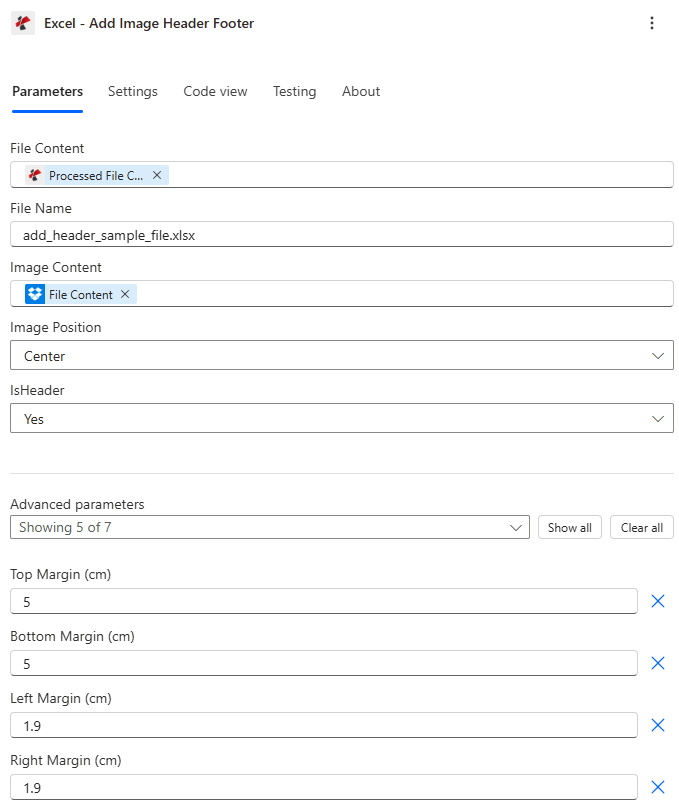
Petakan Konten File, Nama File, dan Konten Gambar, lalu pilih Posisi Gambar dan penempatan IsHeader.
Parameter
Diperlukan: Konten Berkas, Nama Berkas, dan Konten Gambar. Posisi Gambar dan IsHeader memiliki nilai default yang berfungsi. Margin dan penargetan lembar kerja adalah parameter lanjutan yang bersifat kondisional.
| Parameter | Diperlukan | Apa fungsinya? | Contoh |
|---|---|---|---|
| File Content | Required | Base64 content of the source Excel workbook, mapped from SharePoint, OneDrive, or another prior action. | [File Content from Get file content] |
| File Name | Required | Excel filename including extension (.xlsx or .xls), used for processing and output identification. | add_header_sample_file.xlsx |
| Image Content | Required | Base64 content of the logo or branding image, mapped from SharePoint, OneDrive, or an email attachment. PNG, JPG, JPEG, or GIF. | [File Content from Get file content] |
| Image Position | Optional | Horizontal alignment within the header/footer zone: Left, Center, or Right. Defaults to Center. | Center |
| IsHeader | Optional | Yes places the image in the header, No places it in the footer. Defaults to Yes. | Yes |
| Top Margin | Conditional | Advanced parameter. Top page margin in centimeters, controls spacing from the top edge and affects header placement. | 5 |
| Bottom Margin | Conditional | Advanced parameter. Bottom page margin in centimeters, controls spacing from the bottom edge and affects footer placement. | 5 |
| Left Margin | Conditional | Advanced parameter. Left page margin in centimeters, controls overall page layout spacing. | 1.9 |
| Right Margin | Conditional | Advanced parameter. Right page margin in centimeters, controls overall page layout spacing. | 1.9 |
| Worksheet Names | Conditional | Advanced parameter. List of worksheet names to target. Leave empty along with Worksheet Indexes to apply to every sheet. | ["Sheet1", "Report"] |
| Worksheet Indexes | Conditional | Advanced parameter. List of 1-based worksheet indexes to target. Combines with Worksheet Names if both are set. | [1, 2] |
| Culture Name | Conditional | Advanced parameter. Culture/locale code for processing, for example en-US or de-DE. Blank uses the invariant culture. | en-US |
Catatan: Jika Nama Lembar Kerja dan Indeks Lembar Kerja keduanya kosong atau null, gambar akan diterapkan ke setiap lembar kerja dalam buku kerja.
Bidang Keluaran
| Bidang | Jenis | Isi di dalamnya |
|---|---|---|
document | Base64 | The Excel workbook with the image header/footer applied. |
Success | Boolean | true if the action completed, false if it failed. |
ErrorMessage | String | Error description, null when Success is true. |
Errors | Array | Detailed error objects, empty when Success is true. |
Apa Arti Pesan Kesalahan Umum Tersebut?
| Pesan Kesalahan | Menyebabkan | Larutan |
|---|---|---|
| Request is empty | The request object is null. | Provide a valid request object. |
| Document is empty | File Content is null or empty. | Provide a valid Excel document in File Content. |
| Image content is empty | Image Content is null or empty. | Provide valid image content from a prior action. |
| Invalid worksheet selection | Worksheet names or indexes don't exist or are out of range. | Use existing worksheet names or valid 1-based indexes. |
| Available worksheets in workbook (X total) | Informational message shown when worksheet selection validation fails. | Review worksheet names/indexes and use a valid value from the X available worksheets. |
Bagaimana Cara Mengatur Penambahan Gambar Header dan Footer? Power Automate?
- Menambahkan PDF4me → Excel - Tambahkan Gambar Header Footer untuk Anda Power Automate mengalir.
- Peta Isi File Dan Nama File dari tindakan sebelumnya (SharePoint, OneDrive, atau Dapatkan isi file).
- Peta Konten Gambar dari file logo, watermark, atau gambar merek.
- Mengatur Apakah Header ke Ya untuk header atau TIDAK untuk footer, dan pilih Posisi Gambar: Kiri, Tengah, atau Benar.
- Memperluas Parameter lanjutan untuk mengatur Atas, Dasar, Kiri, Dan Margin Kananatau target spesifik Nama Lembar Kerja/Indeks Lembar KerjaJalankan alur kerja, buku kerja bermerek akan muncul sebagai berikut: dokumen.
Pengaturan Umum
Contoh Alur KerjaCommon Power Automate flow patterns using Add Image Header Footer.
- Alur terjadwal dipicu setiap Senin pagi.
- Mendapatkan isi file mengambil laporan kinerja mingguan dari SharePoint.
- Add Image Header Footer menyisipkan logo perusahaan, IsHeader Yes, Image Position Center, Worksheet Names dan Worksheet Indexes dibiarkan kosong untuk mencakup setiap lembar kerja.
- Laporan bermerek tersebut dikirim melalui email ke manajemen dan diarsipkan.
- Suatu alur dipicu ketika suatu zat sensitif Excel berkas tersebut masuk ke area terbatas. SharePoint folder.
- Fungsi "Get file content" mengambil isi buku kerja, dan gambar stempel "Rahasia" diambil dari aset.
- Tambahkan Header dan Footer Gambar dengan mengatur IsHeader No, Posisi Gambar Tengah, dan hanya menargetkan Nama Lembar Kerja ["Sheet1", "Summary"].
- Berkas yang telah diberi stempel dikirim melalui email hanya kepada peninjau yang berwenang.
- Suatu alur akan dipicu ketika hasil proyek ditandai sebagai Final.
- Tambahkan Gambar Header Footer menyisipkan logo internal perusahaan, Posisi Gambar Kanan, IsHeader Ya.
- Panggilan kedua Add Image Header Footer menyisipkan logo klien, Image Position Left, pada lembar kerja yang sama.
- Buku kerja dengan dua merek tersebut dikirimkan kepada pemangku kepentingan klien.
Tips Praktis
Lembar Panduan Singkat
| Bidang | Nilai |
|---|---|
| Action | Excel - Add Image Header Footer |
| Required fields | File Content, File Name, Image Content |
| Placement fields | Image Position (Left/Center/Right, default Center), IsHeader (Yes/No, default Yes) |
| Advanced parameters | 7 total: Top/Bottom/Left/Right Margin (cm), Worksheet Names, Worksheet Indexes, Culture Name |
| Output | document (Base64 workbook) + Success + ErrorMessage + Errors |
Pertanyaan Umum
Studi Kasus & Aplikasi Industri
- Finance & Accounting
- Sales & Marketing
- Operations & Manufacturing
- Legal & Professional Services
- Laporan KeuanganTambahkan header logo perusahaan ke laporan triwulanan.
- Dokumen Audit: Terapkan tanda air logo firma audit di bagian footer
- Laporan PengeluaranTambahkan header logo perusahaan untuk pengajuan pengeluaran.
- Laporan PenjualanSisipkan logo merek perusahaan pada laporan penjualan mingguan.
- Presentasi PelangganTambahkan logo co-branding klien ke hasil akhir.
- Laporan Inventaris: Sisipkan logo lokasi gudang pada lembar inventaris
- Laporan Kualitas: Cantumkan logo sertifikasi kualitas di bagian header
- Laporan KlienSisipkan logo firma hukum pada header hasil pekerjaan klien.
- Laporan TagihanSisipkan logo perusahaan pada laporan penagihan hukum.