Mengubah Visio di dalam Power Automate
PDF4me Mengubah Visio tindakan ini menghadirkan konversi diagram profesional dalam Power Automate dengan transformasi otomatis Microsoft Visio berkas ke PDF, PNG, SVGdan format universal lainnya. Layanan konversi komprehensif ini memungkinkan berbagi diagram, penerbitan web, dan kompatibilitas lintas platform tanpa hambatan, mengubah Visiomengubah alur kerja yang bergantung pada variabel menjadi otomatisasi dokumen yang mudah diakses di seluruh sistem. Microsoft 365 ekosistem.
Memverifikasi Identitas Anda API Meminta
Untuk mengakses PDF4me Web API melalui Power AutomateSetiap permintaan harus menyertakan kredensial otentikasi yang tepat. Otentikasi memastikan komunikasi yang aman dan memvalidasi identitas Anda sebagai pengguna yang berwenang, memungkinkan integrasi yang lancar antara aplikasi Anda. Power Automate arus dan PDF4meLayanan pemrosesan dokumen yang andal.
Fitur Utama
- Berbagai Format Output: Mengubah Visio ke PDF, PNG, SVG, JPGdan format lainnya
- Visio KompatibilitasDukungan untuk .vsd, .vsdx, .vsdm Visio format file
- Pelestarian Kualitas: Pertahankan kualitas dan tata letak diagram selama konversi
- Pemrosesan Otomatis: Mengubah Visio diagram secara otomatis dalam alur kerja
- Integrasi AliranGunakan file yang telah dikonversi pada langkah selanjutnya. Power Automate tindakan
Parameter
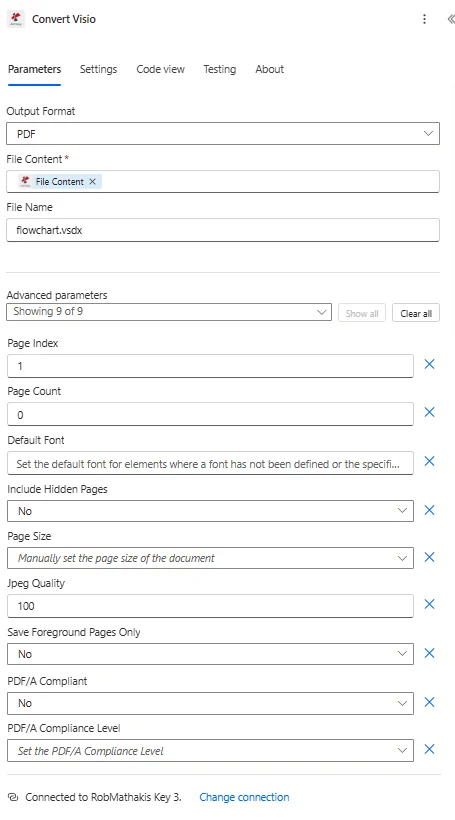
Daftar lengkap parameter untuk Konversi Visio Tindakan. Konfigurasikan parameter ini untuk mengontrol konversi diagram.
| Parameter | Diperlukan | Apa fungsinya? | Contoh |
|---|---|---|---|
| Output Format | Optional | Format to convert the Visio file to. After you choose it, the fields for that format are loaded into the action card. Options: PDF, BMP, GIF, PNG, JPG, SVG, TIFF, HTML, VSDX. Defaults to `PDF`. | PDF |
| Page Index | Conditional | Page of the drawing to start converting from. Defaults to `1`. Shown when Output Format is BMP or Output Format is GIF or Output Format is HTML or Output Format is JPG or Output Format is PDF or Output Format is PNG or Output Format is SVG or Output Format is TIFF. | 1 |
| Page Count | Conditional | Set the number of pages to convert. Defaults to `0`. Shown when Output Format is HTML or Output Format is PDF or Output Format is TIFF. | 0 |
| Default Font | Optional | Set the default font for elements where a font has not been defined or the specified font is unavailable. | your value |
| Include Hidden Pages | Conditional | Set whether hidden pages should be converted, false by default. Defaults to `No`. Shown when Output Format is HTML or Output Format is PDF or Output Format is TIFF. | No |
| Page Size | Conditional | Manually set the page size of the document. Options: Inherit, A1, A2, A3, A4, A5, B4, B5, Envelope, Executive, Legal, Letter, Tabloid. Shown when Output Format is BMP or Output Format is GIF or Output Format is HTML or Output Format is JPG or Output Format is PDF or Output Format is PNG or Output Format is SVG or Output Format is TIFF. | Inherit |
| Jpeg Quality | Conditional | Quality of JPEG images in the result, from 0 (lowest) to 100 (highest). Defaults to `100`. Shown when Output Format is JPG or Output Format is PDF. | 100 |
| Save Foreground Pages Only | Conditional | If Yes, only the foreground pages are converted; background pages are left out. Defaults to `No`. Shown when Output Format is HTML or Output Format is PDF or Output Format is TIFF. | No |
| PDF/A Compliant | Conditional | Set whether the PDF document should be PDF/A compliant. Defaults to `No`. Shown when Output Format is PDF. | No |
| PDF/A Compliance Level | Conditional | PDF/A conformance level to use when PDF/A Compliant is Yes. Options: Pdf15, PdfA1a, PdfA1b. Shown when Output Format is PDF. | Pdf15 |
| File Content | Required | Content of the Visio file to convert. Map it from the file content returned by a previous action, such as SharePoint or OneDrive Get file content. | @{body('Get_file_content')?['$content']} |
| File Name | Optional | Name of the Visio file to convert, including its extension (for example `diagram.vsdx`). Map it from the file name returned by a previous action. | diagram.vsdx |
| Brightness | Conditional | Set image brightness. Shown when Output Format is BMP or Output Format is GIF or Output Format is JPG or Output Format is PNG or Output Format is TIFF. | 0 |
| Contrast | Conditional | Set image contrast. Shown when Output Format is BMP or Output Format is GIF or Output Format is JPG or Output Format is PNG or Output Format is TIFF. | 0 |
| Color Mode | Conditional | Set image colour mode. Options: None, Grayscale, BlackAndWhite. Defaults to `None`. Shown when Output Format is BMP or Output Format is GIF or Output Format is JPG or Output Format is PNG or Output Format is TIFF. | None |
| Compositing Quality | Conditional | Specify the quality level to use during compositing. Options: Invalid, Default, HighSpeed, HighQuality, GammaCorrected, AssumeLinear. Defaults to `Default`. Shown when Output Format is BMP or Output Format is GIF or Output Format is JPG or Output Format is PNG or Output Format is TIFF. | Default |
| Interpolation Mode | Conditional | Specify the algorithm that is used when images are scaled or rotated. Options: Invalid, Default, Low, High, Bilinear, Bicubic, NearestNeighbor, HighQualityBilinear, HighQualityBicubic. Defaults to `Default`. Shown when Output Format is BMP or Output Format is GIF or Output Format is JPG or Output Format is PNG or Output Format is TIFF. | Default |
| Pixel Offset Mode | Conditional | Set a value specifying how pixels are offset during conversion. Options: Invalid, Default, HighSpeed, HighQuality, None, Half. Defaults to `Default`. Shown when Output Format is BMP or Output Format is GIF or Output Format is JPG or Output Format is PNG or Output Format is TIFF. | Default |
| Resolution | Conditional | Set image resolution in dots per inch. The default value is 96. Defaults to `96`. Shown when Output Format is BMP or Output Format is GIF or Output Format is JPG or Output Format is PNG or Output Format is TIFF. | 96 |
| Scale | Conditional | Set image zoom factor. Defaults to `1.0`. Shown when Output Format is BMP or Output Format is GIF or Output Format is JPG or Output Format is PNG or Output Format is TIFF. | 1.0 |
| Smoothing Mode | Conditional | Specify whether smoothing (antialiasing) is applied to lines, curves and the edges of filled areas. Options: Invalid, Default, HighSpeed, HighQuality, None, AntiAlias. Defaults to `Default`. Shown when Output Format is BMP or Output Format is GIF or Output Format is JPG or Output Format is PNG or Output Format is TIFF. | Default |
| Compression | Conditional | Set the compression type. Options: None, Rle, Ccitt3, Ccitt4, Lzw. Defaults to `None`. Shown when Output Format is TIFF. | None |
| Save Toolbar | Conditional | Set whether to include the toolbar, default value is false. Defaults to `No`. Shown when Output Format is HTML. | No |
| Auto Fit | Conditional | If Yes, the diagram is fitted to the width of the page. Defaults to `No`. Shown when Output Format is VSDX. | No |
Keluaran
Yang PDF4me Mengubah Visio Tindakan ini mengembalikan data keluaran komprehensif untuk kelancaran proses. Power Automate integrasi alur:
- Table
- JSON
- Flow Integration
Tampilan Tabel
Data respons dalam format tabel terstruktur:
| Bidang | Jenis | Isi di dalamnya |
|---|---|---|
| File Content | File content | Content of the converted file, in the chosen output format. Map it into the next action, for example the File Content field of SharePoint or OneDrive Create file. |
| File Name | Text | File name of the converted file, as returned by PDF4me. Use it as the file name when saving the file. |
| Page Count | Text | Page count reported by PDF4me for the processed document. Returned as text; wrap it in int() to use it as a number. |
Format Respons JSON
Kolom yang dikembalikan oleh aksi, seperti yang muncul dalam konten dinamis:
{
"File Content": "[Binary File Data]",
"File Name": "flowchart.pdf"
}
Power Automate Penggunaan Alur
Gunakan yang sudah dikonversi Visio berkas dalam tindakan selanjutnya:
- Distribusi EmailLampirkan diagram yang telah dikonversi ke Outlook email
- SharePoint Penerbitan: Mengunggah PDF diagram untuk perpustakaan dokumen
- Kolaborasi TimBagikan diagram yang telah dikonversi di saluran Teams.
- Penerbitan Web: Menggunakan PNG/SVG diagram pada situs web atau portal
- Penyematan DokumenSisipkan diagram ke dalam Word/PowerPoint dokumen
- Penyimpanan ArsipSimpan diagram yang telah dikonversi di OneDrive atau Azure.
Contoh Alur Kerja
Yang PDF4me Mengubah Visio tindakan dalam Power Automate menyediakan templat alur kerja komprehensif yang dirancang untuk skenario bisnis dunia nyata:
- Process Documentation
- Web Publishing
- Client Deliverables
- Compliance Archival
Diagram Proses Otomatis Alur Kerja Konversi PDF
Ubah dokumentasi proses Anda dengan otomatisasi. Visio ke PDF Konversi untuk distribusi pemangku kepentingan:
Langkah-langkah Alur Kerja Lengkap:
- PemicuDiagram proses yang diperbarui telah disimpan ke SharePoint Visio perpustakaan
- Mendapatkan Visio: Ambil yang terbaru Visio diagram alir dari perpustakaan dokumen
- Konversi ke PDF: Transformasi Visio diagram ke universal PDF format
- Tambahkan Metadata: Terapkan nomor versi dan status persetujuan ke PDF
- Simpan PDF: Toko dikonversi PDF dalam perpustakaan dokumentasi proses
- Tim Email: Mengirim PDF diagram kepada pemangku kepentingan melalui Outlook
- Perbarui Daftar: Log PDF versi dalam proses dokumentasi pendaftaran
- Arsip: Pindahkan ke sebelumnya PDF versi ke folder arsip
Manfaat Bisnis:
- Mengotomatiskan distribusi diagram untuk 100+ dokumen proses setiap bulan.
- Memungkinkan akses pemangku kepentingan tanpa Visio persyaratan lisensi
- Mengurangi waktu berbagi diagram hingga 90% dengan konversi otomatis.
- Mempertahankan kontrol versi dengan otomatis. PDF arsip
Alur Kerja Penerbitan Diagram Web Otomatis
Sederhanakan intranet Anda dengan otomatisasi. Visio ke SVG Konversi untuk penerbitan web:
Langkah-langkah Alur Kerja Lengkap:
- PemicuBagan organisasi baru telah diunggah ke Visio perpustakaan
- Mendapatkan Visio: Ambil bagan organisasi Visio berkas dari SharePoint
- Konversi ke SVG: Ubah menjadi grafik vektor yang dapat diskalakan untuk web
- Optimalkan: Kompres SVG untuk pemuatan web yang cepat
- Mengunggah: Publikasikan SVG ke server web intranet atau Azure Blob
- Perbarui HalamanSegarkan halaman intranet dengan tautan diagram baru.
- Memberitahu: Beri tahu tim komunikasi tentang bagan organisasi yang telah diperbarui
- Melacak: Mencatat aktivitas penerbitan di sistem manajemen konten
Manfaat Bisnis:
- Menerbitkan lebih dari 50 diagram setiap bulan ke intranet secara otomatis.
- Memungkinkan tampilan diagram responsif di semua perangkat dengan SVG
- Mengurangi upaya penerbitan web hingga 85% dengan otomatisasi.
- Mempertahankan bagan organisasi terkini tanpa pembaruan manual.
Alur Kerja Pengiriman Diagram Klien Otomatis
Optimalkan pengiriman layanan kepada klien Anda dengan otomatisasi. Visio ke PDF Konversi untuk presentasi profesional:
Langkah-langkah Alur Kerja Lengkap:
- PemicuDiagram proyek telah diselesaikan dan disetujui dalam folder proyek.
- Mendapatkan Visio: Ambil diagram teknis yang disetujui dari SharePoint
- Konversi ke PDF: Transformasi Visio ramah klien PDF format
- Tambahkan Merek: Terapkan tanda air dan footer perusahaan ke PDF
- KompresOptimalkan PDF ukuran untuk pengiriman email
- Klien EmailKirimkan secara profesional PDF diagram untuk klien
- Simpan Salinan: Dikirim dari toko PDF di dalam folder hasil kerja klien
- Perbarui CRM: Pengiriman diagram log dalam Dynamics Catatan proyek 365
Manfaat Bisnis:
- Secara otomatis mengirimkan lebih dari 200 diagram teknis kepada klien setiap bulan.
- Menghilangkan Visio persyaratan perangkat lunak untuk tampilan klien
- Meningkatkan presentasi profesional dengan merek ternama. PDF keluaran
- Memelihara jejak audit pengiriman lengkap di CRM sistem
Alur Kerja Pengarsipan Kepatuhan Diagram Otomatis
Tingkatkan operasi kepatuhan Anda dengan otomatisasi. Visio ke PDF Konversi untuk pengarsipan jangka panjang:
Langkah-langkah Alur Kerja Lengkap:
- PemicuPengarsipan diagram kepatuhan terjadwal setiap bulan
- Mendapatkan Visio Berkas: Ambil semua kepatuhan Visio diagram dari perpustakaan
- Konversi Loop: Untuk setiap Visio berkas, konversi ke PDFFormat A
- Tambahkan MetadataTerapkan kebijakan retensi dan tag kepatuhan.
- Arsip: Toko PDF/ Sebuah perpustakaan arsip diagram yang sesuai
- IndeksBuat indeks yang dapat dicari untuk diagram yang diarsipkan.
- Buat LaporanBuat laporan penyelesaian pengarsipan.
- Memberitahu: Beri tahu tim kepatuhan tentang keberhasilan pengarsipan
Manfaat Bisnis:
- Mengarsipkan lebih dari 500 diagram kepatuhan setiap tahun secara otomatis.
- Memastikan pelestarian diagram jangka panjang dengan PDFFormat A
- Memenuhi persyaratan peraturan dengan pengarsipan kepatuhan otomatis.
- Memungkinkan pengambilan audit dengan indeks diagram yang dapat dicari.
Studi Kasus & Aplikasi Industri
- IT & Technology
- Project Management
- Business Process
- Engineering & Design
Studi Kasus TI & Teknologi
- Arsitektur SistemKonversikan diagram TI ke PDF untuk dokumentasi.
- Diagram JaringanBagikan topologi jaringan dalam format universal.
- Alur ProsesPublikasikan diagram alur kerja di intranet.
- Spesifikasi Teknis: Menyampaikan diagram teknis kepada klien
Studi Kasus Manajemen Proyek
- Rencana ProyekKonversikan diagram proyek ke PDF yang dapat dibagikan.
- Bagan Gantt: Mengubah garis waktu Visio ke format universal
- Peta Sumber Daya: Bagikan diagram alokasi sumber daya
- Pelacakan PencapaianPublikasikan diagram status proyek.
Kasus Penggunaan Proses Bisnis
- Pemetaan ProsesKonversi diagram BPM untuk tinjauan pemangku kepentingan.
- Dokumentasi Alur KerjaBagikan alur proses sebagai PDF
- Diagram Kepatuhan: Arsip peta proses regulasi
- Materi PelatihanBuat dokumen pelatihan berbasis diagram.
Studi Kasus Teknik & Desain
- Diagram CADKonversi gambar teknik ke PDF
- Denah LantaiBagikan diagram arsitektur secara universal.
- Diagram Skema Listrik: Distribusikan diagram pengkabelan dalam format PDF
- Diagram P&IDKonversi diagram proses untuk dokumentasi.