Aman Word Dokumen di n8n
Aman Word Dokumen adalah sebuah PDF4me tindakan node di n8n yang mengunci .docx Buat file dengan kata sandi, batasan pengeditan, atau keduanya. Gunakan untuk melindungi laporan rahasia sebelum dikirim, mencegah templat yang telah ditandatangani diubah, atau memungkinkan peninjau untuk memberikan komentar pada kontrak tanpa mengubah teksnya.
Fungsi node ini
PDF4me Word: Aman Word Dokumen berlaku dua jenis perlindungan independen. Aman Saat Terbuka ditambah Buka Kata Sandi Menentukan apakah file tersebut dapat dibuka sama sekali. Jenis Perlindungan ditambah Kata Sandi Perlindungan Menentukan apa yang dapat diubah setelah dibuka, mulai dari hanya baca saja hingga komentar, kolom formulir, atau hanya revisi yang dilacak. Gunakan salah satu, atau keduanya bersama-sama.
Memverifikasi Identitas Anda API Meminta
Setiap PDF4me simpul di n8n memerlukan validitas Kredensial untuk terhubung denganBuat atau pilih salah satu yang sesuai dengan kebutuhan Anda. PDF4me API kunci agar alur kerja dapat mengautentikasi permintaan keamanan dokumen.
Fakta Penting yang Tidak Boleh Anda Lewatkan
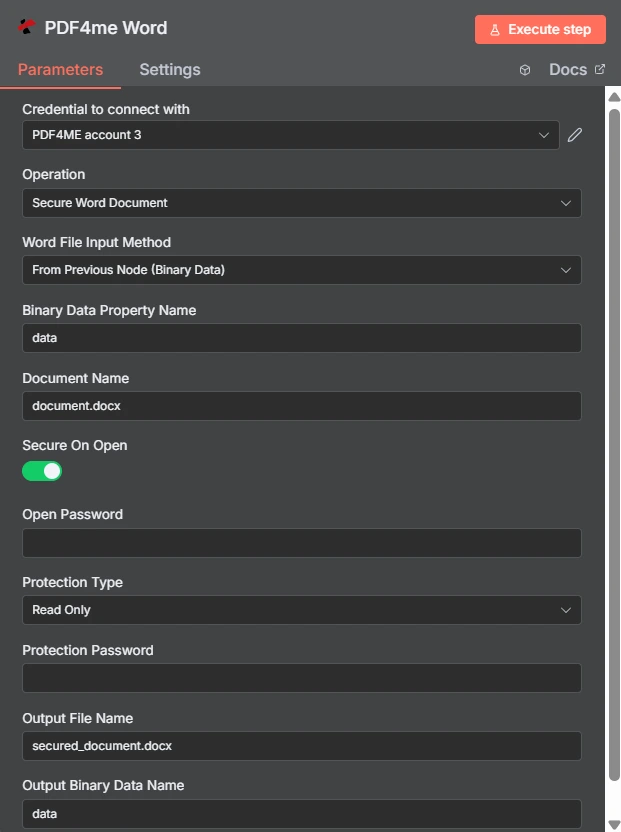
Secure On Open adalah tombol pengaktifan/penonaktifan, dan Protection Type adalah menu tarik-turun terpisah yang diatur ke Read Only di sini. Dua kolom kata sandi di bawahnya saling independen.
Kata Sandi Terbuka vs Pembatasan Pengeditan
| Pertanyaan | Buka kata sandi | Pembatasan pengeditan |
|---|---|---|
| Which fields set it | Secure On Open and Open Password | Protection Type and Protection Password |
| What it blocks | Opening the document at all | Changing the document once open |
| Can the recipient read it | Only with the password | Yes, reading is always allowed |
| Typical recipient | A named person receiving something confidential | A reviewer or a form filler |
| Use it when | The content must not be seen by others | The content may be seen but not altered |
Parameter Apa yang Diamankan? Word Butuh dokumen?
| Parameter | Diperlukan | Apa fungsinya? | Contoh |
|---|---|---|---|
| Credential to connect with | Required | The PDF4me account credential the node authenticates with. | PDF4ME account |
| Operation | Required | The action this node performs. Select Secure Word Document. | Secure Word Document |
| Word File Input Method | Required | How the .docx reaches the node: from the previous node as binary data, as a Base64 string, or from a URL. | From Previous Node (Binary Data) |
| Binary Data Property Name | Conditional | Name of the binary property holding the document. Appears when the file comes from the previous node. | data |
| Document Name | Required | Filename of the input document including the extension. Drives format detection. | document.docx |
| Secure On Open | Optional | Toggle that requires a password before the document will open. Leave off if you only want an editing restriction. | enabled |
| Open Password | Conditional | The password needed to open the file. Required once Secure On Open is enabled. Supply it through an expression, not as literal text. | {{ $env.DOC_OPEN_PW }} |
| Protection Type | Optional | Editing restriction applied to the document: Read Only, Allow Comments, Allow Form Fields, or Allow Revisions. | Read Only |
| Protection Password | Conditional | The password that lifts the editing restriction. Required once a Protection Type is chosen, and should differ from Open Password. | {{ $env.DOC_EDIT_PW }} |
| Output File Name | Optional | Filename of the returned secured document. Keep the .docx extension. | secured_document.docx |
| Output Binary Data Name | Optional | Binary property the secured document is written to. Leave as data unless a later node expects another name. | data |
Opsi Jenis Perlindungan
| Pilihan | Apa yang dapat dilakukan penerima |
|---|---|
Read Only | View the document only. No edits of any kind are accepted. |
Allow Comments | Add and edit comments, but not change the document text itself. |
Allow Form Fields | Fill in form fields while the surrounding content stays locked. |
Allow Revisions | Edit, but only with tracked changes recorded so every alteration is visible. |
Keluaran
| Bidang | Jenis | Isi di dalamnya |
|---|---|---|
| fileName | String | Name of the returned secured document. |
| fileSize | Number | Size of the secured document in bytes. |
| success | Boolean | Whether protection was applied. Branch on this so failures surface as alerts. |
| originalFileName | String | Name of the input document as supplied in Document Name. |
| secureOnOpen | Boolean | Whether an open password was applied, echoed back for verification. |
| protectionType | String | The editing restriction applied, such as ReadOnly, or empty when none was set. |
| message | String | Human-readable status text describing the result of the operation. |
Memeriksa protectionType Dalam respons tersebut, cara termurah untuk memastikan bahwa pembatasan yang Anda maksudkan adalah pembatasan yang benar-benar diterapkan adalah dengan cara tersebut.
Bagaimana Cara Saya Mengatur Keamanan? Word Dokumen di n8n?
- Tambahkan PDF4me Word Tambahkan node ini ke alur kerja Anda dan atur. Operasi ke Aman Word Dokumen.
- Pilih Anda PDF4me atau buat yang baru dan tempelkan kredensial Anda API kunci.
- Pilih Word Metode Input File dan menyediakan
.docxmelalui ladang di bawahnya. - Mengatur Nama Dokumen dengan ekstensi yang tepat.
- Untuk membuka gerbang, nyalakan Aman Saat Terbuka dan mengatur Buka Kata Sandi dari kredensial atau variabel lingkungan.
- Untuk mengatur pengeditan gerbang, atur Jenis Perlindungan dan menyediakan yang berbeda Kata Sandi Perlindungan.
- Mengatur Nama File Output berakhir di
.docx. - Jalankan node, konfirmasi
secureOnOpenDanprotectionTypeDalam respons tersebut, kemudian teruskan file yang telah diamankan.
Pengaturan Umum
Contoh Alur KerjaCommon n8n workflow patterns using Secure Word Document.
- Tahap pelaporan menghasilkan dokumen yang berisi angka-angka sensitif.
- Secure On Open menerapkan kata sandi yang tersimpan dalam variabel lingkungan.
- File tersebut dikirim melalui email, dan kata sandi dibagikan melalui saluran terpisah.
- Jenis Perlindungan diatur ke Izinkan Komentar.
- Para peninjau memberi anotasi tanpa mengubah teks klausa apa pun.
- Umpan balik datang tanpa perbedaan yang perlu diselaraskan setelahnya.
- Opsi "Izinkan Kolom Formulir" mempertahankan teks di sekitarnya agar tetap statis.
- Penerima hanya perlu mengisi kolom yang ditujukan untuk mereka.
- Formulir yang dikembalikan cukup konsisten untuk diuraikan secara otomatis.
- Templat disetujui dan dipublikasikan ke drive bersama.
- Perlindungan Baca Saja mencegah pengeditan lokal secara diam-diam.
- Semua orang bekerja berdasarkan rumusan kata yang sama dan berwenang.
Tips Praktis
Lembar Panduan Singkat
| Bidang | Nilai |
|---|---|
| Operation | Secure Word Document |
| Word File Input Method | From Previous Node (Binary Data) |
| Binary Data Property Name | data |
| Document Name | document.docx |
| Secure On Open | enabled |
| Open Password | {{ $env.DOC_OPEN_PW }} |
| Protection Type | Read Only |
| Protection Password | {{ $env.DOC_EDIT_PW }} |
| Output File Name | secured_document.docx |
| Output Binary Data Name | data |