Buka kunci Excel File dan Hapus Perlindungan di n8n
Buka Kunci File adalah sebuah PDF4me Excel operasi di n8n yang menghapus perlindungan kata sandi dari buku kerja .xlsx pada tiga tingkat independen: enkripsi file, struktur buku kerja, dan perlindungan lembar kerja. Gunakan untuk membuka templat yang dilindungi, mempersiapkan file untuk penulisan data otomatis, atau menghapus kata sandi sebelum pengarsipan, tanpa perlu membukanya. Excel.
Fungsi node ini
PDF4me ExcelBuka Kunci File menghapus Excel Perlindungan dalam satu kali proses. Ini menghapus kata sandi pembuka (enkripsi file), kunci struktur buku kerja yang mencegah penambahan, penghapusan, atau penggantian nama lembar kerja, dan secara opsional perlindungan lembar kerja yang mencegah pengeditan sel dan rumus. Kata sandi yang Anda berikan digunakan kembali sebagai cadangan di berbagai lapisan, sehingga buku kerja yang diamankan dengan satu kata sandi biasanya hanya perlu mengisi satu kolom saja.
Memverifikasi Identitas Anda API Meminta
Setiap PDF4me simpul di n8n memerlukan validitas Kredensial untuk terhubung denganBuat atau pilih salah satu yang memuat milik Anda. PDF4me API kunci agar alur kerja dapat mengautentikasi permintaan pembukaan kunci dengan aman.
Fakta Penting yang Tidak Boleh Anda Lewatkan
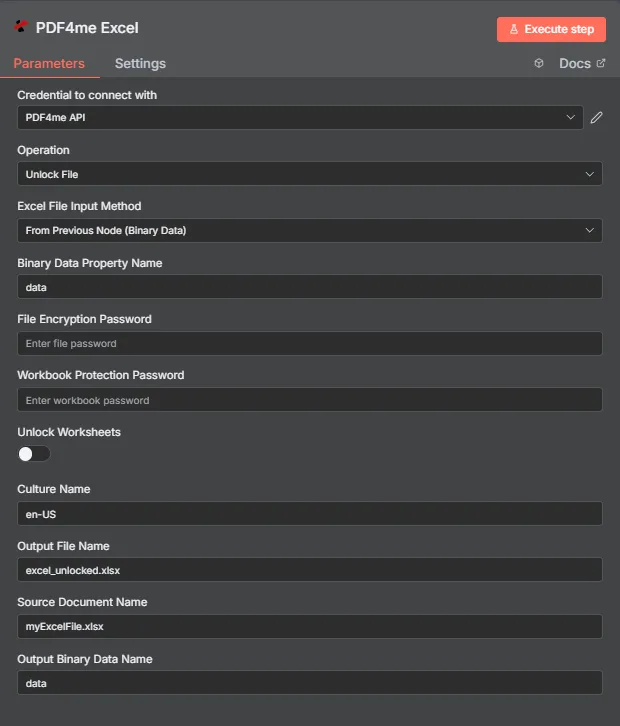
PDF4me Excel Buka kunci panel parameter File di n8n
Yang Excel Perlindungan Apa yang Dihilangkan oleh Setiap Bidang?
Excel memberikan perlindungan pada tiga tingkatan terpisah, dan ketiganya mudah membingungkan. Tabel ini memetakan masing-masing tingkatan ke apa yang diblokirnya dan bidang mana yang menghapusnya.
| Tingkat perlindungan | Apa yang diblokirnya | Lapangan yang membersihkannya |
|---|---|---|
| File encryption | The workbook cannot be opened at all without a password. Excel prompts before any content is visible. | File Encryption Password |
| Workbook structure | Sheets cannot be added, deleted, renamed, moved, hidden, or unhidden, though existing cells stay editable. | Workbook Protection Password |
| Worksheet protection | Cells, formulas, and objects on a sheet cannot be edited, though the file opens and the structure is intact. | Unlock Worksheets toggle |
Parameter apa saja yang dibutuhkan untuk membuka kunci file?
Diperlukan: Operasi, Excel Metode Input File, kolom input yang sesuai dengan metode tersebut, dan Nama File Output. Kolom kata sandi bersifat kondisional, hanya diperlukan untuk tingkat perlindungan yang benar-benar ada pada buku kerja. Lembar Kerja yang Dapat Dibuka Kuncinya, Nama Budaya, Nama Dokumen Sumber, dan Nama Data Biner Output bersifat opsional.
| Parameter | Diperlukan | Apa fungsinya? | Contoh |
|---|---|---|---|
| Operation | Required | Selects the PDF4me Excel action to run. Choose Unlock File. | Unlock File |
| Excel File Input Method | Required | How the workbook reaches the node. From Previous Node (Binary Data) reads it from an upstream item; the dropdown also offers base64 and file URL alternatives. | From Previous Node (Binary Data) |
| Binary Data Property Name | Conditional | Name of the binary property on the incoming n8n item holding the .xlsx workbook. Applies when the input method is binary data. Defaults to data. | data |
| File Encryption Password | Conditional | The password required to open the workbook. Supply it when the file is encrypted; it is also reused as a fallback against the other protection levels. | FilePass123 |
| Workbook Protection Password | Conditional | The password guarding workbook structure, which prevents sheets being added, deleted, renamed, or moved. Supply it when structure protection is set. | StructurePass |
| Unlock Worksheets | Optional | Toggle that extends the run to worksheet-level protection so cells, formulas, and objects become editable. Off by default. | true |
| Culture Name | Optional | Locale used while processing the workbook, relevant for locale-sensitive number and date formatting. | en-US |
| Output File Name | Required | Filename for the unlocked workbook the node returns. Include the .xlsx extension. | excel_unlocked.xlsx |
| Source Document Name | Optional | Reference label for the incoming workbook. Echoed back as originalFileName for tracking; it does not change the output. | myExcelFile.xlsx |
| Output Binary Data Name | Optional | Name of the binary property the output item exposes. Defaults to data. | data |
Bidang Keluaran
Satu kali lari yang sukses akan menghasilkan satu n8n barang yang dibawa JSON metadata ditambah buku kerja yang tidak terkunci sebagai data biner.
| Bidang | Jenis | Isi di dalamnya |
|---|---|---|
success | Boolean | True when protection was removed successfully. Use it to route error-handling branches. |
fileName | String | Filename of the unlocked workbook, matching Output File Name. |
fileSize | Number | Size of the returned workbook in bytes. |
originalFileName | String | The value supplied in Source Document Name, echoed back for tracking. |
message | String | Human-readable result message for the unlock operation. |
Binary (data) | Binary | The unlocked .xlsx under Output Binary Data Name (default data). Pass into Write Binary File, Email, or a cloud-storage upload. |
N8N Tindakan dan Respons
- JSON
- Schema
- Binary
JSON Format Respons
[
  {
    "fileName": "excel_unlocked.xlsx",
    "fileSize": 14234,
    "success": true,
    "originalFileName": "myExcelFile.xlsx",
    "message": "Excel document unlocked successfully"
  }
]
Tampilan Skema
1 item
fileName: T excel_unlocked.xlsx
fileSize: # 14234
success: true
originalFileName: T myExcelFile.xlsx
message: T Excel document unlocked successfully
Indikator Tipe: T = String, # = Number.
Tampilan Data Biner
data
File Name: excel_unlocked.xlsx
File Extension: xlsx
Mime Type: application/vnd.openxmlformats-officedocument.spreadsheetml.sheet
File Size: 14.2 kB
Akses Data Biner: akses buku kerja di $binary.data.data, siap untuk diunduh, dikirim melalui email, atau disimpan.
Bagaimana Cara Mengatur File Buka Kunci di n8n?
- Tambahkan PDF4me Excel Tambahkan node ini ke alur kerja Anda dan atur. Operasi ke Buka Kunci File.
- Di dalam Kredensial untuk terhubung dengan, pilih milikmu PDF4me API atau buat yang baru dengan kredensial Anda. API kunci.
- Mengatur Excel Metode Input File ke Dari Node Sebelumnya (Data Biner) dan mengatur Nama Properti Data Biner ke properti yang menyimpan buku kerja tersebut, biasanya
data. - Memasuki Kata Sandi Enkripsi File jika buku kerja tersebut memerlukan kata sandi untuk dibuka.
- Memasuki Kata Sandi Perlindungan Buku Kerja jika struktur lembaran terkunci.
- Nyalakan Buka Lembar Kerja jika sel dan rumus juga perlu diedit.
- Pengaturan opsional Nama Budaya untuk buku kerja yang peka terhadap lokal.
- Mengatur Nama File Output berakhir di
.xlsx, jalankan node tersebut, dan teruskan workbook yang sudah tidak terkunci.
Pengaturan Umum
Contoh Alur KerjaCommon n8n workflow patterns using Unlock File for Excel.
- Alur kerja mengambil templat pelaporan yang terkunci dari SharePoint.
- Buka Kunci File menghapus kunci struktur sehingga lembar kerja baru dapat ditambahkan.
- PDF4me Excel Fungsi Tambah Baris menuliskan angka periode ke dalam buku kerja.
- Pemicu Jadwal mengumpulkan buku kerja yang harus disimpan dalam jangka panjang.
- Unlock File menghapus kata sandi pembuka sehingga arsip tetap dapat dibaca di kemudian hari.
- File yang telah dihapus akan ditulis ke dalam bucket arsip.
- Sebuah pemicu email menerima daftar harga yang dilindungi dari pemasok.
- Unlock File berjalan bersamaan dengan Unlock Worksheets sehingga nilai sel dapat diuraikan.
- Baris-baris tersebut diekstrak dan disinkronkan ke dalam basis data internal.
- Unlock File menghapus perlindungan dari buku kerja yang telah disetujui.
- Node hilir memperbarui angka dan menyegarkan lembar ringkasan.
- PDF4me Excel Aman Excel Menerapkan kembali kata sandi sebelum didistribusikan ulang.
Tips Praktis
Lembar Panduan Singkat
| Bidang | Nilai |
|---|---|
| Operation | Unlock File |
| Excel File Input Method | From Previous Node (Binary Data) |
| Binary Data Property Name | data |
| File Encryption Password | (only if the file needs a password to open) |
| Workbook Protection Password | (only if the sheet structure is locked) |
| Unlock Worksheets | off (on to make cells editable) |
| Culture Name | en-US |
| Output File Name | excel_unlocked.xlsx |
| Source Document Name | myExcelFile.xlsx |
| Output Binary Data Name | data |
| Credentials | PDF4me API credential |