Tambahkan Gambar Header atau Footer ke Excel di dalam n8n
Tambahkan Gambar Header/Footer adalah sebuah PDF4me Excel operasi di n8n Fungsi ini menyisipkan logo atau gambar merek ke dalam header atau footer buku kerja .xlsx, dengan posisi di kiri, tengah, atau kanan, pada satu lembar kerja atau setiap lembar kerja. Gunakan fungsi ini untuk menerapkan branding perusahaan yang konsisten pada laporan yang dihasilkan tanpa perlu membuka file. Excel.
Fungsi node ini
PDF4me ExcelTambahkan Gambar Header/Footer Fungsi ini mengambil buku kerja sumber dan input gambar terpisah, kemudian menempatkan gambar ke dalam header atau footer halaman pada posisi horizontal yang dipilih, dengan margin halaman yang dapat dikonfigurasi. Target Worksheets menerapkan gambar ke lembar kerja tertentu berdasarkan nama, atau ke seluruh buku kerja jika dibiarkan kosong.
Memverifikasi Identitas Anda API Meminta
Setiap PDF4me simpul di n8n memerlukan validitas Kredensial untuk terhubung denganBuat atau pilih salah satu yang memuat milik Anda. PDF4me API kunci agar alur kerja dapat mengautentikasi permintaan branding dengan aman.
Fakta Penting yang Tidak Boleh Anda Lewatkan
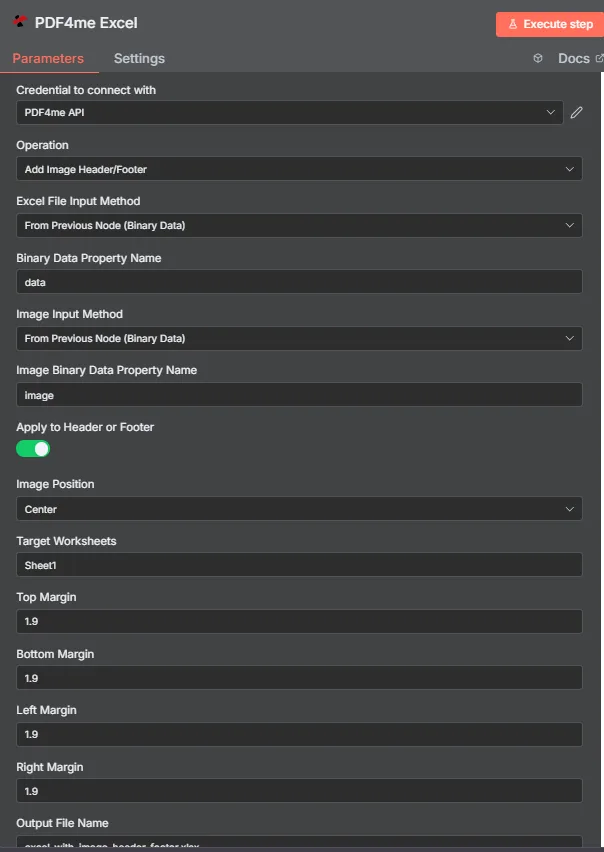
PDF4me Excel Tambahkan panel parameter Header/Footer Gambar di n8n
Parameter apa saja yang dibutuhkan untuk menambahkan header/footer gambar?
Diperlukan: Operasi, Excel Metode Input File, Metode Input Gambar, kolom input yang sesuai dengan kedua metode, dan Nama File Output. Terapkan ke Header atau Footer, Posisi Gambar, Lembar Kerja Target, dan keempat kolom margin semuanya dilengkapi dengan pengaturan default yang berfungsi.
| Parameter | Diperlukan | Apa fungsinya? | Contoh |
|---|---|---|---|
| Operation | Required | Selects the PDF4me Excel action to run. Choose Add Image Header/Footer. | Add Image Header/Footer |
| Excel File Input Method | Required | How the workbook reaches the node. From Previous Node (Binary Data) reads it from an upstream item; the dropdown also offers base64 and file URL alternatives. | From Previous Node (Binary Data) |
| Binary Data Property Name | Conditional | Name of the binary property on the incoming n8n item holding the .xlsx workbook. Applies when the input method is binary data. Defaults to data. | data |
| Image Input Method | Required | How the image reaches the node, chosen independently of the workbook input. Supports Binary Data, Base64 String, or URL. | From Previous Node (Binary Data) |
| Image Binary Data Property Name | Conditional | Name of the binary property on the incoming n8n item holding the image file. Applies when Image Input Method is binary data. | image |
| Apply to Header or Footer | Optional | Toggle that places the image in the header when on, or the footer when off. Default true (header). | true |
| Image Position | Optional | Horizontal placement of the image. Left, Center, or Right. Default Center. | Center |
| Target Worksheets | Optional | Comma-separated worksheet names to apply the image to. Leave blank to apply it to every worksheet. | Sheet1 |
| Top Margin | Optional | Top page margin in centimeters. Default 1.9. | 1.9 |
| Bottom Margin | Optional | Bottom page margin in centimeters. Default 1.9. | 1.9 |
| Left Margin | Optional | Left page margin in centimeters. Default 1.9. | 1.9 |
| Right Margin | Optional | Right page margin in centimeters. Default 1.9. | 1.9 |
| Output File Name | Required | Filename for the branded workbook the node returns. Include the .xlsx extension. | excel_with_image_header_footer.xlsx |
Bidang Keluaran
Satu kali lari yang sukses akan menghasilkan satu n8n barang yang dibawa JSON metadata ditambah buku kerja bermerek sebagai data biner.
| Bidang | Jenis | Isi di dalamnya |
|---|---|---|
success | Boolean | True when the image was applied successfully. Use it to route error-handling branches. |
fileName | String | Filename of the branded workbook, matching Output File Name. |
fileSize | Number | Size of the returned workbook in bytes. |
originalFileName | String | The filename of the input workbook, echoed back for tracking. |
isHeader | Boolean | True when the image was placed in the header, false when placed in the footer. |
position | String | Horizontal alignment applied to the image: Left, Center, or Right. |
worksheetNames | Array | Worksheet names the image was applied to. |
topMargin | Number | Top page margin in centimeters, matching the Top Margin input. |
bottomMargin | Number | Bottom page margin in centimeters, matching the Bottom Margin input. |
leftMargin | Number | Left page margin in centimeters, matching the Left Margin input. |
rightMargin | Number | Right page margin in centimeters, matching the Right Margin input. |
message | String | Human-readable result message for the operation. |
Binary (data) | Binary | The branded .xlsx workbook. Pass into Write Binary File, Email, or a cloud-storage upload. |
N8N Tindakan dan Respons
- JSON
- Schema
- Binary
JSON Format Respons
[
  {
    "fileName": "excel_with_image_header_footer.xlsx",
    "fileSize": 221849,
    "success": true,
    "originalFileName": "myExcelFile.xlsx",
    "isHeader": true,
    "position": "Center",
    "worksheetNames": ["Sheet1"],
    "topMargin": 1.9,
    "bottomMargin": 1.9,
    "leftMargin": 1.9,
    "rightMargin": 1.9,
    "message": "Image header/footer added to Excel file successfully"
  }
]
Tampilan Skema
1 item
fileName: T excel_with_image_header_footer.xlsx
fileSize: # 221849
success: true
originalFileName: T myExcelFile.xlsx
isHeader: true
position: T Center
worksheetNames: [] Array
  [0]: T Sheet1
topMargin: # 1.9
bottomMargin: # 1.9
leftMargin: # 1.9
rightMargin: # 1.9
message: T Image header/footer added to Excel file successfully
Indikator Tipe: T = String, # = Number, [] = Array.
Tampilan Data Biner
data
File Name: excel_with_image_header_footer.xlsx
File Extension: xlsx
Mime Type: application/vnd.openxmlformats-officedocument.spreadsheetml.sheet
File Size: 221.8 kB
Akses Data Biner: akses buku kerja di $binary.data.data, siap untuk diunduh, dikirim melalui email, atau disimpan.
Bagaimana Cara Mengatur Penambahan Gambar Header/Footer di n8n?
- Tambahkan PDF4me Excel Tambahkan node ini ke alur kerja Anda dan atur. Operasi ke Tambahkan Gambar Header/Footer.
- Di dalam Kredensial untuk terhubung dengan, pilih milikmu PDF4me API atau buat yang baru dengan kredensial Anda. API kunci.
- Mengatur Excel Metode Input File Dan Nama Properti Data Biner untuk buku kerja sumber.
- Mengatur Metode Input Gambar Dan Nama Properti Data Biner Gambar untuk logo atau gambar.
- Mengalihkan Terapkan ke Header atau Footer Aktifkan untuk gambar header, atau nonaktifkan untuk gambar footer.
- Mengatur Posisi Gambar ke Kiri, Tengah, atau Benar.
- Mengatur Lembar Kerja Target, atau biarkan kosong untuk menerapkan gambar di mana saja, dan sesuaikan margin jika diperlukan.
- Mengatur Nama File Output berakhir di
.xlsx, jalankan node tersebut, dan teruskan workbook bermerek tersebut.
Pengaturan Umum
Contoh Alur KerjaCommon n8n workflow patterns using Add Image Header/Footer for Excel.
- Schedule Trigger membuat buku kerja angka mingguan.
- Menambahkan Gambar Header/Footer menyisipkan logo perusahaan dengan opsi Terapkan ke Header atau Footer aktif, Posisi Gambar Kanan.
- Laporan bermerek tersebut dikirim melalui email kepada para pemangku kepentingan.
- Alur kerja mengambil logo klien. URL dari sebuah CRM catatan.
- Metode Input Gambar diatur ke URL Jadi, logo tersebut dimuat langsung dari catatan itu.
- Buku kerja tersebut dikirimkan dengan branding klien sendiri di bagian header.
- Webhook persetujuan akan aktif setelah manajer memberikan persetujuan di alat internal.
- Fitur Tambah Gambar Header/Footer berjalan dengan opsi Terapkan ke Header atau Footer dimatikan, dan menempatkan grafik persetujuan di bagian footer.
- Buku kerja yang telah dicap diarsipkan ke SharePoint.
- Buku kerja multi-lembar memuat tab data mentah ditambah lembar ringkasan.
- Target Worksheets diatur ke Summary sehingga tab data mentah tetap tidak bermerek.
- Lembar ringkasan bermerek diekspor ke PDF untuk didistribusikan.
Tips Praktis
Lembar Panduan Singkat
| Bidang | Nilai |
|---|---|
| Operation | Add Image Header/Footer |
| Excel File Input Method | From Previous Node (Binary Data) |
| Binary Data Property Name | data |
| Image Input Method | From Previous Node (Binary Data) |
| Image Binary Data Property Name | image |
| Apply to Header or Footer | on (header) |
| Image Position | Center |
| Target Worksheets | Sheet1 (blank for all) |
| Top / Bottom / Left / Right Margin | 1.9 cm each |
| Output File Name | excel_with_image_header_footer.xlsx |
| Credentials | PDF4me API credential |