Ubah Ukuran Gambar di n8n
Ubah Ukuran Gambar adalah sebuah PDF4me tindakan node di n8n Fitur ini mengubah ukuran gambar baik berdasarkan persentase dari ukuran aslinya atau ke lebar dan tinggi piksel yang tepat, dengan opsi mempertahankan rasio aspek yang dapat diaktifkan/dinonaktifkan. Gunakan fitur ini untuk membuat thumbnail, menormalkan unggahan pengguna ke ukuran standar, atau mengecilkan foto yang terlalu besar sebelum disimpan.
Fungsi node ini
PDF4meUbah Ukuran Gambar mengambil gambar dari Data Biner, sebuah Base64 String, atau sebuah URL dan mengembalikan salinan yang diskalakan. Itu Jenis Pengubahan Ukuran Bidang tersebut menentukan metodenya: Persentase skala relatif terhadap aslinya, yang cocok untuk input dengan ukuran campuran, sementara Spesifik menargetkan lebar dan tinggi yang tepat dalam piksel untuk slot tata letak tetap. Karena node berjalan sekali per item yang masuk, satu node yang dikonfigurasi mengubah ukuran seluruh batch dengan pengaturan yang identik.
Memverifikasi Identitas Anda API Meminta
Setiap PDF4me simpul di n8n memerlukan validitas Kredensial untuk terhubung denganBuat atau pilih salah satu yang sesuai dengan kebutuhan Anda. PDF4me API kunci agar alur kerja dapat mengautentikasi permintaan pengubahan ukuran dengan aman.
Fakta Penting yang Tidak Boleh Anda Lewatkan
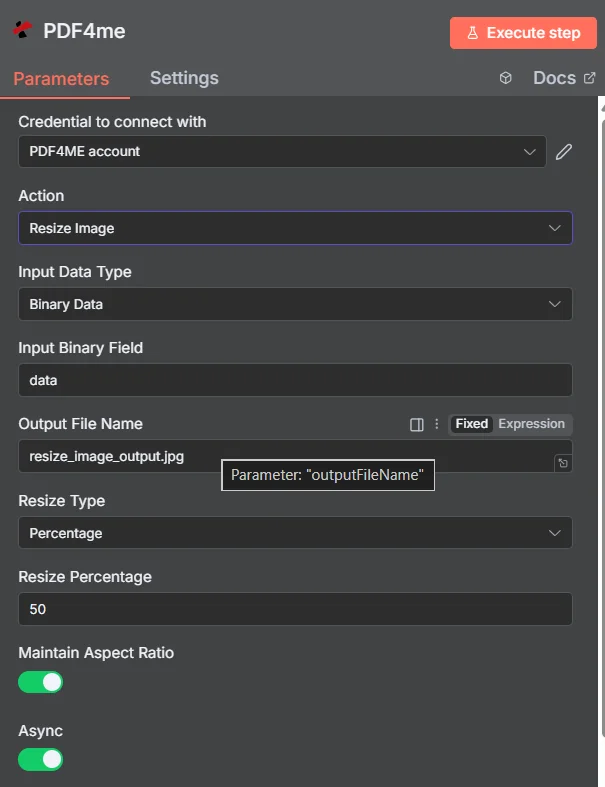
PDF4me Panel parameter Ubah Ukuran Gambar di n8n, ditampilkan dalam mode Persentase
Persentase vs Spesifik: Jenis Pengubahan Ukuran Mana yang Harus Anda Gunakan?
Kedua mode tersebut menyelesaikan masalah yang berbeda, dan memilih mode yang salah adalah penyebab paling umum dari ukuran output yang tidak terduga.
| Jenis Pengubahan Ukuran | Kolom yang Anda isi | Paling cocok |
|---|---|---|
| Percentage | Resize Percentage, for example 50 to halve or 200 to double | Mixed-size inputs that should all shrink or grow by the same proportion, keeping their relative differences |
| Specific | Width and Height in pixels | A fixed layout slot, thumbnail grid, or platform that demands exact dimensions regardless of the source size |
Parameter apa saja yang dibutuhkan untuk mengubah ukuran gambar?
Diperlukan: Aksi, Tipe Data Masukan, kolom yang sesuai dengan tipe masukan tersebut, Nama File Keluaran, Tipe Pengubahan Ukuran, dan kolom dimensi yang diungkapkan oleh Tipe Pengubahan Ukuran. Async dan Nama Keluaran Data Biner membawa nilai default yang berfungsi.
| Parameter | Diperlukan | Apa fungsinya? | Contoh |
|---|---|---|---|
| Action | Required | Selects the PDF4me node action to run. Choose Resize Image. | Resize Image |
| Input Data Type | Required | Format of the source image input. Choose Binary Data (from a previous node), Base64 String, or URL. | Binary Data |
| Input Binary Field | Conditional | Name of the binary property on the incoming n8n item that holds the image. Required when Input Data Type is Binary Data. Defaults to data. | data |
| Base64 Image Content | Conditional | Base64-encoded content of the source image. Required when Input Data Type is Base64 String. | /9j/4AAQSkZJRgAB... |
| Image URL | Conditional | Publicly reachable HTTPS URL to the source image. Required when Input Data Type is URL. | https://example.com/photo.jpg |
| Output File Name | Required | Filename for the resized image. Include the extension matching the output format. | resize_image_output.jpg |
| Resize Type | Required | Scaling method. Percentage scales relative to the original size, Specific targets exact pixel dimensions. Your choice decides which fields appear next. | Percentage |
| Resize Percentage | Conditional | Scaling percentage relative to the original. Below 100 reduces, above 100 enlarges. Required when Resize Type is Percentage. | 50 |
| Width | Conditional | Target width in pixels. Required when Resize Type is Specific. | 800 |
| Height | Conditional | Target height in pixels. Required when Resize Type is Specific. | 600 |
| Maintain Aspect Ratio | Optional | Toggle that preserves the original proportions so the image is not stretched. Leave enabled unless you need forced dimensions. | true |
| Async | Optional | Toggle that runs the resize in the background instead of holding the workflow execution open. Useful for large images or long batches. | true |
| Binary Data Output Name | Optional | Name of the binary property the output item exposes. Defaults to data. | data |
Bidang Keluaran
Satu kali lari yang sukses akan menghasilkan satu n8n item yang memuat gambar yang telah diubah ukurannya dan laporan dimensinya.
| Bidang | Jenis | Isi di dalamnya |
|---|---|---|
Binary (data) | Binary | The resized image, under Binary Data Output Name (default data). |
fileName | String | Generated filename, matching Output File Name. |
mimeType | String | MIME type of the output image, for example image/jpeg or image/png. |
fileSize | Number | Size of the resized image in bytes. |
originalDimensions | String | Width and height of the source image in pixels, for example 1920x1080. |
newDimensions | String | Width and height after resizing, for example 960x540. Compare it against your target to confirm aspect ratio behaviour. |
success | Boolean | True when the resize completed, false on failure. Use it to branch error handling. |
message | String | Human-readable status message, carrying success confirmation or error detail. |
Bagaimana Cara Mengatur Pengubahan Ukuran Gambar di n8n?
- Menambahkan PDF4me untuk Anda n8n alur kerja dan pilih Ubah Ukuran Gambar tindakan.
- Di dalam Kredensial untuk terhubung dengan, pilih milikmu PDF4me kredensial atau klik Buat Kredensial Baru dan tempelkan milik Anda API kunci.
- Mengatur Tipe Data Masukan ke Data Biner (bawaan), Base64 String, atau URL dan menyediakan kolom gambar sumber yang sesuai.
- Mengatur Jenis Pengubahan Ukuran ke Persentase dan isi Persentase Pengubahan Ukuran, atau untuk Spesifik dan isi Lebar Dan Tinggi.
- Meninggalkan Pertahankan Rasio Aspek memungkinkan untuk menghindari peregangan, dan memungkinkan Async untuk gambar berukuran besar atau batch yang panjang.
- Mengatur Nama File Output, jalankan node tersebut, dan periksa
newDimensionspada output untuk mengkonfirmasi hasilnya.
Pengaturan Umum
Contoh Alur KerjaCommon n8n workflow patterns using Resize Image.
- Gambar produk baru telah tersimpan di penyimpanan cloud.
- Pengubahan Ukuran Gambar berjalan dalam mode Spesifik pada dimensi kisi thumbnail.
- Gambar mini tersebut ditulis ulang di samping gambar asli berukuran penuh.
- Webhook menerima foto yang dikirimkan melalui formulir.
- Fungsi Ubah Ukuran Gambar berjalan dalam mode Persentase untuk mengurangi ukurannya secara proporsional.
- File yang lebih kecil akan disimpan, sehingga menghemat ruang penyimpanan dan bandwidth.
- Node Loop Over Items mengiterasi folder yang sudah ada berisi gambar dengan ukuran campuran.
- Ubah Ukuran Gambar menerapkan satu pengaturan yang konsisten untuk setiap item, dengan Async diaktifkan.
- Perpustakaan akhirnya menjadi seragam tanpa ada yang membuka editor.
- Gambar editorial diambil dari CMS.
- Mengubah ukuran gambar akan mengecilkannya hingga selebar layar terlebih dahulu.
- Kompres gambar lalu kurangi ukuran file lebih lanjut sebelum dipublikasikan.
Tips Praktis
Lembar Panduan Singkat
| Bidang | Nilai |
|---|---|
| Action | Resize Image |
| Input Data Type | Binary Data |
| Input Binary Field | data |
| Output File Name | resize_image_output.jpg |
| Resize Type | Percentage |
| Resize Percentage | 50 |
| Width / Height (Specific mode) | 800 / 600 |
| Maintain Aspect Ratio | true |
| Async | true |
| Binary Data Output Name | data |