Tambahkan Lampiran ke PDF di dalam n8n
Tambahkan Lampiran ke PDF adalah sebuah PDF4me tindakan node di n8n yang menyematkan satu atau lebih file di dalam sebuah PDF, jadi spreadsheet, gambar, arsip, atau yang kedua PDF Lampirkan dokumen tersebut bersama dokumen utama, bukan di sampingnya. Gunakan untuk menggabungkan bukti pendukung dengan kontrak, mengirim data mentah bersama laporan, atau mengemas sertifikat dengan pengajuan kepatuhan.
Fungsi node ini
PDF4meTambahkan Lampiran ke PDF mengambil tuan rumah PDF dari Data Biner, sebuah Base64 String, atau sebuah URLlalu menyematkan setiap file yang Anda cantumkan di bawahnya Lampiran di dalamnya sebagai objek terpisah. Tidak seperti penggabungan, file terlampir mempertahankan format dan nama filenya sendiri dan dapat dibuka atau disimpan secara individual oleh penerima. Setiap lampiran dapat berasal dari sumber yang berbeda, sehingga file biner dari node sebelumnya dan file yang diambil dari node lain dapat sama. URL dapat disematkan dalam proses yang sama.
Memverifikasi Identitas Anda API Meminta
Setiap PDF4me simpul di n8n memerlukan validitas Kredensial untuk terhubung denganBuat atau pilih salah satu yang sesuai dengan kebutuhan Anda. PDF4me API kunci agar alur kerja dapat mengautentikasi permintaan lampiran dengan aman.
Fakta Penting yang Tidak Boleh Anda Lewatkan
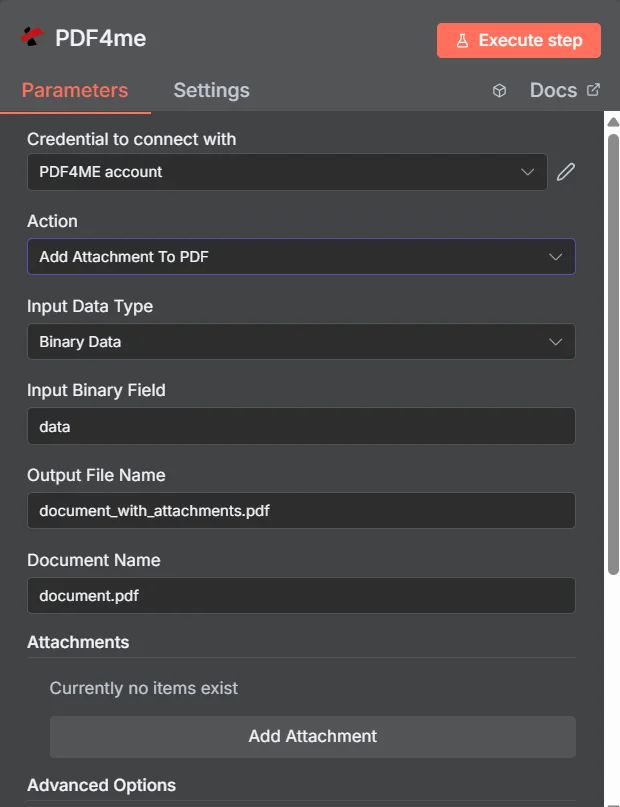
PDF4me Tambahkan Lampiran Ke PDF panel parameter di n8n, dengan koleksi Lampiran kosong sebelum entri pertama ditambahkan.
Menempelkan vs Menggabungkan vs Mengikat
Tiga cara untuk mengirimkan beberapa file sebagai satu kesatuan, dengan konsekuensi yang berbeda bagi penerima.
| Mendekati | Apa yang diterima penerima | Paling cocok |
|---|---|---|
| Add Attachment to PDF | One PDF that opens normally, with the extra files available in the attachments panel | Supporting material that must stay in its original format, such as a spreadsheet or an archive |
| Merge PDFs | One continuous document where all pages read in sequence | Content that genuinely belongs together as a single readable document |
| Zip the files together | An archive that must be unpacked before anything can be read | Bulk transfer where nothing needs to be readable without extracting first |
Parameter apa yang ditambahkan untuk melampirkan sesuatu? PDF Membutuhkan?
Diperlukan: Aksi, Tipe Data Masukan, kolom yang sesuai dengan tipe masukan tersebut, Nama File Keluaran, Nama Dokumen, dan setidaknya satu entri di bawah Lampiran. Nama Keluaran Data Biner dan Profil Kustom memiliki nilai default yang berlaku.
| Parameter | Diperlukan | Apa fungsinya? | Contoh |
|---|---|---|---|
| Action | Required | Selects the PDF4me node action to run. Choose Add Attachment To PDF. | Add Attachment To PDF |
| Input Data Type | Required | Format of the host PDF input. Choose Binary Data (from a previous node), Base64 String, or URL. | Binary Data |
| Input Binary Field | Conditional | Name of the binary property on the incoming n8n item that holds the host PDF. Required when Input Data Type is Binary Data. Defaults to data. | data |
| Base64 Document Content | Conditional | Base64-encoded content of the host PDF. Required when Input Data Type is Base64 String. | JVBERi0xLjQK... |
| File URL | Conditional | Publicly reachable HTTPS URL to the host PDF. Required when Input Data Type is URL. | https://example.com/contract.pdf |
| Output File Name | Required | Filename for the PDF returned with the files embedded. Include the .pdf extension. | document_with_attachments.pdf |
| Document Name | Required | Filename of the source PDF, used for reference and tracking on the request. | document.pdf |
| Attachments | Required | Collection of files to embed. Click Add Attachment once per file, then fill in the per-attachment fields listed below. | One entry per embedded file |
| Binary Data Output Name | Optional | Name of the binary property the output item exposes. Defaults to data. | data |
| Custom Profiles | Optional | Advanced Options field for extra processing settings, supplied in a JSON-like format. Leave blank unless you have a specific profile to apply. | { "preserveMetadata": true } |
Kolom di Dalam Setiap Entri Lampiran
Setiap entri yang Anda buat dengan Tambahkan Lampiran memperlihatkan serangkaian bidangnya sendiri.
| Parameter | Diperlukan | Apa fungsinya? | Contoh |
|---|---|---|---|
| Attachment Content Type | Required | How this particular attachment is supplied. Choose Binary Data, Base64 Content, or File URL. Each entry can differ. | Binary Data |
| Attachment Name | Required | Filename the embedded file will carry inside the PDF. Include the correct extension so readers can open it after extraction. | supporting_data.xlsx |
| Binary Field Name | Conditional | Name of the binary property holding this attachment. Required when Attachment Content Type is Binary Data. | data |
| Base64 Content | Conditional | Base64-encoded content of this attachment. Required when Attachment Content Type is Base64 Content. | SGVsbG8gV29ybGQ= |
| File URL | Conditional | Publicly reachable HTTPS URL to this attachment. Required when Attachment Content Type is File URL. | https://example.com/certificate.pdf |
Bidang Keluaran
Satu kali lari yang sukses akan menghasilkan satu n8n barang yang membawa PDF dengan file-file yang tertanam di dalamnya.
| Bidang | Jenis | Isi di dalamnya |
|---|---|---|
Binary (data) | Binary | The PDF with all listed files embedded, under Binary Data Output Name (default data). |
fileName | String | Generated filename, matching Output File Name. |
mimeType | String | MIME type of the output, always application/pdf. |
fileSize | Number | Size of the returned PDF in bytes, including the embedded files. |
attachmentCount | Number | Number of attachments successfully embedded. Compare it against your expected count to catch a silently skipped file. |
success | Boolean | True when the attachment operation completed, false on failure. Use it to branch error handling. |
message | String | Human-readable status message, carrying success confirmation or error detail. |
Bagaimana Cara Mengatur Tambah Lampiran ke PDF di dalam n8n?
- Menambahkan PDF4me untuk Anda n8n alur kerja dan pilih Tambahkan Lampiran Ke PDF tindakan.
- Di dalam Kredensial untuk terhubung dengan, pilih milikmu PDF4me kredensial atau klik Buat Kredensial Baru dan tempelkan milik Anda API kunci.
- Mengatur Tipe Data Masukan ke Data Biner (bawaan), Base64 String, atau URL dan menyediakan host yang sesuai. PDF bidang.
- Di bawah Lampiran, klik Tambahkan Lampiran sekali untuk setiap file, lalu atur Jenis Konten Lampiran, Nama Lampiran, dan bidang sumber yang cocok.
- Mengatur Nama File Output (harus diakhiri dengan)
.pdf) Dan Nama Dokumen untuk file sumber. - Eksekusi node dan arahkan nilai yang dikembalikan. PDF selanjutnya, memeriksa
attachmentCountdibandingkan dengan jumlah file yang Anda harapkan.
Pengaturan Umum
Contoh Alur KerjaCommon n8n workflow patterns using Add Attachment to PDF.
- Faktur PDF dihasilkan dari data penagihan.
- Tambahkan Lampiran ke PDF menyertakan tanda terima yang sesuai dan catatan persetujuan.
- Satu berkas dikirim ke bagian hutang usaha beserta seluruh jejak bukti di dalamnya.
- Laporan analitik terjadwal ditampilkan kepada PDF.
- Tambahkan Lampiran ke PDF menyematkan hal yang mendasarinya CSV Ekspor sebagai lampiran bernama.
- Pembaca mendapatkan narasi dan dapat mengambil angka mentah ketika mereka ingin memverifikasinya.
- Kontrak dibuat berdasarkan templat setelah diminta tanda tangan.
- Tambahkan Lampiran ke PDF menyematkan sertifikat dan jadwal yang diambil dari URLs.
- Pihak lawan menerima satu dokumen lengkap untuk ditandatangani.
- Node Loop Over Items mengumpulkan berkas bukti untuk periode pengarsipan tertentu.
- Tambahkan Lampiran ke PDF menyematkan masing-masing ke dalam dokumen pengarsipan sampul.
- Bundel tersebut telah diarsipkan, dan Ekstrak Lampiran Dari PDF Dapat dibuka nanti jika diminta.
Tips Praktis
Lembar Panduan Singkat
| Bidang | Nilai |
|---|---|
| Action | Add Attachment To PDF |
| Input Data Type | Binary Data |
| Input Binary Field | data |
| Output File Name | document_with_attachments.pdf |
| Document Name | document.pdf |
| Attachments | One entry per file, added with Add Attachment |
| Attachment Content Type | Binary Data |
| Attachment Name | supporting_data.xlsx |
| Binary Data Output Name | data |
| Credentials | PDF4me API credential |