Buat tautan hiperteks di PDF dengan Make
PDF4me PDF - Membuat Hyperlink adalah sebuah Make modul yang mengubah string teks tertentu menjadi PDF menjadi tautan yang dapat diklik, tanpa koordinat atau PDF Gunakan editor ini untuk menautkan nama produk ke halaman toko, kutipan ke sumber, atau frasa kebijakan ke halaman FAQ, lalu gabungkan modul untuk menambahkan beberapa tautan berbeda ke satu dokumen.
Fungsi modul ini
PDF4me, PDF - Membuat Hyperlink mengubah string teks apa pun menjadi PDF menjadi tautan yang dapat diklik di dalam Make skenario. Anda memberi tahu teks mana yang harus dicari, ke mana harus menunjuk, dan halaman mana yang harus dicari, modul akan menangani sisanya. Tidak ada koordinat, tidak ada anotasi manual, tidak ada PDF Editor terbuka di desktop.
Mengautentikasi Permintaan API Anda
Setiap PDF4me modul di Make memerlukan validitas KoneksiBuat atau pilih salah satu yang sesuai dengan kebutuhan Anda. PDF4me API kunci agar skenario dapat memanggil layanan hyperlink dengan aman.
Fakta Penting yang Tidak Boleh Anda Lewatkan
Paling PDF tautan APIs Anda perlu menentukan koordinat x/y yang tepat. Modul ini akan menemukan teks untuk Anda; ketik kata atau frasa yang ingin Anda jadikan dapat diklik, dan modul akan menangani penempatannya secara otomatis.
Meninggalkan New Text Kosong dan teks pencarian asli tetap terlihat sebagai label tautan. Isi untuk mengganti apa yang dilihat pembaca, berguna untuk mengubah teks mentah menjadi teks biasa. URL atau mengubah kode produk menjadi teks tautan yang mudah dibaca.
Satu modul menangani satu konversi teks ke...URL Untuk menambahkan beberapa tautan berbeda ke dokumen yang sama, hubungkan beberapa modul Buat Hyperlink secara berurutan, masing-masing menerima output dari modul sebelumnya.
Modul ini menulis sebuah standar. PDF anotasi tautan seperti yang didefinisikan dalam PDF Spesifikasi 32000-1:2008 (Bagian 12.5.6.5, Anotasi Tautan), jenis anotasi yang sama seperti yang didokumentasikan dalam PDF Indeks spesifikasi asosiasiItulah mengapa tautan yang dihasilkan terbuka dengan benar di Acrobat, browser, dan perangkat seluler. PDF penonton tanpa plugin khusus apa pun.
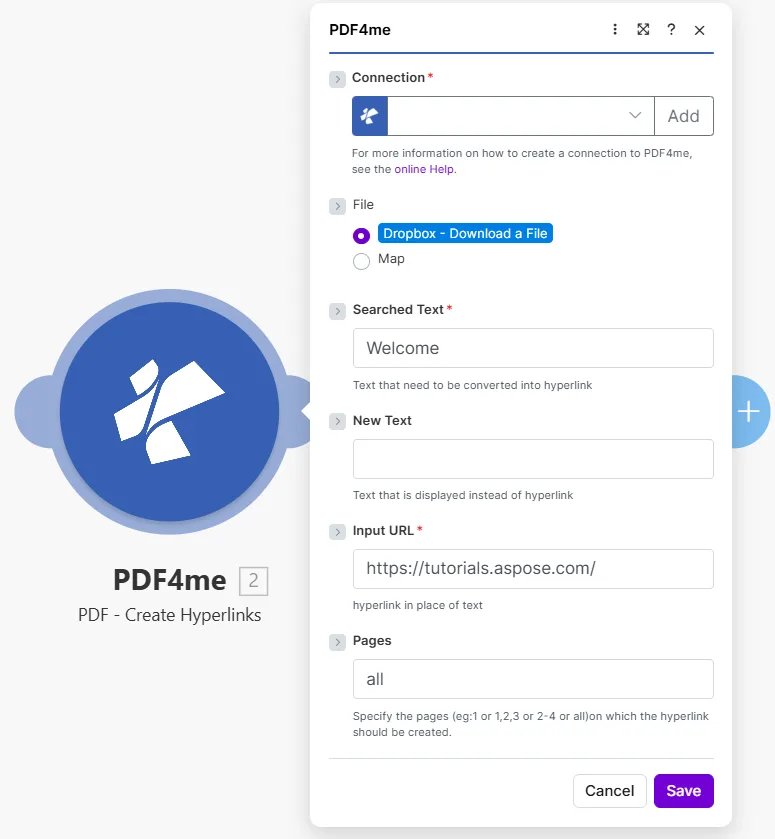
Masukkan teks persis yang ingin dicari di Searched Text, tujuan di Input URL, dan halaman mana yang harus dicari Pages.
Parameter
Diperlukan: Connection, Searched Text, Dan Input URL. New Text Dan Pages bersifat opsional.
| Parameter | Diperlukan | Apa fungsinya? | Contoh |
|---|---|---|---|
| Connection | Required | PDF4me API connection used to authenticate hyperlink creation requests. | Your PDF4me connection |
| File | Required | Source PDF. Choose Dropbox - Download a File for a direct Dropbox trigger, or Map to wire filename and binary data from a prior module. | Dropbox - Download a File |
| Searched Text | Required | The exact text string in the PDF that will become a clickable hyperlink. The module searches the specified pages for this text and wraps every occurrence in a link annotation. | Welcome |
| New Text | Optional | Optional label that replaces what the reader sees over the link. Leave empty to keep the original searched text as the visible link label. | Visit our site |
| Input URL | Required | The destination URL the hyperlink points to. Readers are taken to this address when they click the linked text. | https://tutorials.aspose.com/ |
| Pages | Optional | Pages to search for the text. Accepts a single number, a comma-separated list (1,3,5), a range (2-4), or the word all. Defaults to all if left empty. | all |
Bagaimana Cara Menambahkan Hyperlink ke Sebuah PDF di dalam Make?
- Menambahkan PDF4me → PDF - Membuat Hyperlink sesuai dengan skenario Anda.
- Pilih Connection (atau klik) Menambahkan untuk membuat satu dengan milikmu API kunci).
- Mengatur File ke Dropbox - Unduh File atau Peta dari modul sebelumnya.
- Di dalam Searched TextKetik teks persis yang ingin Anda jadikan dapat diklik (misalnya,
Welcomeatau nama produk). - Masukkan secara opsional New Text Jika Anda ingin label yang terlihat terbaca berbeda dari teks yang dicari.
- Tempelkan alamat tujuan ke dalam Input URL.
- Mengatur Pages: jenis
alluntuk setiap halaman, atau menargetkan halaman tertentu seperti1,3atau2-4. - Menyimpan lalu klik Jalankan sekaliOutputnya berisi... Document Name Dan Document Data: itu PDF dengan tautan hiperteks yang diterapkan.
Keluaran
| Bidang | Jenis | Isi di dalamnya |
|---|---|---|
Document Name | String | Filename of the output PDF with hyperlinks applied. |
Document Data | Buffer | Binary content of the PDF with link annotations added. Map this into an upload, email, or further processing module. |
Kapan Saya Harus Menggunakan Fitur Buat Hyperlink?
Pengaturan UmumCommon Make scenario patterns that use PDF - Create Hyperlinks to enrich documents automatically.
- Skenario terjadwal mengambil daftar produk terbaru dari basis data Anda dan menghasilkan katalog. PDF.
- Iterator tersebut melakukan perulangan pada setiap nama produk dari daftar.
- Buat tautan hiperteks hanya berlaku sekali untuk setiap produk, Searched Text = nama produk, Input URL = halaman produk URL.
- Setelah perulangan, setiap nama produk dalam katalog akan menjadi tautan langsung ke halaman toko produk tersebut.
- Katalog interaktif yang sudah jadi diunggah ke Google Drive dan dikirim melalui email ke tim penjualan.
- Laporan bulanan PDF Dihasilkan dari templat Google Docs.
- Sebuah penyimpanan data menyimpan daftar label kutipan dan pasangannya. URLs.
- Buat tautan hiperteks dijalankan sekali per kutipan, mengubah setiap label menjadi tautan sumber yang dapat diklik.
- Pembaca dapat mengklik kutipan apa pun di PDF untuk membuka sumber aslinya di peramban mereka.
- Laporan yang telah diperkaya disimpan di SharePoint dan didistribusikan kepada para pemangku kepentingan.
- Departemen SDM mengunggah kebijakan baru. PDF ke folder Dropbox yang dipantau.
- Buat tautan hiperteks Mencari frasa "Informasi selengkapnya" di semua halaman.
- Setiap kejadian menjadi penghubung ke departemen SDM. FAQ halaman di intranet perusahaan.
- Modul berantai kedua mengubah frasa "Kirim permintaan" menjadi tautan ke sistem tiket.
- Selesai PDF disimpan ke perpustakaan dokumen SDM dan dikirim melalui email ke seluruh staf.
Pertanyaan yang Sering Diajukan
Tips Praktis
Lembar Panduan Singkat
| Bidang | Nilai |
|---|---|
| Searched Text | Exact text to make clickable |
| New Text | Optional replacement label |
| Input URL | Destination address |
| Pages | all, a number, 1,3, or 2-4 |
| Output | Document Name + Document Data |