Tambahkan Kolom Formulir ke PDF untuk Make
Tambahkan Kolom Formulir ke PDF adalah sebuah Make Modul yang menempatkan kolom formulir interaktif (input teks, kotak centang, tombol radio, menu tarik-turun, dan kotak tanda tangan) pada koordinat X/Y yang tepat di mana saja. PDF Gunakan halaman ini untuk mengotomatiskan pembuatan formulir yang dapat diisi untuk kontrak, orientasi SDM, survei, dan alur kerja apa pun di mana penerima perlu melengkapi formulir tersebut. PDF Secara digital. Outputnya adalah Base64-sudah dikodekan dan siap untuk diisi PDF Modul formulir atau unggahan langsung.
Fungsi modul ini
Fungsi modul ini: Yang PDF4me Tambahkan Kolom Formulir ke PDF Modul ini menempatkan kolom formulir interaktif - input teks, kotak centang, tombol radio, menu tarik-turun, dan kotak tanda tangan - pada koordinat X/Y yang tepat di halaman mana pun. PDF di dalam dirimu Make skenario. Beri makan itu PDF penyangga dari Google Drive, Dropbox, atau modul sebelumnya, tentukan nama bidang, tipe, dan posisi, lalu terima kembali Base64-dapat diisi dengan kode PDF siap untuk diunggah, dikirim melalui email, atau diteruskan ke Fill PDF Modul formulir. Gunakan Make'S Iterator Untuk mengulang daftar definisi kolom dan menambahkan puluhan kolom dalam satu kali menjalankan skenario - tanpa manual. PDF Dibutuhkan editor.
Memverifikasi Identitas Anda API Meminta
Setiap PDF4me modul di Make memerlukan validitas API kunci. Hubungkan PDF4me sekali masuk Makepengelola koneksi - kunci Anda disimpan dengan aman dan digunakan kembali di semua PDF4me modul di semua skenario Anda secara otomatis.
Fakta Penting yang Tidak Boleh Anda Lewatkan
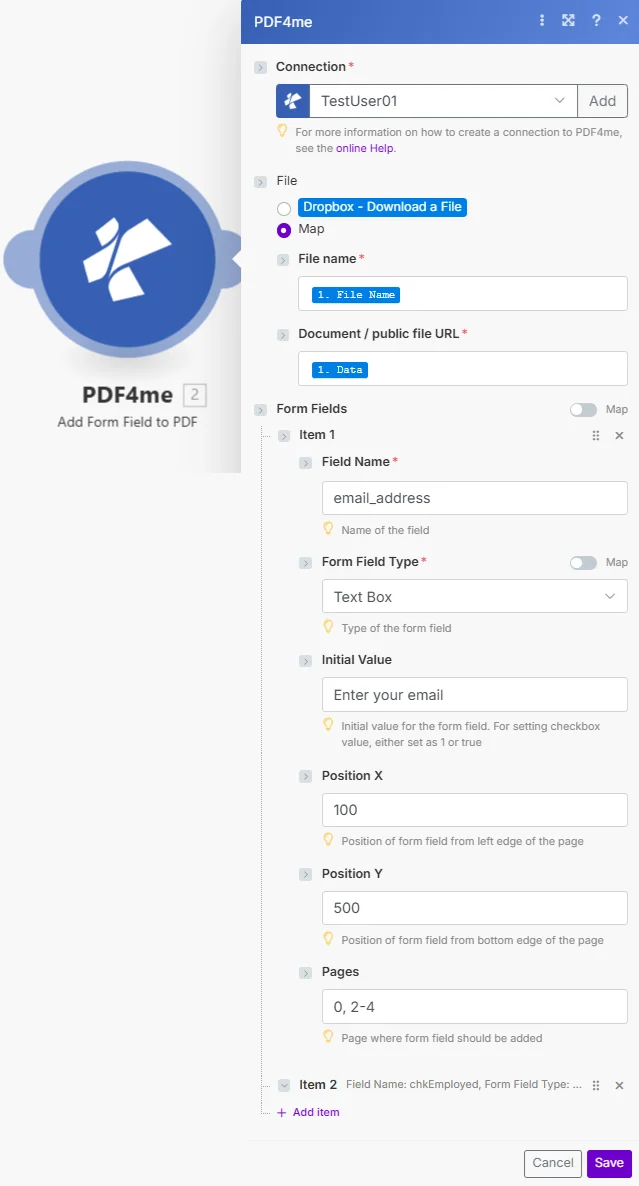
Parameter
⚠️ Nama Berkas, Dokumen, Nama Kolom, dan Tipe Kolom Formulir semuanya wajib diisi. Parameter opsional mengontrol penempatan kolom, nilai default, dan penargetan halaman.
| Parameter | Diperlukan | Apa fungsinya? | Contoh |
|---|---|---|---|
| File Name | Required | Filename of the source PDF including the .pdf extension. Map from the previous module's file name output or enter a static name. Used for output identification and file format validation. | application_form.pdf |
| Document | Required | The PDF file content as a binary buffer. Map from a Get File module (Google Drive, Dropbox, OneDrive, HTTP) or from the Document Data output of a previous PDF4me module. This is the base PDF that will receive the new form field. | [Buffer from Google Drive Get File] |
| Field Name | Required | Unique identifier for the form field. Used for field recognition when filling the form programmatically or with the Fill PDF Form module. Use descriptive names without spaces (e.g. FirstName, EmailAddress, AgreeToTerms). Must be unique within the document. | email_address |
| Form Field Type | Required | The type of interactive field to add. Text - single or multi-line text input. Checkbox - boolean tick box (true/false). Radio - radio button selection (group via shared Field Name). Dropdown - drop-down list selection. Signature - digital signature field. | Text |
| Initial Value | Conditional | Default value pre-populated in the field. For Text fields: any string (appears as placeholder text). For Checkbox: "1" or "true" to pre-check, "0" or "false" for unchecked. Leave empty for blank fields that the recipient fills in. | Enter your email address |
| Position X | Conditional | Horizontal position of the field from the left edge of the page, measured in PDF points (72 points = 1 inch). Default: 0 (left edge). Use a PDF ruler or coordinate tool to determine the exact X value for your layout. | 100 |
| Position Y | Conditional | Vertical position of the field from the bottom-left corner of the page, measured in PDF points (72 points = 1 inch). Y = 0 is the bottom edge. For A4 (842 pt tall), Y = 770 places the field approximately 1 inch from the top. | 500 |
| Pages | Conditional | Target pages for the field using 0-based indexing. Use comma-separated indices for specific pages (e.g. "0,2,4"), ranges with hyphen (e.g. "0-3" for first four pages), or leave empty to apply to all pages. | 0 |
Bidang Keluaran
| Bidang | Jenis | Isi di dalamnya |
|---|---|---|
Document Name | String | Output PDF filename with the form field added |
Document Data | Base64 | The updated PDF with the new form field encoded as Base64; map directly to the next module's Document input or a storage upload field |
Cara Mengatur Kolom Tambah Formulir PDF Modul di Make
- Buat atau buka Make skenario dan tambahkan pemicu atau modul yang menyediakan sumbernya. PDF - Google Drive Tonton Berkas, Dropbox Watch Folder, atau sebuah HTTP modul.
- Tambahkan modul Dapatkan File (Google Drive, Dropbox, atau OneDrive) untuk mengambil biner PDF buffer jika pemicu hanya mengembalikan metadata.
- Tambahkan PDF4me Tambahkan Kolom Formulir ke PDF modul - mencari PDF4me di daftar modul dan pilih modul tersebut.
- Otentikasi dengan milikmu PDF4me API kunci jika belum terhubung (masukkan di Make dialog koneksi).
- Nama File Peta dari output nama file modul sebelumnya.
- Dokumen Peta dari buffer file modul sebelumnya atau output data biner.
- Masukkan Nama Kolom - pengidentifikasi unik dan deskriptif (misalnya,
ApplicantName,SignatureField). - Pilih Jenis Kolom Formulir - Teks, Kotak centang, Tombol radio, Menu tarik-turun, atau Tanda tangan.
- Atur Posisi X dan Y di dalam PDF titik untuk penempatan lapangan yang tepat.
- Halaman Set untuk menargetkan halaman tertentu (berbasis 0), atau biarkan kosong untuk semua halaman.
- Hubungkan modul hilir - Memetakan Data Dokumen ke Isian PDF Modul formulir, atau unggah ke Google Drive/Dropbox.
Jenis Kolom Formulir Apa Saja yang Dapat Anda Tambahkan ke Formulir? PDF di dalam Make?
PDF4me mendukung lima tipe bidang interaktif: Teks untuk input satu atau multi-baris, Kotak centang untuk pilihan boolean, Radio Tombol-tombol dikelompokkan berdasarkan nama kolom yang sama, Menu tarik-turun daftar untuk opsi pilihan, dan Tanda tangan kolom untuk tanda tangan digital. Semua posisi menggunakan PDF titik koordinat (72 pt = 1 inci) dari titik asal kiri bawah. Untuk selengkapnya PDF Spesifikasi kolom formulir, lihat PDF Standar 32000-1 dan Make PDF4me integrasi.