Buku kerja dengan 5, 50, atau 500 lembar dapat dibagi menjadi bagian-bagian individual. .xlsx berkas dalam satu alur Power Automate. PDF4me Excel - Lembar Kerja Terpisah mengembalikan array dengan satu file per lembar; sebuah Terapkan pada setiap Loop ini mengipasi data untuk penulisan ke Dropbox, SharePoint, OneDrive, atau Dataverse. Panduan ini akan menjelaskan langkah-langkah persis yang ditunjukkan pada tangkapan layar: 5 tab. Separate.xlsx di Dropbox menjadi Sheet1.xlsx melalui Sheet5.xlsx di dalam folder keluaran. Alur total: 4 aksi, tanpa kode, berjalan dalam waktu sekitar 9 detik dari awal hingga akhir..
Alur secara sekilas
1. Manual trigger
Manually trigger a flow. Swap for any trigger that produces a workbook.
PDF4me action. Splits the 5-sheet workbook into 5 single-sheet XLSXes.
4. Apply to each → Create file
Loop outputDocuments. Each iteration writes one sheet as its own .xlsx to Dropbox.
Versi singkatnya
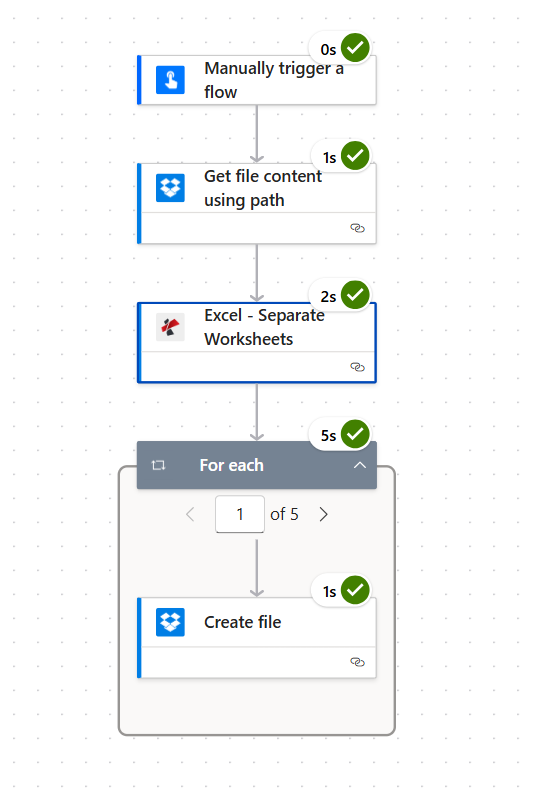
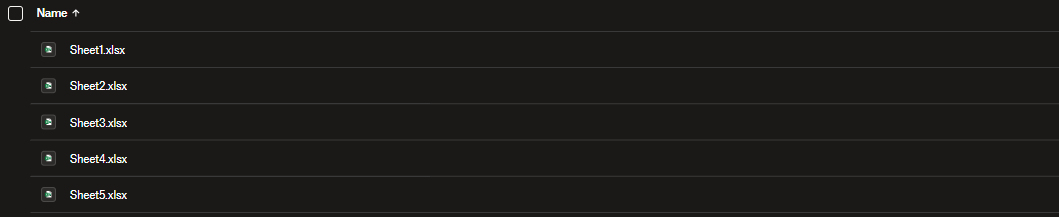
Pemicu manual memulai alur kerja. Dropbox Dapatkan isi file menggunakan jalur. membaca Separate.xlsx (5 lembar, masing-masing dengan daftar catatan Orang yang berbeda). Excel - Lembar Kerja Terpisah mengembalikan sebuah dokumen keluaran array dengan 5 entri: {fileName: "Sheet1.xlsx", streamFile: "<base64>"} melalui Sheet5.xlsx. Sebuah Terapkan pada setiap Perintah `over outputDocuments` dijalankan sekali per lembar (tangkapan layar menunjukkan hal tersebut). 1 dari 5 penghitung iterasi) dan menggunakan Buat berkas untuk memasukkan setiap XLSX ke dalam /pdf4metest/excel/lembar kerja terpisah/outputTelusuri folder output dan kelima file yang telah dipisah akan ada di sana, diurutkan secara alfabetis.
Satu hal yang orang lewatkan: Terapkan pada setiap tidak opsional
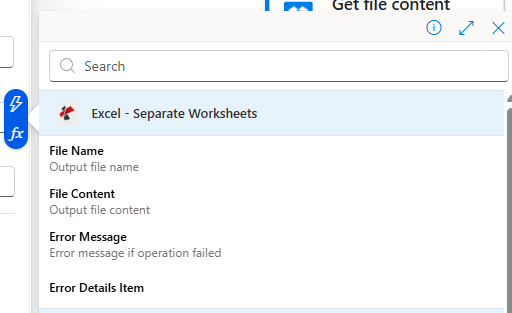
Excel - Lembar Kerja Terpisah mengembalikan sebuah susunan, bukan satu file tunggal. Jumlah entri bergantung pada buku kerja sumber (2 lembar masuk → 2 entri; 50 lembar masuk → 50 entri). Selalu bungkus langkah selanjutnya dengan Terapkan ke setiap item. dokumen keluaranMemilih Isi File Dari luar loop, tidak ada yang berguna yang dikembalikan. Di dalam loop, pemilih konten dinamis mengekspos Nama File Dan Isi File pada item saat ini.
Pertanyaan umum di dunia nyata yang dapat dipecahkan oleh solusi ini.
Orang-orang mencari solusi untuk masalah ini dengan frasa yang sangat spesifik. Berikut adalah pertanyaan-pertanyaan aktual yang dijawab oleh alur ini:
"Bagaimana cara memisahkan file Excel dengan banyak lembar kerja menjadi file terpisah secara otomatis?" Ya. Alur ini melakukan hal itu. Seret buku kerja sumber ke Dropbox, pemisahan + pengunggahan terjadi secara otomatis.
"Bisakah Power Automate menyimpan setiap lembar kerja sebagai file Excel terpisah?" Ya, melalui aksi PDF4me Connect ditambah perulangan "Terapkan ke setiap item". Tanpa VBA, tanpa Office Scripts.
"Apakah saya harus menulis satu tindakan per lembar?" Tidak. Fungsi "Terapkan ke setiap" berlaku untuk semua jumlah lembar. Isi alur kerja tidak pernah berubah.
"Bagaimana jika buku kerja tersebut memiliki 100 lembar?" Alurnya sama. Perulangan hanya berulang sebanyak 100 kali. Setiap iterasi berlangsung sekitar 1 detik.
"Bisakah saya mengganti nama file output?" Ya, buat nama baru dengan langkah Compose atau ekspresi di dalam loop sebelum Create file. Lihat bagian pemecahan masalah.
Alur Power Automate empat langkah yang dapat menangani lembar kerja multi-halaman apa pun. .xlsx dan menulis satu file per lembar kerja ke folder tujuan. Dapat digunakan kembali di berbagai sistem manajemen sumber daya manusia (HR), alur penjualan yang dibagi berdasarkan wilayah, laporan bulanan yang dibagi berdasarkan bulan, atau apa pun yang memiliki beberapa tab dalam satu buku kerja.
Alur lengkapnya. Perulangan "For each" dijalankan 5 kali (sekali per lembar keluaran); setiap iterasi berlangsung sekitar 1 detik.
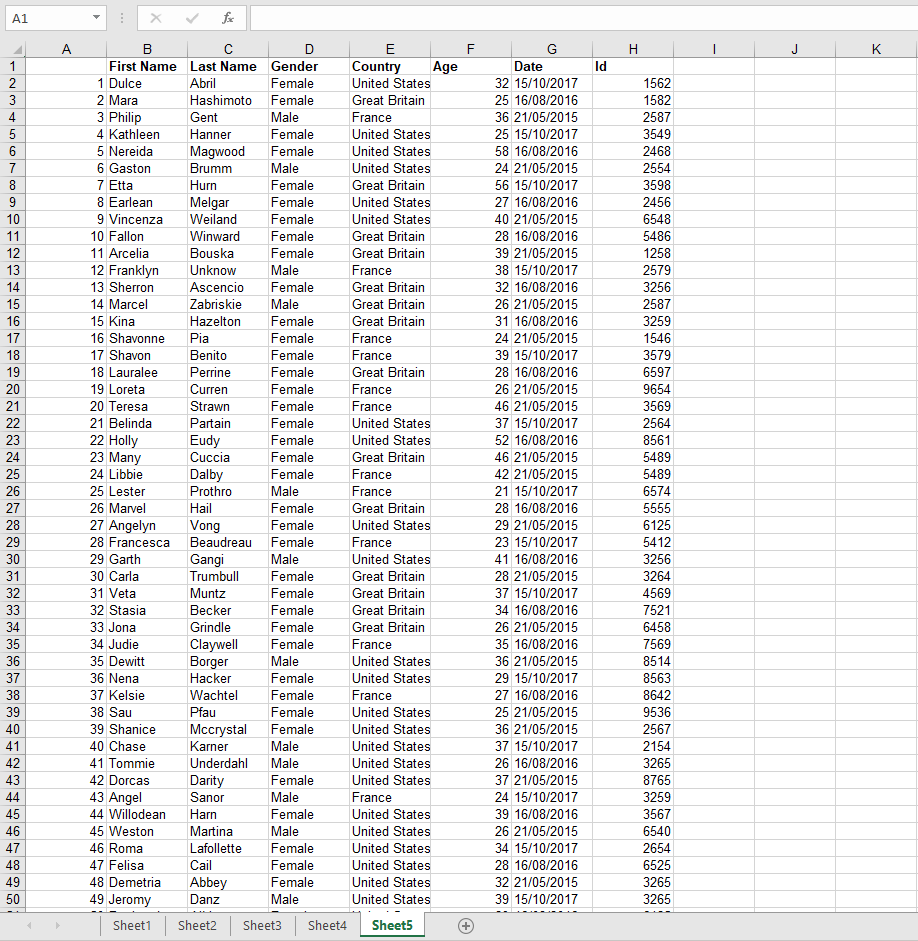
Membuka Separate.xlsx Dalam Excel. Terdapat 5 tab lembar kerja (Sheet1 hingga Sheet5), masing-masing diisi dengan baris data Orang: Nama Depan, Nama Belakang, Jenis Kelamin, Negara, Usia, Tanggal, dan ID.
Buku kerja sumber. Lima tab lembar di bagian bawah, masing-masing berisi sekitar 50 baris catatan Orang.Folder sumber sebelum alur kerja dijalankan. Hanya satu buku kerja.
Untuk pengujian, pemicu manual adalah yang tercepat. Dalam produksi, gantilah dengan Saat sebuah file dibuat (Dropbox), Saat suatu item dibuat (SharePoint), Saat email baru tiba (Outlook), Kambuhatau pemicu lainnya.
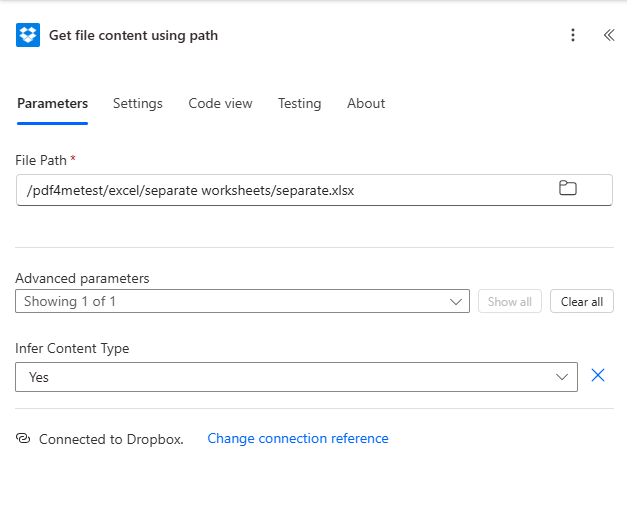
Aksi 2: Dropbox - Dapatkan konten file menggunakan jalur
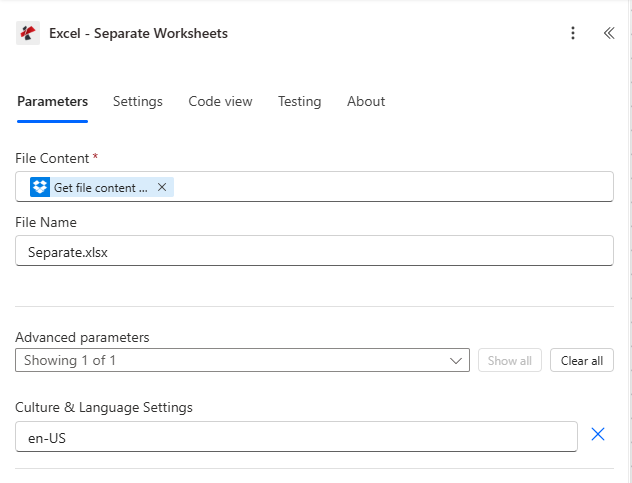
Cari PDF4me di pemilih aksi dan pilih Excel - Lembar Kerja TerpisahKonfigurasi:
Bidang
Nilai yang digunakan dalam proses ini
File Content
File Content from the previous Dropbox step (dynamic content)
File Name
Separate.xlsx
Culture & Language Settings (Advanced)
en-US (default. change only for non-US locales)
Konfigurasi tindakan. Budaya default ke en-US. beralih ke fr-FR, Itu dia, I-JP dll. hanya jika isi lembar kerja menggunakan format angka/tanggal non-AS.
Langkah 4: Terapkan ke masing-masing → Dropbox - Buat file
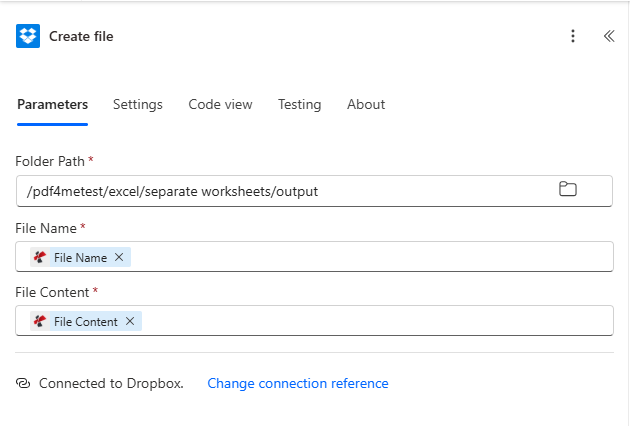
Setelah tindakan Pisahkan Lembar Kerja, tambahkan Terapkan pada setiap dan pilih dokumen keluaran dari pemilih konten dinamis. Di dalam loop, seret Dropbox. Buat berkas lakukan dan konfigurasikan seperti ini:
Bidang
Nilai yang digunakan dalam proses ini
Folder Path
/pdf4metest/excel/separate worksheets/output
File Name
File Name (dynamic content from the current item)
File Content
File Content (dynamic content from the current item)
Fungsi "Terapkan ke setiap" mengulangi outputDocuments. Nama File dan Isi File item saat ini akan muncul di pemilih konten dinamis di dalam perulangan.Di dalam perulangan. Nama File dan Isi File berasal dari item saat ini.
Apply to each does not show File Name / File Content
Make sure the loop is iterating outputDocuments, not the action itself. Click the Apply to each dropdown, search "outputDocuments", and pick it.
Only one file appears in the output folder
Create file is OUTSIDE the loop. Drag it inside the Apply to each container so it runs once per item.
Output files all overwrite each other
Two causes: (a) File Name is hardcoded instead of mapped to dynamic content. delete and re-pick File Name from the inner item; (b) two sheets in the source share the same name. rename them in Excel or build a unique name in a Compose step.
Decimals read as text or dates
A sheet using 1.234,56 (comma decimal) gets misinterpreted because Culture & Language Settings is en-US. Switch to your locale (fr-FR, de-DE, pt-BR, etc).
Cross-sheet formula came out as #REF!
Expected. After splitting, =Sheet2!A1 from a Sheet1 output cannot resolve because Sheet2 is now in a different file. Plan each sheet to be self-contained, or pre-compute the values upstream.
Need a date prefix on each output file name
Inside the Apply to each, add a Compose before Create file with: concat(formatDateTime(utcNow(),'yyyy-MM-dd'),'_',items('Apply_to_each')?['fileName']). Point File Name at the Compose output. Result: 2026-06-02_Sheet1.xlsx.
How do I split an Excel file with multiple sheets into separate files automatically in Power Automate?+
Use the PDF4me Excel - Separate Worksheets action. It takes a single multi-sheet .xlsx as input and returns an outputDocuments array with one file per sheet. Wrap the result in an Apply to each loop and write each item with Create file. Four actions total: trigger, Get file content, Separate Worksheets, Apply to each → Create file.
Can Power Automate save each sheet as a separate Excel file without code?+
Yes. The PDF4me Excel - Separate Worksheets action is a no-code cloud connector. There is no VBA, no Office Script, no Power Automate Desktop required. it runs entirely in the Power Automate cloud designer and outputs ready-to-save .xlsx files.
What happens if the source workbook has a different sheet count next run?+
Nothing breaks. The action dynamically returns one outputDocuments entry per sheet present, and the Apply to each iterates whatever the array length is. Build the flow once with a 5-sheet sample and it will handle 2-sheet or 200-sheet workbooks identically.
Do the output files keep their sheet names?+
Yes. Each output file is named after its source sheet name plus the .xlsx extension. Sheet5 → Sheet5.xlsx. If you have custom sheet names (e.g. "Q1 2025"), the output file is "Q1 2025.xlsx" accordingly.
Will my formulas still work after the split?+
Intra-sheet formulas (everything that references cells on the same sheet) work as expected. the engine preserves cell values, number formats, and styles. Cross-sheet references like =Sheet2!A1 cannot survive because Sheet2 is no longer in the same file; expect those to become #REF!. Plan the workbook so each sheet is self-contained, or pre-compute the values upstream.
Can I use SharePoint, OneDrive, or Dataverse instead of Dropbox?+
Yes. Swap the Dropbox actions for SharePoint Get file content / Create file, OneDrive Get file content / Create file, or Dataverse Download file / Add file. The PDF4me action and its parameters are identical regardless of source.
How do I rename the output files (add a date prefix, replace spaces, etc.)?+
Inside the Apply to each loop, add a Compose step before Create file. Build the new name with concat() and formatDateTime() expressions, then bind Create file → File Name to the Compose output. Example: concat(formatDateTime(utcNow(),'yyyy-MM-dd'),'_',items('Apply_to_each')?['fileName']) produces 2026-06-02_Sheet1.xlsx.
Is there a limit on the number of sheets I can split?+
Practical limits are bounded by Power Automate run-time and action body size. A single workbook with hundreds of sheets is fine; the loop just iterates more times. For thousands of sheets, consider Power Automate concurrency settings or batching the work across multiple runs.
Does this work in Power Automate Desktop?+
PDF4me Connect is a cloud connector available in Power Automate (the web flow designer). For Power Automate Desktop, call the same Separate Worksheets REST endpoint with the HTTP action.