How to Set Up Document Classification for PDFs
PDF4me Classify Document enables you to classify and categorize PDF documents based on expressions (regular expressions or JavaScript). You define document classes with search patterns; when a PDF is submitted, PDF4me matches the document content against your rules and returns the Class Name. This guide walks you through creating and configuring classification rules in the PDF4me dashboard.
How to Access the Document Classification Dashboard
- Log in to the PDF4me API Portal at dev.pdf4me.com
- From the Dashboard, click Classify Document in the left sidebar
- You'll see the Classify Document page with the subtitle: "Classify your documents based on expressions"
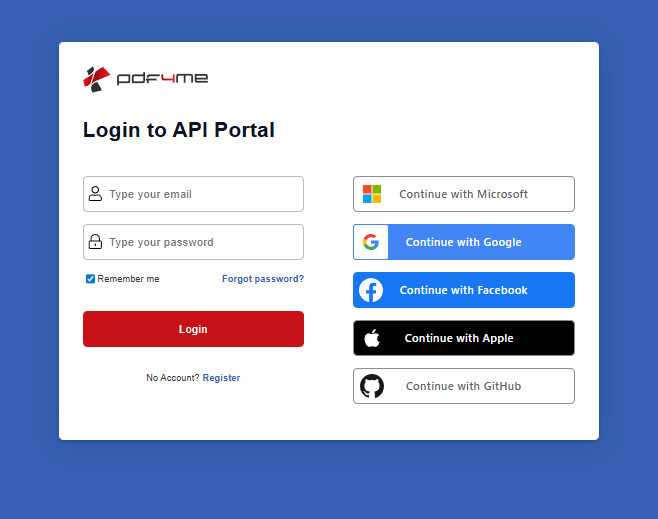
Login to API Portal
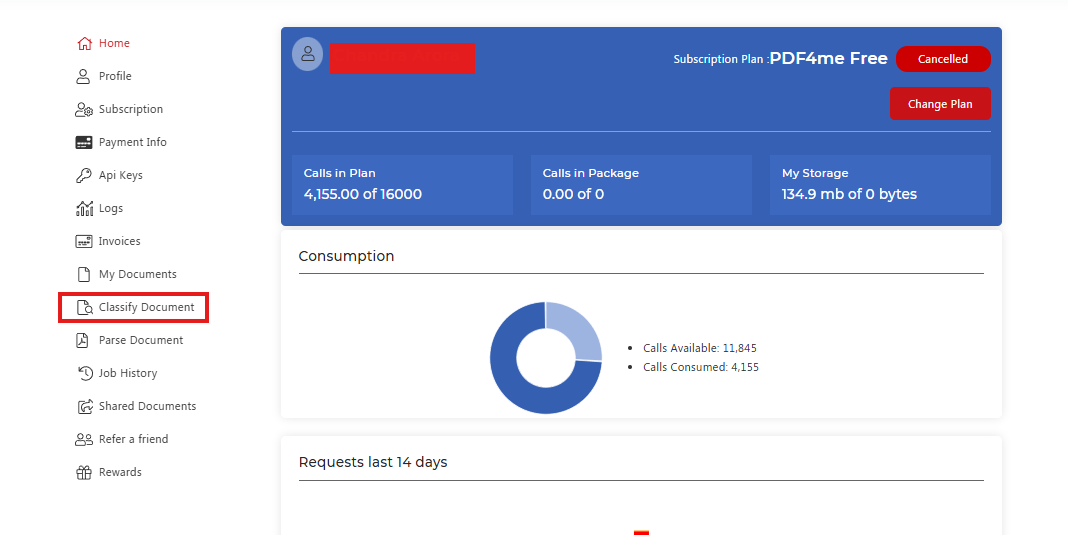
Classify Document in the sidebar
Understanding the Classify Document Page Interface
Open Classify Document in your dashboard. The page shows:
- Class Name panel (left) — List of document classes with a + button to add new classes
- Action buttons — Upload Template File, Test Classify, Save Changes
- Select Test File — Dropdown to choose a file for testing classification
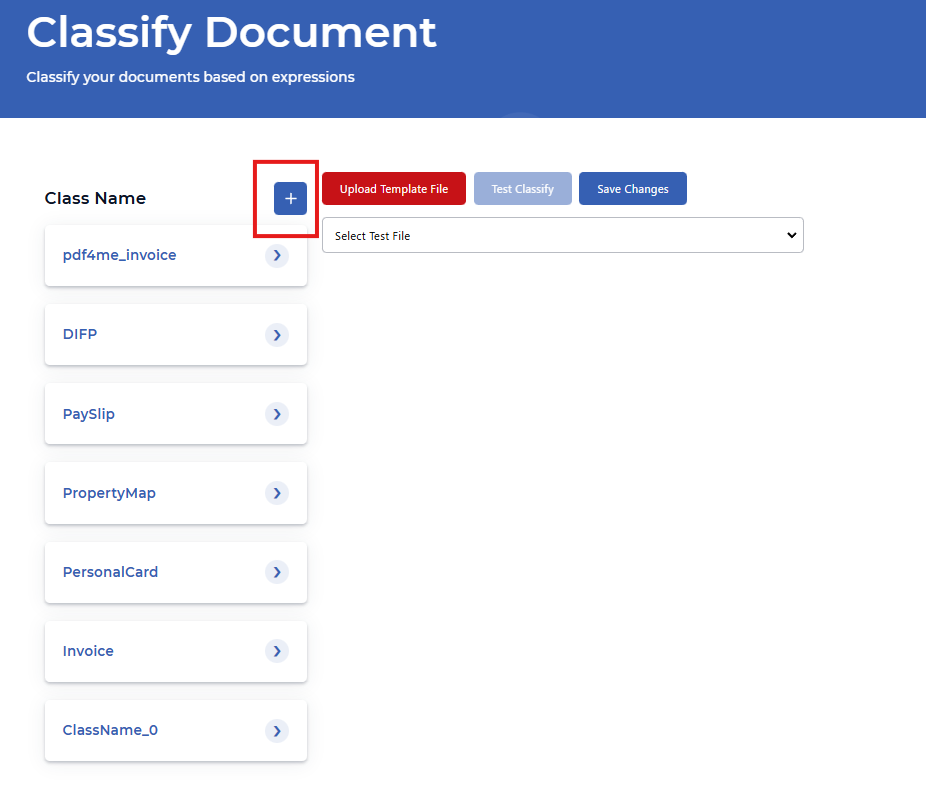
How to Add or Edit Document Classification Rules
- Click the blue Edit button (pencil icon) to enter edit mode
- You'll see a table with Class Name, Search Text (regex or expression), and Actions (delete)
- Use the trash icon to remove a class; use the + button next to Class Name to add a new class
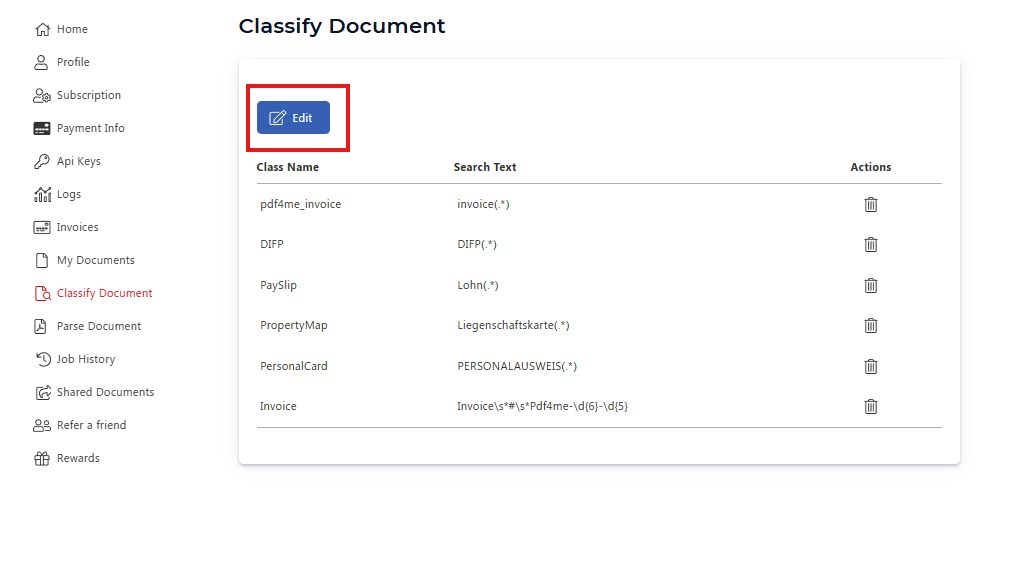
How to Configure a Document Classification Class
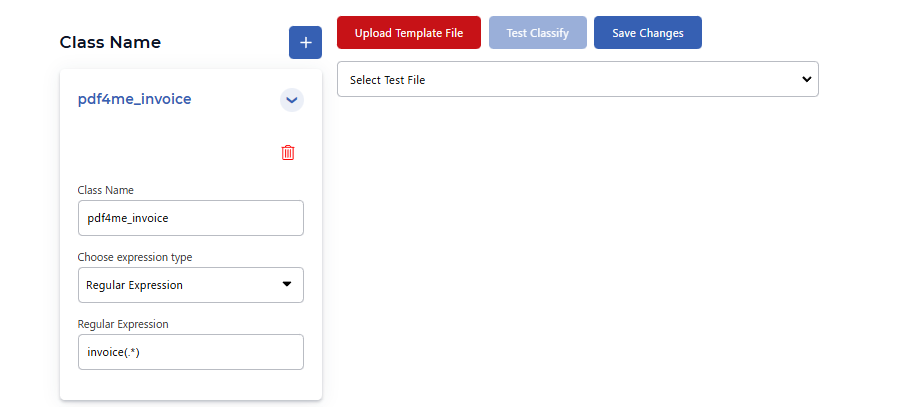
- Select a class from the left panel (e.g.
pdf4me_invoice) or add one with the + button - In the class configuration card:
- Class Name — Name returned by the API when a document matches (e.g.
pdf4me_invoice,Invoice) - Choose expression type — Select Regular Expression or JavaScript
- Regular Expression — Enter the pattern that identifies this document type (e.g.
invoice(.*)matches documents containing "invoice" followed by any characters)
- Class Name — Name returned by the API when a document matches (e.g.
- Use the trash icon next to the class name to delete the class
Upload a PDF for Classification Testing
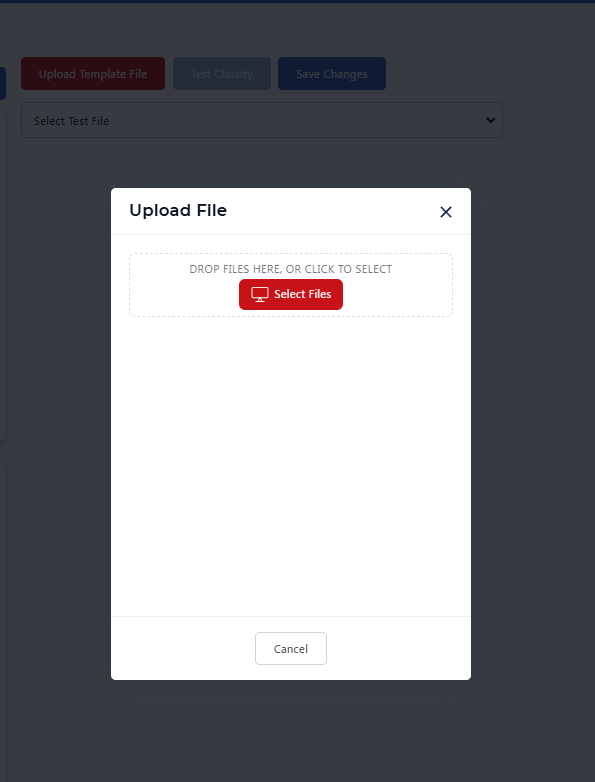
- Click Upload Template File
- In the Upload File modal: drop files here or click Select Files to choose a PDF
- Click Cancel to close without uploading
Test Your Document Classification Rules
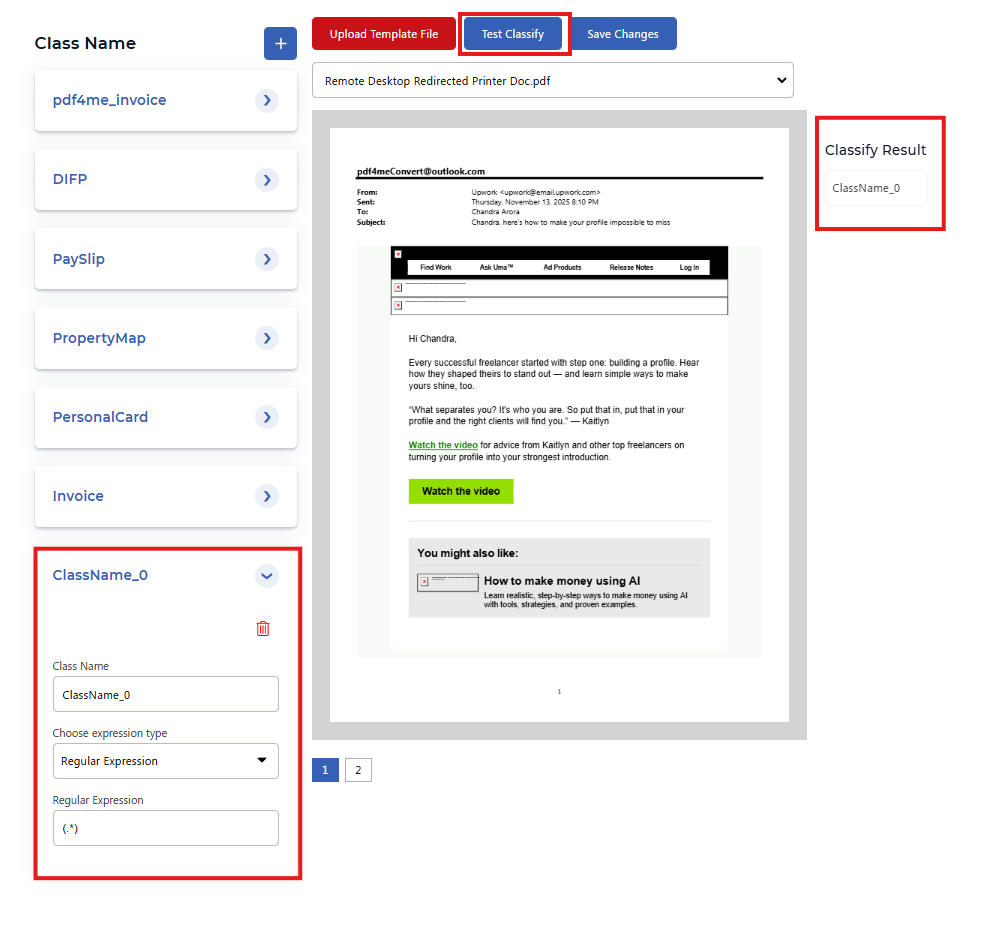
- Use Select Test File to pick an uploaded document
- Click Test Classify to run the classification rules against the selected file
- The Classify Result panel shows the matched Class Name (e.g.
ClassName_0)
Save Your Document Classification Configuration
Click Save Changes to save your classification rules to your PDF4me account. These rules are used when you call the Classify Document API or use Classify Document in Zapier, Make, n8n, or Power Automate.
Document Classification Expression Tips: Regex and JavaScript
- Regular Expression — Use regex patterns to match document content. Examples:
invoice(.*)— matches "invoice" followed by any charactersInvoice\s*#\s*Pdf4me-\d{6}-\d{5}— matches specific invoice number formatDIFP(.*),Lohn(.*),Liegenschaftskarte(.*)— domain-specific patterns(.*)— matches any document (catch-all)
- JavaScript — Use custom logic for more complex classification (if supported)
Use Document Classification in Zapier, Make, n8n, and API
After saving your classes, use the Class Name returned by the API in your workflows:
- Zapier — Route documents by Class Name in Filters or Paths
- Make, n8n, Power Automate — Use Class Name in routers and conditions
- REST API — Call the Classify Document endpoint with your PDF; response includes
className