Unlock PDF
The Unlock PDF action takes a password-protected PDF and the password that currently opens it, then returns the same document with the password protection removed. The input is one encrypted PDF plus its existing password, and the output is a single PDF that opens without prompting for a password.
Use it when a later step cannot read a protected file. OCR, text extraction, merge, and conversion steps all fail on an encrypted PDF, so placing this action first clears the password and lets them run. It also helps when a vendor or bank sends statements on a fixed password: remove the password once, then store plain copies in Dropbox or a shared folder for the rest of the team.
Configuration
Configure the Unlock PDF step in the workflow builder:
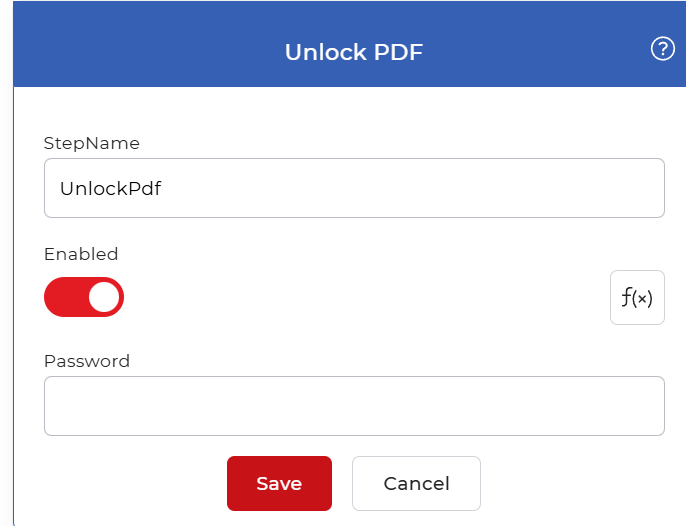
Action overview
| Input | Password-protected PDF document, plus its existing password |
| Output | Single PDF with the password removed |
Properties
Password
- Type: String
- Required: Yes
The password that currently opens the protected PDF. Enter the exact password set on the file. If the value is wrong or left blank, the action cannot read the document and the step fails. Set it to a fixed value when every file uses the same password, or map it from a previous step's output when the password varies per document.
How to use in a workflow
Place Unlock PDF right after the step that supplies the protected file, either a trigger that picks up a new document or an earlier action that produced one. Because many actions cannot read an encrypted PDF, put this step before any OCR, extraction, merge, or conversion step that needs the content. Send its output to the next processing action, or to a save step such as Save to Dropbox when you only need a plain copy stored.
Try it in PDF4me Workflows
Open the Workflows dashboard, create a workflow, and add the Unlock PDF step to run this on your own documents.