Split Recurring
Split one PDF into several documents by cutting it after every fixed number of pages. You set the page interval, and the action walks through the file from the start, closing one output document and opening the next each time it reaches that count. A 12-page PDF split every 3 pages produces four documents of 3 pages each. If the final group is shorter than the interval, those remaining pages become the last document.
Reach for this when a single PDF holds a run of equal-length records: a scanned batch where every 2 pages is one invoice, a combined statement where each account takes exactly 4 pages, or a long report you need to break into even chunks before a later step that has a page limit. Because the output is a set of documents rather than one file, pair it with a For Each Document control to process each piece on its own.
Configuration
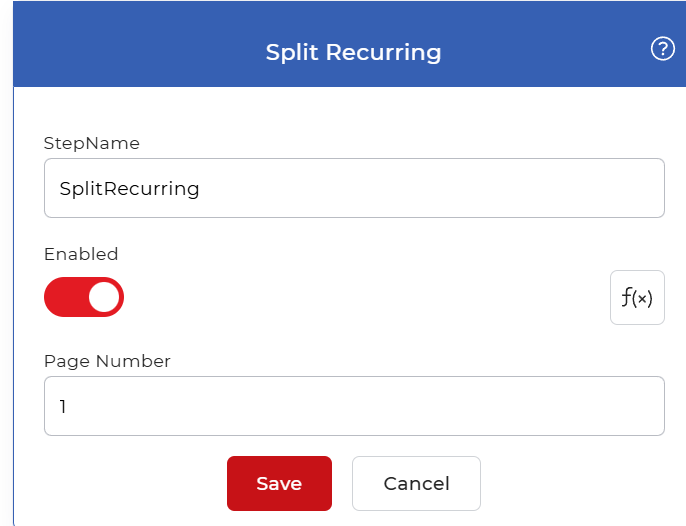
Configure the Split Recurring step in the workflow builder:
Action overview
| Input | Single PDF document |
| Output | Multiple PDF documents, one per page interval |
Properties
Page Number
- Type: Integer
- Default: 1
The number of pages in each output document. The action cuts a new file after this many pages and repeats until it reaches the end of the PDF. Set it to 2 to turn every pair of pages into its own document, 4 for groups of four, and so on. With the default of 1, every page becomes a separate document. Choose the value that matches the fixed length of the records inside your file.
How to split recurring using Workflows
PDF4me Workflows can split large PDF files automatically. Here is a sample workflow that splits a large PDF file after a fixed number of pages and saves each output document to cloud storage.
Create a workflow
Launch the PDF4me Dashboard and select Create Workflow to start building your automation.

Add a trigger
Add a trigger to kick-start your automation. PDF4me Workflows provide Dropbox and Google Drive triggers, so choose whichever suits your setup. For this example, add a Google Drive trigger, configure the connection, and select the folder where the input files are expected.

Add the Split Recurring action
Add and configure the Split Recurring action. Set the page number, the number of pages after which the document is split, to break the PDF into multiple documents periodically.

Add a For Each Document control
Since the Split Recurring action generates multiple documents, add a For Each Document control to handle the output files one by one. Place the remaining actions inside this control.

Add a Save to action
Save the split documents back to cloud storage. For this use case, add and configure a Save to Google Drive action.
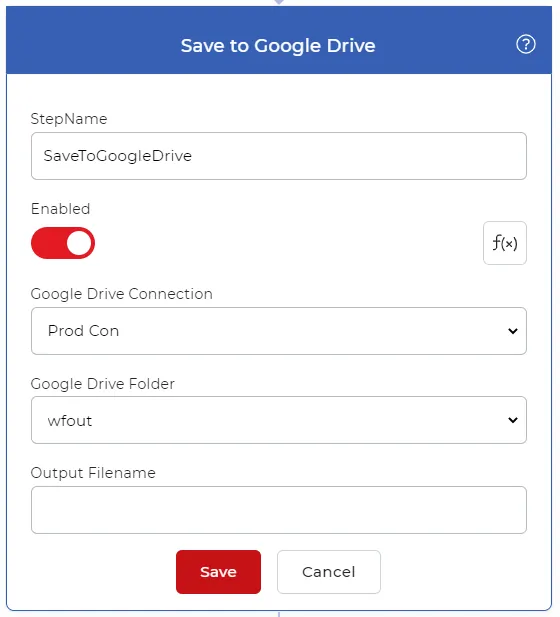
Now, every time a new file is detected in the configured Google Drive folder, the file is picked up, split using the Split Recurring action, and saved back to the configured folder.
Try it in PDF4me Workflows
Open the Workflows dashboard, create a workflow, and add the Split Recurring step to run this on your own documents.