Split By Page Number
Split one PDF into two files at a page boundary you choose. You give the step a single PDF and a page number, and it cuts the document right after that page: with a 10-page file split at page 4, you get one file with pages 1 to 4 and a second file with pages 5 to 10. The step returns multiple PDF documents, which you then handle with a For Each control.
Reach for this action when a combined PDF holds two parts that belong in separate files. Common cases: separating a cover letter from the resume behind it, pulling a one-page summary off the front of a long report, or splitting a scanned batch where the first few pages are one record and the rest are another.
Configuration
Configure the Split By Page Number step in the workflow builder:
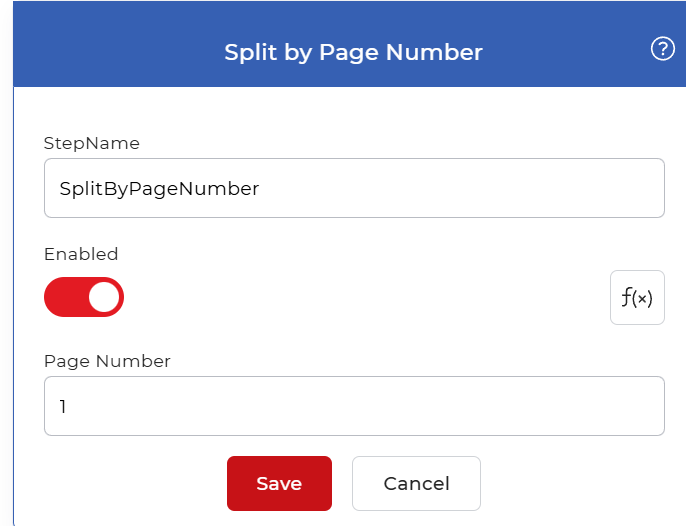
Action overview
| Input | A single PDF document |
| Output | Two PDF documents: pages before and including the split point, and the pages after it |
Properties
Page Number
- Type: Integer
- Default: 1
The page the first output file ends on. The document is cut right after this page, so the first file holds pages 1 through the number you enter, and the second file holds everything after it. Enter a whole number that falls inside the document: for a report whose summary runs through page 3, set this to 3 to keep pages 1 to 3 in one file and send the rest to the second.
How to split a PDF by page number using Workflows
PDF4me Workflows can split PDF files automatically. Here is a sample workflow that splits a PDF document into multiple files by page number.
Add a trigger
Begin by adding and configuring a Dropbox trigger. PDF4me Workflows also support Google Drive triggers, so choose whichever suits your workflow.

Add the Split By Page Number action
Add and configure the Split By Page Number action. Enter the page number after which the PDF should be split. The document divides right after that page and produces multiple PDF files.

Add a For Each loop
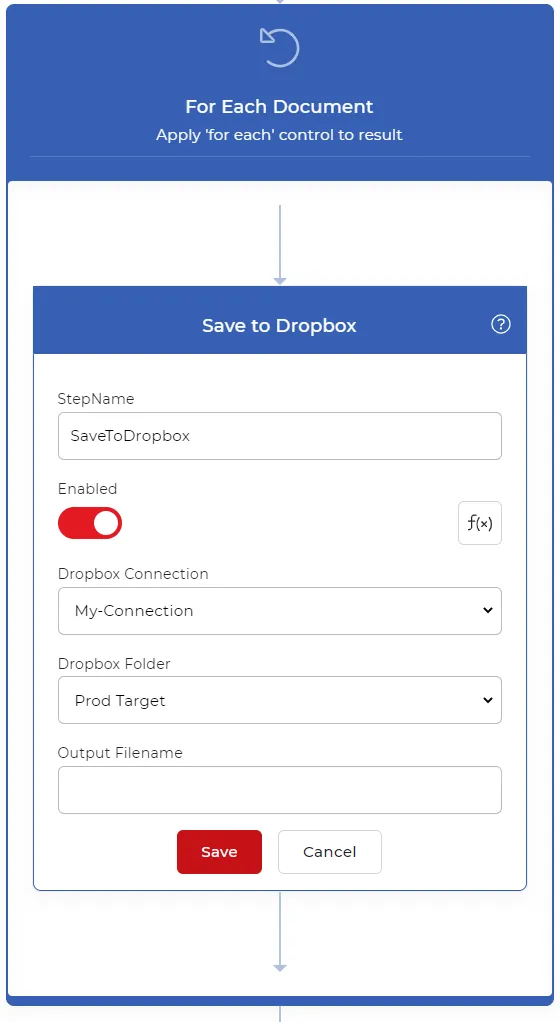
Because the split produces multiple PDF documents, add a For Each control to process them. Place every action that handles the split files inside this control.

Add a Save to Dropbox action
Once the PDF is split, save the output files to your storage. PDF4me supports several save options. For this workflow, add and configure a Save to Dropbox action inside the For Each control.
Try it in PDF4me Workflows
Open the Workflows dashboard, create a workflow, and add the Split By Page Number step to run this on your own documents.