Split by Barcode
The Split by Barcode action reads the barcodes printed on the pages of a single PDF and cuts the file into several PDF documents wherever a matching barcode appears. The input is one PDF; the output is multiple PDF files, one for each section the barcodes mark off.
Reach for it when a batch scan arrives as one long PDF that needs to be broken into its real documents. A common setup places a barcode separator sheet between documents, so a stack of invoices scanned in one pass splits back into one file per invoice. It also works when every document already carries its own barcode, such as patient records tagged by ID or shipping labels batched into a single file, and you want each one saved on its own.
Configuration
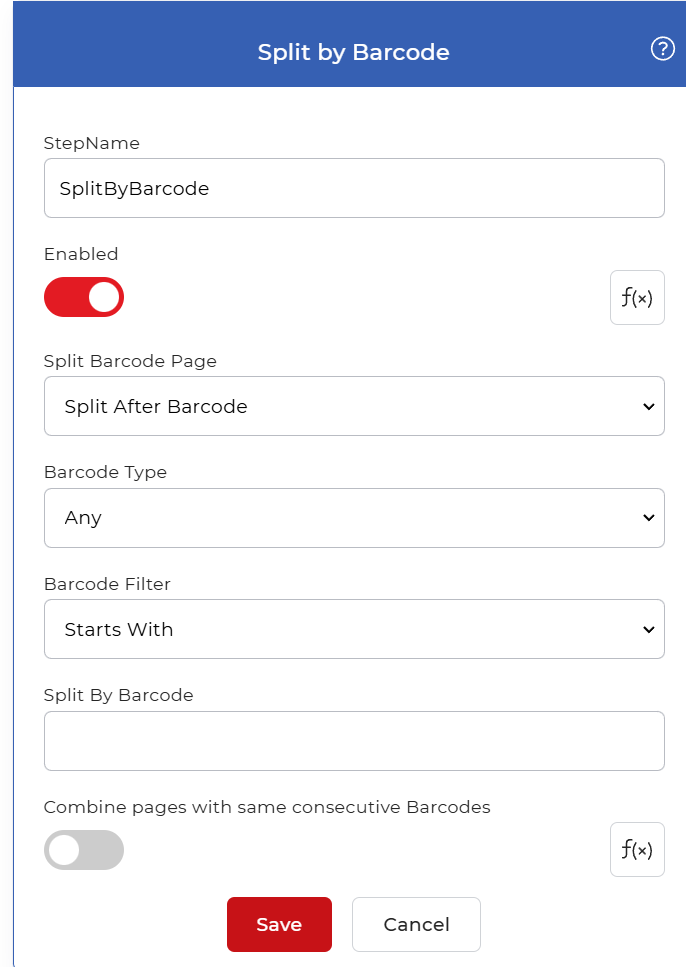
Configure the Split by Barcode step in the workflow builder:
Action overview
| Input | Single PDF document |
| Output | Multiple PDF documents, one per split section |
Properties
Split Barcode Page
- Type: Select
- Required: Yes
Controls where the cut falls relative to the page that holds the matching barcode. The options are:
- Split Before Barcode: the barcode page starts a new document, so it becomes the first page of the next file.
- Split After Barcode: the barcode page ends the current document, so it stays as the last page of that file.
- Remove page with Barcode: the barcode page is dropped from the output entirely.
Choose Remove page with Barcode when the barcode sits on a separator sheet you do not want to keep. Choose Before or After based on whether the barcode page belongs to the document that follows it or the one before it.
Barcode Type
- Type: Select
- Required: Yes
The barcode symbology the action looks for on each page. The supported types are:
- Any: reads every supported symbology, so a page is matched whatever barcode type it carries.
- QR code: reads QR code symbols only.
- Datamatrix: reads Data Matrix symbols only.
- Code128: reads Code 128 linear barcodes only.
Set this to match the barcodes your scanner or source documents actually carry. When set to a specific type, only barcodes of that type are read.
Barcode Filter
- Type: Select
- Required: Yes
How the detected barcode text is matched against the value in Split By Barcode. The options are:
- Starts With: matches when the barcode text begins with your value.
- Ends With: matches when the barcode text ends with your value.
- Contains: matches when your value appears anywhere in the barcode text.
- Exact: matches only when the barcode text equals your value exactly.
Use Exact when you know the full barcode value. Use Contains, Starts With, or Ends With when the value you care about is only part of a longer code, such as a shared prefix on every separator sheet.
Split By Barcode
- Type: String
- Required: Yes
The text value the filter compares each barcode against. Enter the barcode data that marks a split, for example the prefix stamped on your separator sheets or the exact string a given document type uses. Pages whose barcode matches this value according to the filter trigger a split.
Combine pages with same consecutive Barcodes
- Type: Boolean
- Default: Off
When enabled, consecutive pages that carry the same matching barcode value are kept together in one output document instead of each page triggering its own split. Leave it off when every matching barcode should start a new file.
How to use in a workflow
Place Split by Barcode after the step that supplies the PDF, which is either a trigger that picks up a scanned file or an earlier action that produced one. Because the step returns several PDF files, follow it with a For Each Document control so the next steps run on each resulting document on its own, then a save step such as Save to Dropbox to store the split files.
Try it in PDF4me Workflows
Open the Workflows dashboard, create a workflow, and add the Split by Barcode step to run this on your own documents.