Sign PDF
The Sign PDF action sends a PDF document to a named approver for a formal decision. The approver receives an email, reviews the document, and either approves or rejects it, with the option to add a signature and comments. The input is a single PDF; the output is that same PDF marked approved or rejected, together with the approver's feedback.
Use it whenever a document needs a sign-off before it moves on. A contract can go to a manager for approval before it reaches a client, an invoice can wait for finance to review it before payment, or a policy draft can route to a department head who signs off before it is published. For sign-off at more than one level, chain a separate Sign PDF step for each approver.
Configuration
Configure the Sign PDF step in the workflow builder:
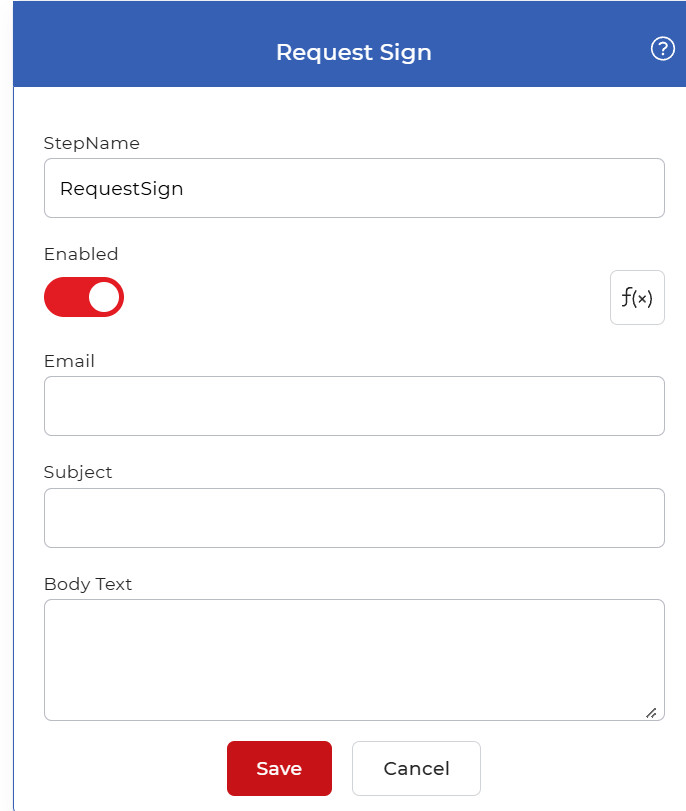
Action overview
| Input | Single PDF document to send for approval |
| Output | The PDF marked approved or rejected, with the approver's signature and comments |
Properties
Email
- Type: String
- Required: Yes
The email address of the person who receives the approval request. The review notification is sent here, so enter the approver's address. For a multi-level approval, add one Sign PDF step per approver, each with its own email.
Subject
- Type: String
- Required: Yes
The subject line of the approval email. Write something that names the document or the decision needed so the approver recognizes the request in their inbox.
Body Text
- Type: String
- Required: No
The message shown in the body of the approval email. Use it to tell the approver what the document is and what you need from them. Leave it blank to send the email with no custom message.
How to use in a workflow
Place Sign PDF after the step that supplies the PDF that needs approval, which is either a trigger that picks up a new file or an earlier action that produced one. The step pauses the workflow until the approver responds by email. Once they approve or reject, the step passes the document and their feedback to the next step, so follow it with a step that acts on the decision: a save step such as Save to Dropbox to file an approved document, or a notification step to report a rejection.
Try it in PDF4me Workflows
Open the Workflows dashboard, create a workflow, and add the Sign PDF step to run this on your own documents.