Set Variable
Create a named value that other steps in the same workflow can read. The action takes no file. You give the variable a key and enter its value, and the workflow stores that value and exposes it to every action that runs after it, which read it back by the key.
Use it to hold a fixed value once, such as a folder path or an email address, so you set it in one place instead of retyping it in each step. It also fits when you want to capture a value from a trigger or an earlier action, for example a file name or a date, and pass it into a later save step or naming pattern. A variable can also carry a flag or a count that a condition or loop checks as the workflow runs.
Configuration
Configure the Set Variable step in the workflow builder:
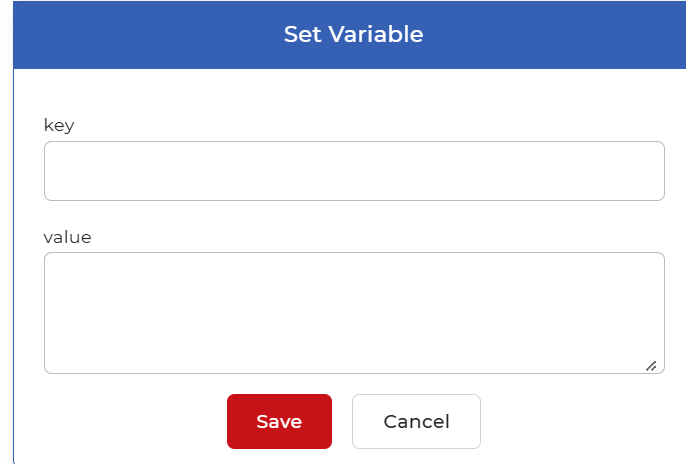
Action overview
| Input | None. This is a control structure action, so it reads no file. |
| Output | The key and value pair you set, stored as a variable that later actions in the same PDF4me Workflow read back by its key. |
Properties
key
- Type: String
- Required: Yes
The name used to store the value. Later steps read the variable by this key, so keep it short and descriptive and make it easy to recognize when another action needs the stored value.
value
- Type: Text
- Required: Yes
The value stored under the key. Enter a literal such as a folder path, an email address, a flag, or a count, or a reference to a trigger field or an earlier action's output. The field is a multi-line input, so it holds longer text when you need it.
How to use in a workflow
Place Set Variable before the steps that need the value, usually near the start of a workflow or right after the step that produces the value you want to keep. The action reads no file: you type the key and enter its value in the step, and the value can be a literal or a reference to a trigger field or an earlier action's output. Later actions read the variable by its key, so a single stored value can feed the folder in Save to Dropbox or Save to Google Drive, the recipient or subject in Send Document as Email, or the file name applied inside a For Each Document loop.
Try it in PDF4me Workflows
Open the Workflows dashboard, create a workflow, and add the Set Variable step to run this on your own documents.