Set PDF Permissions
Apply usage permissions to a PDF inside your workflow. The step takes one PDF and returns the same PDF with a permissions password set and a set of restrictions baked in, so recipients can open and read the file but can only do what you allow: print, copy text, edit content, change annotations, or fill in forms.
Use it to lock down a contract or report before it leaves your workflow, so readers cannot copy the text out or alter the content. Protect invoices or statements that an earlier step generated before you save them to a shared folder. Or hand out a form that recipients can fill in while printing stays blocked.
Configuration
Configure the Set PDF Permissions step in the workflow builder:
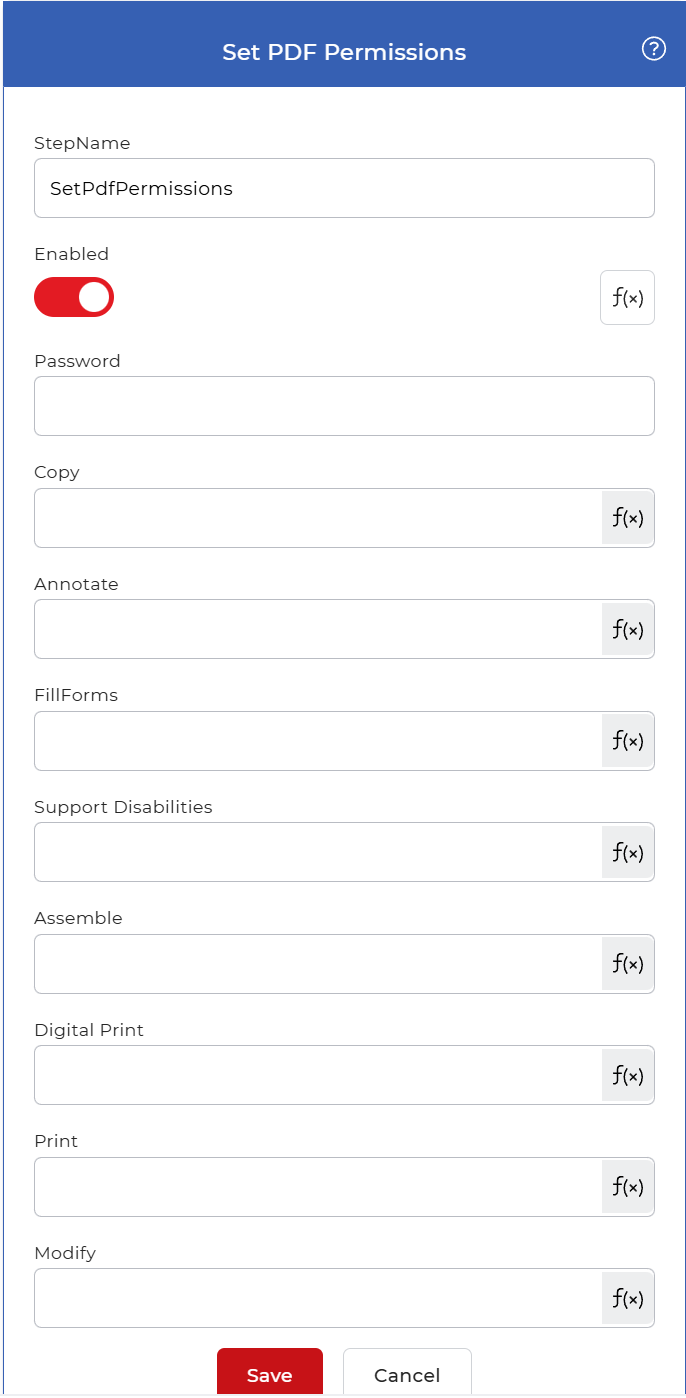
Action overview
| Input | Single PDF document |
| Output | Same PDF document with the permissions password and restrictions applied |
Properties
Password
- Type: String
- Required: Yes
The permissions password written onto the PDF. It enforces every restriction you set below: anyone who has this password can change the permissions again, while recipients without it are held to the rules you choose. Set a password you control and keep it separate from the people you send the file to.
Copy
- Type: Boolean
- Required: No
Controls whether recipients can copy text and images out of the PDF. Set it to true to allow copying, false to block it. Set it to false when you want the content read in place but not reused elsewhere.
Annotate
- Type: Boolean
- Required: No
Controls whether recipients can add or change annotations and comments on the PDF. Set it to true when you want reviewers to mark up the file, false to keep the document free of added notes.
FillForms
- Type: Boolean
- Required: No
Controls whether recipients can fill in interactive form fields. Set it to true for documents you send out to be completed, false when the form should stay as is.
Support Disabilities
- Type: Boolean
- Required: No
Allows content to be read on screen by assistive software such as screen readers. Keep it set to true so the PDF stays accessible even when other restrictions are on.
Assemble
- Type: Boolean
- Required: No
Controls whether recipients can assemble the file, meaning insert, delete, or rotate pages. Set it to false to keep the page structure fixed.
Digital Print
- Type: Boolean
- Required: No
Controls whether recipients can print the PDF at full digital quality. Set it to false to prevent high-resolution printing while you still allow or block ordinary printing with the setting below.
Print
- Type: Boolean
- Required: No
Controls whether the PDF can be printed at all. Set it to false to stop printing, true to allow it.
Modify
- Type: Boolean
- Required: No
Controls whether recipients can edit the content of the PDF. Set it to false to keep the document read-only, true to let recipients change the content.
How to use in a workflow
Place Set PDF Permissions after the step that produces the finished PDF, which is either a trigger that picks up a new file or an earlier action such as a merge or convert step. The step returns a single protected PDF, so follow it with a save step such as Save to Dropbox to store the locked file, or a send step to deliver it to recipients who will read it under the restrictions you set.
Try it in PDF4me Workflows
Open the Workflows dashboard, create a workflow, and add the Set PDF Permissions step to run this on your own documents.