Set PDF Metadata
Write document properties into a PDF and get back the same file with those properties updated. You supply values for the title, author, subject, and keywords, and the action stores them in the file's metadata, the information a PDF reader shows under Document Properties. The page content stays untouched; only the metadata changes.
Use it to stamp a consistent author and title on every invoice or report your workflow produces, to add searchable keywords so a document management system can find the file later, or to correct properties on PDF files that arrived from a scanner or an export with blank or wrong metadata.
Configuration
Configure the Set PDF Metadata step in the workflow builder:
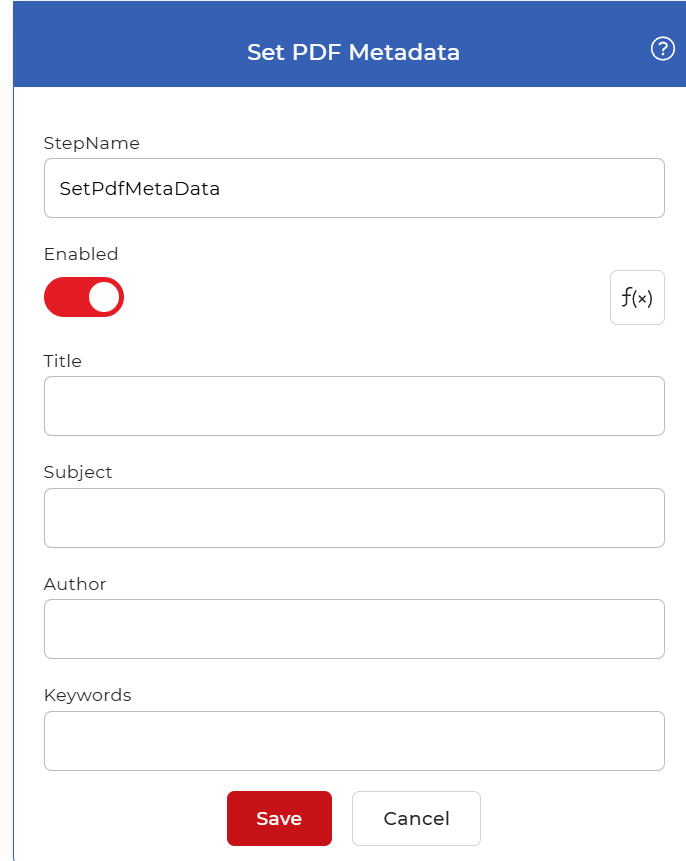
Action overview
| Input | Single PDF document |
| Output | The same PDF document with updated metadata |
Properties
Title
- Type: String
- Required: No
The document title stored in the PDF metadata. A PDF reader shows this value in its title bar and in the Document Properties panel, and search tools use it to label the file. Set it to a report name, an invoice number, or any label you want readers to see instead of the raw file name.
Subject
- Type: String
- Required: No
A short description of what the document covers, stored in the metadata and shown next to the title in Document Properties. Use it to note the document's category or purpose, for example a quarterly sales report or a signed contract.
Author
- Type: String
- Required: No
The author name recorded in the PDF metadata. Enter a person, a team, or your company so readers and document systems can see who produced the file. Change it per document when the workflow handles files from different owners.
Keywords
- Type: String
- Required: No
The keywords stored with the file. Search and indexing tools read these terms to find and classify the document, so enter the words that describe its topic or category.
How to use in a workflow
Place Set PDF Metadata after the step that supplies the PDF, which is either a trigger that picks up a new file or an earlier action that produced the document. Feed it the PDF and your metadata values, then send its output to a save step such as Save to Dropbox or a delivery step, so the file is stored with the correct properties already in place.
Try it in PDF4me Workflows
Open the Workflows dashboard, create a workflow, and add the Set PDF Metadata step to run this on your own documents.