Send to Me
The Send to Me action takes the document passing through the workflow and emails it to the registered email address of the PDF4me account that owns the workflow. The document goes out as a file attachment, and you set the subject line and an optional message for the body. Input is a single document, output is one email with that document attached, sent to your own address.
Use it to deliver a finished file to your inbox at the end of a conversion or merge pipeline, to receive a generated report without opening the workflow dashboard, or to keep a copy of a processed invoice or contract in your own mailbox after earlier steps have run on it.
Configuration
Configure the Send to Me step in the workflow builder:
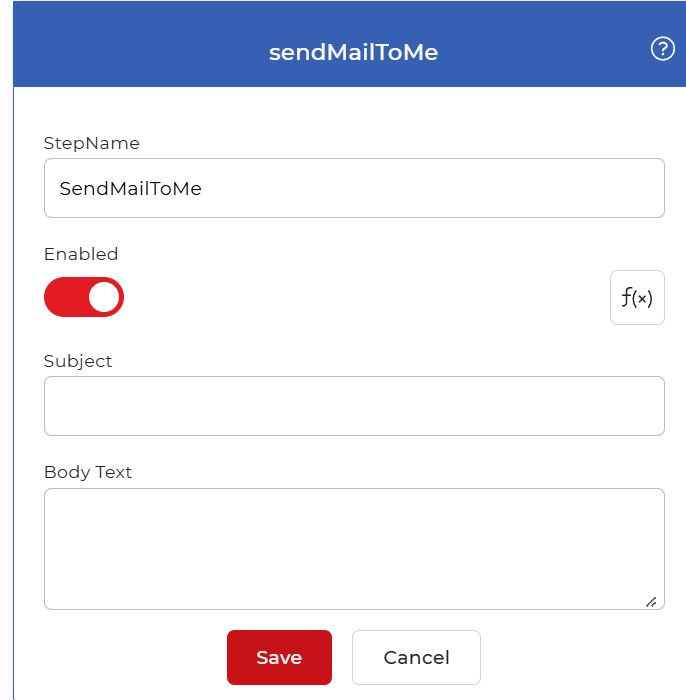
Action overview
| Input | Single document from the previous step |
| Output | Email sent to your registered address with the document attached |
Properties
Subject
- Type: String
- Required: Yes
The subject line of the email. Enter the text that should appear in the inbox, for example Weekly invoice summary or Converted report. Pick something that tells you at a glance which workflow produced the file, since every run uses this same subject unless you change it.
Body Text
- Type: String
- Required: No
The message that appears in the body of the email. Leave it empty to send the attachment with no message, or add a short note describing what the attached document is or which workflow sent it.
How to use in a workflow
Place Send to Me at the end of a workflow, after the step that produces the document you want delivered. Its input is the file from the previous action, such as a conversion, merge, or document generation step. Set Subject to a value that names the output, for example Converted invoice ready, and leave Body Text empty or add a one-line note. The action's output is the email that lands in your registered inbox. Because it sends only to the account owner's address, use it for your own copies and notifications rather than for sending files to clients or other recipients. To store the same file as well, pair it with a save step such as Save to Dropbox or Save to Google Drive.
Try it in PDF4me Workflows
Open the Workflows dashboard, create a workflow, and add the Send to Me step to run this on your own documents.